
Adding IP addresses
IP authentication lets you restrict FileRoom access to specific computers. Only allowlisted IP addresses on the
IP Authentication
will be able to sign in to FileRoom.note
Once the IP Restriction is enabled, users at your firm can only access the FileRoom from the IP address added to the allowlist at .
Follow these steps to add a new IP address for a computer where FileRoom should be accessible.
- Go to .
 noteOnly users with permissions to access theSecuritytab will see theSecuritytab.
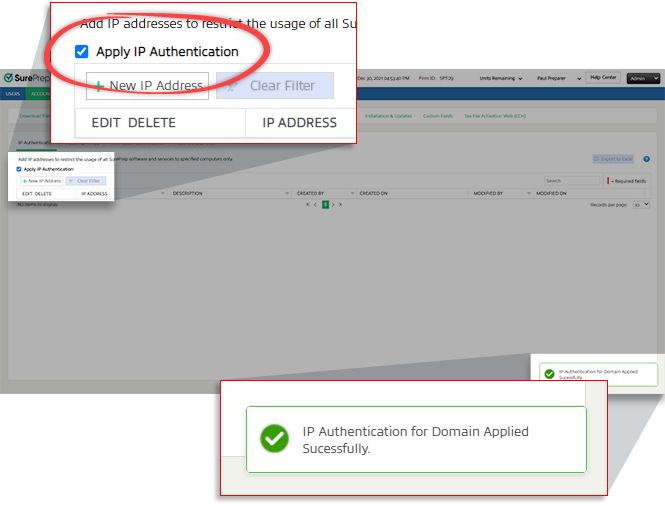
 - To enable IP Authentication, select theApply IP Authenticationcheckbox.noteApplying an IP Authentication restriction will restrict FileRoom access to all users at your firm. Users will only be able to access FileRoom from an IP address added to the list.
- SelectNew IP Address.
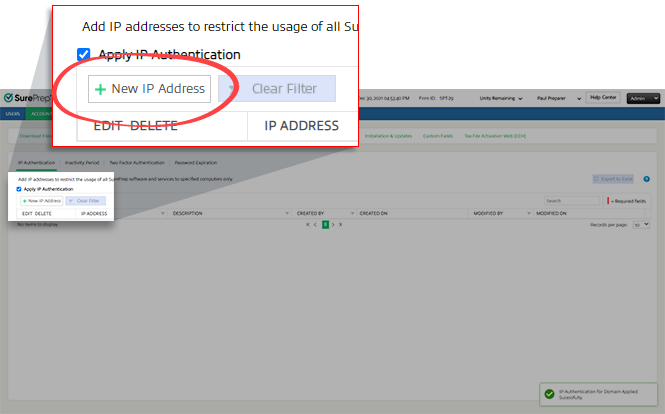
- A new row appears. UnderIP Address, type the IP address of the computer where FileRoom should be accessible.

- UnderDescription, type a description.

- Select theSaveicon
 .
.

- You can follow the same steps again to add additional IP addresses.
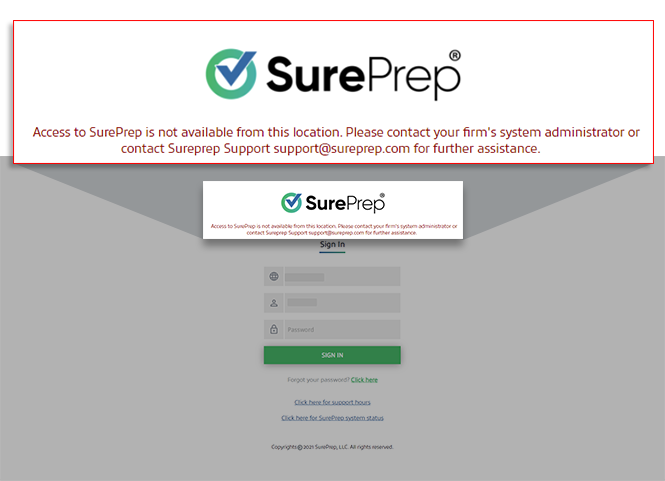
Once IP Authentication is enabled, users can only sign in from IP addresses approved by the firm. Users will see the following message when attempting to sign in from an unauthorized IP address location.
Access to SurePrep is not available from this location. Contact your firm's system administrator or contact SurePrep.Support@thomsonreuters.com for further assistance.
Related Content
-
IP Authentication Overview
Format: Article,
2 min read
Article,
2 min read

