
Sign in to FileRoom (standard sign-in)
This article will help users sign in to SurePrep's FileRoom, TaxCaddy, and Reviewer Dashboard services using the standard Thomson Reuters account sign-in (email address and password).
note
Users who sign into FileRoom through their firm's portal can review their sign-in process with the
Sign in to FileRoom with SSO (Single Sign-On)
article in the Related Content
section.Before you begin
Before signing into FileRoom, an administrator user at your firm will need to create your account. Contact your Firm System Administrator to add you if you don't have an account. Next, you will receive an activation email to set up your account password and security questions. You will need to complete this one-time setup before you sign in to your account.
Sign in to FileRoom
After activating your account:
- On FileRoom's sign-in screen, selectSign in with Thomson Reuters Account.note
- Your password is case sensitive and should be between 10 and 12 characters.
- If your firm requires you to sign in through your firm's sign in credentials then selectSSO users.
- Enter your email address, then selectSign In.
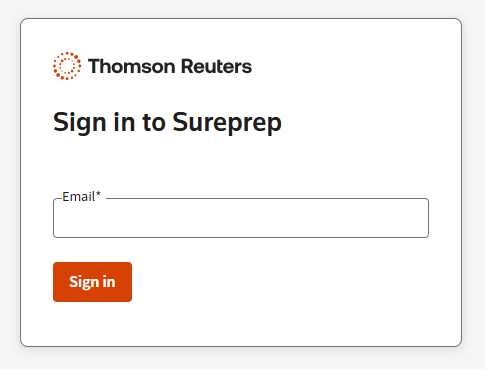
- Enter your password, then selectSign in.
- Next, you'll be sent a verification code according to your Thomson Reuters Account preference for Multi-factor Authentication. Enter the code in the text field, then selectContinue.
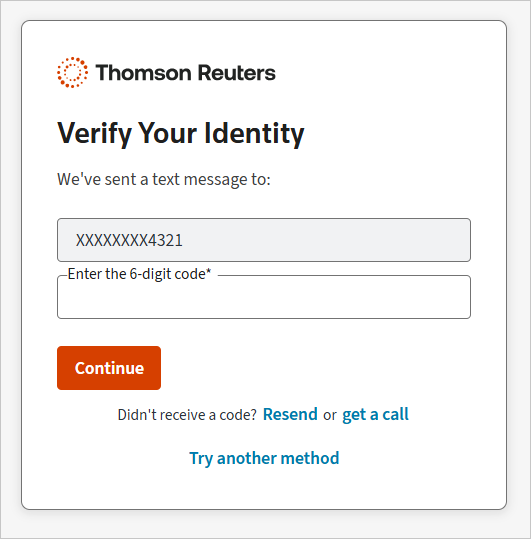
- If you already set up your account, then you will now be signed into FileRoom.
Password requirements
- A password must be between 10 and 12 characters long.
- A password must have a number, a capital letter, a lowercase letter, and a special character. Passwords are case sensitive.
- A password must have one of the following special characters:!, @, #, $, %, ^, &, *, (,), _, or +.
- A password can't include white space or any of the following ASCII characters:©€ ƒ ¥ v ? ? ? ? ½ a ß ? © ® ? § ? ˜ ¶ ¢ £ ¤ « ¬ µ Ã Ä Å Æ Ç Õ æ þ ÿ ™.
- A password can't contain the sign-in name.
- A password can't be blank.
Related Content
-
Enable Two-Factor Authentication
Format: Article,
3 min read
Article,
3 min read
-
Sign in to FileRoom with SSO (Single Sign-On)
Format:
Article,
3 min read
-
Integrating TaxCaddy SSO with your firm's portal
Format:
Article,
3 min read
-
SurePrep Single Sign-On (SSO) integration
Format:
Article,
2 min read
-
Single sign-on (SSO) user management
Format:
Article,
2 min read
-
Troubleshoot: Issues signing in to SurePrep FileRoom
Format:
Article,
3 min read
-
Sign in to FileRoom with SSO (Single Sign-On)
Format:
Article,
3 min read

