
Live Sync statuses and notifications
Live Sync automatically syncs information from SPbinder into the tax software in real time. This means when you update (add, edit, delete) a field value in SPbinder, the information will sync directly to the tax software without requiring a manual export each time. Live Sync will run in the background giving you more time to review the binder and see the results appear in the tax software immediately
Additionally, to help keep leadsheets up to date, Live Sync can streamline the import process by automatically fetching information from the tax software when a binder opens the
LEADS
tab for the first time uses Recalculate, or Force Calculate, Live Sync automatically imports up-to-date information from the tax software and populates the information into their respective areas in leadsheets.
A traditional export step is mandatory for the initial binder submission as well as any subsequent submissions that go through OCR. SPbinder guides users with helpful reminder notifications whenever an action is required by the user.
Get a detailed overview of Live Sync.
Live Sync Statuses
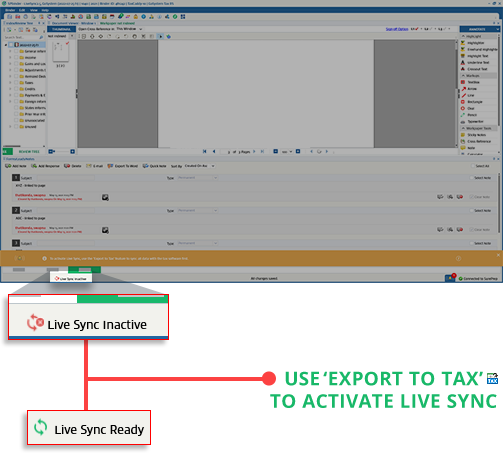
Live Sync statuses appear on the bottom-left corner of the SPbinder. You can see when Live Sync needs to be activated(inactive), active, or in the progress of syncing information.
Status Name | Action | Description |
|---|---|---|
Live Sync Inactive | Select the Export to Tax  icon to turn on Live Sync. icon to turn on Live Sync. | A traditional export Export to Tax step is required to turn on Live Sync. Live Sync is inactive when:
|
Live Sync Ready | No additional action is required. | The initial export has been completed. Live sync is now actively monitoring changes and syncing. You may begin updating (that is, add/edit/delete) forms and fields. |
Live Sync In Progress | No additional action is required. | All updates are currently are synced with the tax software in the background. You may continue updating forms and fields in SPbinder. Once Live Sync completes export/import, the status will revert back to Live Sync Active . |
Live Sync Active | No additional action is required. | All fields/form updates synced successfully with the tax software. Live sync is back to actively monitoring changes and syncing. During the duration of the export/import process, the status will temporarily change to Live Sync In Progress . |
Live Sync On Hold | Select Export to Tax to sync new data to the tax software. | Unable to auto-export data to the tax software due to miscellaneous issues: Internet connectivity Service disruption: Unable to connect with the tax software. Try to: 1. Close and reopen the binder. 2. Use the Export to Tax feature to export information to the tax software. Point to the Live Sync on Hold status to learn more about resolving the issue. |
Live Sync On Hold | Select Import TR to sync new data from the tax software. | Unable to auto-import updated information from the tax software into the leadsheets. Point to the Live Sync on Hold status to learn more about resolving the issue. |
Live Sync On Hold | Generate a new GoSystem Tax RS API authentication key. | Live Sync API key expired. |
Live Sync On Hold | Open the tax return in GoSystem Tax RS and ensure that Multi-user Mode is selected. | The tax return is restricted to a single user at a time. You need to select Multi-user Mode when the tax return opens. 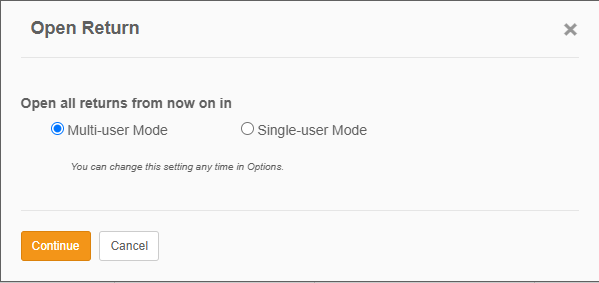 |
(No Status) | N/A | Your tax software or binder type may not be eligible for Live Sync. Your firm will also need to turn on the GoSystem Tax RS API. |
note
Live Sync status will switch between
Active
and In Progress
during the export/import process.Live Sync banners notifications
SPbinder guides users with helpful reminder notifications whenever an action is required by the user.
Turn on Live Sync

Banner text | Action | Description |
|---|---|---|
To turn on Live Sync, use the Export To Tax feature to sync all data with the tax software. After completing the export process, if Live Sync status is inactive, select on Retry to turn on Live Sync. | Use the Export to Tax feature to turn on Live Sync. | To turn on Live Sync, a traditional export step is mandatory when a binder is opened for the first time after submission or when additional documents are processed through OCR. You may continue working on the binder, however, no new changes will be synced with the tax software. Live Sync status will turn on after you complete the traditional Export to Tax step. |
On the Live Sync notification banner, you can select
Retry
to check if the initial export (via Export to Tax
) has been completed. This is useful when the Live Sync status appears inactive and you already exported the binder from FileRoom options instead of SPbinder. Using the Retry
button triggers the binder to check if the initial export (via Export to Tax
) has already been completed.
All entries made while Live Sync status was
Inactive
will be synced into the tax software after the export from FileRoom is complete and you select the Retry
button.Live Sync Ready & Active

Banner text | Action | Description |
|---|---|---|
Changes made directly in the tax software won’t sync back to the SPbinder input forms or Leadsheets. We recommend only making changes in SPbinder to ensure that the data is properly synced (for example, K-1 Reclass). Use the Import TR feature to import new data from tax software into Leadsheets if necessary. | Select the checkbox then select OK to dismiss the reminder. | Once the initial export is complete, you will see a (blue) banner indicating that Live Sync is now ready. Any changes you make in SPbinder's forms and fields will automatically sync to the tax software. |
New information in the tax software
Banner text | Action | Description |
|---|---|---|
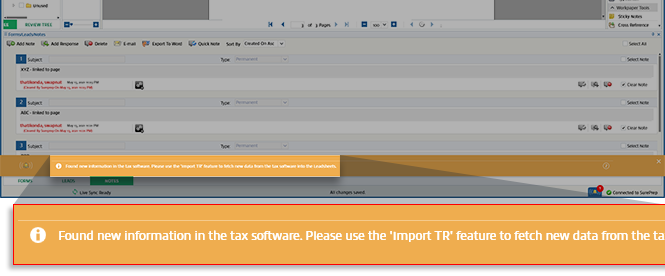
Found new information in the tax software. Use the Import TR feature to fetch new data from the tax software into the Leadsheets. | Use the Import TR feature to import the updated tax return values into SPbinder leadsheets. | SPbinder checks for changes in the tax software when:
This banner alerts you if the tax software amounts don't match the SPbinder leadsheet amounts in the Per Tax Return column. To avoid discrepancies in leadsheet amounts, we recommend using Import TR to bulk import up-to-date information from the tax software into the leadsheets. |
Live Sync On Hold
Live Sync becomes inactive if it is not able to sync with the tax software. Initially, you can try to close and reopen the binder, then try
Export to Tax
to return on Live Sync. You may see banners with the following text if an action is required to turn on Live Sync again. Banner text | Action | Description |
|---|---|---|
New information may be available in the tax software. Use the Import TR feature to fetch new information from the tax software. | Use the Import TR feature to import the updated tax return values into SPbinder leadsheets. If you already updated fields/forms in SPbinder then use the Export to Tax feature to update the same information to the tax software. | SPbinder was unable to auto-fetch information from the tax software into leadsheets. Live Sync will be temporarily inactive until a traditional import or export action is completed. |
GoSystem Tax RS sign in user’s API token has expired or the password is changed or GoSystem Tax RS API Integration hasn’t been setup with SurePrep. Contact your Firm System Administrator to setup GoSystem Tax RS API for your firm or generate a new authentication token at Admin > Account Setup > Tax File Activation web > GoSystem Tax RS . Once the new authentication token is created, select Retry to turn on Live Sync. | 1. Generate a new GoSystem Tax RS API authentication key. Learn More > 2. After generating a new token, select Retry . | Your firm's GoSystem Tax RS API token has expired or the user that made the initial token has changed their GoSystem Tax RS sign in password. |
Live Sync was not successful because you aren’t able to access this tax return. A token needs to be generated by a user with access to this return. Once the token is generated, select the Re-try button from the banner first. If Live Sync doesn’t resume, then re-open the binder to see if Live Sync resumes. | 1. Generate a new GoSystem Tax RS API authentication key as a GoSystem Tax RS admin. 2. After generating a new token, click Retry . | The user that setup the GoSystem integration with SurePrep does not have access to the tax return. User with admin rights should generate the GoSystem API token. |
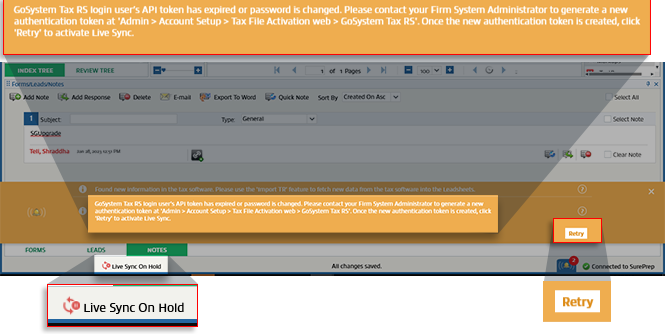
All entries pending while Live Sync status was
On Hold
will be synced into the tax software after the API Token is generated then you select Retry
.Related Content
-
Live Sync Overview
Format: Article,
9 min read
Article,
9 min read

