
Print a without leads binder (SPbinder PDF)
For binders without leadsheets (Leads), you use the print feature in SPbinder to print and save the binder as a PDF.
Follow these steps to print without a Leads binder:
- Select theSend for Print
 icon on the SPbinder toolbar.
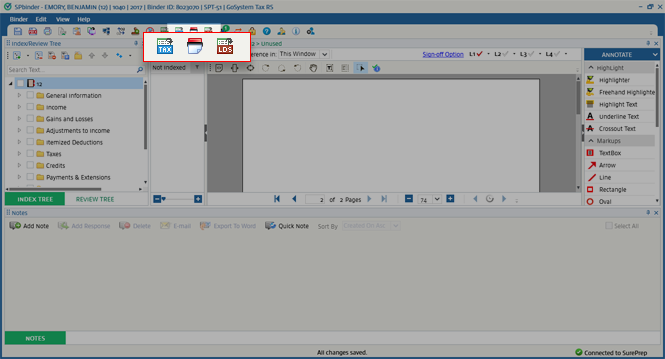 Alternatively, you can selectBinder, thenSend for Print.
 You can also print SPbinder PDF from FileRoom without opening the binder. To print the binder from FileRoom, select the binderOPTIONSmenu, thenSPbinder PDF.
- When thePrint Setupwindow appears, select print options based on your preference.
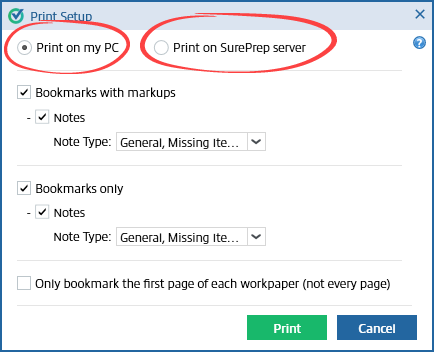
- Select your print options, thenPrint.

- If you selectedPrint on SurePrep server, after the print completes, you will receive an email stating the documents are printed. You can download SPbinder PDF directly from SurePrep FileRoom.
 Go to FileRoom, select the binder'sOPTIONSmenu, thenDownload SPbinder PDF(s).
 You can also selectFile.
 When the new window appears, select2000 Tax Workpapers. Select theDownloadicon to downloadSPbinder PDFfor that client.
- If you selectedPrint on my PC, SPbinder will begin the process of merging documents to create a SPbinder PDF file locally.

- SPbinder PDFs get saved atSurePrep Download Folderpath.noteThe file path is set from . You can view both PDFs (bookmarks with and without markups) here. .

note
Firms can print binders (DreamWorkpapers and SPbinder PDF) with customized file names according to their personal preference.
Removing annotations
When printing a SPbinder PDF, if you selected
Bookmark with markups
, your PDF may contain annotations or markups. To get a PDF without annotations, you can print a clean PDF from FileRoom or SPbinder without selecting the Bookmark with markups
option. 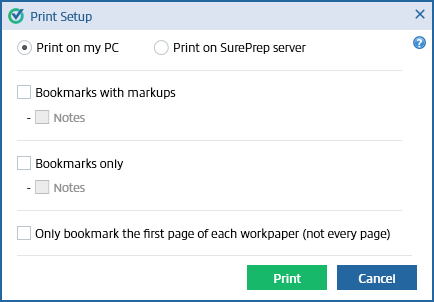
To include only page bookmarks without annotations, select
Bookmarks only
.You can also use the
Print Clean PDF
feature to print a clean PDF from an existing SPbinder PDF copy. However, the printed PDF copy won’t include page bookmarks.
Troubleshooting
SPBinder needs to be upgraded
You may not be able to use the
Send for Print
feature if you are currently using an outdated version of SPbinder. Upgrade to the latest version of SPbinder.

Special characters error
You will see the following error message if the client's name has an unsupported special character:
Please print again after closing Acrobat file 'SPbinder PDF - 2020 .....'

Resolution:
Make sure the client's name doesn’t include the following special characters:
/ \ * : ? " < >
Related Content
-
Download SPbinder as a PDF
Format: Article,
3 min read
Article,
3 min read

