
Add notes and responses
Overview
You can add notes 2 ways:
- General Note (non-linked notes)
- Linked Note
General Note (Non-linked notes)
is for any general information that's not specific to any 1 workpaper (For example, a General note could be "Please use all capital letters for data input in the return").To add a General Note, select  on the Notes toolbar. A blank note gets added in the Notes section with the default
Add Note
on the Notes toolbar. A blank note gets added in the Notes section with the default Type
set as General.
Enter the subject and the body of the note.
Linked Note
is a note that's linked to a particular workpaper.Do the following to add a Linked Note:
- Go to the workpaper a note needs to be added on.
- Go to theAnnotatepanel, selectWorkpaper Tools,Note
 , then select the workpaper you want to link a note to.

- A Note icon will be added to the workpaper to show that a note has been created. The new Linked Notefield is added in the Notes section.
- Enter your note'sSubject, then enter the text of the note in the note input field. The note is added with a link number.note
- You can select the numeric reference number on the linked note to view the linked workpaper and vice versa.
- To reuse the same linked note again, selectLink Note to Workpaper
 , then select the workpaper to place the Noteicon
 . A new numeric reference number will be added to the notes using the same note, indicating multiple linked notes.
 - Similarly, you can selectLink Note to Workpaper to link independently added notes to the workpapers.
Notes tooltip
You can hover over the on the workpaper to view the following:
Linked Note
icon on the workpaper to view the following:- The user's name (family name followed by first name). For example, Preparer, Pam
- The date and time note was created. For example, October 02, 2018 11:39AM.
- The beginning part of the note text. For example, "There seem to be empty fields..."

Notes spell check
You can use spell check to check for spelling errors in the Notes section. If a word is spelled incorrectly, the automatic spell check feature marks the word with a red wavy underline.
To select the correct or alternative spelling, you can right-click any word with a red wavy underline and select the correct spelling from the dropdown.
Notes scrollbar
The scrollbar appears if the text inside the note field exceeds the height limit. It helps you scroll up and down in case the note length exceeds the available height.
Add a response to a note
To add a response, select the note (highlighted in blue) to which a response needs to be added, then select  on the note to add a response to a particular note.
Add Response
on the Notes toolbar. You can also select the Add Response
icon on the note to add a response to a particular note.Enter your response in the new
Notes
field.On the note, you can select  to delete the response.
Delete
to delete the response.Link independently added notes to the workpapers
A note added in the Notes section using
Add Note
on the Notes toolbar can still be linked to information on the workpapers.To link notes to information on a workpaper, select .
Link Note to Workpaper
.Select the workpaper to place a linked note next to information where a note should be linked.
Link note and response to multiple places
After adding a note, in order to link it to the next piece of information, select and then select the workpaper where you want that note to be linked a 2nd time.
Link Notes to Workpaper
and then select the workpaper where you want that note to be linked a 2nd time.Repeat this process each time to add new links. This can be done 19 times in addition to the original linked note, totaling 20 notes.
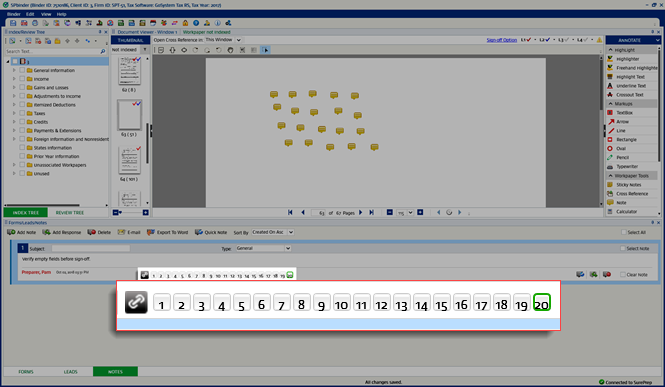
Selecting the numbers will take you to the linked note on the workpaper and vice versa. The selected link number will appear with the green border.
You can repeat the same process for responses as well.
Note types
You can use the Type dropdown to select from the following options:
Predefined note types | Description |
|---|---|
General | Used for all general notes related to the return (default). |
Missing Item | Used for missing information and prior year amounts that can be entered in the amount field. |
Permanent | Rolls over to the next year as an uncleared note in the next year's Review Tree. You can also link the permanent note to a workpaper and make it roll forward to next year. Documents(Workpapers) linked to a permanent note will perpetually Roll Forward each year. |
Review | Used for reviewing certain areas, it can be created by the Preparer to mention details which require further attention by the Reviewer. |
Custom note | Used for personal customization, you can create any custom note type in the . Custom notes will appear as an option along with all predefined notes. |
Related Content
-
Workpaper Tools (sticky notes, cross-references, notes)
Format: Article

