
Edit, clear, and delete notes
SPbinder allows you to add, edit, delete, or clear notes.
All users can modify the notes that they create.
note
Only users that belong to a user group with permissions enabled have the right to edit, delete, or clear notes created by others.
Edit notes
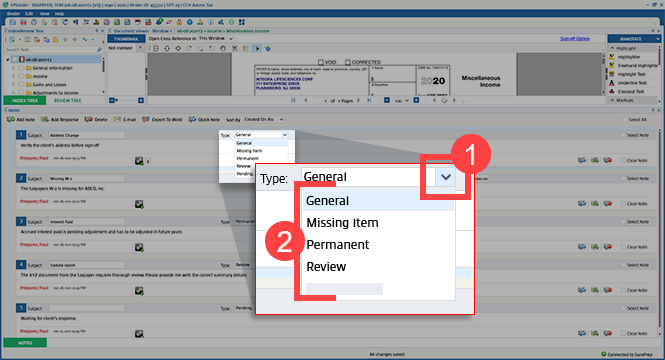
To edit a note, click the note's input field, then change the text in the space provided.
You can also change the note type from the
Type
dropdown and choose from the following:- General
- Missing item
- Permanent
- Review
Clear notes
If you want to mark a note as completed or cleared, mark the
Clear Note
checkbox.This turns the text box gray and the note can't be modified unless you clear the
Clear Note
checkbox.Only the  are active for the cleared note.
Select Note
checkbox and the Delete Note
icon are active for the cleared note.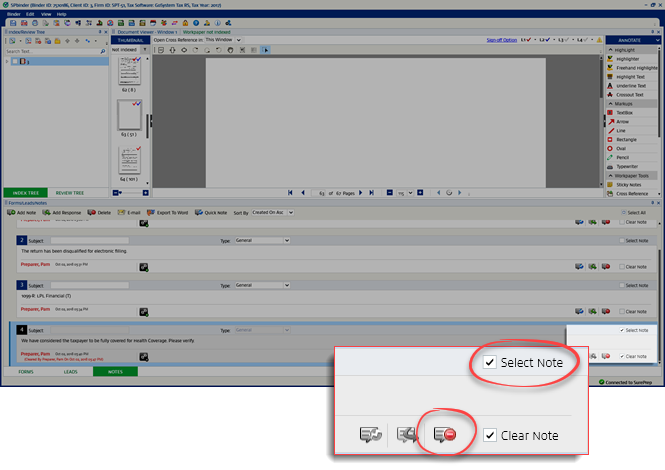
In the DreamWorkpapers, a cleared note appears with a single strike-off. The text is readable, but it has a line through it to indicate it has been cleared.
note
If a missing document is added through add documents and the document is associated to its proforma in the Review Wizard, then the
Missing Item
note linked to that form will be automatically marked as cleared. (When the binder opens, the Clear Note
option will be marked for that Missing Item note).Delete note
To delete a note, select the note that you want to delete, then select on the Notes toolbar.
Delete
on the Notes toolbar.Alternatively, you can also select on the note itself.
Delete
on the note itself.note
If a note is deleted, it can no longer be restored.
When the confirmation window appears with the text "Are you sure you want to delete this note?", select
Yes
to delete or No
to cancel.
To delete an individual response, select the note then select on the Notes toolbar. You can also select it on the response note.
Delete
on the Notes toolbar. You can also select it on the response note.Alternatively, you can delete a parent note and all of its responses by selecting the parent note and then select on the Notes toolbar. You can also select the  present on the parent note.
Delete
on the Notes toolbar. You can also select the Delete
icon present on the parent note.When the confirmation window appears with the text "Are you sure you want to delete this note?", select
Yes
to delete or No
to cancel.A 2nd confirmation window appears with the text "This note contains response(s). If you delete this note, all responses to this note will also be deleted. Are you sure you want to delete this note." Select
Yes
to delete a note and all responses linked to that note or No
to cancel.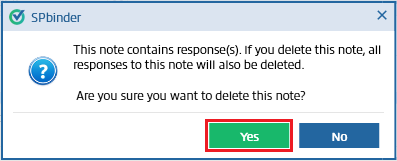
To simultaneously delete all notes added to SPbinder, mark the  then select .
Select All
checkbox then select Delete
.When the confirmation window appears with the text "Are you sure you want to delete this note?", select
Yes
to delete or No
to cancel.Related Content
-
Workpaper Tools (sticky notes, cross-references, notes)
Format: Article

