
Navigate document viewer
Upper Toolbar
Breadcrumbs
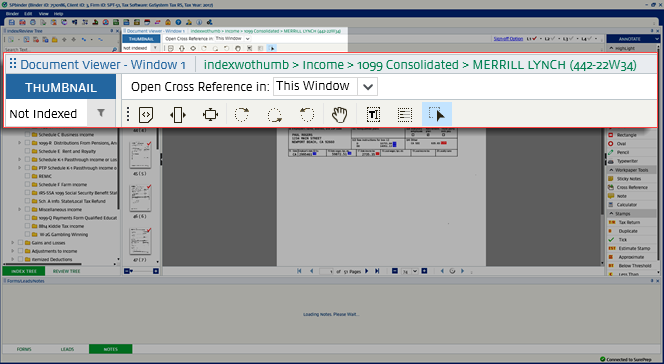
Breadcrumbs are located on the
Document Viewer
window header. It displays the trail to where the current document is located in the Index Tree
.
Sign-Off
Sign-Off buttons let each reviewer select a document according to their assigned role.

Icon/List | Name | Description |
|---|---|---|
 | Sign-Off Option | Select this link to select the option to move to the next page automatically or manually when signing off. |
 | Sign-Off Level Check select | Once you review the page, select the checkbox to select it as reviewed. |
 | Caution Icon | If the pages are signed off by more than one level, or if any modification is done at any time, those modifications are tracked and are displayed in the Document Viewer Toolbar. |
Lower Toolbar

Icon/List | Name | Description |
|---|---|---|
 | First Page | Displays the first page of the source document. |
 | Previous Page | Displays the previous page of the source document. |
 | Pages | Displays a specific page of the source document. |
 | Next Page | Displays the next page of the source document. |
 | Last Page | Displays the last page of the source documents. |
 | Zoom Out | Decreases the size of the images in the viewing area. |
 | Percentage | Changes the percentage of magnification in the viewing area. |
 | Zoom In | Increases the size of the images in the viewing area. |
| Previous in History | Goes back to a previous page. |
 | Workpaper History | Lists pages in the order in which they were found. |
| Next in History | Goes to the next page. |
Move up or down
In the Thumbnail section, select
Page Up
or Page Down
arrow keys to go to the next image or previous image. The Document Viewing Area
will show the selected page in the Thumbnail section.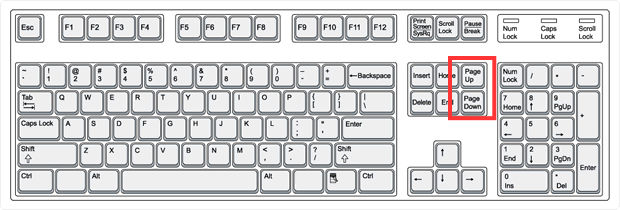
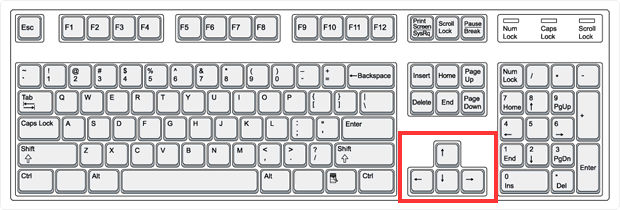
Along with Page Up and Page Down keys, you can also use the Up, Down, Left and Right arrow keys to go through the Thumbnail section.
Zoom In/Out Slider Bar
: The thumbnails can be enlarged/reduced through the zoom in/out slider bar.- Drag the mouse pointer towards theright sideto enlarge the thumbnail size.
- Drag the mouse pointer towards theleft sideto reduce the thumbnail size.

Related Content
-
Document Viewer toolbar
Format: Article
-
Show/hide thumbnails
Format:
Article
-
Filter thumbnails
Format:
Article

