
Document Viewer toolbar
You can use the Document Viewer toolbar to zoom, rotate, and pan the document. You can also use the select options to select text and annotations.

Icon/list | Name | Description |
|---|---|---|
 | Fit Width | Resizes the page to fit the window width. Adjusts the magnification so the page fills the document pane horizontally. |
 | Fit Page | Resizes the page to fit the window height. Adjusts the magnification so the page fills the document pane vertically. |
 | Actual Size | Sets the page to its actual size. The actual size for a PDF page is typically 100%, but the document may have been set to another magnification level when it was created. |
 | Rotate | Rotates the selected document by 90 degrees, 180 degrees, or 270 degrees. |
 | Hand Tool | Pans the document when you select and drag the document. |
 | Structural Select Tool | Select text with default functionality. When you select, it selects the whole row while you scroll down. Select here to learn more about searchable PDF. |
 | Rectangular Select Tool | Only select text inside the highlighted width and height. When you select text vertically or columns of text in a searchable PDF, any text that is not included in the highlighted outline width is omitted. 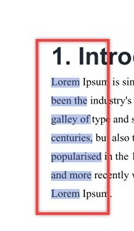 |
 | Pointer Tool | Selects objects placed on the PDF such as references, stamps, or sticky notes. To select the objects, select on the icon and drag and select all required objects. You can then move/delete them as required. |
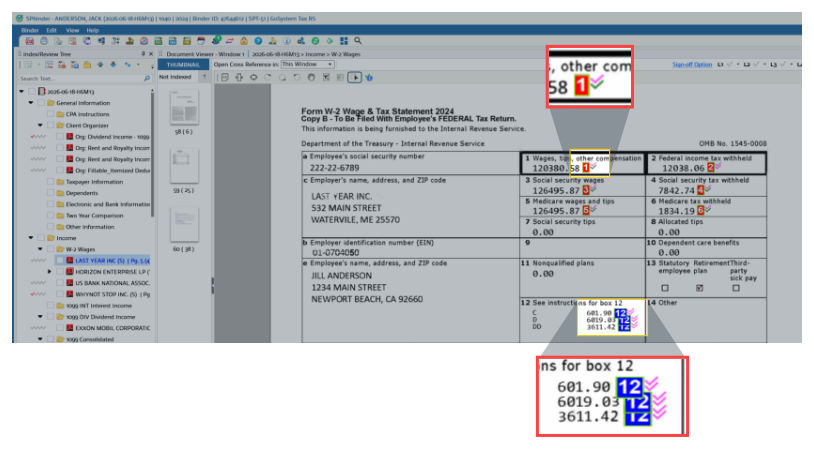
 | Legend for Tickmark | displays information about the tickmark placed against the reference/TR stamps |
Legend for Tickmark
To view differences between each Tickmark, select the .
Legend for Tickmark
icon.
Converting an image format PDF to searchable format
If you're unable to use the
Structural Select Tool
or Rectangular Select
to select text in your PDF, it might be because your PDF is in image format rather than searchable format. The following steps will let you convert your PDF to searchable format using Adobe Acrobat Professional 9.- Open the file inAcrobat Professional.

- SelectTools,Comment & Markup,Text Edits, thenText Edits Tool.

- Verify that you are unable to select text on the document. If you are able to select text, you don't need to continue.
- SelectDocument,OCR Text Recognition, thenRecognize Text Using OCR...

- TheRecognized Textwindow opens.

- If you want to change any settings, selectEditand then make changes and pressOKin theRecognized Text - Settingswindow.

- SelectOKin theRecognize Textwindow to begin the conversion. The progress is displayed in the corner.

- When the conversion has finished, selectTools,Text Edits, thenText Edits Tooland attempt to select text. It will now work correctly.

Related Content
-
Navigate document viewer
Format: Article

