
Show/hide thumbnails
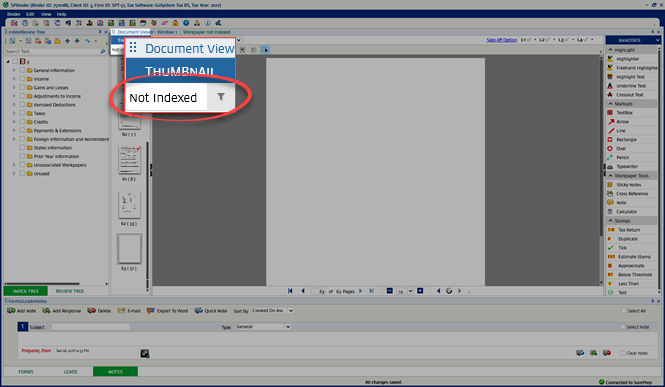
When SPbinder is launched for the first time, if the binder has at least one unindexed page, then the
Thumbnail
section will be visible with the default option selected as Not Indexed
.
When opening a new binder or importing images, a progress bar will be seen in the
Thumbnail
section for each workpaper while the images are downloading in the path setup in Admin
, Account Setup
, then Download Files Setup
.
note
The loading animation (....) won’t appear if the images are already downloaded in the path.
If the
Thumbnail
section is collapsed, select Thumbnail
to expand the section.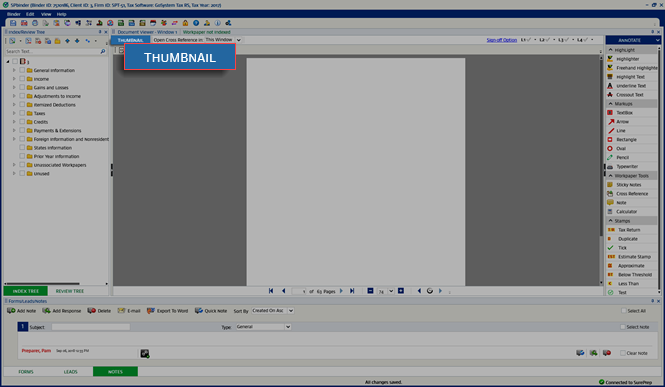
If all the pages in the
Thumbnail
section are indexed then the Not Indexed
filter will be empty.The
Thumbnail
section shows preview for PDF, Word, Excel, and Outlook emails.Select a page on the
Thumbnail
section to view it in the Document Viewer
window. The selected page will be highlighted with a dotted border.
The
Thumbnail
section is attached with the Document Viewer
window, hence when you dock the Document Viewer
window, the Thumbnail
section will move along with it.
When you close and reopen SPbinder, the
Thumbnail
section will be displayed in the state it was last left. The thumbnail filter will also retain the last selection you made.When you Sign off a page, a checkmark on the thumbnail. If the page is signed-off by multiple level users, then all the signed-off indications will be visible on the
Thumbnail
section.
To show/hide the original pages number, select the  on the SPbinder toolbar.
Original Page Number
icon on the SPbinder toolbar.
When the user hides one or more original pages number, it will show only the index page numbers in the
Thumbnail
section.note
The review tree option, 'List pages in scanning order' won’t impact the order of the pages in the thumbnail section.
Hide the thumbnail section
You can hide the thumbnail section using the Thumbnail button. Select
Thumbnail
to hide/unhide the Thumbnail
section.Related Content
-
Navigate document viewer
Format: Article

