
Create letters templates from scratch
Templates are useful for sending the same request item to multiple clients rather than uploading them individually to each Client Profile.
For example, if you need multiple clients to sign the Terms of Agreement form or review instructions, you can create and send the template to all clients simultaneously. Once the letter template has been sent, clients can review or sign the document based on the template settings.
To create a letter template, you can upload an existing PDF document or create one from scratch in TaxCaddy.
Create letter templates
Follow these steps to create letter templates.
note
Clients you already sent a letters template to won’t see your changes to the template reflected in their letter. To make changes to letters that have already been distributed to clients, go to the client's profile, select
Tax Documents
, and delete the letter from the client's Requested Items. You can then upload a modified letter on the client's profile.- Sign in to TaxCaddy.
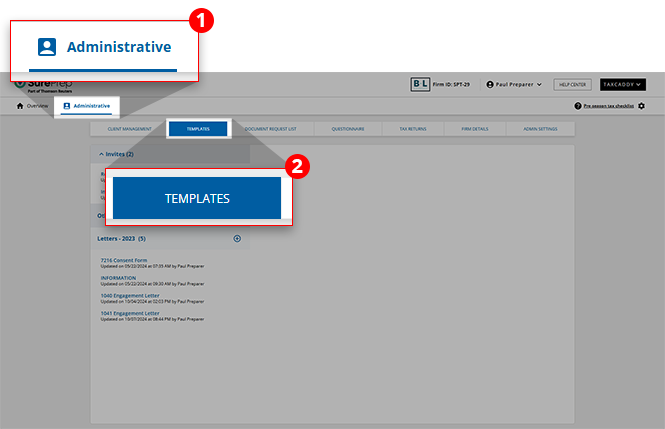
- SelectAdministrative, then selectTemplates.
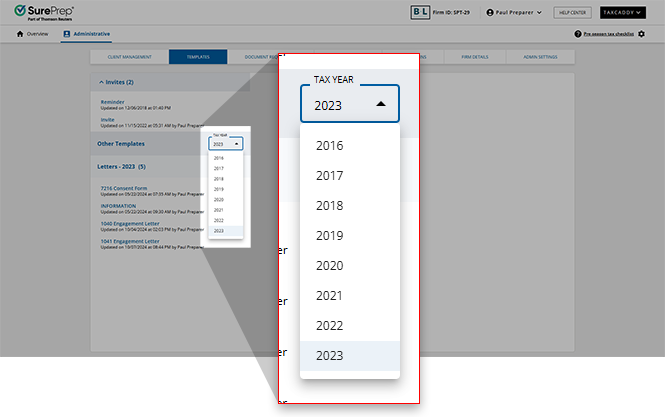
- Ensure the correct year is selected next toOther Templates.
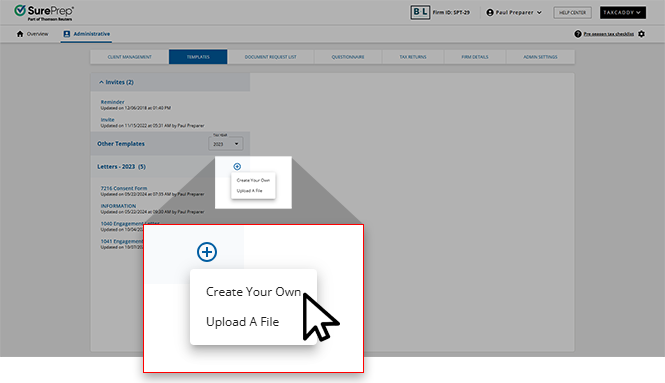
- Next toLetters, select theNewicon and then selectCreate Your Own.
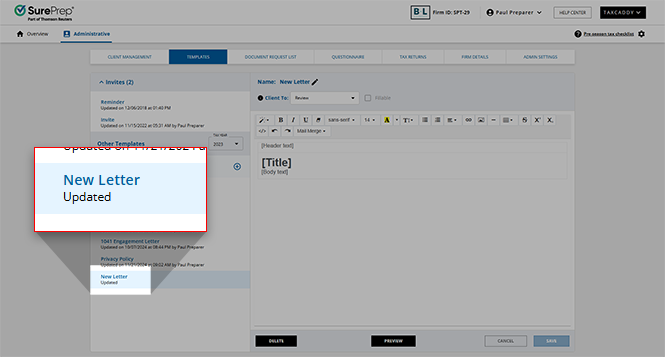
- Type a name for the new template and selectOK.
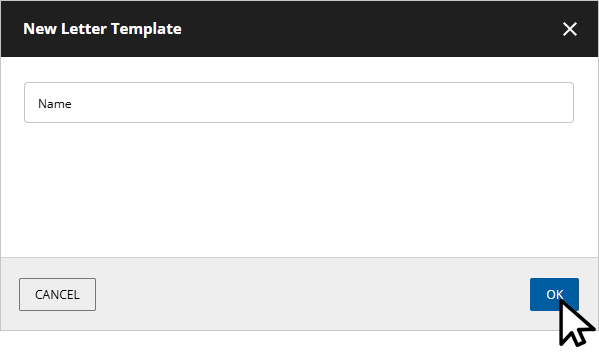
- The new letter is added to the list and opens in the editor.
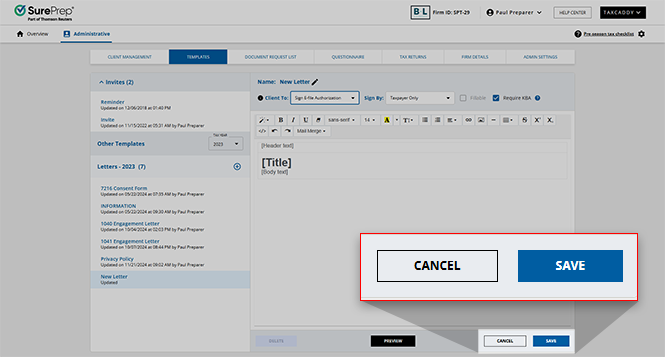
- From theClient Tomenu, select eitherReview,Sign, orSign E-file Authorization.
- Review: The client marks the document as reviewed using theMark Reviewedbutton.
- Sign: The client marks the document as signed using theSign & Acceptbutton and enters their first name as signature capture.
- Sign E-file Authorization: The client marks the document as signed using theSign & Acceptfeature, enters their first name as signature capture, and then provides information to confirm their identity using knowledge-based authentication (if theRequire KBAcheckbox is selected).
noteOnly 1 digital stamp is applied to each PDF. If you use a single PDF for both federal and state e-file Authorizations, only a single stamp will be applied.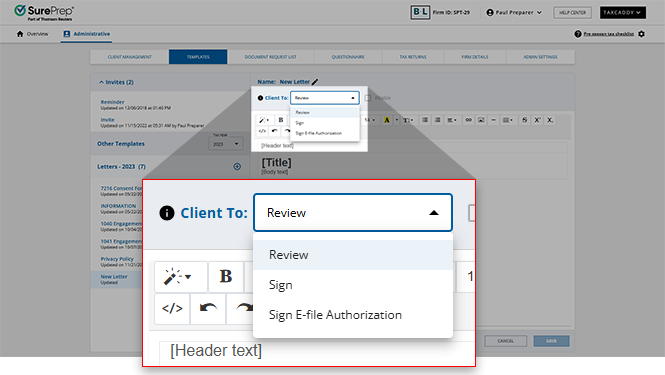
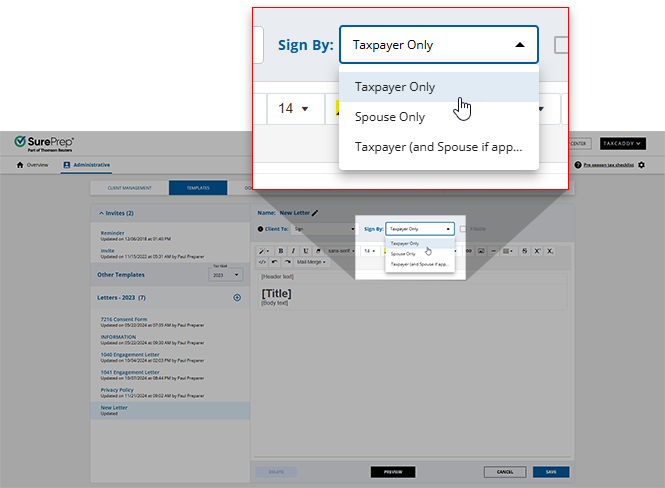
- For documents that require a signature, select whose signature is required from theSign Bydropdown menu.noteTheSign Bydrop-down menu is only available whenClient Tois set toSignorSign E-File Authorization.
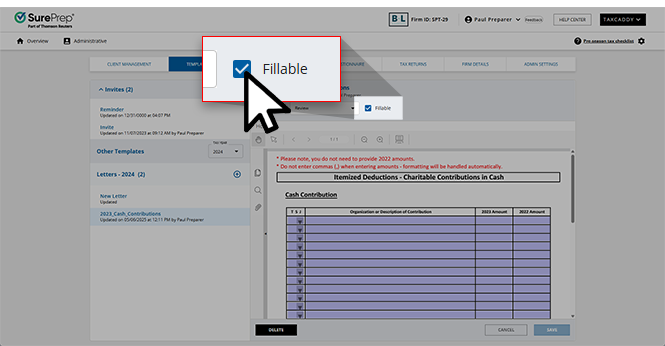
- When applicable, users can select theFillablecheckbox to indicate that this letter template contains fillable fields that taxpayers will be able to provide records to when completing this request.
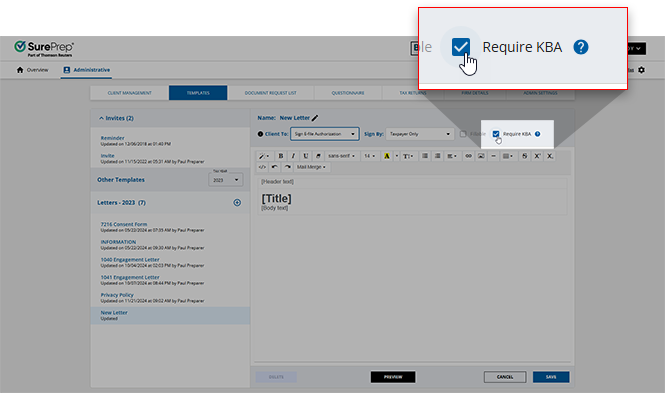
- ForSign E-File Authorizations, select theRequire KBAcheckbox to indicate whether or not a client must undergo KBA (knowledge-based authentication) to fulfill this request.
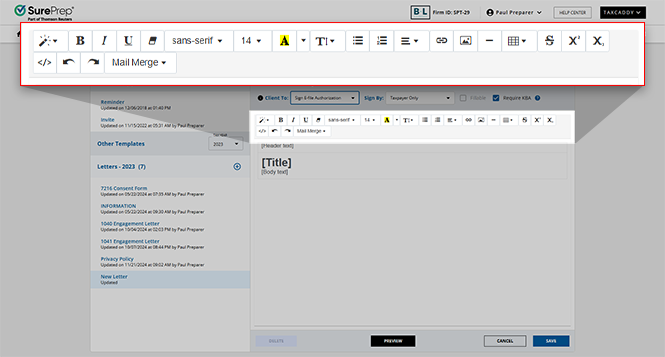
- Edit the template using the template toolbar.note
- For best results, we recommend setting text-alignment toJustify full
 in Letters templates.
 - Sending an invite letter formatted from Microsoft Word may not display properly. You can copy paste plain text, then format the letter using TaxCaddy's built-in template features.
- Images uploaded to your template must be less than 100 KB. You can also include an image from your website, web hosting account, or an image hosting service.
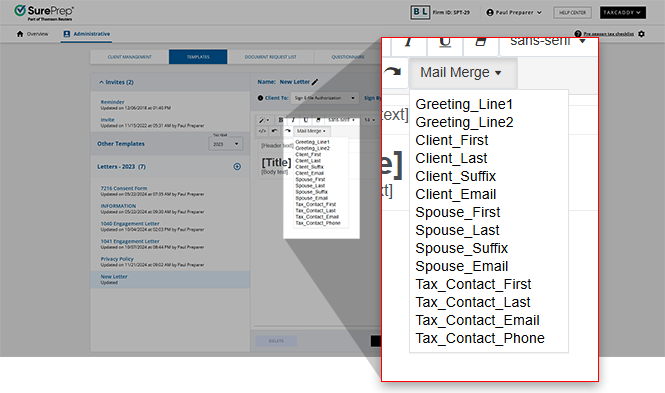
- To useMail Merge, place the cursor where you want to include a mail merge field, selectMail Merge, then select a merge field.
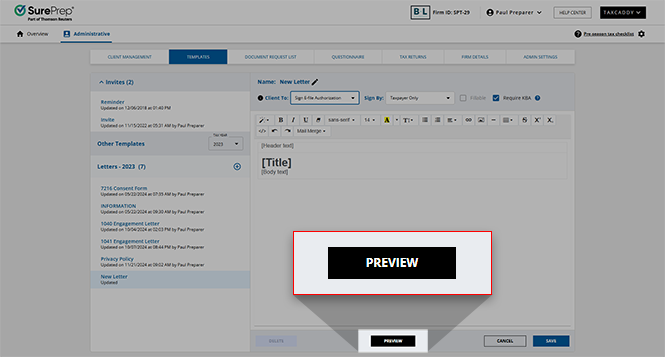
- To preview the template, including mail merge data, selectPREVIEW.noteThe preview mode displays sample data and doesn’t use mail merge data from your clients.
- When you're done editing the template, selectSAVE. The template is ready to be sent to clients via theClient Managementscreen.
Related Content
-
Customize the Invite and Reminder templates
Format: Article,
2 min read
Article,
2 min read
-
Send letters to clients
Format:
Article,
7 min read
-
Renaming letter templates
Format:
Article,
2 min read
-
Template toolbar
Format:
Article
-
Prepare a fillable PDF
Format:
Article,
3 min read

