
Message via document view message panel
Message threads can be associated with specific documents by sending a message from the document view.
Follow these steps to send a message from the Document Viewer:
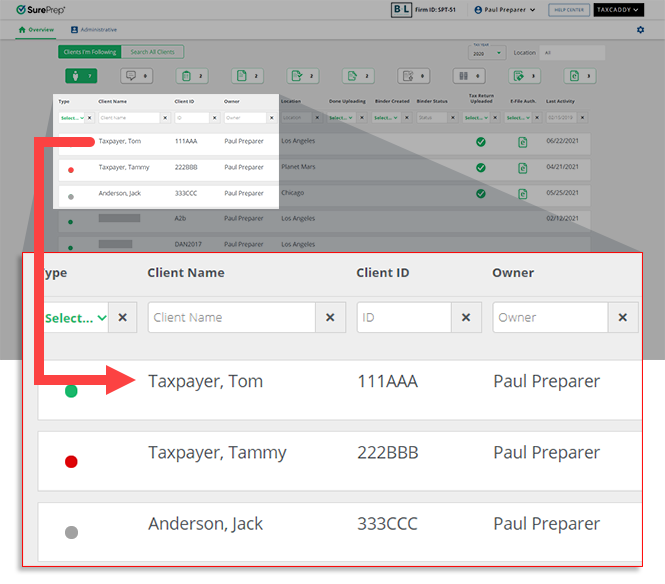
- Sign in to TaxCaddy and go to the client's profile by selecting a client tile on theOverviewscreen.
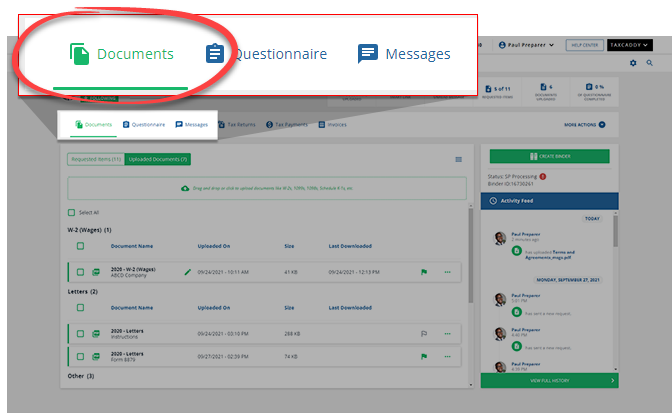
- SelectDocuments.
- In eitherRequested ItemsorUploaded Documents, select the document tile you want to send a message about.

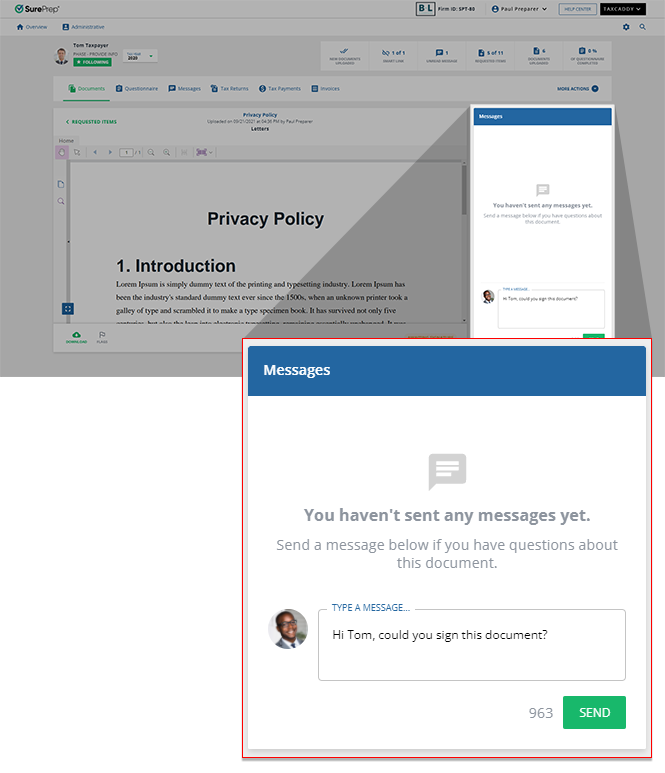
- The document opens in the document viewer. In the message panel, enter your message into the field and then selectSEND. The number at the bottom indicates how many characters you have remaining. The client is notified that they have a new message from you. The thread is associated with the document and any additional messages will appear in both the document view message panel and client profile Messages.
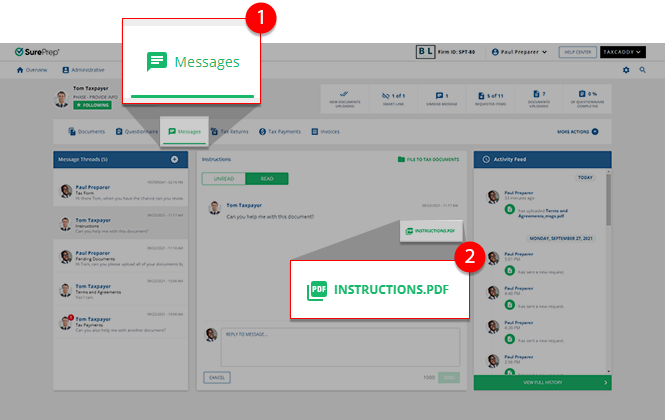
- When a message thread corresponds to a particular document, the document's file type thumbnail will appear in the thread. Select the thumbnail to view the document.
Related Content
-
Message your clients
Format: Article,
4 min read
Article,
4 min read
-
Message your clients
Format:
Article,
4 min read
-
File a message thread to tax documents
Format:
Article,
2 min read

