
Message your clients
The
Messages
tab on each client profile contains message threads between you (or others from your firm) and the client. You can create new threads on the Messages tab, or associate message threads with specific documents by sending a message from the message panel next to the Document Viewer.note
Your clients receive email notifications when you message them in TaxCaddy.
Follow these steps to message a client from the
Messages
tab on a client profile:- Sign in to TaxCaddy and go to the client's profile by selecting a client tile on theOverviewscreen.
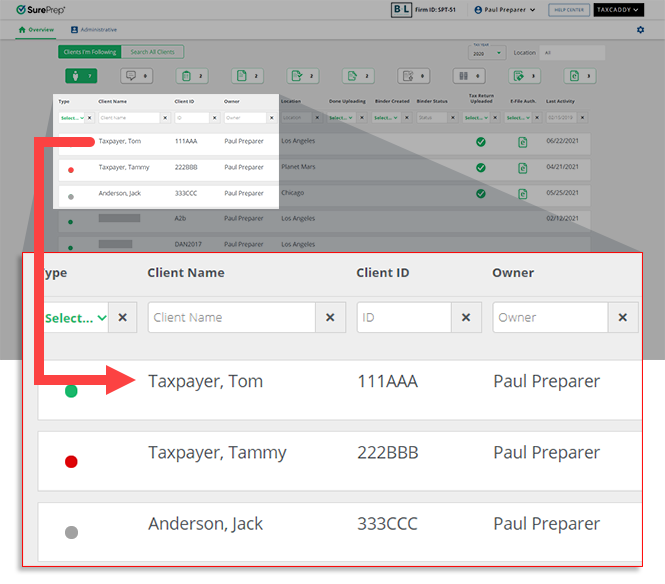
- SelectMessages.

- Select the tax year.

- On theMessage Threadspanel, you can access an existing thread or create a new thread. To create a new message thread, selectNew Message
 .
.
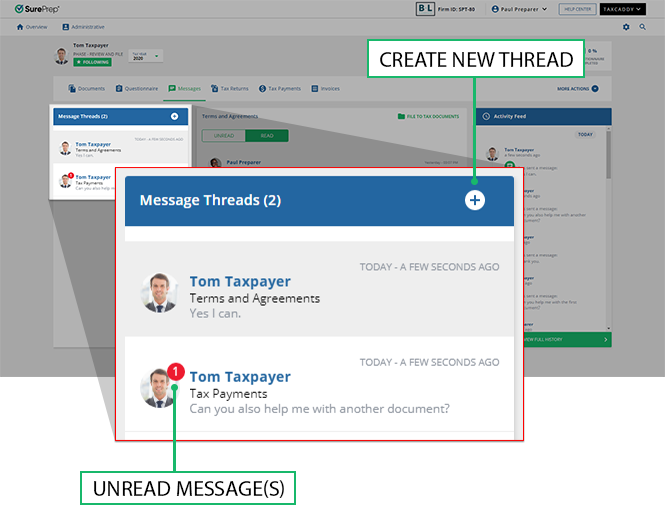 If your client has messaged you regarding a matter from a different tax year, you will see a message in theMessage Threadspanel alerting you of this. SelectVIEW TAX YEAR [Tax Year]to review these unread messages.
![VIEW TAX YEAR [Tax Year] panel](/content/dam/helpandsupp/en-us/Topics/sureprep-family/sureprep/taxcaddy/17-client-profiles-messages/images/view-tax-year-cpa.png/_jcr_content/renditions/original)
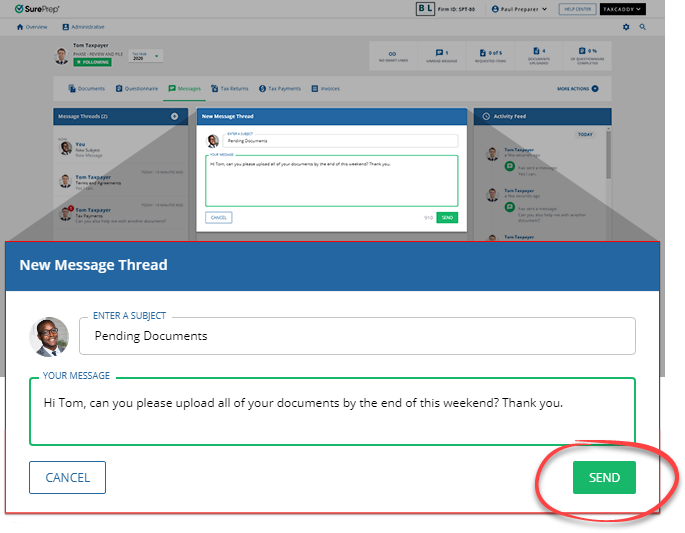
- Enter your message into the field and selectSEND. The client is notified that they have a new message from you.
Messages sent from the Document Viewer panel show the document name and icon on the message thread. You can select the document  icon to view the document in the Document Viewer panel.
icon to view the document in the Document Viewer panel.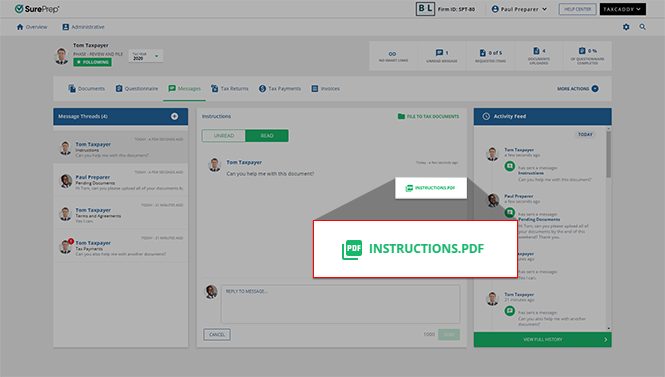
What your clients see in Messages
All your client’s threads are visible in the
Message Threads
panel, with a red badge indicating the number of unread messages in each thread. They can also create a new message thread here by selecting the New icon (green plus sign). When they open a thread or create a new thread, it appears in the center panel. More detailed information is available on the taxpayer-facing TaxCaddy Help Center.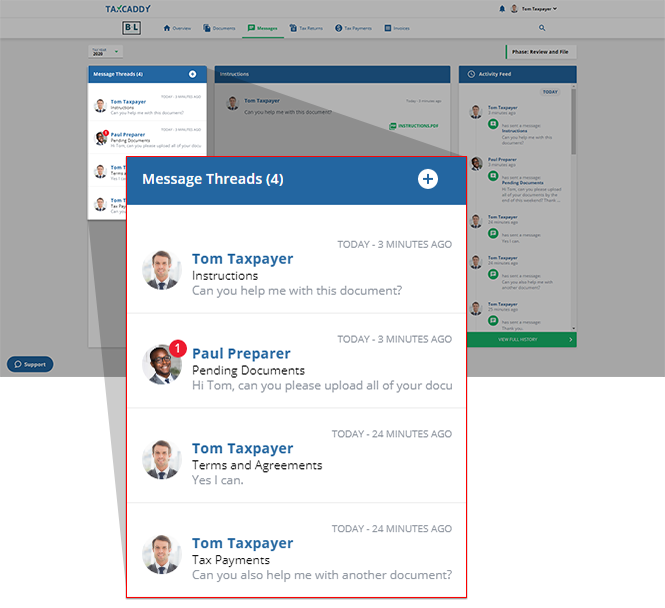
Related Content
-
Mark a message as unread
Format: Article,
2 min read
Article,
2 min read
-
Message via the Tax Return message panel
Format:
Article,
2 min read
-
Message via document view message panel
Format:
Article,
2 min read
-
File a message thread to tax documents
Format:
Article,
2 min read
-
File a message thread to tax documents
Format:
Article,
2 min read
-
Mark a message as unread
Format:
Article,
2 min read
-
Message via the Tax Return message panel
Format:
Article,
2 min read
-
Message via document view message panel
Format:
Article,
2 min read

