
Add Smart Links (document retrieval accounts)
Smart Links with document retrieval accounts create a link between TaxCaddy and your client's financial institution, letting TaxCaddy retrieve documents (for example, W-2, 1098, 1099) directly from your client's financial institution the moment they're added (and once every 24 hrs after that) to save you and your client from uploading your documents yourself.
note
Don’t worry, we’ll only use this information to transfer your client's tax documents from their financial institution to their TaxCaddy account. We use the latest industry-standard 256-bit SSL data encryption to ensure the safety of your client's personal information. See our Smart Links Security page for information on the privacy and safety of your client's documents.
Follow these steps to add a Smart Link to a document retrieval account:
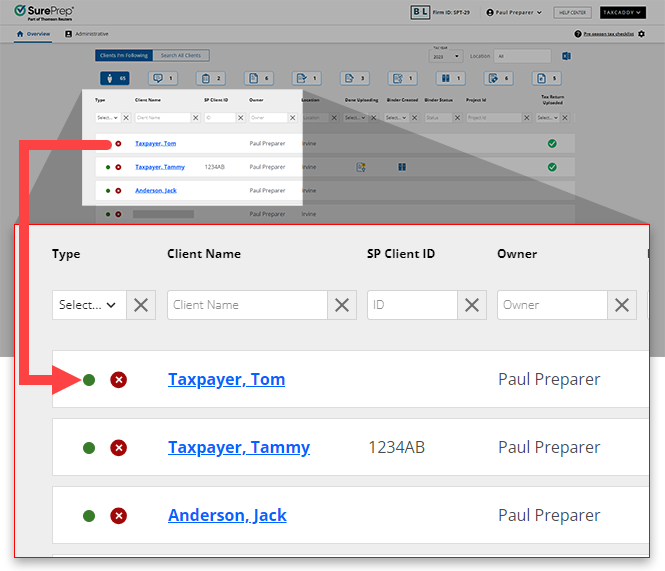
- On thescreen, select a client tile to view the client profile. Search for a client, then select the client tile from the result.Overview
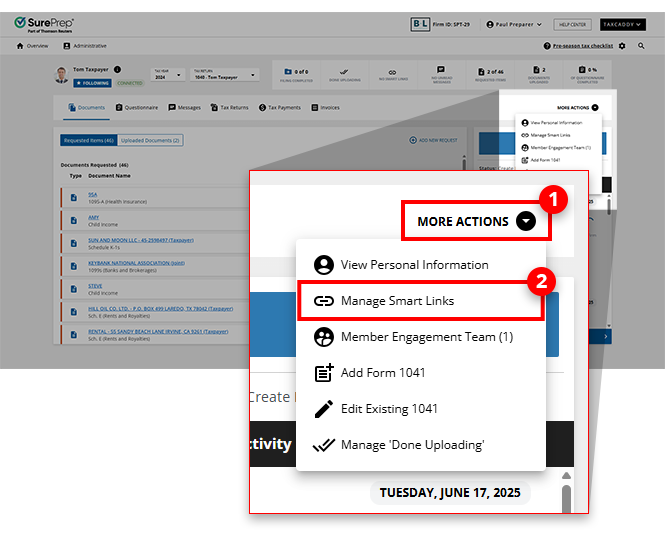
- On the Client Profile, selectMORE ACTIONSon the navigation bar then selectManage Smart Links.
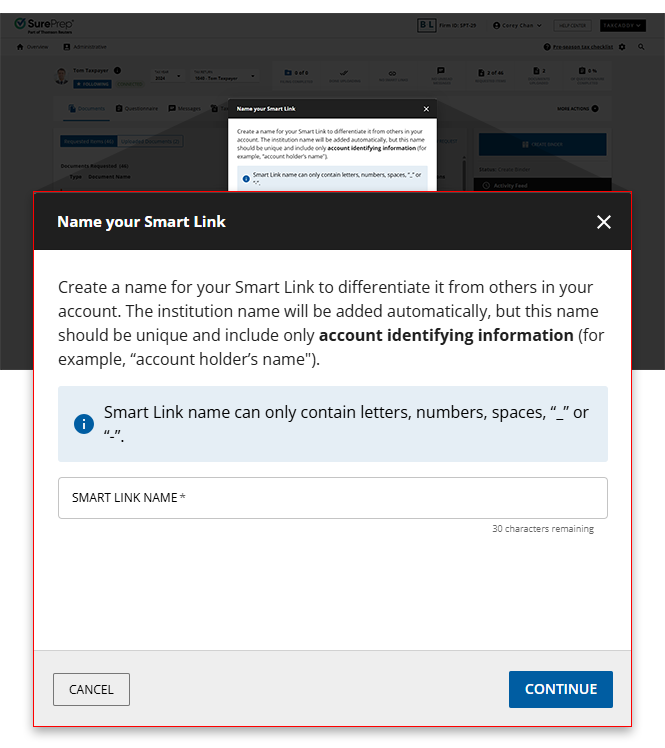
- Next, thewindow will appear asking you to give this Smart Link a name so you can easily differentiate it from others saved in this client's account.Name your Smart Link
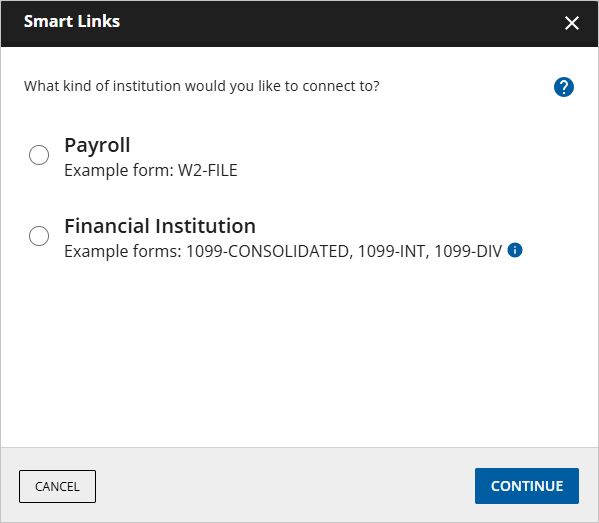
- Thewindow will appear. UseSmart LinksSearchto find your financial institution, or select a selection from the list. Select one of the following institution types:
- Payroll: W-2 form
- Financial Institution: 1099-CONSOLIDATED, 1099-INT, 1099-DIV, 1099-B, 1099-OID, 1098
- Select your client's employer if you previously selected aPayrollaccount, or select your institution if you previously selected Financial Institution.If you do not see your client's institution listed, you can scroll to the bottom of the window to theSearch allfeature to find your specific institution.
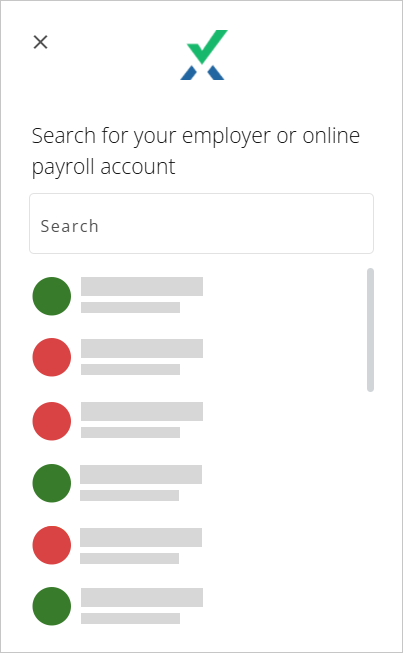 Some employers/institutions may require additional searching to find your client's specific account.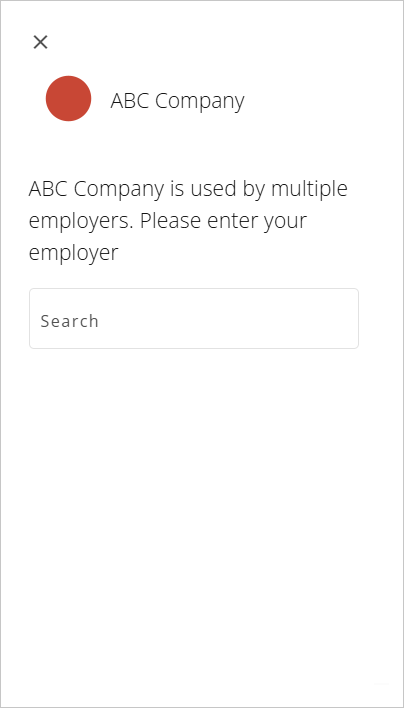
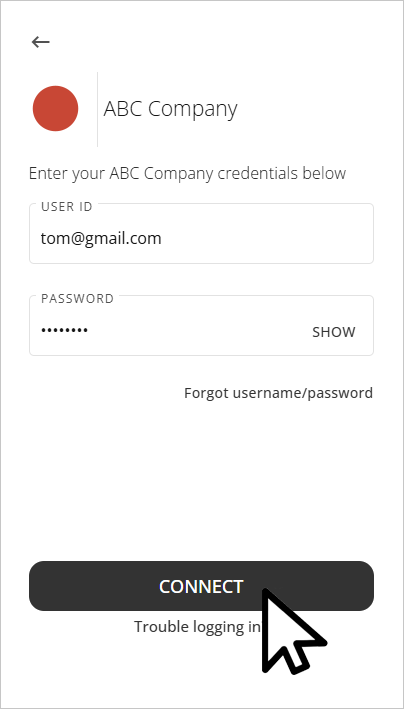
- Provide your client's sign in credentials in theUSER IDandPASSWORDfields.
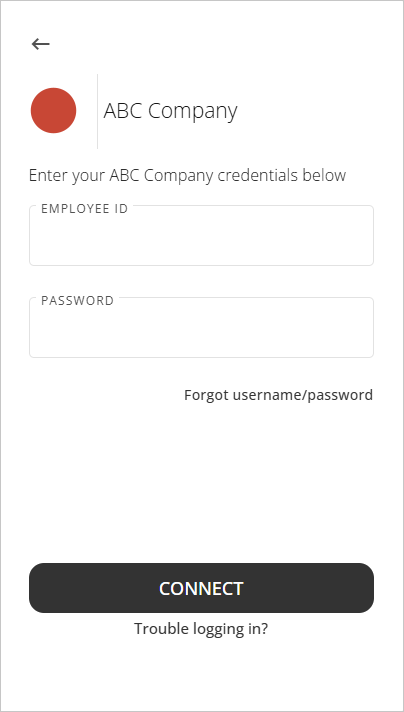 Some employers/institutions may require additional searching (i.e.LocationorStore Number) to find your client's specific account.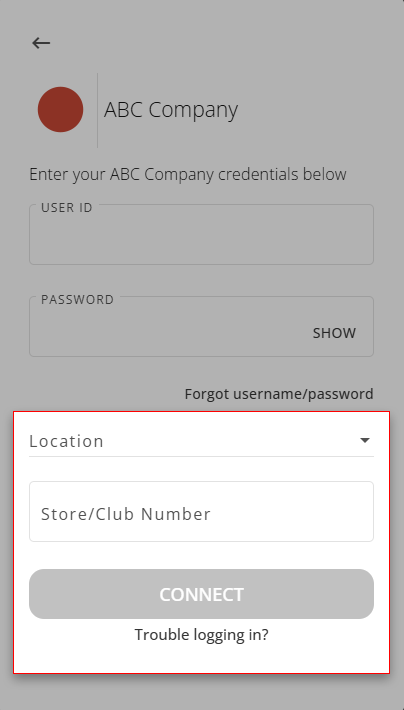
- If you are experiencing trouble logging into your account, you can selectTrouble Logging In?and select from one of the following options:
- I don't have credentials
- I don't remember my credentials
- I am not able to reset my credentials
- My credentials are not working
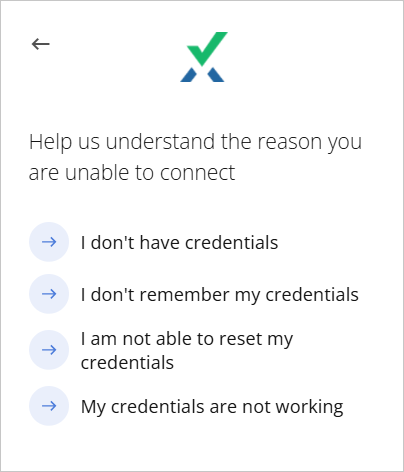 If you've forgotten your password, selectForgot username/passwordto be redirected to your institution's sign in page.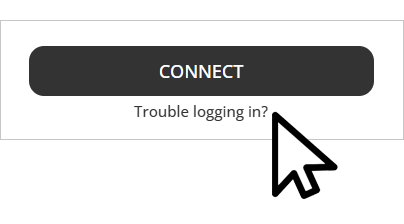
- After you've provided your sign in credentials, selectCONNECTto proceed.
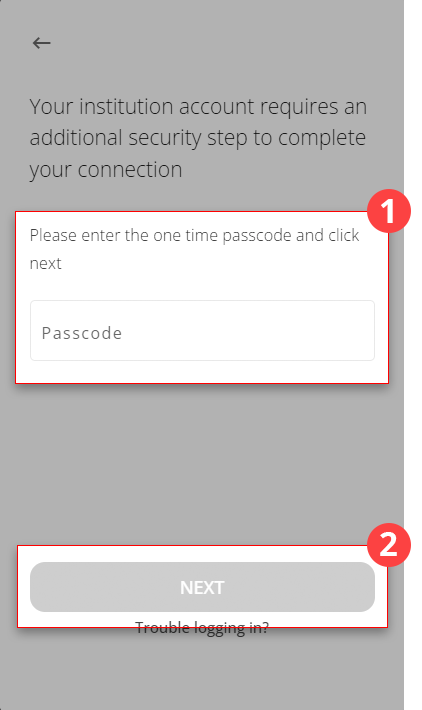
- Some institutions may require an additional multi-factor authentication code for further security. When prompted, provide the authentication code in thePasscodefield, then selectNEXT.
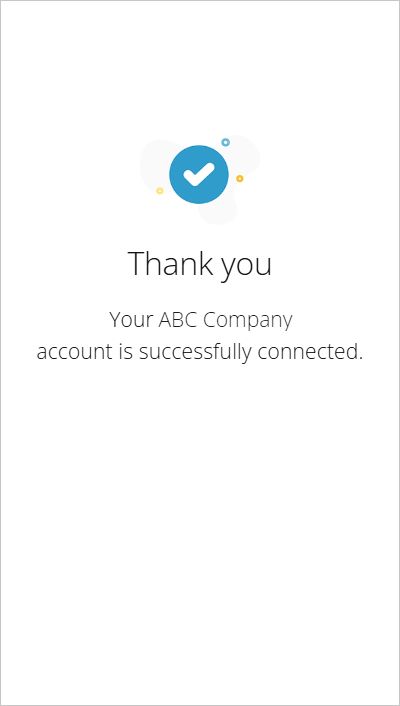
- Once the link has been established, the window will update to notify you of the successful link.noteConnecting Smart Links with your financial institution may take 24 hours to process.
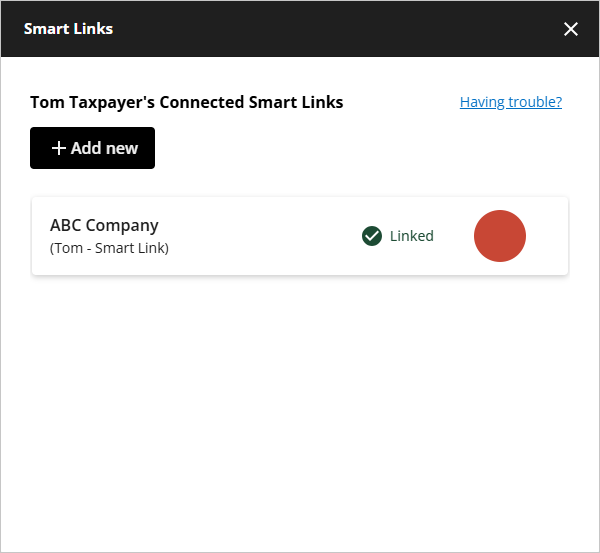
- The newly added Smart Link will be listed under the[Client Name]'s Connected Smart Linkssection of theSmart Linkswindow.noteUpon connection, the newly established Smart Links may take up to 2 days to appear in theSmart Linkswindow panel and fetch your client's documents.
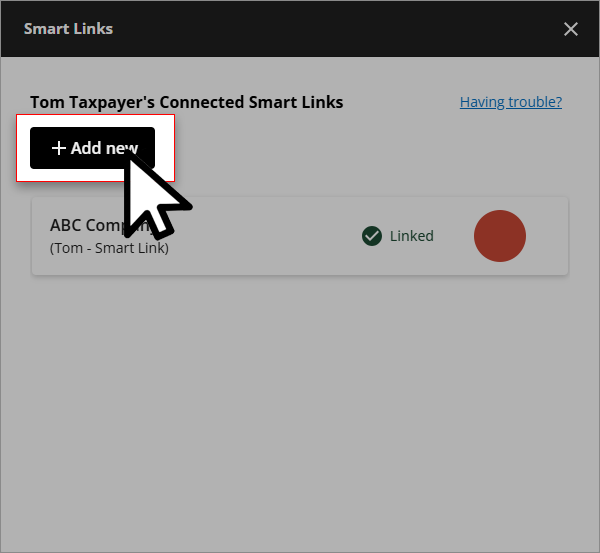
- You can select+ Add newto add another Smart Link for a new institution.
note
If your financial institution requires you to receive and verify a security code each time you sign in, then the Smart Link won’t be able to check and retrieve documents automatically every day.
Related Content
-
Automatically retrieving documents from financial institutions (add Smart Links)
Format: Article
-
Smart Links institutions
Format:
Article
-
Fix or update Smart Links (document retrieval accounts)
Format:
Article
-
Remove Smart Links (document retrieval accounts)
Format:
Article

