
Complete form (Customized fillable forms)
Customized fillable forms can be sent to the client as a requested item when you send a DRL or upload a document request manually from the Client Profile. You or your client can complete fillable forms from TaxCaddy.
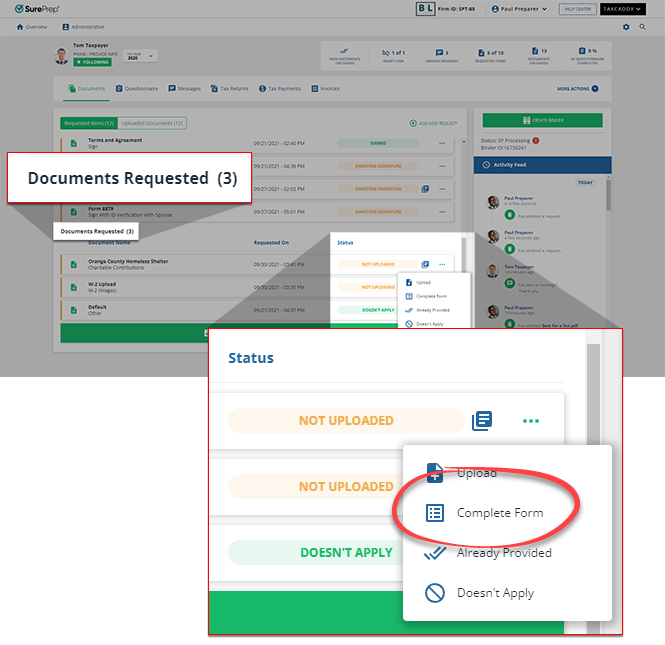
Send Customized Fillable Forms
Follow these steps to send Customized Fillable Forms:
- Go to . Ensure Customized Fillable Forms are enabled for the categories.

- If you selectedYesand there is proforma data in the tax application, then clients will receive the Customized Fillable Forms after you create and send the DRL.
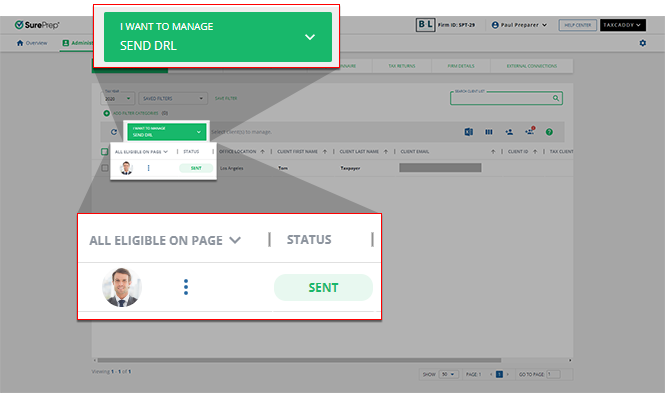 noteIf the DRL was created before this option was enabled then clients won’t receive the Customized Fillable Forms. You'll need to reset DRL and create it again before sending it to the client.You can also manually request a document from the Client Profile. However, only categories that allow fillable PDF forms will appear as fillable forms when you create a request.
- Clients can use theComplete Formfeature to fill out the fillable forms (that is, Schedule C, E, and F).
Complete form
You or your client can fulfill a document request by completing the fillable form sent from DRL. Follow these steps to complete the fillable form:
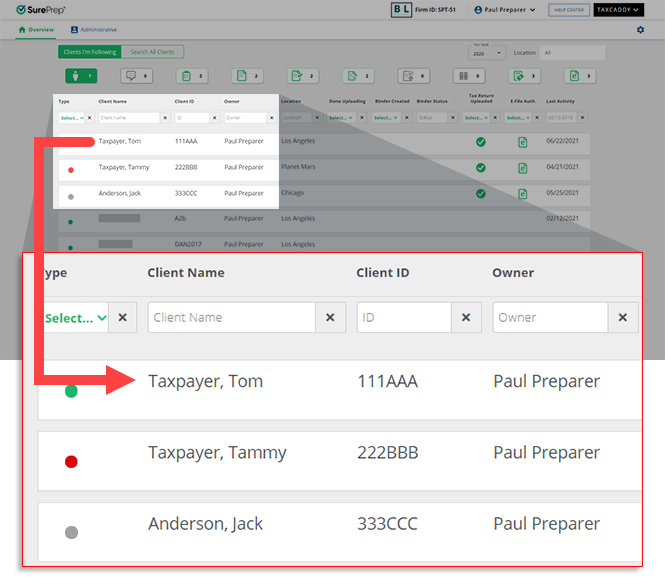
- On theOverviewscreen, select a client tile to view the client profile. You can also search for a client and select the client tile from the result.
- SelectDocuments, then selectRequested Items.

- On the document tile, Customized Fillable Forms sent from the DRL will appear underDocuments Requestedwith aFillable
 icon.
Select theMenu
icon.
Select theMenu icon to view the document options.
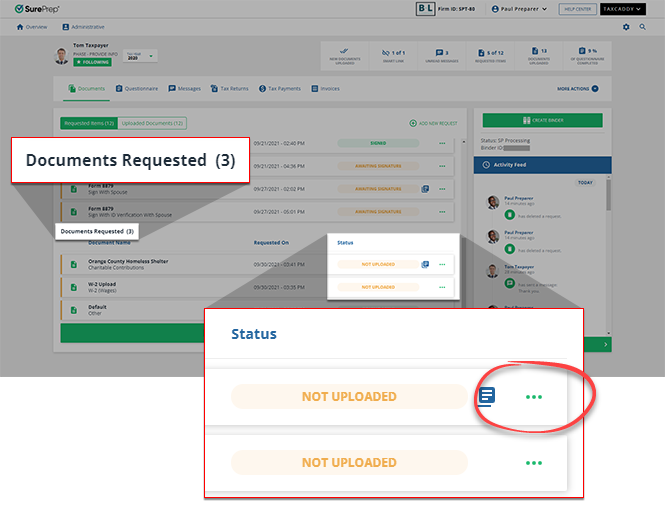 Not all documents with the Fillable icon are Customized Fillable Forms sent from the DRL. Documents can also have the Fillable icon if an empty form was uploaded and marked as fillable.
 - If the document is a Customized Fillable Form, then you will seeComplete Formas an option on the document tile. SelectComplete Form.Uploading a document rather than completing the form will alert you that doing so will replace the attached fillable PDF and any data you've provided to it. SelectCONTINUEto upload your document, or selectCOMPLETE FORMto fill the PDF in the Document Viewer panel.
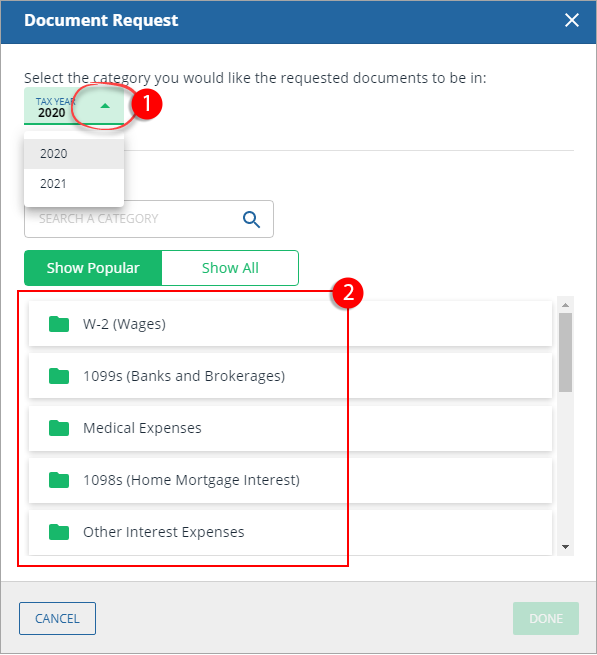
- To complete the form, select the highlighted fields then enter the data.noteFor GoSystem Tax RS and CCH Axcess Tax, identifier fields (descriptions) from the current year and amounts from the prior year will be auto filled based on the proforma data in the tax application (for example, “Jills Craft Shop” with a prior year amount of $47,500). . Ensure that you and your client only enter current year values; prior year values are only auto-populated as a reference (if available).
 noteCertain Customized Fillable forms will include an extra page in case the taxpayer requires additional space.
 - Once you have completed the form, selectSUBMITto upload the fillable form.
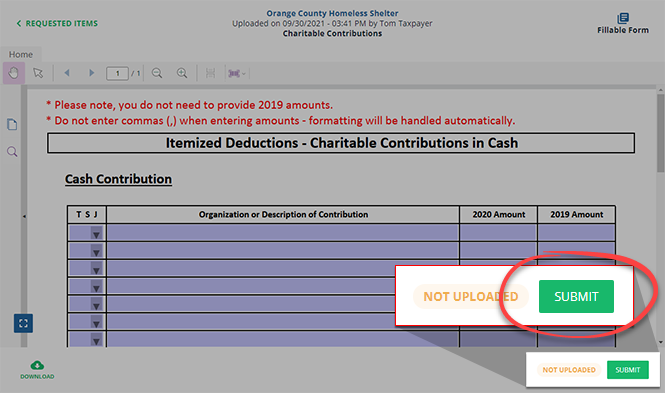
- On theSubmit Documentwindow, select the checkbox, then selectSUBMIT. Once the document is submitted, it can no longer be modified.
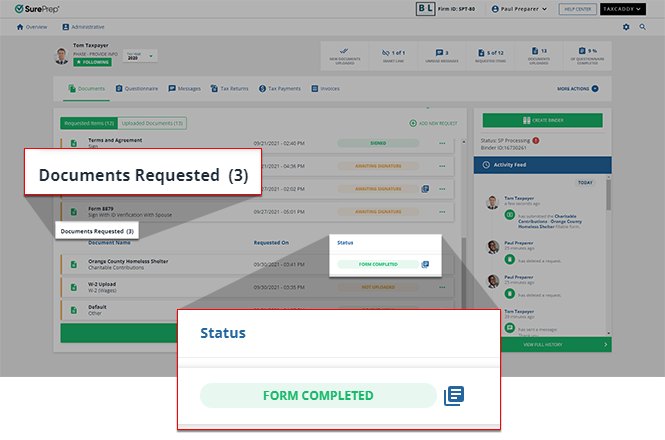
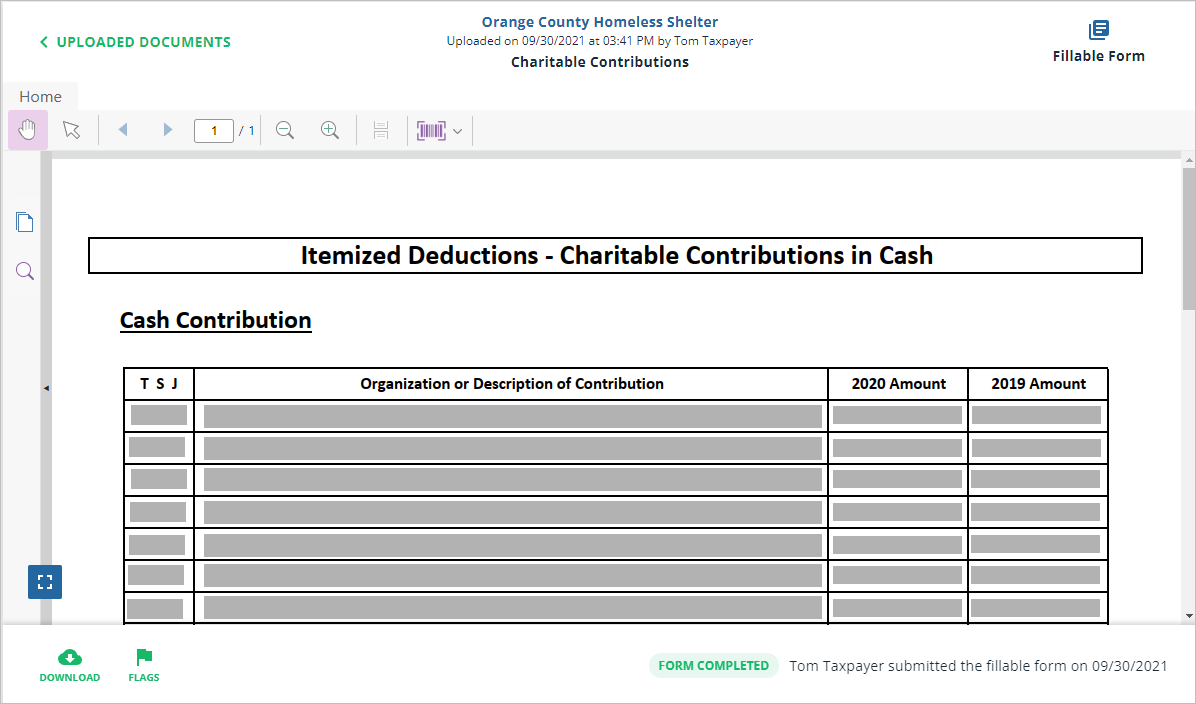
- Once the Customized Fillable Form form has been submitted, the document status displaysFORM COMPLETEDon theRequested Itemstab.
View uploaded Customized Fillable Forms
To view uploaded Customized Fillable Forms, go to
Documents
, then Uploaded Documents
.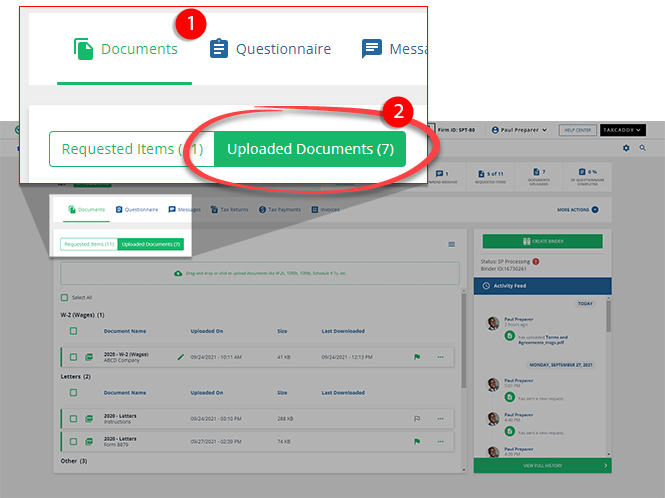
Select the submitted form to view it in the Document Viewer panel.

Delete uploaded Customized Fillable Forms
To redo the fillable form (for requested documents), delete the document from the
Uploaded Documents
tab. After the uploaded form has been deleted, it will be restored to its original state on the Requested Items
tab. All entered data will be deleted.note
Only the fillable forms available for uploading requested documents will be restored (for example, documents completed through the
Complete Form
feature). Fillable Forms for review/sign documents won’t be restored if they are deleted.To delete an uploaded Customized Fillable Forms, go to
Documents
, then Uploaded Documents
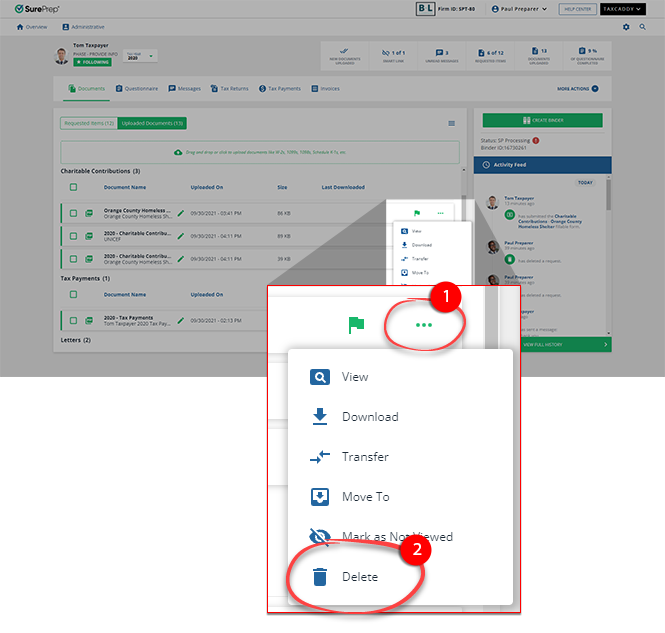
.Select the icon then select
Menu
icon then select Delete
. 
On the
Confirm Delete
window, select YES
to delete the uploaded document and restore it as a requested item.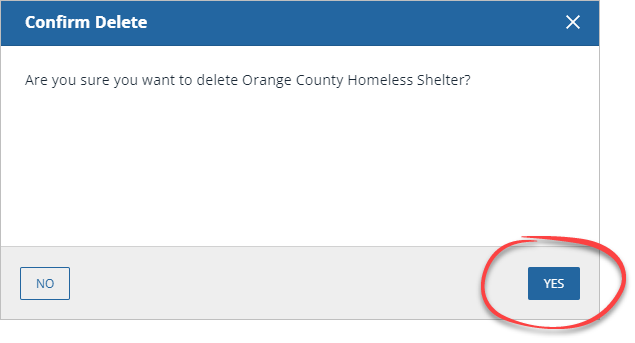
note
To redo the fillable form (for requested documents), you or your client can delete the document from the
Uploaded Documents
tab. However, after the uploaded form has been deleted, it will be restored to its original state on the Requested Items
tab. All entered data will be deleted. Only the fillable forms available for uploading requested document will be restored (for example, documents completed through the Complete Form
feature). Fillable Forms for review/sign documents won’t be restored if they are deleted.Related Content
-
Customized Fillable Forms
Format: Article
-
Customized Fillable Forms
Format:
Article

