
Customized Fillable Forms
You can let your clients complete custom fillable forms for each document request item supported by SurePrep. You can either create and send your clients a DRL (Document Request List) or manually request the document from the client profile. You and your clients will then have the option to either complete a fillable form or upload a document to address the requested document.
note
Customized Fillable Forms are only sent to the clients if the tax application has proforma data for the selected category (that is, DRL).
Follow these steps to enable Customized Fillable Forms:
- Sign in to TaxCaddy.
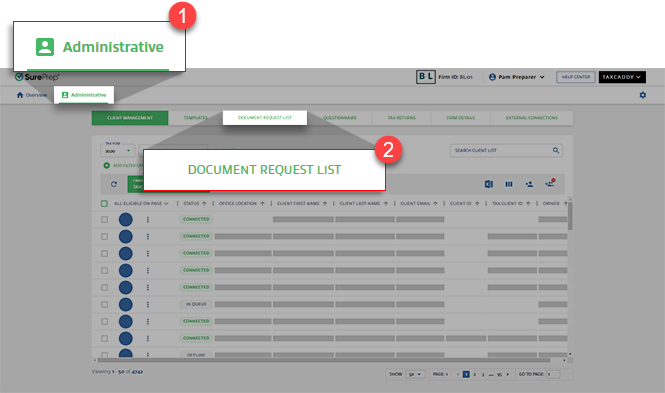
- SelectAdministrative, then selectDocument Request List.noteOnly users with Administrative permissions have access to theDocument Request List.
- Select theTax Year.
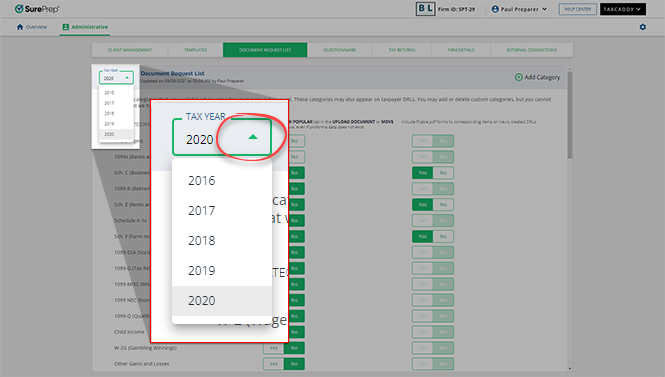
- Customized Fillable Form category options appear on the right column.SelectYesto enable the option to address the document request by completing a fillable form.SelectNoto turn off the option to address the document request by completing a fillable form.Point to theInformation
 icon to learn more about the consolidated Itemized Deductions category.
Customized Fillable Forms Categories
List of Customized Fillable Forms you can set
OFF
/ON
: Categories | Supported tax application |
|---|---|
Schedule C | Yes |
Schedule E | Yes |
Schedule F | Yes |
Charitable Contributions | Yes |
Non-Cash Contributions | Yes |
1098s (Home Mortgage Interest) (OFF by default) | Yes |
Other Interest Expenses | Yes |
Medical Expenses | Yes |
Real Estate Taxes | Yes |
DMV Fees and Taxes | Yes |
Other Taxes | Yes |
Foreign Bank and Financial Accounts (OFF by default) | CCH Axcess Tax |
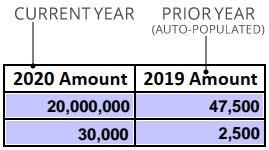
When completing a fillable form, certain tax year data may be auto-populated based on the tax application.
note
After sending your client their fillable PDF with the prior year amounts auto-populated, ensure that your client is making updates to the current year rather than updating the prior year's values.
Refer to the following table to determine if TaxCaddy auto-populates Customized Fillable Forms for your tax application:
Tax application | Auto-populates |
|---|---|
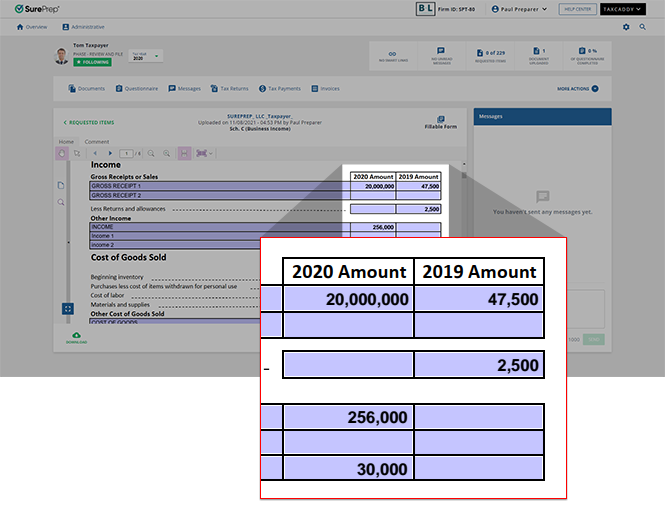
GoSystem Tax RS CCH Axcess Tax | Current year and prior year data (except Foreign Bank Account). Current year = Identifier/description fields Prior year = amounts from last year |
Other tax application (for example, UltraTax, Lacerte) | Doesn’t auto-populate prior year data. |
note
- Auto-populate fields only auto-populate if the tax application is supported and the client's tax return has identifier fields with values in them (for example, “Jills Craft Shop” has a prior year amount of $47,500). To auto-populate, all the identifier fields must have (prior year) information in the client's tax return in the tax application. If identifier fields are incomplete/missing, then the user has to manually enter the data in the fillable forms.
- Fillable Forms appear if there is data associated with the entity in the tax application's proforma from the previous year.Example: Schedule C (Business Income) for 'ABC' is in the tax application, however, if the required identifier fields are not available in the tax application then a fillable form won’t appear for the 'ABC' entity.
Additionally, Customized Fillable Forms with the icon will group each entity in that category into a single request as a consolidated itemized deduction (CCH Axcess Tax and GoSystem Tax RS).
Information
icon will group each entity in that category into a single request as a consolidated itemized deduction (CCH Axcess Tax and GoSystem Tax RS).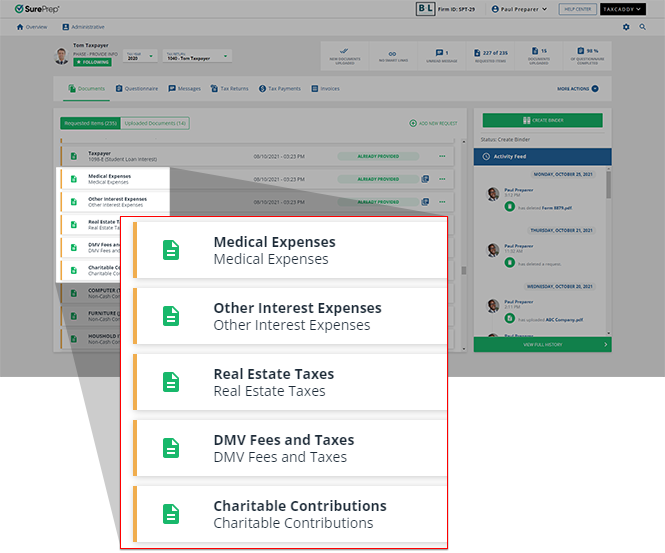
note
For Lacerte and UltraTax, changing the
Itemized Deduction
and Foreign Bank
categories to ON
won’t include Customized Fillable Forms in the client's DRL. Those categories will still appear as individual requests.If you selected
Yes
and there is proforma data in the tax application, then clients will receive the Customized Fillable Forms after you create and send the DRL.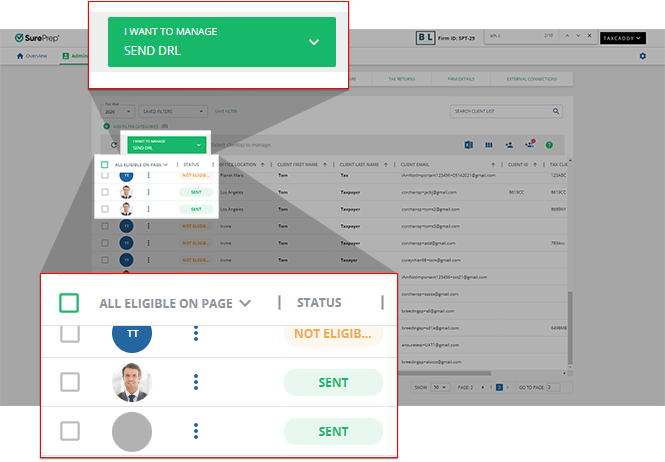
note
If the DRL was created before this option was enabled, then clients won’t receive the Customized Fillable Forms. You need to reset DRL and create it again before sending it to the client.
You can also manually request a document from the client profile. However, only categories that allow fillable forms will appear as fillable forms when you create a request.

You and your clients can then address the document request by completing the fillable form or uploading the relevant document.
note
Once your client signs or reviews a fillable form in TaxCaddy, they’ll no longer be able to make changes to the contents of the document.

Related Content
-
Complete form (Customized fillable forms)
Format: Article
-
Prepare a fillable PDF
Format:
Article
-
Complete form (Customized fillable forms)
Format:
Article

