
Custom Styling
Custom Styling
lets you personalize your client's TaxCaddy experience according to your firm's color branding policy. Setting a firm logo and custom styling lets you distinguish your firm's identity and establishes brand awareness with your client. The custom styling feature affects all connected clients.note
Custom Styling
can only be modified by a Firm System Administrator
.Change Custom Styling
Follow these steps to personalize your client's TaxCaddy experience:
- Sign in to TaxCaddy.
- SelectAdministrative, then selectFIRM DETAILS.
 IfFirm Detailsdoesn't appear on the navigation menu, select theExpand Menuicon
 to view the complete list. On the dropdown menu, select Firm Details.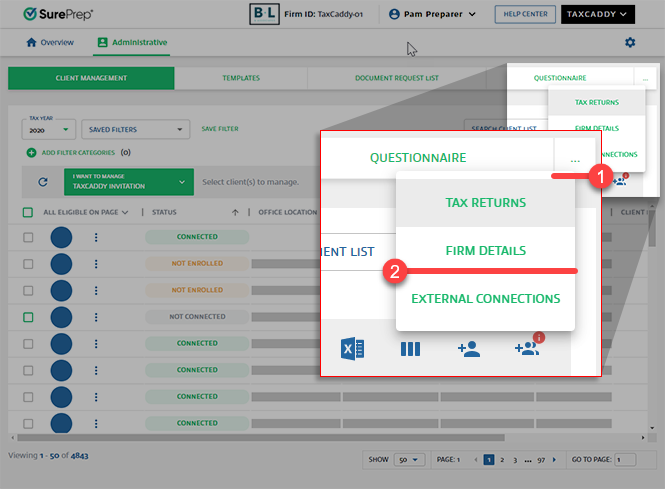
- On the left panel, select theCustom Stylingtab.
- Custom Styling can only be saved by a user who's assigned as aFirm System Administrator. You will get the following window if you don’t have permission to modify the custom styling.
 Go to to view or edit user group.
- On the right panel, the upper half shows you a live preview based on your current color selection. ThePreviewsection lets you see how your current color palette will look on your client's TaxCaddy account.
- The lower half lets you customize colors based on your firm's branding policy.
- SelectDesktopto modify colors for TaxCaddy on the web (selected by default).
- SelectMobileto modify colors for the TaxCaddy app on iOS and Android.
Enter the HEX code (that is, #18B86B) associated with your firm's color branding policy.noteEach text field shows the current entered color next to the HEX code (that is, #18B86B previews a green color on thePrimary Colorfield). - In thePRIMARY COLORfield, enter the lighter HEX color code (that is, #18B86B) associated with your firm.If you get the messageThis field needs to be a darker shade for the best user experience, then select a darker color.Learn more about contrast ratios.

- In theSECONDARY COLORfield, enter a darker HEX color code (that is, #18B86B) associated with your firm.If you get the messageThis field needs to be a darker shade for the best user experience, then select a darker color.Learn more about contrast ratios.

- EnterHEADER COLORforTitles/Headers. EnterBODY FONT COLORfor paragraph text.noteSelect aHeader Colorwith a dark contrast that can be placed on a white background.If you get the following message, then select a darker shade or a different color.Learn more about contrast ratios.

- In theDARK MODE PRIMARYfield, enter a hex color code that has a contrast ratio of 1.8 against both white (#ffffff) and black (#000000) color. SelectToggle Light Modeto see the preview panel in dark mode.Learn more about contrast ratios.Taxpayer's experience using dark mode.
- To modify colors for the TaxCaddy app on iOS and Android, select theMobiletab then set colors for each field.
- SelectSAVE CHANGESto save changes. To revert all colors back to the default TaxCaddy colors, selectSHOW DEFAULTthen selectSAVE CHANGESto save the default colors.noteSaving changes updates bothDesktopandMobile. Similarly,Show Defaultupdates bothDesktopandMobiletabs back to the default TaxCaddy colors.
- On theConfirm Custom Stylingwindow, selectI acknowledge that I have read, understand and agree to the terms above. By checking this box I confirm my selection.

- SelectConfirm. All Connected (status) clients will see the new custom styling immediately.

Contrast ratio
The use of complementary colors is about finding shades that provide enough contrast between the content and the background for anyone with low vision impairments and color deficiencies. Care should be taken to ensure a level of contrast in body text, logos, and other pieces of content. Because of this, we have set up contrast ratio validations for “Primary”, “Secondary”, “Header”, and “Body Font” branding colors based on how they’ll appear in TaxCaddy.
When compared against white color (#FFFFFF), the contrast ratio for your selected color must be equal to or greater than the following:
Color type | Web |
|---|---|
Primary Color | 1.2 |
Secondary Color | 2 |
Header Color | 2 |
Body Font Color | 2 |
Dark Mode Primary | 1.2 or greater against white color #ffffff & 2.5 or greater against black color #000000 |
Color type | Mobile |
|---|---|
Primary Color | 1.2 |
Secondary Color | 2 |
Top Bar Color | 2 |
Header Font Color | 2 |
Body Font Color | 2 |
You can use the following third-party links to view your contrast ratio:
You will get the following message if your contrast ratio is lower than the minimum requirement:
Permissions
Only the Firm System Administrator can save the Custom Styling. Users without proper permissions will get the following message on the
Permissions
window:
You don’t have permission to save changes to these settings.
To view your Firm System Administrator, go to .
You can also edit an existing user or create a new user as a
Firm System Administrator
.Related Content
-
Administrative screen
Format: Article
-
Get HEX code for Custom Styling
Format:
Article

