
Tax Year Manager
Tax Year Manager
lets the Firm System Administrator limit the number of tax years the firm can access a clients' profile. On January 1 of every year, access to previous tax years will be revoked if they are older than the selected time range. Once a tax year has been revoked, client profiles can no longer be viewed or restored. Increasing the number of tax years on/after January 1 won’t restore tax years that have already been revoked.Limit access to tax years
Follow these steps to limit the number of tax years the firm should maintain access to:
- Sign in to TaxCaddy.
- SelectAdministrative, then selectFIRM DETAILS.
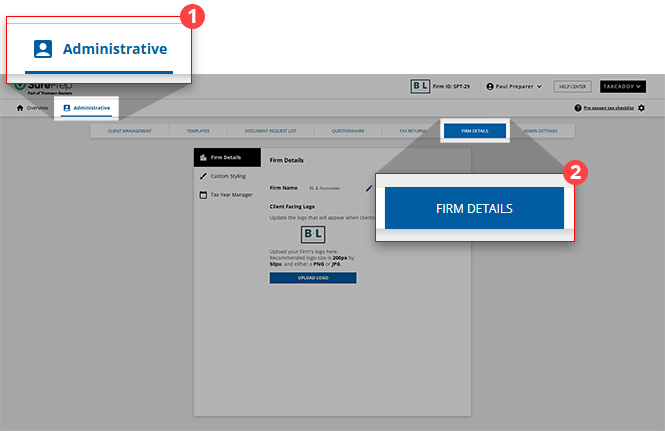 IfFIRM DETAILSdoesn't appear on the navigation menu, select theExpandbutton to view the complete list. On the dropdown menu, selectFIRM DETAILS.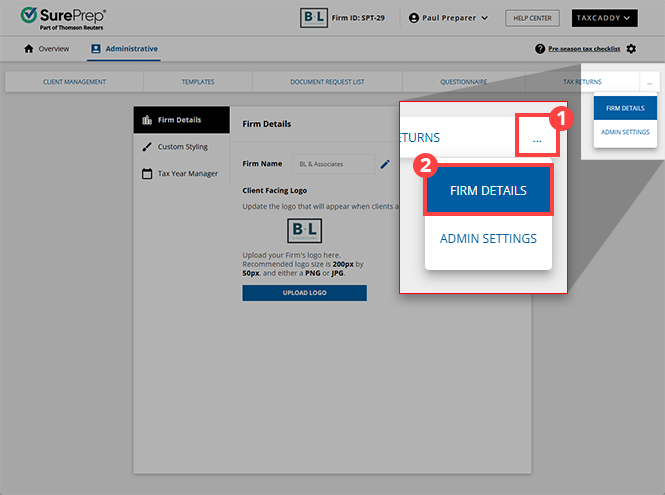
- Select theTax Year Managertab.
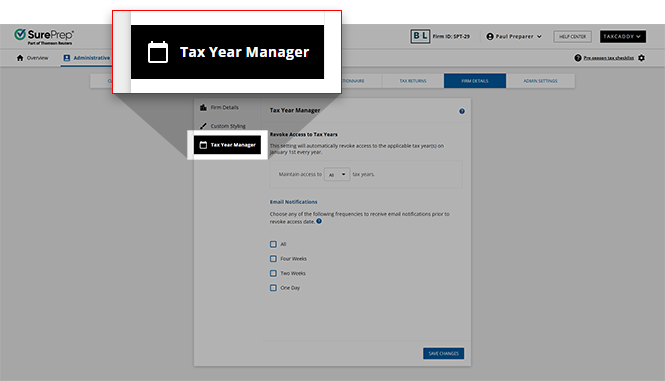 ThePermissionswindow appears for users that don't have permission to save Tax Year Manager settings.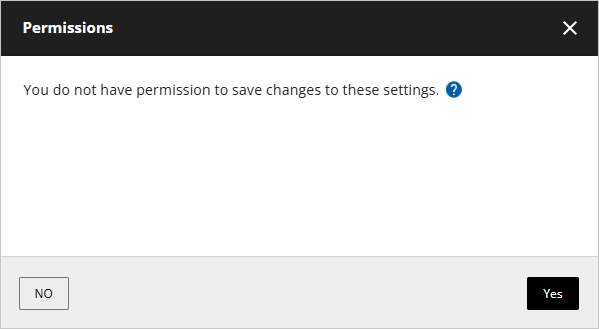
- On the dropdown menu, select the number of tax years you want to maintain access to (including the current year).
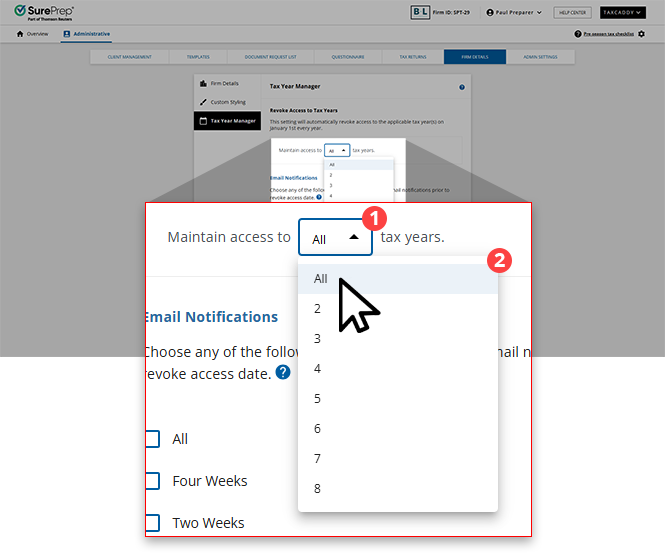 Each tax year option includes the current year + previous years.Example:Tax years selectedAccessible tax years in 202522025 (current year), 2024 (last year)32025 (current year), 2024 (last year), 2023 (2 years ago)42025, 2024, 2023 (2 years ago), 2022 (3 years ago)AllMaintains access to all tax years.
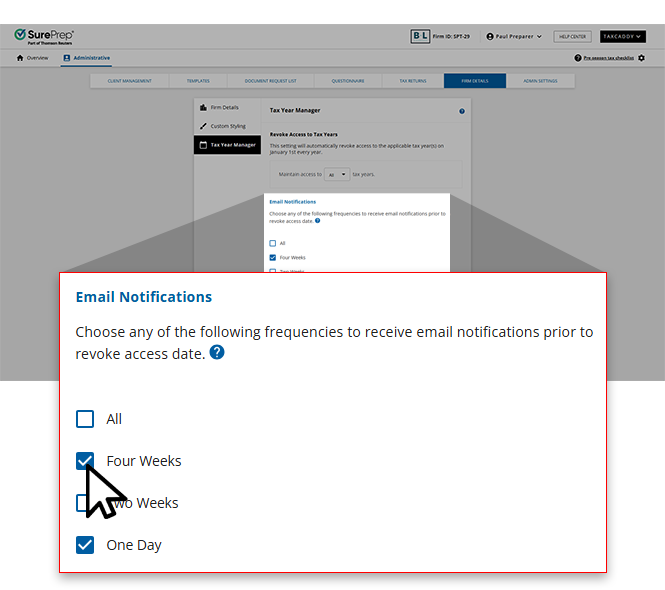
 - To receive an email reminder, select options forEmail Notifications(optional).
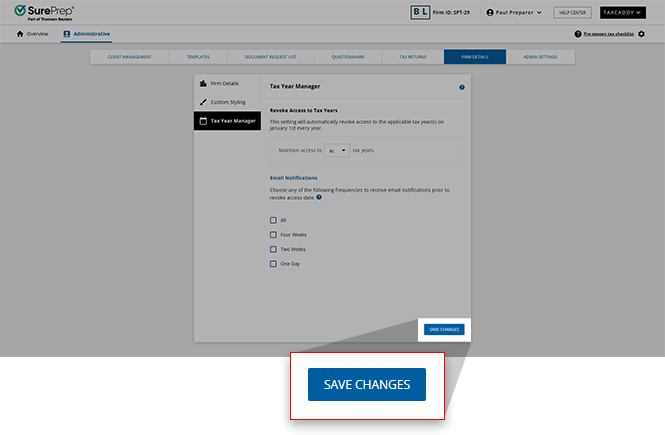
- SelectSAVE CHANGES.noteTheSave Changesbutton won't be available if you are not a Firm System Administrator.
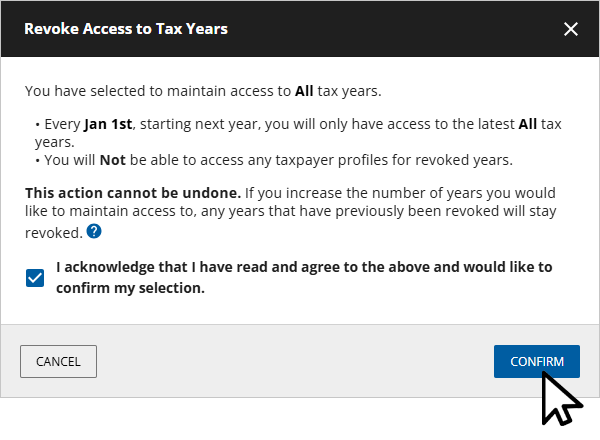
- On theRevoke Access to Tax Yearswindow, select theI acknowledge that I have read and agree to the above and would like to confirm my selectioncheckbox.
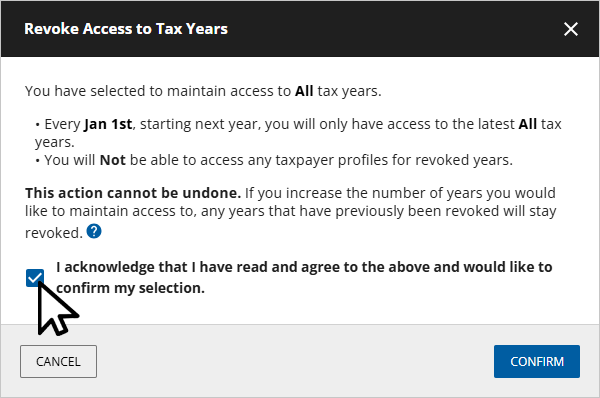
- SelectCONFIRM.
 You can change these options at any time before January 1 of every year. Once a tax year is revoked, it won’t be accessible to any user in the firm.Taxpayer's experience when viewing different tax years.
Email notifications
Firm System Administrator can choose to receive email reminders prior to January 1 before a tax year is revoked. Email reminders can help the Firm System Administrator decide if the firm needs to retain additional tax years or download any necessary client data before the tax year is revoked.
To receive an email reminder, select options under
Email Notifications
, then select SAVE CHANGES
.You can select multiple options to receive multiple notifications. Select the
All
option to receive notification for all of the possible options.Based on your firm's
Email Notifications
setting, email reminders will be sent to the Firm System Administrator
4 weeks/2 weeks/1 day prior to the tax year being revoked (on January 1).
Permissions
Tax Year Manager settings can only be saved by the Firm System Administrator. Users without proper permissions will get the
Permissions
window with the message:
You do not have permission to save changes to these settings.
To view your Firm System Administrator, go to .

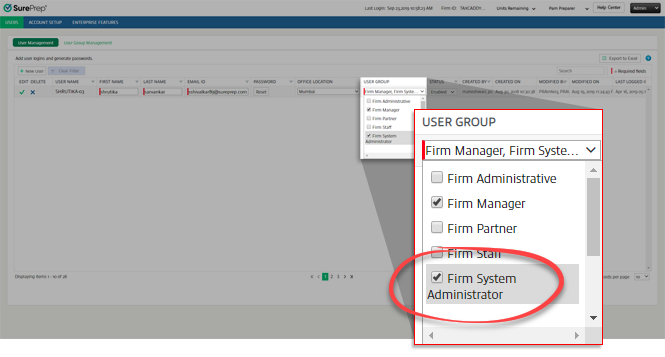
You can also edit an existing user or create a new user as a
Firm System Administrator
.
Related Content
-
Administrative screen
Format: Article
-
Update your firm details: Client-facing logo and firm name
Format:
Article

