
Update your firm details: Client-facing logo and firm name
Your firm name and client-facing logo appear in your clients’ TaxCaddy accounts and in email notifications. For best results, upload a logo that is at least 200 px (width) x 50 px (height). However, you can upload logos with different ratios and sizes (that is, square, circle).
Update your firm details
Follow these steps to edit the firm name and upload a logo.
- Sign in to TaxCaddy.
- SelectAdministrative, then selectFIRM DETAILS.
 IfFIRM DETAILSdoesn't appear on the navigation menu, select theExpandbutton to view the complete list. On the dropdown menu, selectFIRM DETAILS.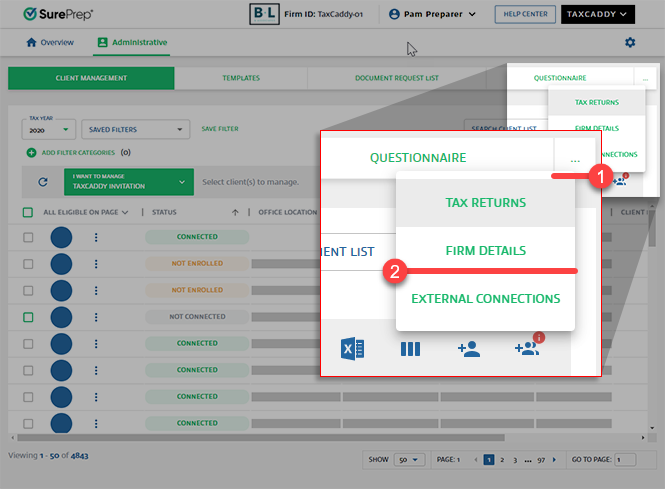
- On the left panel, theFirm Detailstab should be selected (default).

- Your firm name is automatically imported from SurePrep, but you may want to use an abbreviated version if it's long enough to be disruptive in the messages and notifications sent to your clients. If necessary, select theEdit
 icon.
icon.
 Make the changes in theFirm Namefield, then selectSave. Changes made toFirm Nameare reflected in your templates and in your clients' TaxCaddy accounts.
- SelectUpload Logoand go to the location of the file to upload.
 Select the new firm logo, then selectOpen.
- On the confirmation window, selectYES.

- The logo is saved automatically and instantly reflected in your clients' TaxCaddy accounts.noteThe optimal logo size is at least 200 px (width) x 50 px (height). However, you can also upload a logo with a different ratio (that is, a square logo).

Related Content
-
Administrative screen
Format: Article
-
Administrative screen
Format:
Article
-
Tax Year Manager
Format:
Article

