
Marking invoice as paid
An invoice can be marked as paid in 2 ways. Your client pays the invoice or you manually mark the invoice as paid. You can also view who marked the invoice as paid by viewing the invoice in the
Document Viewer
window or point to the Paid
status on the invoice.Follow these steps to mark your client's invoice as paid:
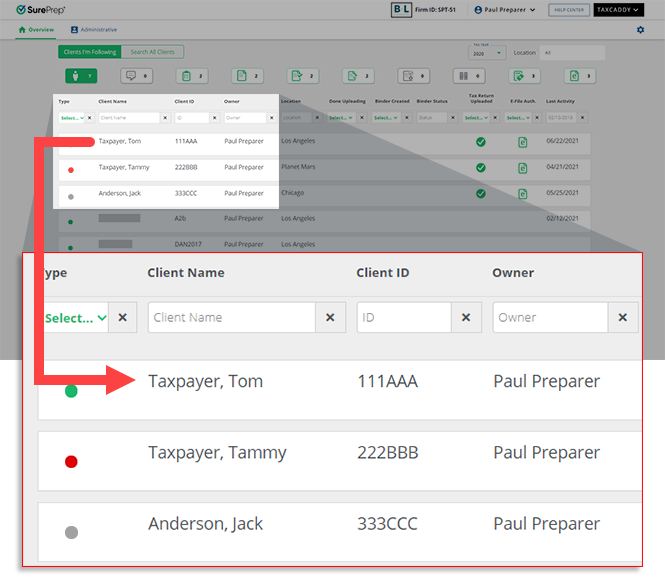
- On theOverviewscreen, select a client tile to view the client profile. You can also search for a client then select the client tile from the search result.
- Select theInvoicestab.

- Select theTAX YEAR.

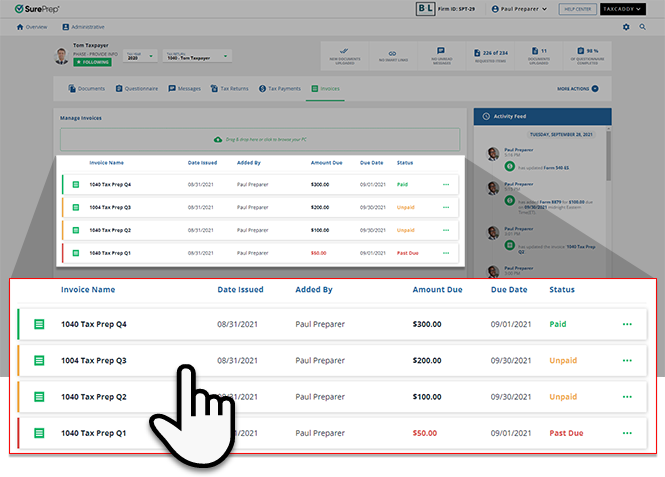
- A list of your client's invoices will appear here. On theStatuscolumn, each invoice will indicate if the invoice has beenPaid,Unpaid,Refunded, andPast Due.
 noteThePaidstatus on an invoice indicates that the invoice has beenMarked as Paidby you or your client. ThePast Duestatus on an invoice indicates that the invoice is past due date.
 - Select theMenu
 icon on an UnpaidorPast Dueinvoice.
- When the options appear, selectMark as Paid.

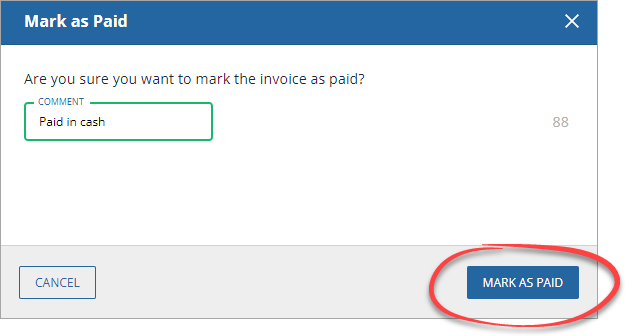
- When theMark as Paidwindow appears, enter a comment if needed, then selectMARK AS PAIDto mark anUnpaidinvoice asPaid. SelectCANCELto close without saving any changes.
 noteIf your email notifications are enabled, you will receive an email when your client pays an invoice.
 - The invoice will be marked as paid.

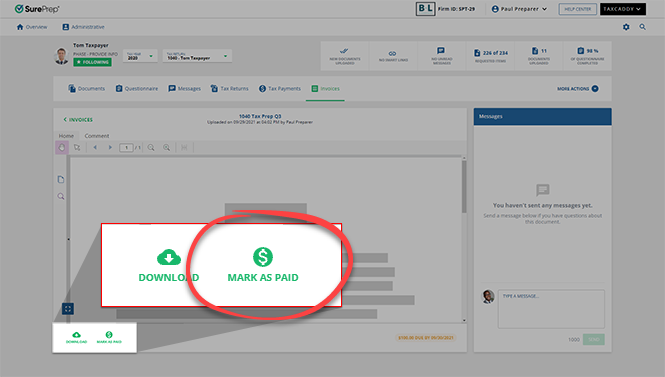
- Alternatively, you can also mark an invoice as paid from the Document Viewer panel. Select on an invoice to view the PDF file.
- When you have the invoice file open for viewing, selectMARK AS PAIDto mark the invoice as paid.
 You can see the payment details on the lower-right corner of the Document Viewer panel.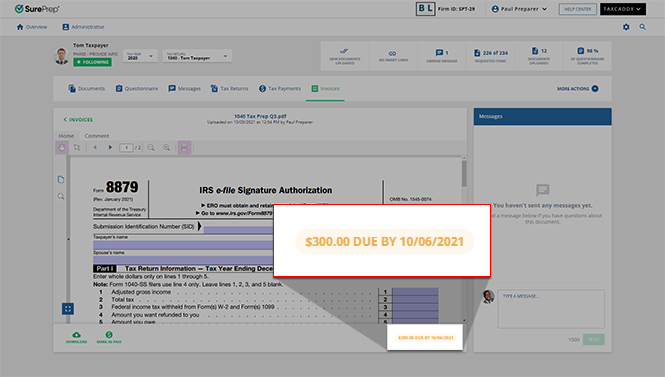
- Once an invoice has been marked as paid, it can no longer be edited or deleted.

Mark as Paid stamp
TaxCaddy stamps an invoice once it has been marked as paid. To view the stamp, open the invoice in the Document Viewer panel. You will see the stamp appear on the top right of the PDF.

note
If status notifications are enabled by the user, then in 24 hours only a single notification email will be sent to the user per each notification type (add, edit, delete, refund, or mark as paid). For example: If you add 2 invoices, and delete one, then only 1 invoice will be sent for adding an invoice, and one for deleting an invoice.
note
You won’t see invoice payments in Stripe if they were manually marked as paid in TaxCaddy.
Related Content
-
Adding an invoice
Format: Article,
6 min read
Article,
6 min read
-
Refunding an invoice
Format:
Article,
5 min read

