
Refunding an invoice
The mark as refunded feature lets you track refunds that have been issued for invoices. Use this link to learn more about processing a refund in Stripe.
note
You can only mark an invoice as refunded if it has been marked as paid by you or paid by the taxpayer.
Do not use the
Refund
feature in TaxCaddy until you have successfully processed a refund, either through Stripe or your preferred payment method. Marking an invoice as refunded is for your firm and your clients' record keeping only, it won’t trigger any funds to be returned to your client.Follow these steps to mark your client's invoice as refunded:
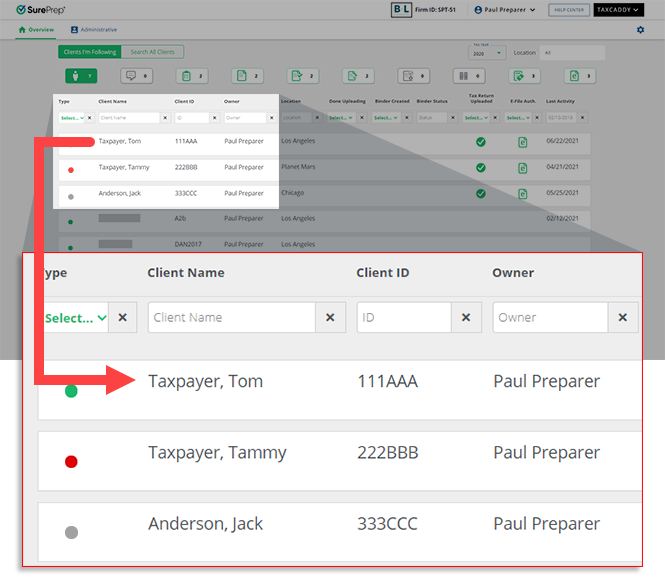
- On theOverviewscreen, select a client tile to view the client profile. You can also search for a client, then select the client tile from the search result.
- Select theInvoicestab.

- Select the tax year.

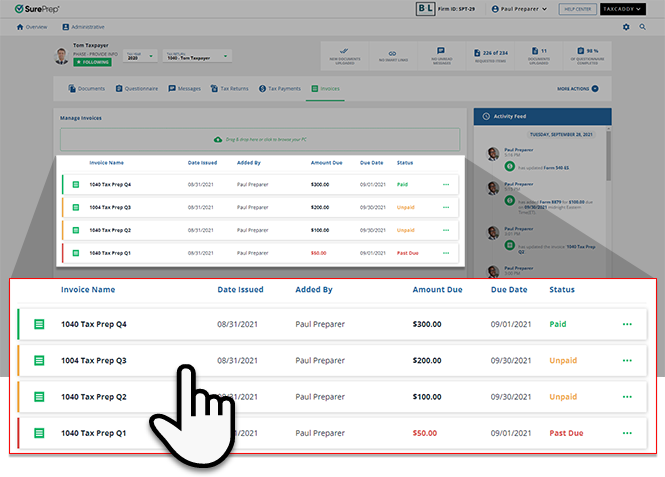
- A list of your client's invoices will appear here. On theStatuscolumn, each invoice will indicate if it has beenPaid,Refunded,Unpaid, orPast Due.
 noteThePaidstatus on an invoice indicates that the invoice has beenMarked as Paidby you or your client. ThePast Duestatus on an invoice indicates that the invoice is past due date.
 - Select theMenu
 icon on a Paid(status) invoice.
- SelectRefund.
 noteDo not use theRefundfeature in TaxCaddy until you have successfully processed a refund, either through Stripe or your preferred payment method. Marking an invoice as refunded is for your firm and your clients' record keeping only, it won’t trigger any funds to be returned to your client.
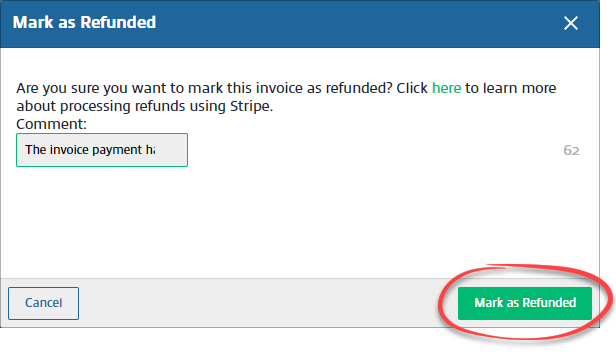
 - When theMark as Refundedwindow appears, enter your comment then selectMark as Refundedto mark the invoice as refunded.
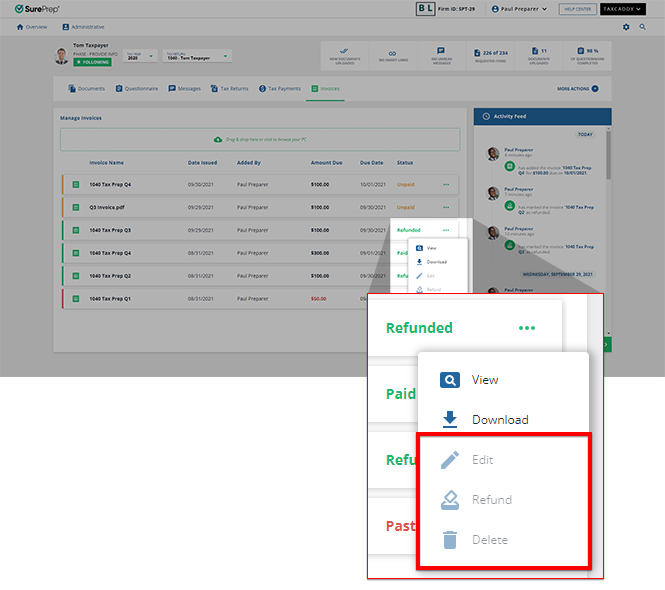
- The invoiceStatuswill update toRefunded.

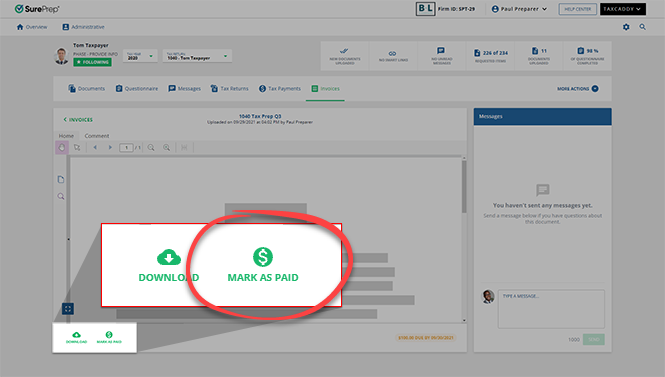
- Alternatively, you can also mark an invoice as paid from the Document Viewer window. Select on an invoice to view the PDF file.
- When you have the invoice file open for viewing, selectMark as Refundedto mark the invoice as refunded.
- Once an invoice has been marked as refunded, it can no longer be edited or deleted.
Refunded stamp
TaxCaddy stamps an invoice once it has been marked as refunded. To view the stamp, open the invoice in the
Document Viewer
window. You will see the stamp appear on the top left of the PDF.
Related Content
-
Adding an invoice
Format: Article,
6 min read
Article,
6 min read
-
Marking invoice as paid
Format:
Article,
5 min read

