
Stripe
You can use Stripe to get invoice payments from your users. After Stripe is enabled you can add your invoice, letting the taxpayer pay with an ACH (bank account) or credit card conveniently. Once a client makes an invoice payment, you can verify the payment in Stripe.
note
When you upload an invoice, SurePrep charges 1 TaxCaddy Deliver unit once (if the Delivered unit hasn’t already been charged for the client's current tax year/tax return). Additional Stripe transaction fee rates apply separately based on payment type. Learn more about Stripe pricing.
Link a stripe account
Follow these steps to link your TaxCaddy account with Stripe:
- Sign in to TaxCaddy.
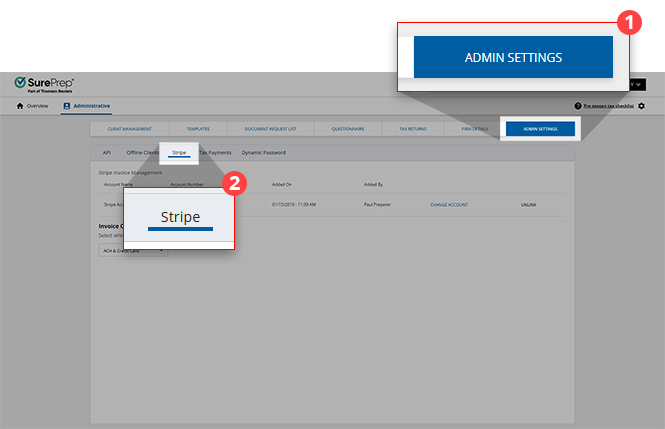
- SelectAdministrativethen selectADMIN SETTINGS.

- Select theStripetab.
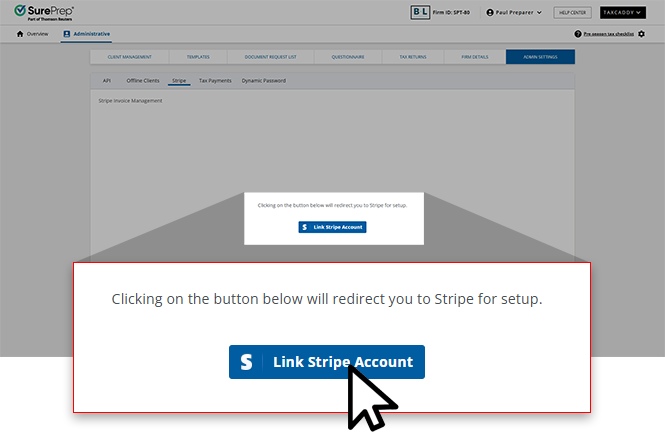
- SelectLink Stripe Account.
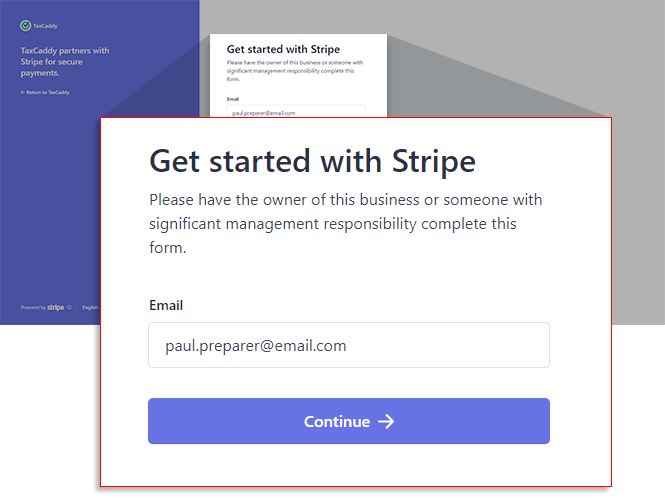
- When the Stripe page installs, enter the email address you want to sign up with. If you already have a Stripe account, then enter the email address associated with your Stripe Account.
- To create a Stripe account, enter your password then selectContinue.
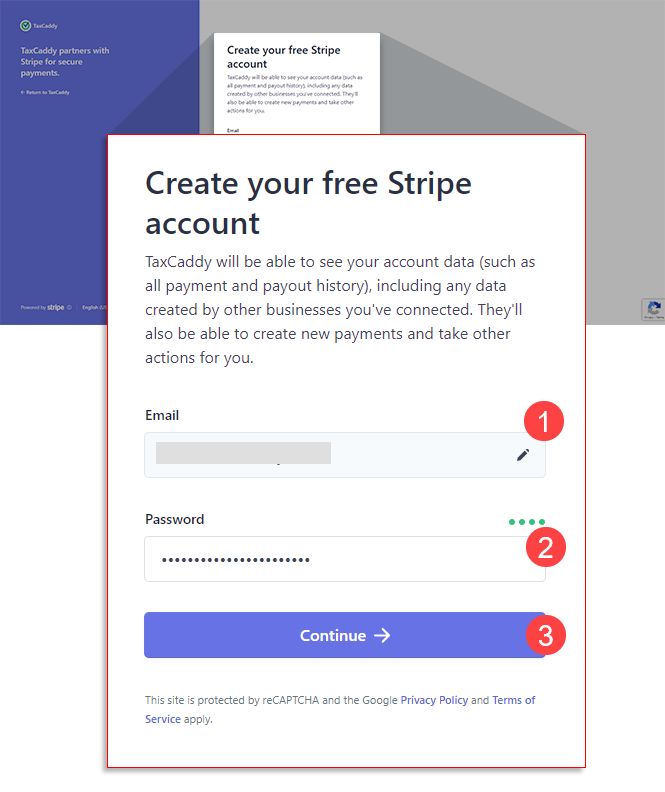
- If you already have a Stripe account linked to the email address, then you will be requested to enter your existing Stripe sign in credentials.
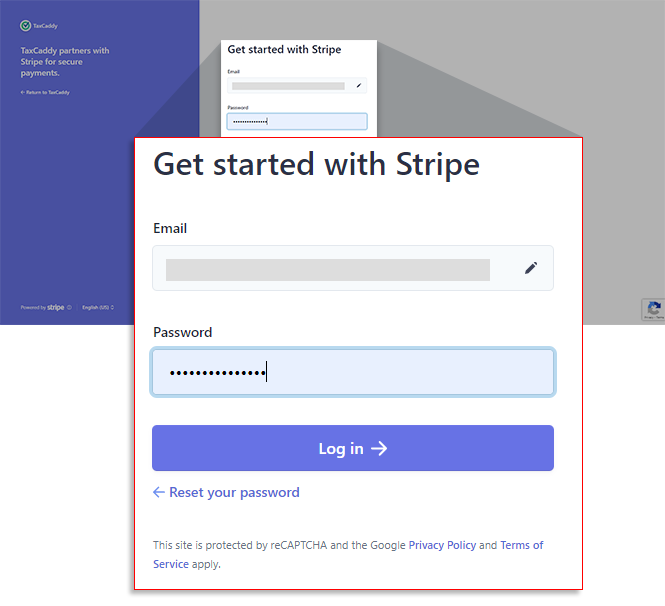
- Enter your password then selectLog in.
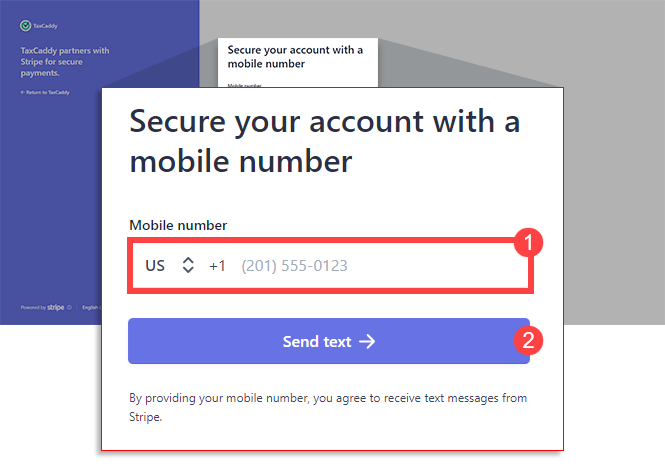
- Enter a mobile phone number then selectSend text. A Two-Factor Authentication code will be sent to this number anytime you attempt to log
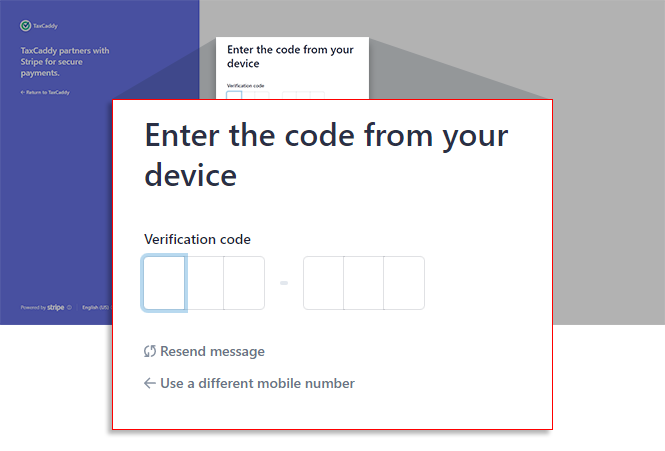
- Stripe will send you a verification code (via SMS) on the number you provided earlier. Enter the verification code into theVerification codefield.
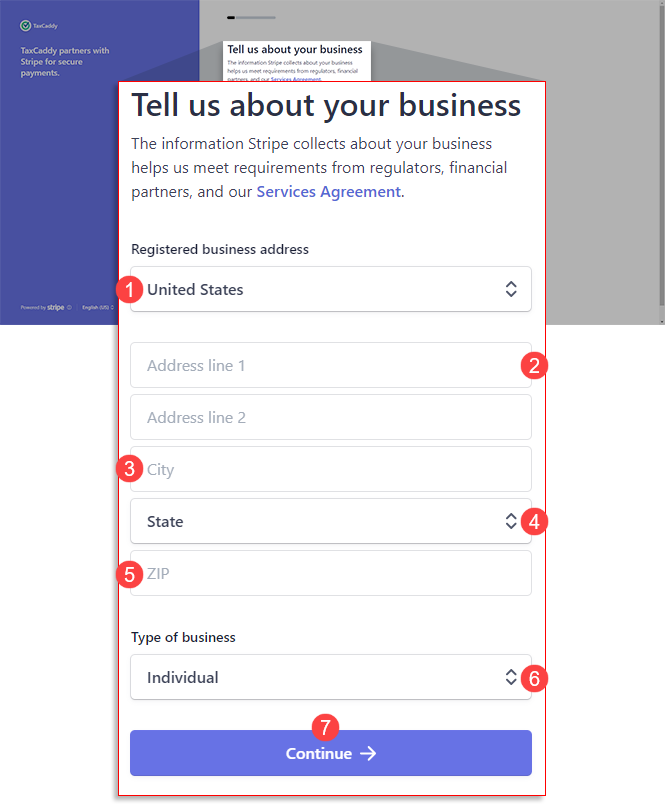
- Enter your business information (for example, address, business type) then selectContinue.
- Enter your personal details.
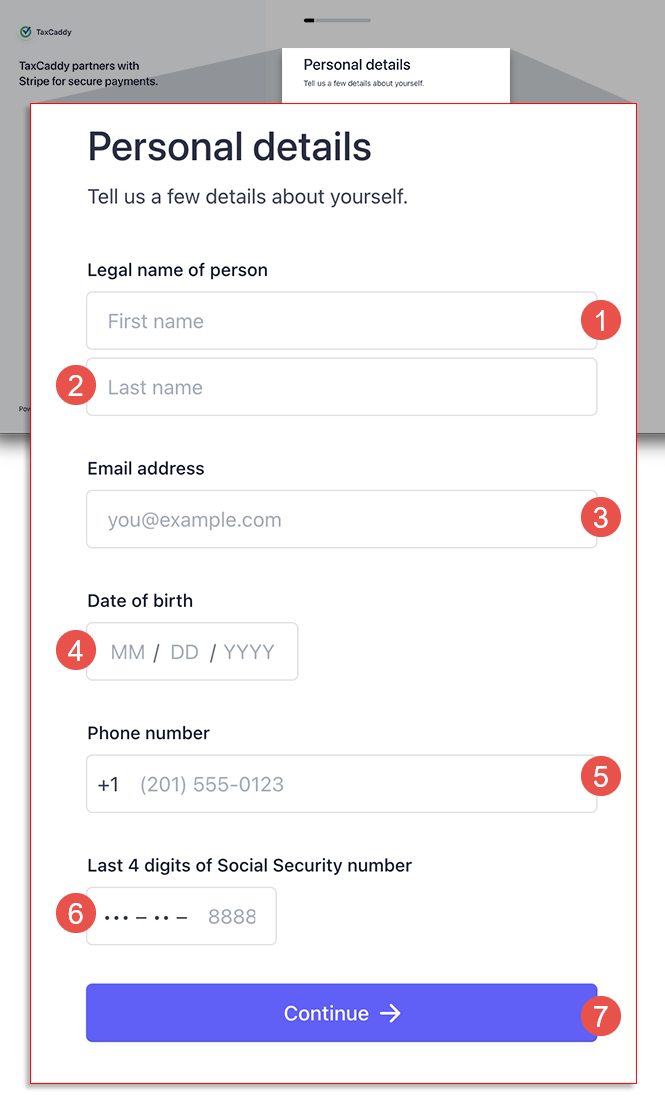
- Enter your business details. Select the industry your business operates in. Enter your business's website, describe the product you are selling, then selectContinue.
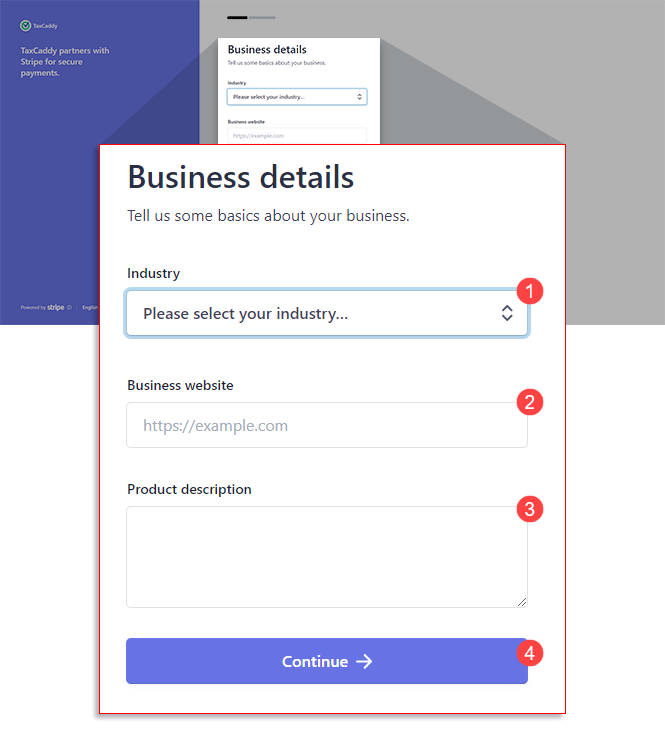
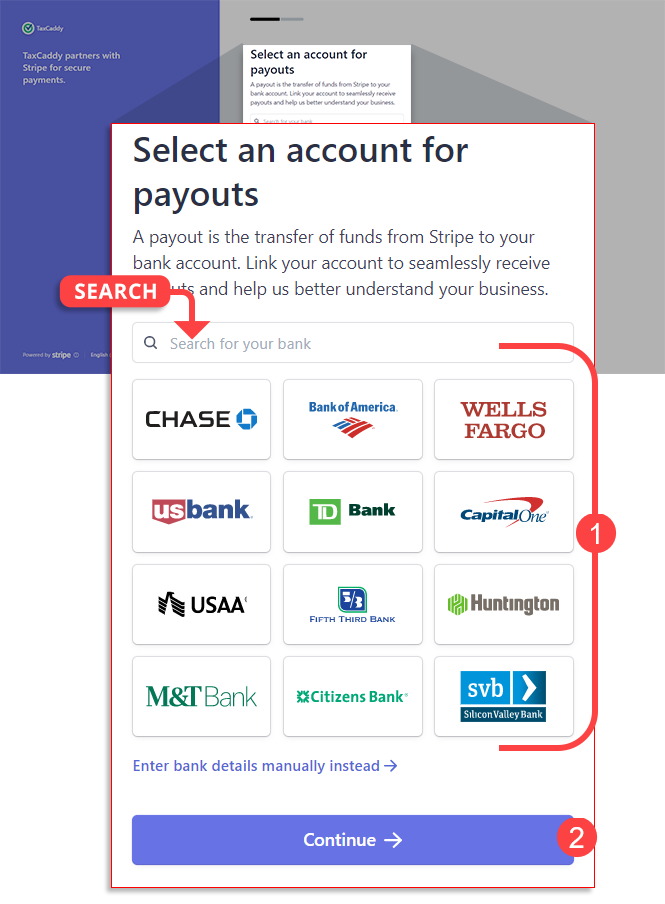
- Select a bank account to transfer your funds to. There are 2 methods of adding a bank account:
- Method 1 (Automatic)
- Method 2 (Manual)
Method 1 (Automatic)
Follow these steps to add your bank account automatically using the
Log in
method:- Select the tile that is associated with your bank account, then selectContinue. If your bank account doesn’t appear on the list then useSearchto find your bank account.
- You can read the Stripe Privacy Policy, then selectAgree.
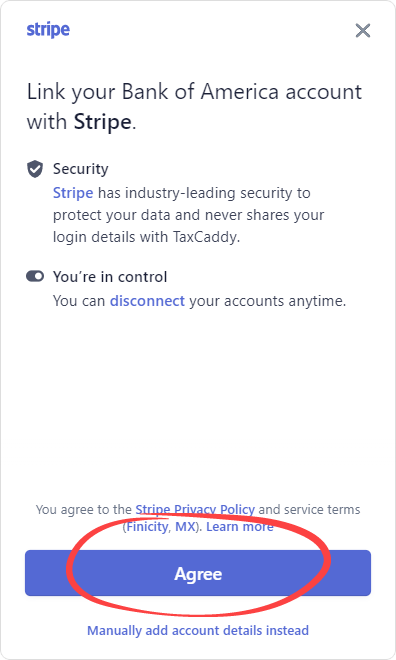
- Sign in to your bank account.
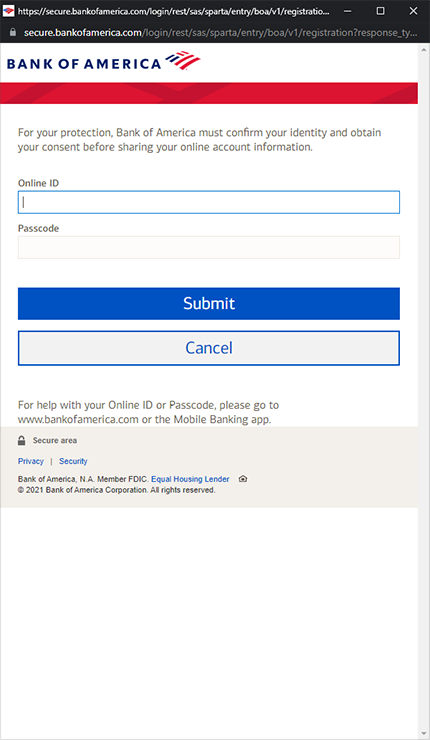
Method 2 (Manual)
Follow these steps to enter your bank's routing and account number information manually:
- SelectEnter bank details manually instead.
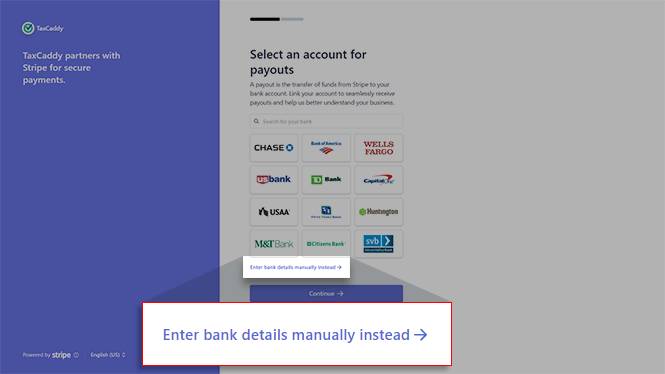
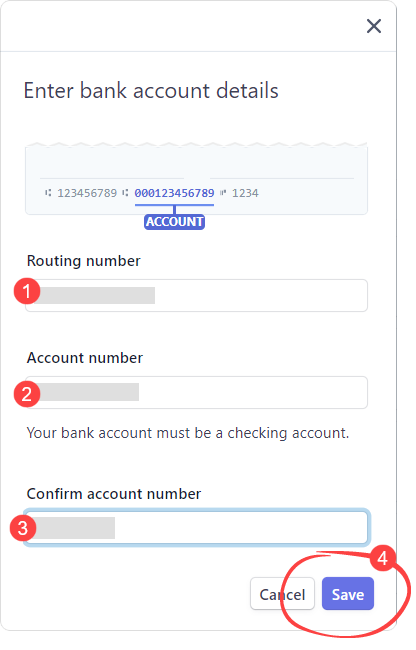
- Enter theRouting number,Account number, then enter theAccount Numberagain.
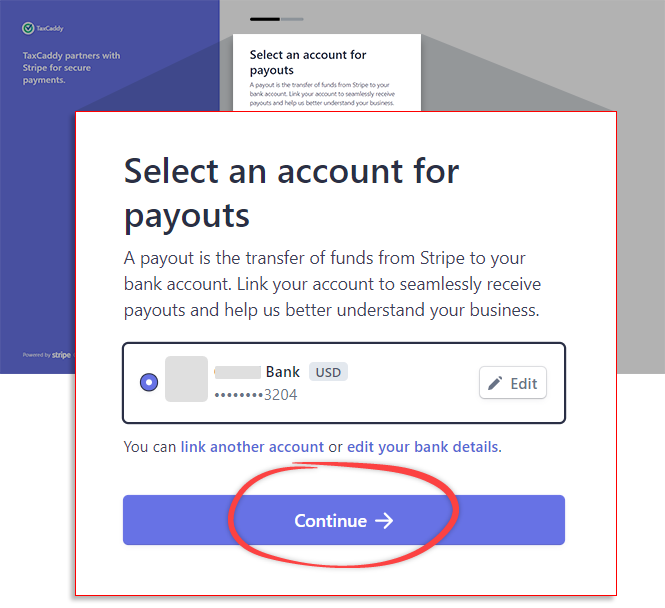
- After your account is added, verify the last 4 digits of your account number then selectContinue.
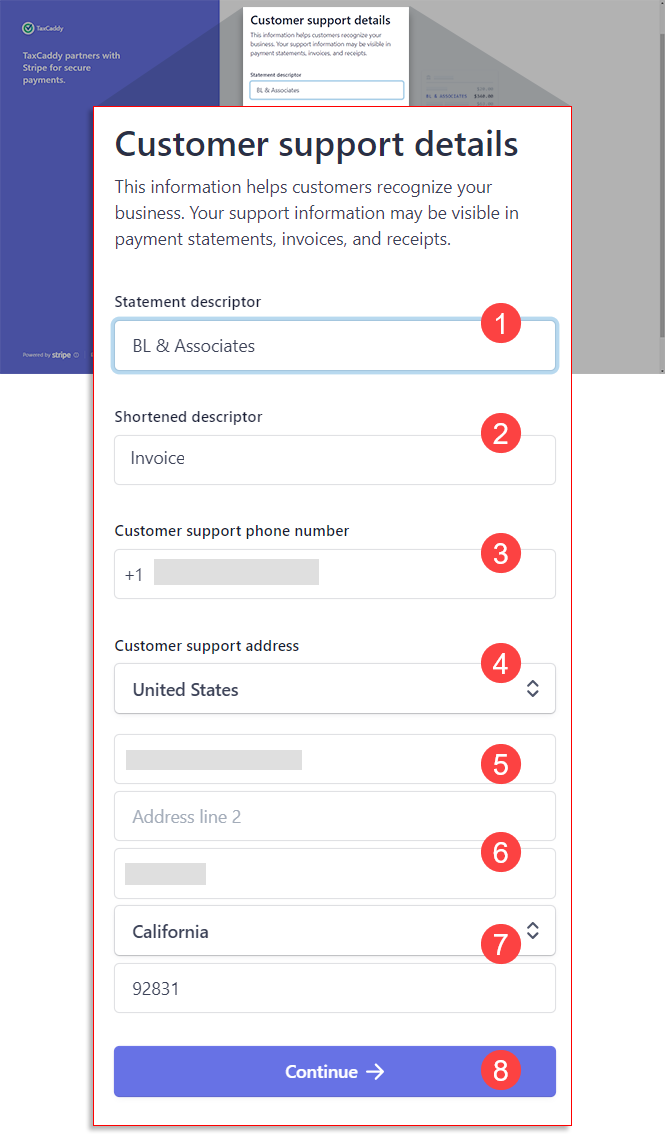
- Enter customer support information. The Statement descriptor and Shortened descriptor may be visible in payment statements, invoices, and receipts.
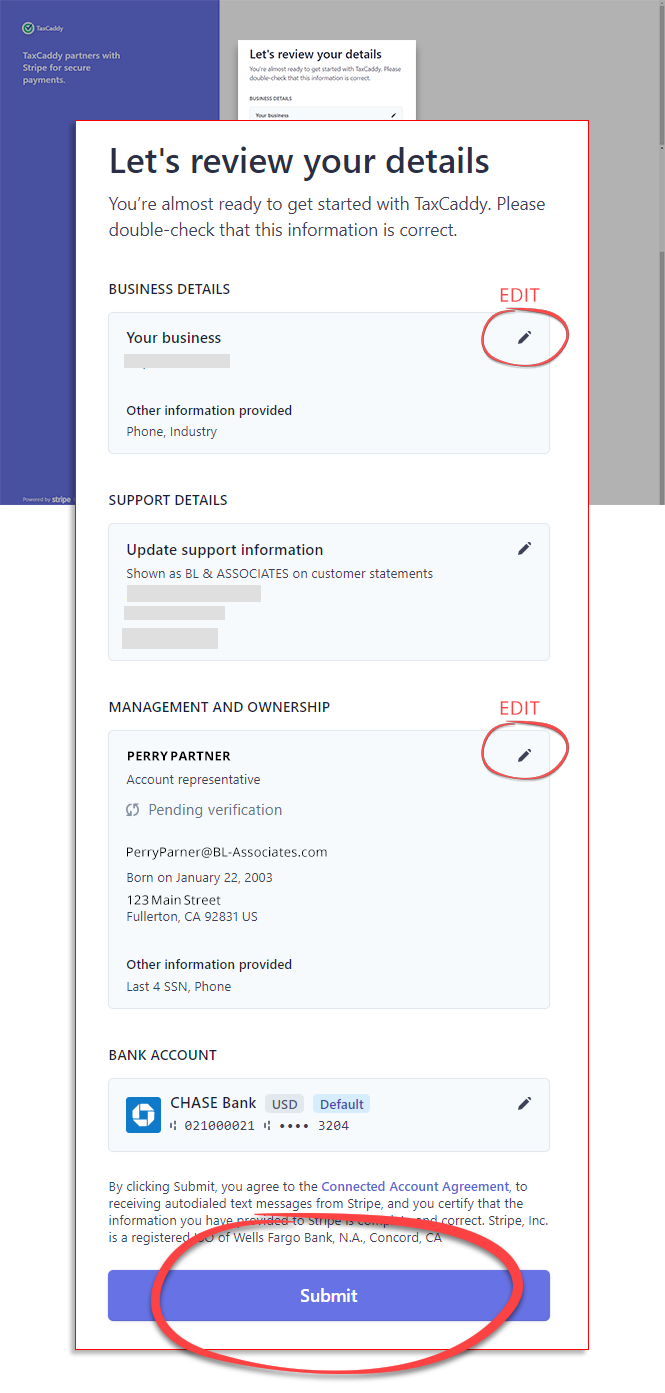
- Review your information then hoverSubmitto verify. If the information was entered incorrectly, then selectEDITto make the changes.
- Stripe will now redirect you back to TaxCaddy.

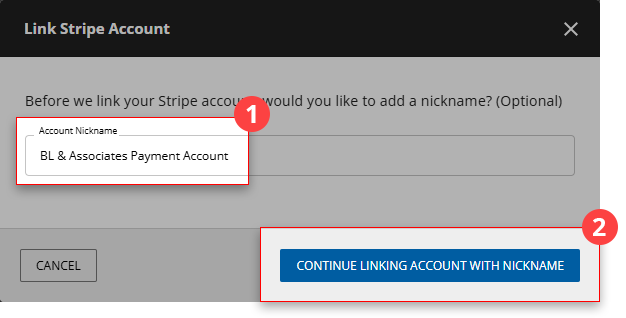
- Link Stripe Accountwindow will appear after Stripe redirects you back to TaxCaddy. To help identify your Stripe account, enter a nickname inAccount Nickname(optional).
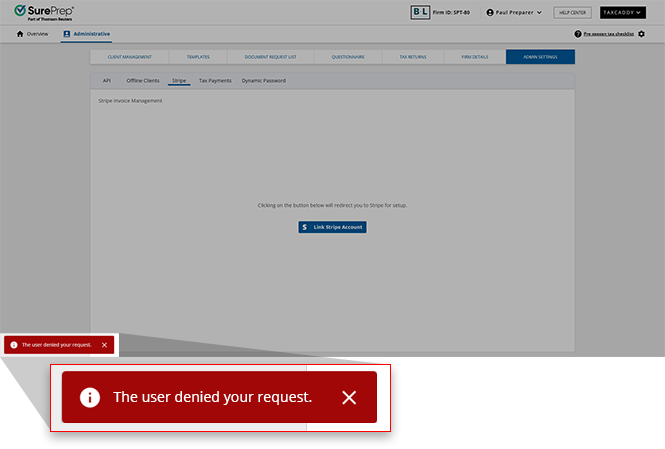
- AStripe Errorwindow will appear if there was an error linking with Stripe. You can dismiss the error then try again. If the issue persists, contact SurePrep Support.
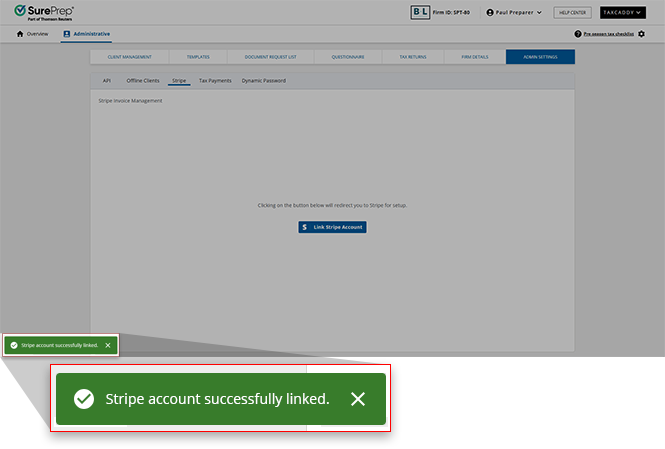
- A confirmation window will appear once the Stripe account has been linked successfully.
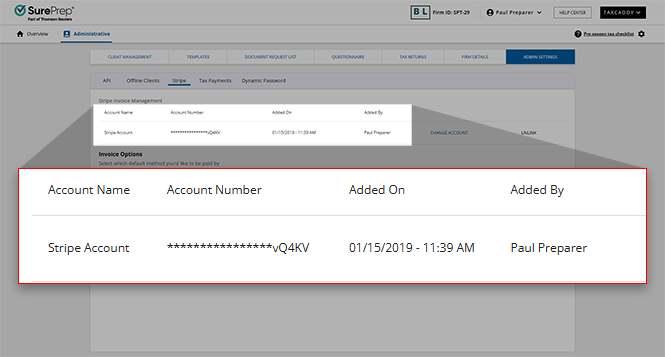
- The linked account will appear under theStripetab.
Set up a default method of payment
Once a Stripe account has been linked successfully, you can select the default suggestion for a method of payment.
note
Selecting a default method of payment doesn’t effect any existing invoices.
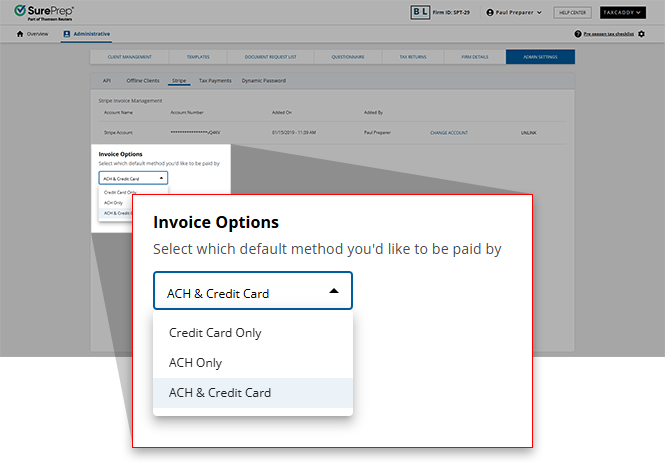
The option selected under the
Invoice Options
dropdown will become the default selected option when creating a new invoice. However, you can still select other options if you want to.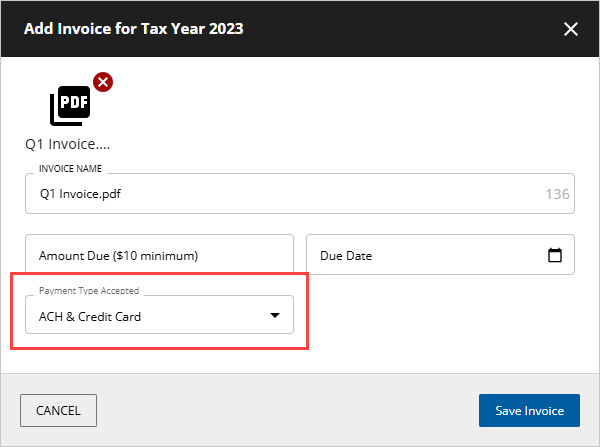
Check payments in Stripe
Stripe
After an invoice payment has been made, you can follow these steps to view payments in detail in Stripe:
- Sign in to Stripe.
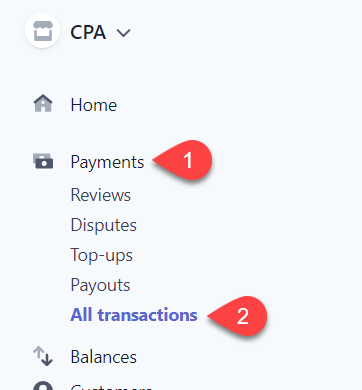
- Go toPayments, thenAll transactions.
- You will see the user's full name, the amount paid, and the method of payment.
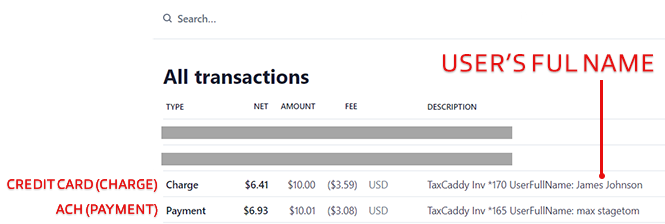
- Payments made through a credit card will appear asCharge. Payments made through ACH will appear asPayment.
note
You won’t see invoice payments in Stripe if they were manually marked as paid in TaxCaddy.
Additional References:
- Stripe: Change Account
- Stripe: Unlink Stripe account
Related Content
-
Stripe: Change account
Format: Article,
2 min read
Article,
2 min read
-
Stripe: Unlink Stripe account
Format:
Article,
2 min read
-
Invoices Overview
Format:
Article,
2 min read

