
Edit followers
As a tax professional, following clients helps you track clients' progress over time and receive notifications based on the various actions completed by your client. Following a client also adds the client to your Overview screen where you can see the list of clients you are currently following. By default, users assigned as
Owners
are automatically assigned as followers. Individual users at the firm can also follow a client by accessing a client's profile.Followers lets you see an up-to-date list of all the users following a client.
Edit Followers
lets you bulk manage followers by adding or removing them.note
Users with access to the clients' TaxCaddy client profile can search for the client and then follow the client themselves without going through Client Management.
Edit followers
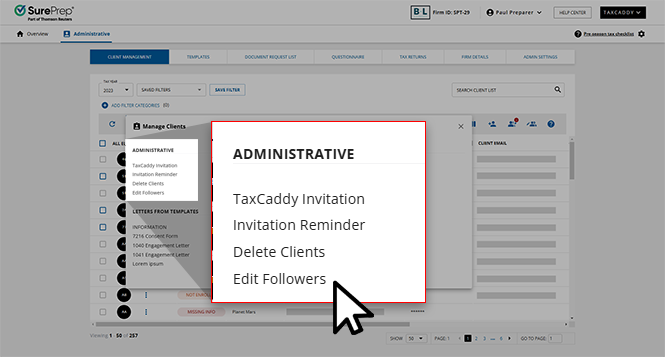
- SelectAdministrative, thenClient Management.

- SelectMANAGE CLIENTS.

- SelectEdit Followers.
- The status column shows which clients are eligible to edit.
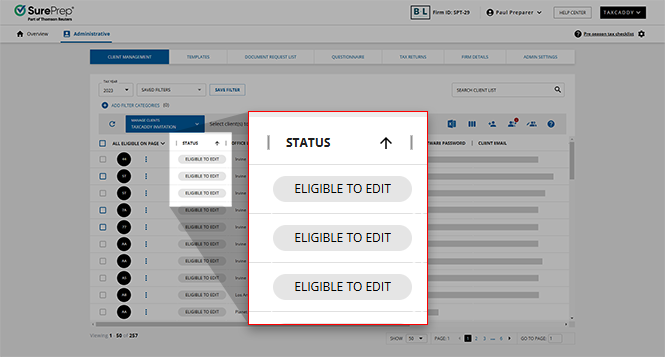
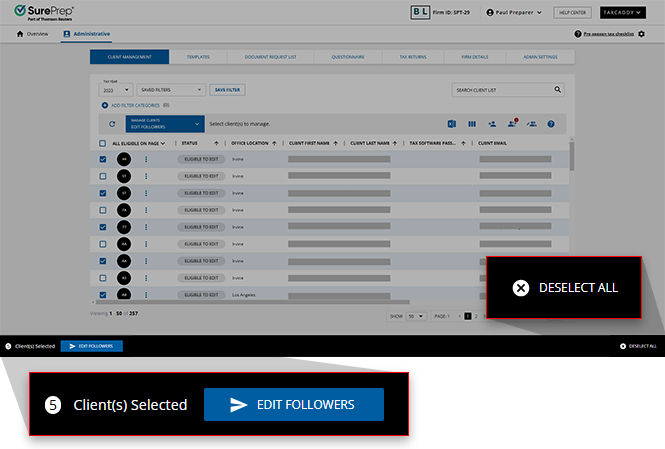
- You can select the client whose follower list you want to edit or you can select multiple clients to make the same changes at once.If you are editing all of your firm's clients in bulk, make sure your firm'sManage Bulk Actionsettings in FileRoom are updated.

- After you select the clients, a selection bar slides up from the bottom of the page. SelectEDIT FOLLOWERSto edit the selected clients. SelectDESELECT ALLto cancel and clear all selected clients.
- In theEdit Followerswindow, select the tax professionals at your firm that you want to follow or unfollow for the selected client.noteYou can use the search feature to find the users you see.
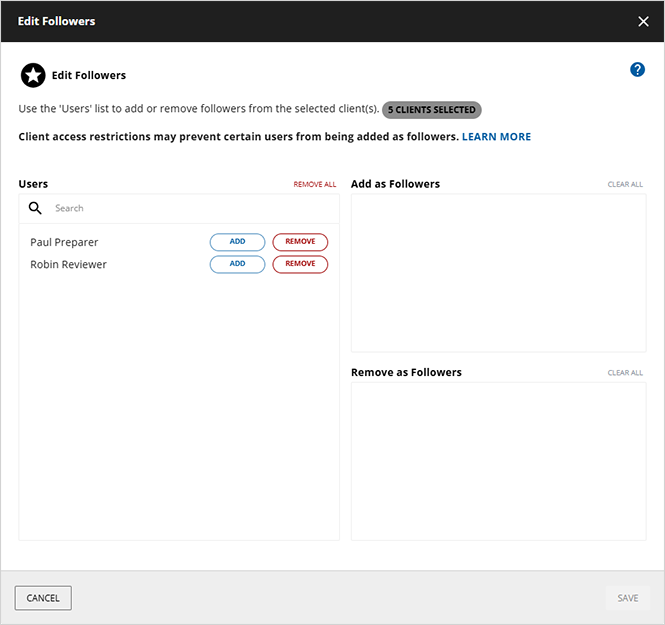
- SelectADDfor this user to follow the selected clients.SelectREMOVEfor this user to unfollow the selected client.
 noteDue to access restrictions set by the firm, some users won’t be able to add as followers if they are restricted from accessing the selected client's profile.
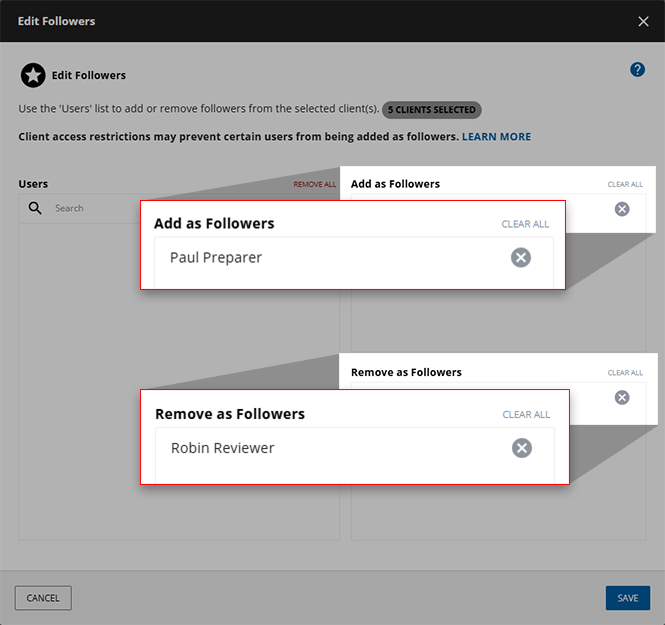
 - Make any necessary edits to the selected client's followers. You can make multiple edits to a client's follower list before saving any updates. Changes are reflected in theAdd as FollowersandRemove as Followersareas.noteClient access restrictions may prevent you from adding certain users as followers.
- SelectSAVEto keep your changes.
Additional Tasks
- To move the bulk of your firm's users to unfollow clients use theRemove as Followerssection. SelectREMOVE ALLof the Users panel.
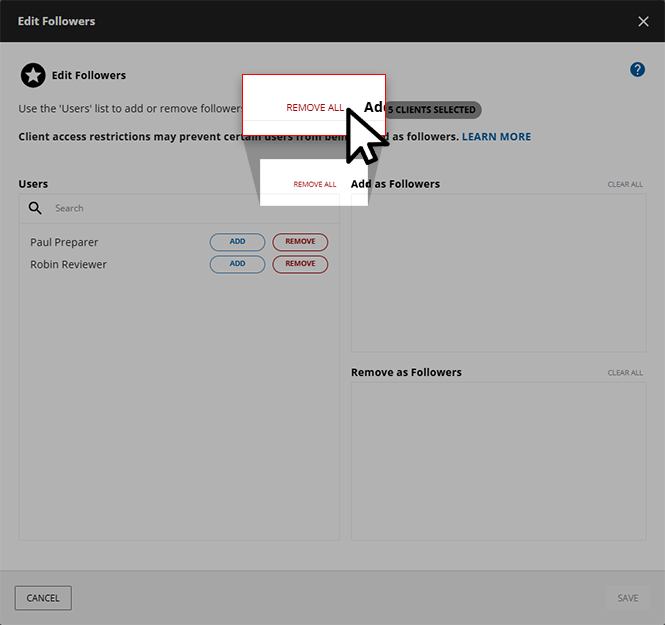
- All users listed under the Users panel will be added to theRemove as Followerspanel.
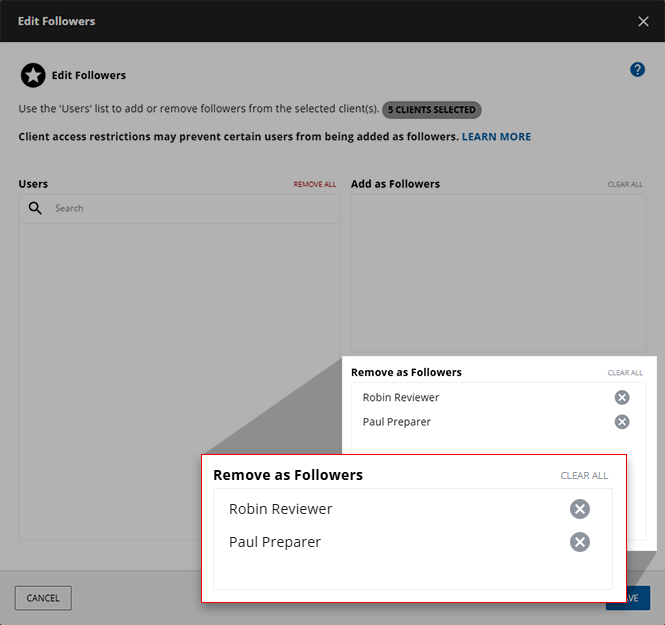
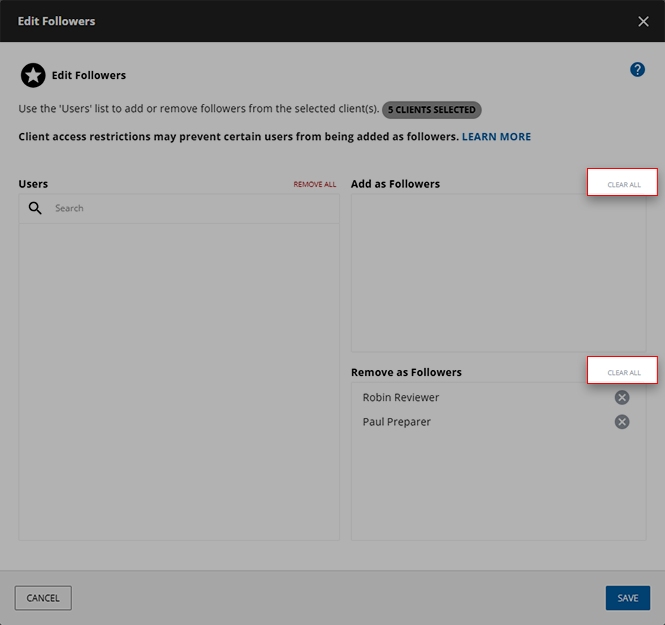
- You can also selectCLEAR ALLto reset theAdd as FollowersandRemove as Followerspanels and restart making your edits.
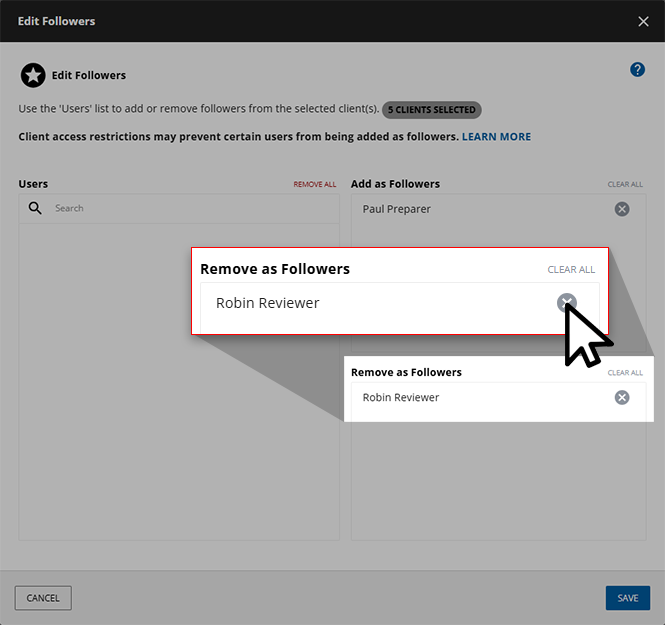
- You can also remove some but not all users in a panel. Select theXto their name.
View followers
- Select theMenu
 icon on a client tile, then select Followers.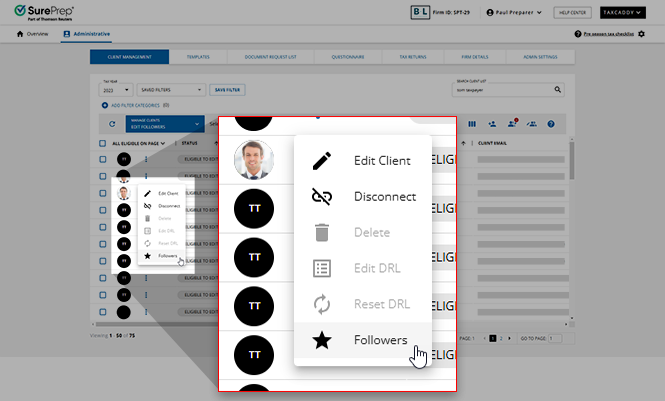
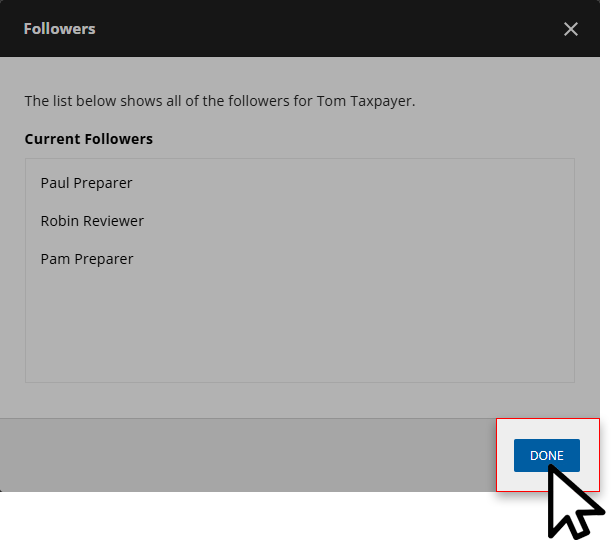
- Once you've reviewed the information, selectDONEto close and return to Client Management.
When exporting an Excel sheet of your clients' information, the
Followers
column returns the email address of each listed client's followers.Filter clients by followers
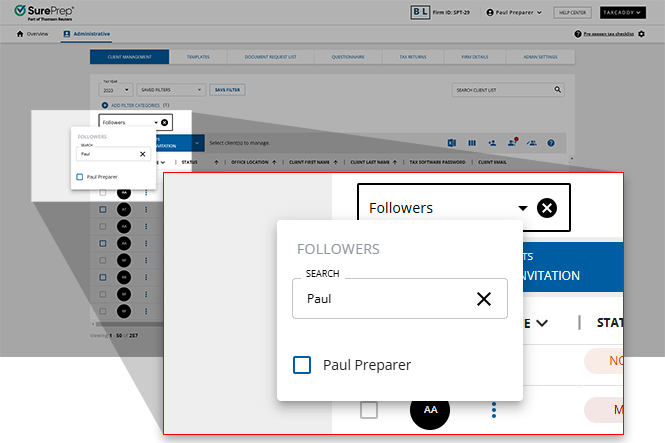
You can filter clients displayed in Client Management based on who in your firm is following the client. Example: You can use the
Followers
filter to see all the clients Paul Preparer is following.- Select theFollowersfilter from theADD FILTER CATEGORIESdropdown.
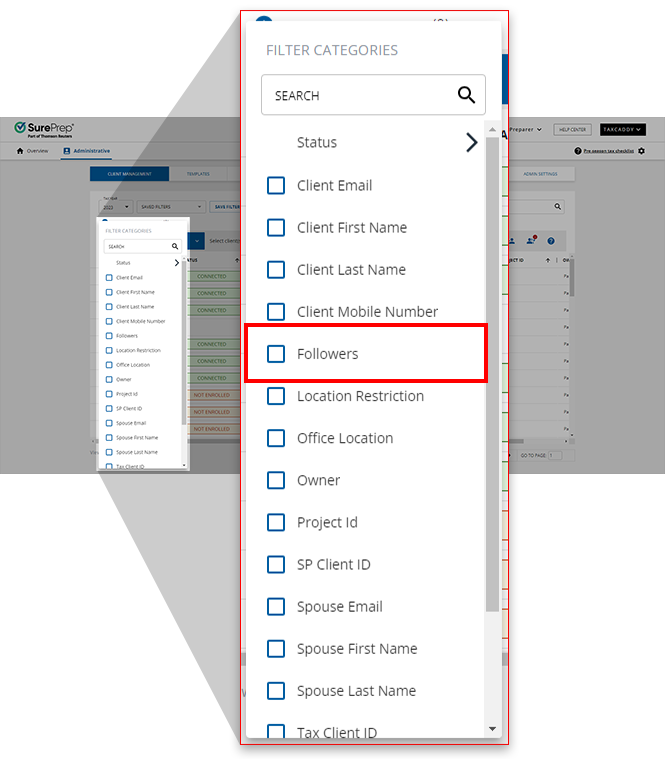
- Select a listed user to only display clients that they are following. You can enter a specific user's name into theSEARCHbar to save time.
 noteSelectYou can select multiple users from the list provided to display clients that all selected users are following.Noneto show clients who don’t have any followers.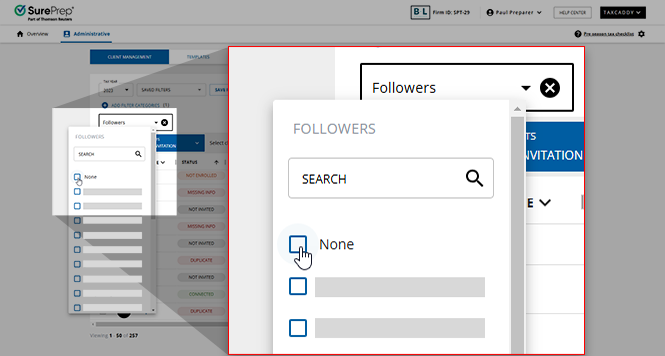
- You can point to the blueFollowerscheckbox to see a complete list of the users you've selected.
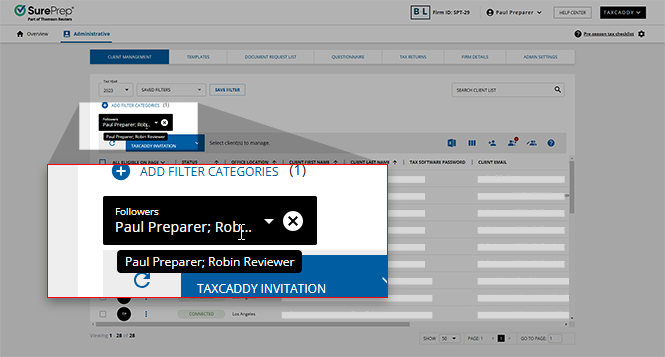
- Select theArrowto open the selection dropdown to add or remove users from your filter.
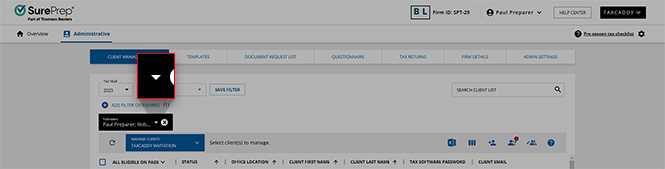 You can select theXto remove the filter.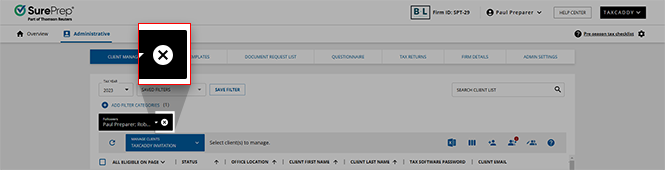
Followers restrictions
Due to access restrictions, some users won’t be able to follow the clients you specify in Client Management. You will see the following message:
Unable to add one or more users as followers for ___ of ___ clients. If the failed users are not restricted, please request them to log into TaxCaddy and then try again.
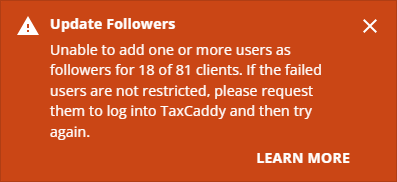
When this happens, you can see which clients were unsuccessfully added as followers by viewing their list of followers. You can review your firm's access restrictions and try again.
Access Restriction type | Description |
|---|---|
7216 Consent | Not having 7216 Consent to access binders or TaxCaddy client profile. note
Client access restrictions may prevent certain (tax professional) users from being added as followers. For firms using 7216 , new users that haven’t accessed TaxCaddy can't be added as followers even if they are not restricted by 7216 Consent. Tax professionals in this situation you'll need switch to TaxCaddy once to become eligible as followers. |
Assigned Members | Not being an Owner or an Assigned Member. |
Office Location | Not having access to clients from a different office location. |
Statuses
The Edit Followers
Status
determines whether you are able to edit a client's followers or not. Edit Followers Status | What can I do? | Description |
|---|---|---|
Eligible to Edit | Begin editing their followers | You can select this client and begin editing their follower list. |
Not Eligible | Nothing | You can't edit this client's followers because they are no longer connected to your firm or have connected with another firm. |
Incomplete Edit | Review your firm's access restrictions and try again once they've been updated | A user you tried to add was unable to follow your client due to your firm's access restrictions. Update these restrictions before the selected user can follow this client. |
Related Content
-
Guide to client management page
Format: Article
-
Update a client owner
Format:
Article

