
Guide to client management page
The
CLIENT MANAGEMENT
page lets you create and manage TaxCaddy clients. You can also perform administrative tasks like sending clients invites, questionnaires, letter templates, and DRL (Document Request List). The create/send DRL feature lets you to automate the task of requesting proforma documents from each client without having to request them individually from their Client Profile.Before You Start
You'll need to belong to a user group with permission to access the
CLIENT MANAGEMENT
page.Header
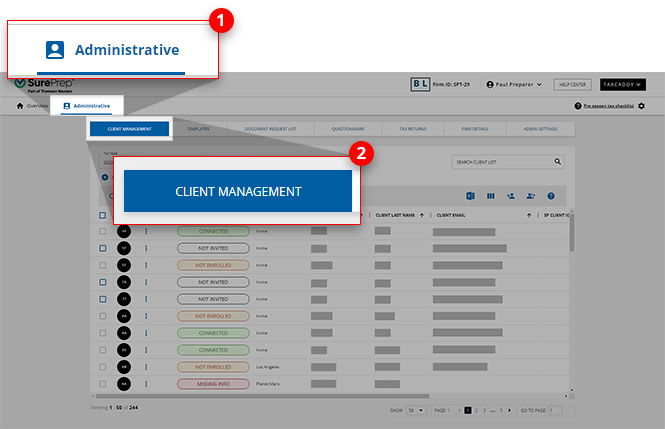
Go to
Administrative
, then Client Management
. 
The header section of the
CLIENT MANAGEMENT
page lets you to control how clients are added, viewed, and processed.
Tax Year
The
Tax Year
menu lets you to perform actions like sending questionnaires, creating custom DRL, or sending letters based on a specific tax year.
Filters
Select
Add Filter Categories
to add filters that will narrow the client list to your personal preference. You can set filters according to any desired columns. Filter is a powerful feature that can help you optimize your workflow by letting you focus on clients that you need to see at that moment.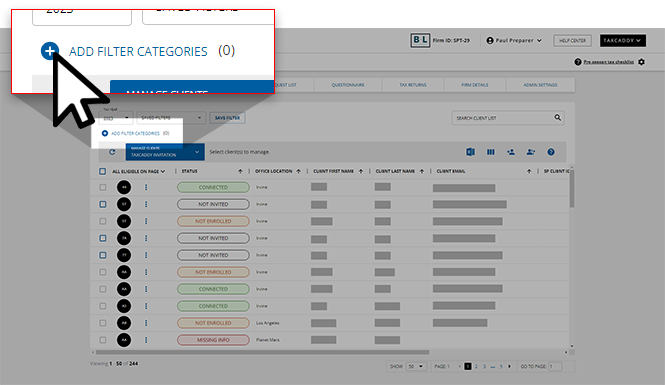
If you can't find the filter you're looking for, you can use the
Search
feature to narrow down the options. Enter the name of the filter you have in mind and select it from the search results.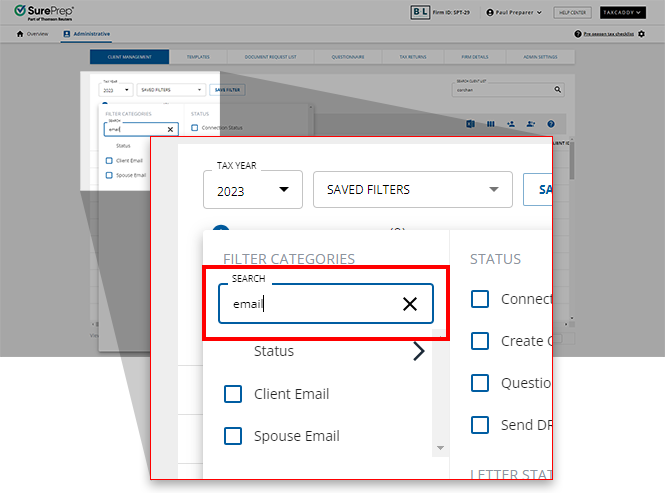
You can select
SAVE FILTER
to save multiple filter combinations for yourself and reuse them at any time. The filter feature is especially useful when you need to target a specific group of clients for bulk operations.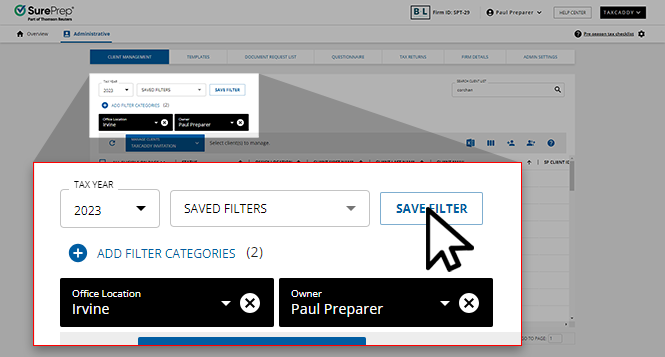
You can select your filter anytime from the
Saved filters
dropdown.note
To further narrow the client list, you can use filters with the search feature.
Manage clients
The
Manage clients
menu lets you to perform tasks like Create Custom DRL, send questionnaires, and letters to your clients' TaxCaddy account.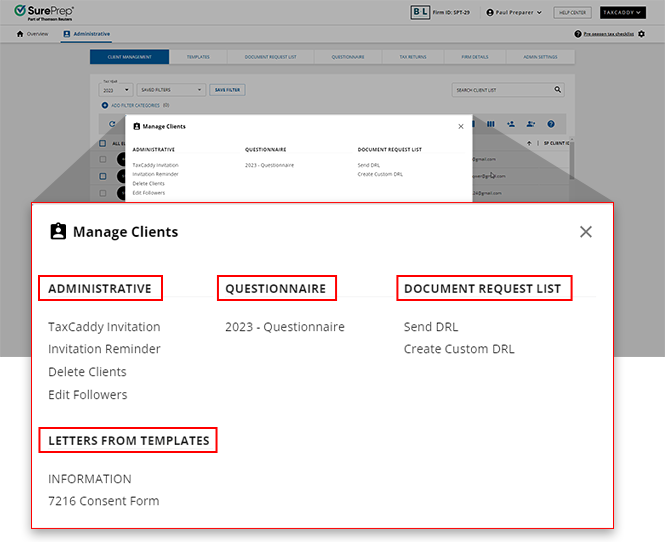
The
Manage Clients
menu is neatly organized into the following categories.Category | Description |
|---|---|
ADMINISTRATIVE | Lists administrative tasks. You can perform the following administrative task:
|
QUESTIONNAIRE | Lists questionnaire that you can send to clients. |
DOCUMENT REQUEST LIST | Lists actions related to creating and sending DRL (Document Request List). |
LETTERS FROM TEMPLATES | Lists of letter templates that you can send to clients. |
Search
On the right, you can use the
SEARCH CLIENT LIST
to search for your clients.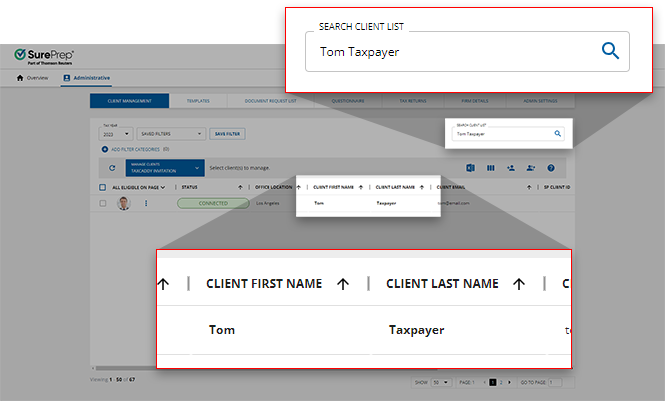
note
If filters are active, then search will only be performed on the filtered clients. You need to remove the active filter to search for all clients in the firm.
Toolbar
The toolbar lets you to create a new client, bulk import clients, export clients to Excel, show/hide columns, and open DRL Uploader(only visible for clients with 1 local tax software).

The following table shows the icon images and descriptions of the icons:
Icon Image | Icon | Description |
|---|---|---|
 | Add Client | Lets you add a new client to TaxCaddy. |
 | Import Client | Lets you import clients in bulk by uploading a CSV file. |
 | Column Management | Shows/hides columns. Select here to learn more about Column Management. |
 | Export to Excel | Exports clients to Excel. Any active filters or searches will limit which clients will be exported. |
 | Open DRL Uploader | Only visible to clients with 1 local tax software configured with SurePrep (that is, Lacerte or UltraTax). Used if the status of a DRL gets stuck In Queue for more than 30 minutes. |
 | Edit Multiple Clients | Allows you to download an Excel file to edit multiple clients' records at once. |
Clients section
Your clients will appear in the middle section.
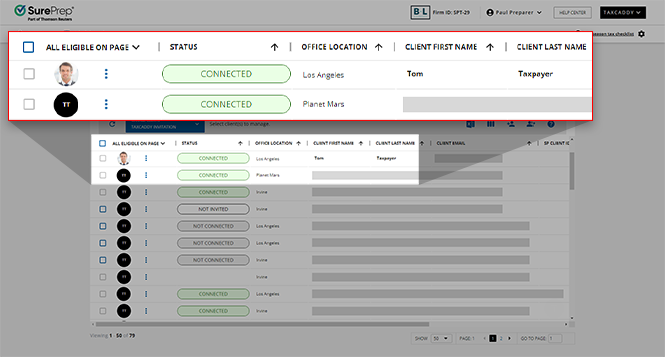
Client Menu
You can select
Menu
next to a client's name to perform the following actions:
Action | Description |
|---|---|
Edit Profile | Lets you to edit the client's information and provide any missing information. |
Disconnect | Lets you to disconnect the client from the firm. |
Delete | Lets you to delete clients from the firm. |
Edit DRL | Lets you to delete clients' DRL. |
Reset DRL | Lets you to reset the clients' DRL. |
Followers | Lets you to view a list of users following a client. |
Selecting Clients
After you select an action item from the
Manage clients
menu, you will need to select which clients to update with that item (for example, Create Custom DRL, Send Invites, Send Questionnaire, Send Letter, etc.).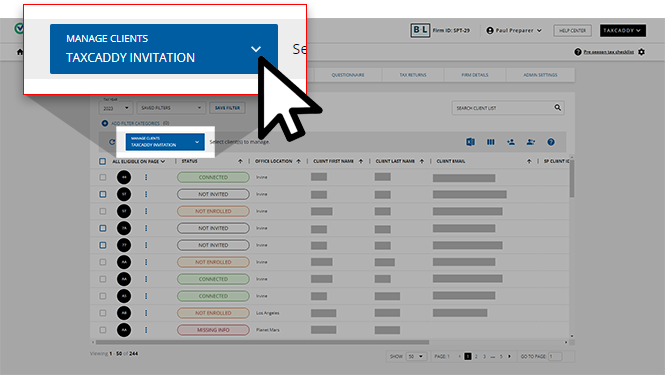
There are a few ways of selecting clients.
Option 1:
Select the checkbox next to each client to only select those clients.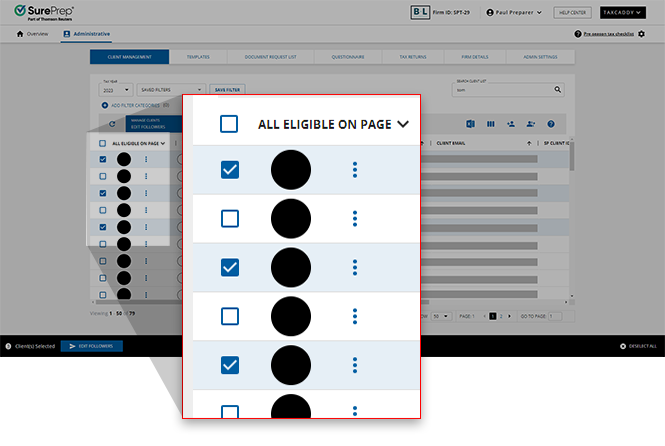
Option 2:
To bulk select clients, select the 1st column header then select from the following options:All Eligible
- Selects all eligible clients in your firm from all pages. However, if you are currently using filters and/or search then All Eligible
(clients) will only apply to clients who are currently filtered/searched. If you need to perform the same action separately for a different set of clients then you you'll need wait for the 1st bulk operation to complete before initiating the same action for the 2nd set of clients. Requires Can Bulk Send
permission.All Eligible on Page
- Selects all eligible clients on the current page.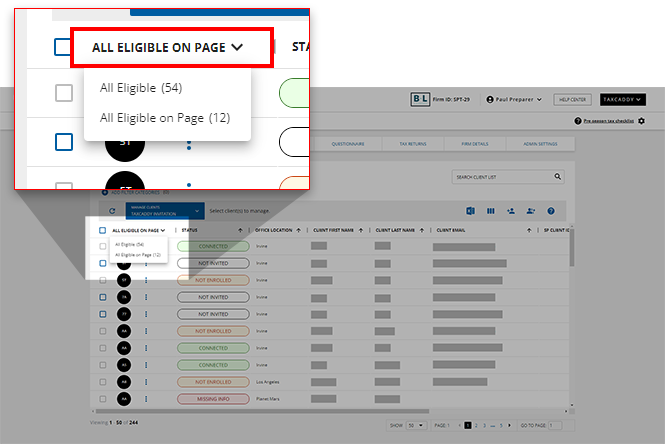
Only users with
Manage Bulk Actions
permission can use All Eligible
to select all eligible clients in the firm. Users without permission will see an error notification when attempting to bulk send to all.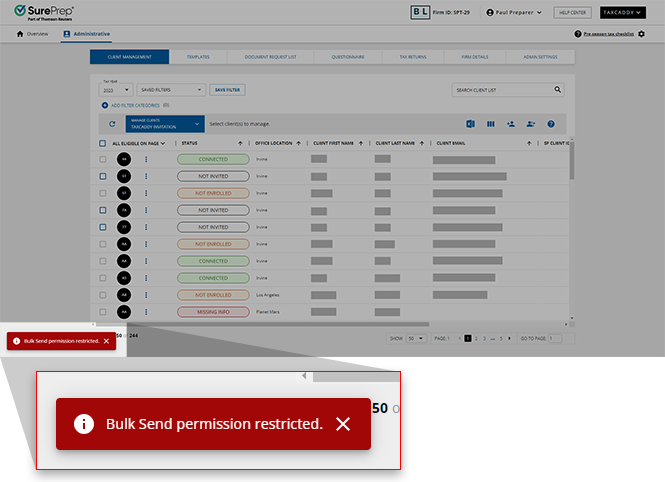
After you select the clients, a (blue) selection bar slides up from the bottom of the page.
Select
SEND _____
to bulk send letters or questionnaires to all selected clients.Select
DESELECT ALL
to cancel and clear all selected clients.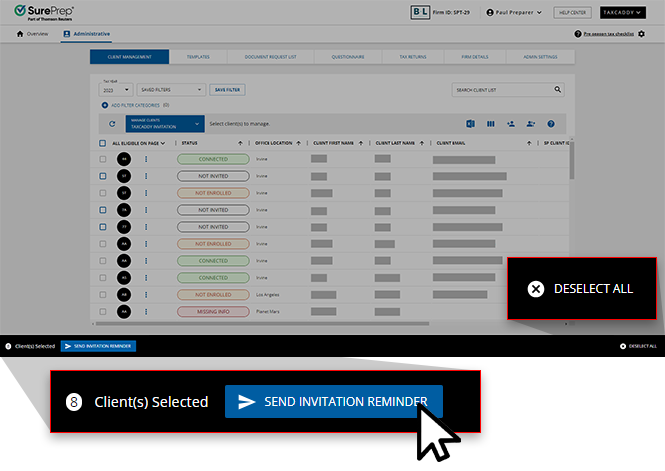
Column Management
On the toolbar, you can select the icon, select/clear the checkbox to show or hide a column. Column names with a lock icon are mandatory and can't be hidden.
Column Management
icon, select/clear the checkbox to show or hide a column. Column names with a lock icon are mandatory and can't be hidden.To show columns, select the checkbox next to the column name.
To hide columns, clear the checkbox next to the column name.

If you find yourself needing to expand or reduce column widths, then select the middle divider and drag the boundary on the right side of the column heading until the column is the width that you want.
If you want to rearrange the columns, drag the selected columns name horizontally to the position that you want.
You can also select the column header row to sort client records in ascending or descending order.
Clients per page
You can increase the number of clients that appear on each page. You can select to see 50, 100, or 200 clients on a page.
You can also enter a page number on the
go to PAGE
input field then press the Enter
key to go to to that page.Current TaxCaddy session
The
Client Management
page will keep your current view/settings saved while you navigate around TaxCaddy. For example, you can filter, search, and sort client records. If you go to to another TaxCaddy page all settings will appear in the same state when you return back to the Client Management
page.The following views and settings will persist when you return:
- Tax Year
- Manage clients menu
- Search
- Filter
- Column Sort order
- Current page number
Client Management's current state resets when you log out of TaxCaddy.
Related Content
-
Filter client records in client management
Format: Article
-
Filter categories list
Format:
Article
-
Sort client records in client management
Format:
Article
-
Search client records in client management
Format:
Article
-
Update a client owner
Format:
Article
-
Edit followers
Format:
Article
-
Export clients to Excel from Client Management
Format:
Article
-
Notifications
Format:
Article
-
Troubleshooting: No Client Records Found
Format:
Article
-
Search client records in client management
Format:
Article
-
Filter client records in client management
Format:
Article
-
Sort client records in client management
Format:
Article

