
Export clients to Excel from Client Management
Access client information offline by exporting your firm's entire client list to an Excel file. From
CLIENT MANAGEMENT
, you can compile a complete list of your firm's client base to an Excel sheet and download it to your workstation at any time. Exporting client information from CLIENT MANAGEMENT
lets you export client's personal information like name, email address, phone number, tax software information, etc.note
To export information related to a client's profile status (for example, Questionnaire, Signatures, Binder, Documents Uploaded, etc.), use the
Export to Excel
feature from the Overview
screen. Follow these steps to export clients from TaxCaddy to Excel:
- Go toAdministrative>CLIENT MANAGEMENT.

- FromMANAGE CLIENTS, select the letter, template, or DRL to export information for. TheStatuscolumn will export information according to the item you are currently managing.
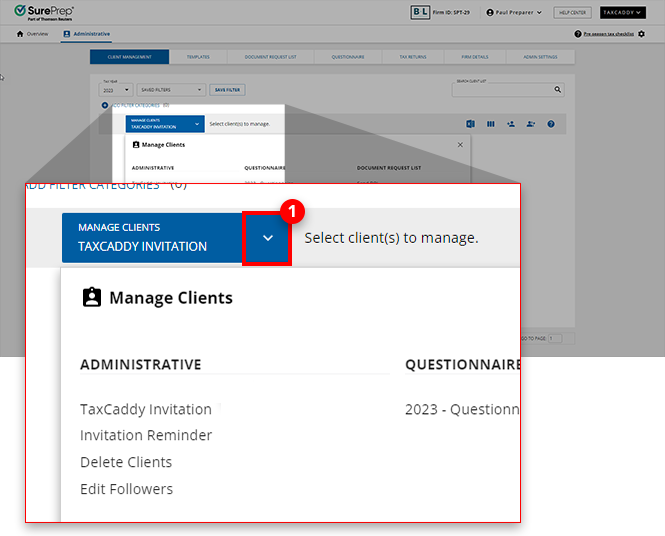 Example: If you select Questionnaire, the Export file will have the Status information related to the Questionnaire status. Similarly, if you select TaxCaddy Invitation, then the Status column will display information related to client invite status.
 - Optionally, you can narrow down results by using filters and/or search. For example, if you only want to export clients from a specific Office Location or Owner then you can set a filter for that column.
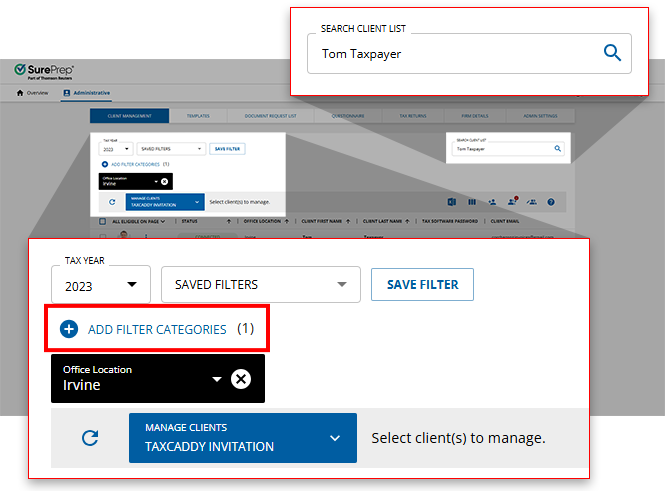 noteWhen you use Search to filter before exporting, the file is named after the search parameter.
 - Select theExport Client Reports to Excel
 icon.
icon.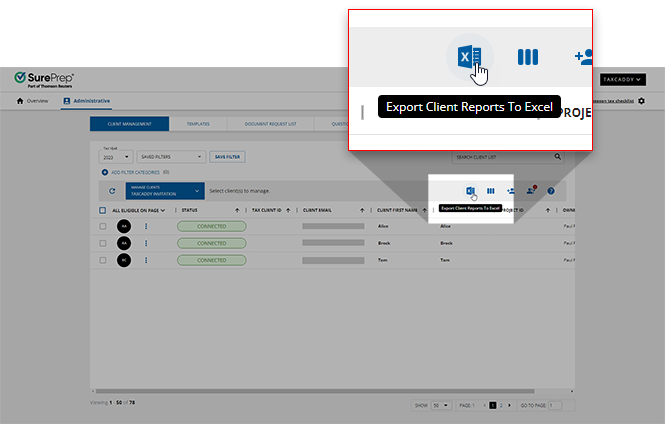
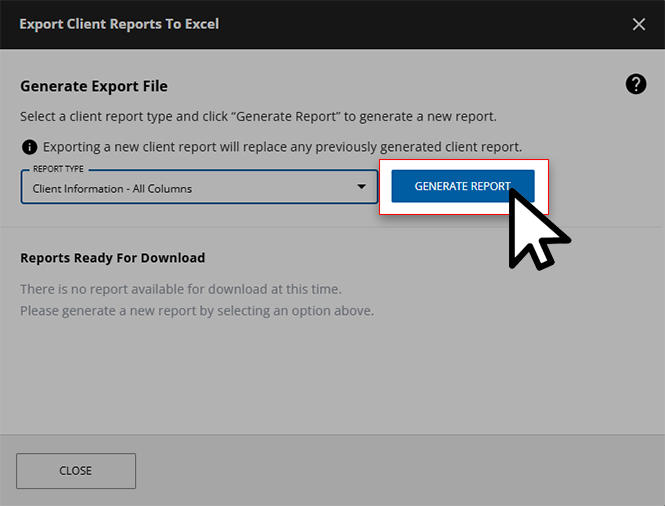
- Once theExport Client Reports To Excelwindow appears, select one of the following options from theREPORT TYPEdropdown:Client Information...DescriptionAll ColumnsExports client records with all columns even if they are not actively visible on screen.Active Columns OnlyOnly exports client records with columns that are currently visible on the screen.
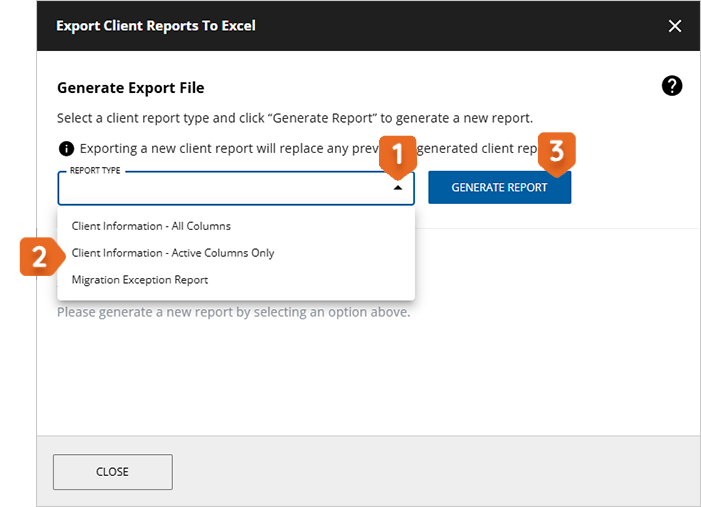
- After you've made yourREPORT TYPEselection, selectGENERATE REPORTfor TaxCaddy to begin generating your filing report.
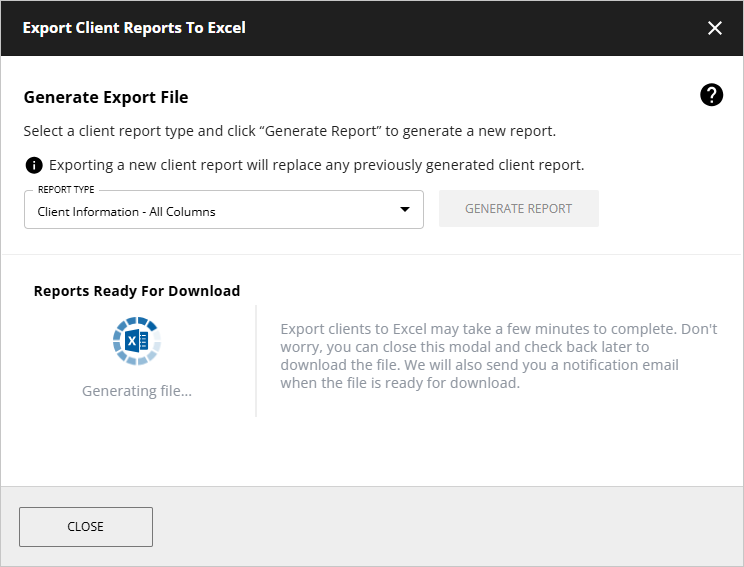
- TaxCaddy will begin generating your Excel file. You can selectCHECK BACK LATERto close theExport Clientswindow and return once your file has been created.noteWait for TaxCaddy to finish generating the current file before you can begin generating another one. Keep in mind that generating a new Excel file before downloading the current one will replace the current one.
- Once your Excel file has been generated, you will notice a red badge next to theExport to Excel icon. Select the icon to reopen the Export Clientswindow.
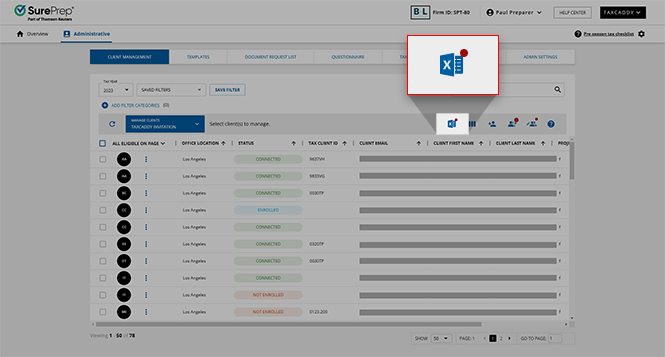 You will also see a notification appear at the bottom of your screen indicating that your file is ready.
 Additionally, TaxCaddy will send you an email notifying you that your Excel file is ready for download. To receive this notification, make sure to enable theAll Notificationsoption when configuring your email settings.
 - SelectDownload fileto download your Excel file. Note that the generated Excel file will only appear for you, the customer who generated it. Other customers in your firm need to generate and download their own version of the client list.
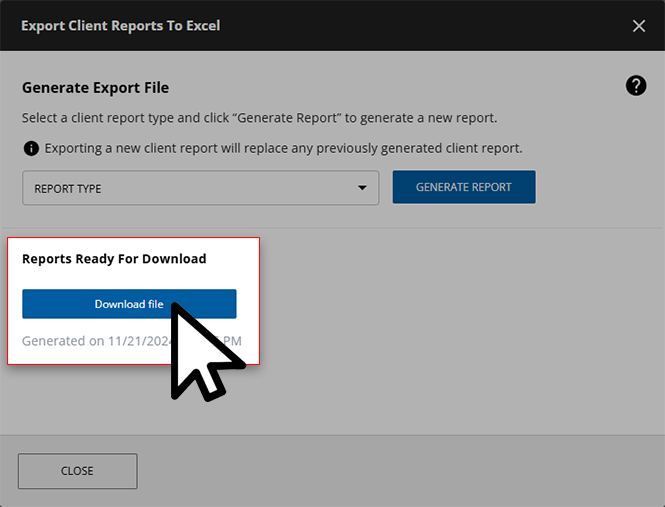
- The Excel file will be downloaded. All client records are included in the export and include the status information for the letter, template, or DRL selected when the export was performed.If your firm has previously enabled and saved at least one record to a custom field, the custom field (for example "Project ID", "Firm ID", etc.) will appear on your Excel file.
note
The Excel file won’t show fields with leading/trailing zeros. However, there is an alternative to save the document with leading/trailing zeros.
Related Content
-
Guide to client management page
Format: Article

