
Sort client records in client management
Sorting client records helps you arrange the clients in ascending or descending alphanumeric order.
Select the column headers to sort client records:
- StatusnoteTheStatuscolumn can only be sorted when managingInvitesorReminders.
- Date
- Office location
- Client first name
- Client last name
- Client email
- Client mobile number
- Client ID
- Tax software
- Tax client ID
- Tax software account number
- Tax software version
- Owner (first name)
- Spouse's first name
- Spouse's last name
- Spouse's email
- Custom field (if applicable)
note
If a client changes their name or email address, their changes will be reflected in Client Management.
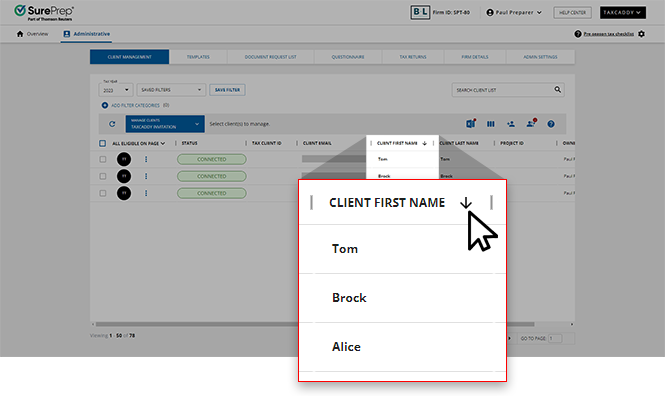
Select the column header name to change the order of the column.
- Before: Clients are sorted from A-Z
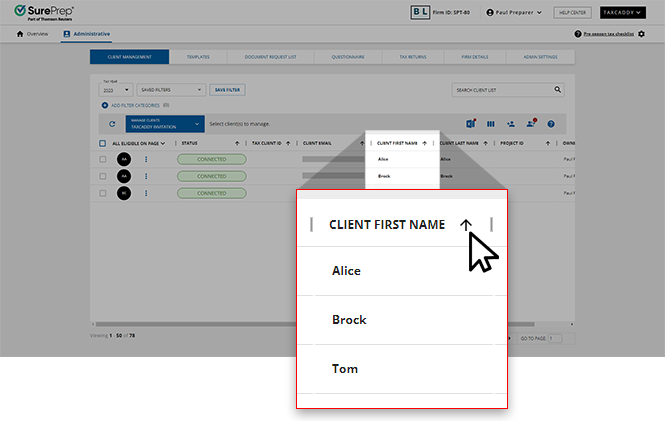
- After: Clients are sorted from Z-A
note
You can also search for clients.
Status Column
When managing
Invites
or Reminders
, the Status
column is sorted in the following order:- Offline
- Duplicate
- Missing Info
- Not Invited
- Not Enrolled
- Not Connected
- Enrolled
- Connected
- Connected Elsewhere
Export to Excel with sorted columns
When exporting client records to Excel, clients records will be exported according to the order in which they appear.
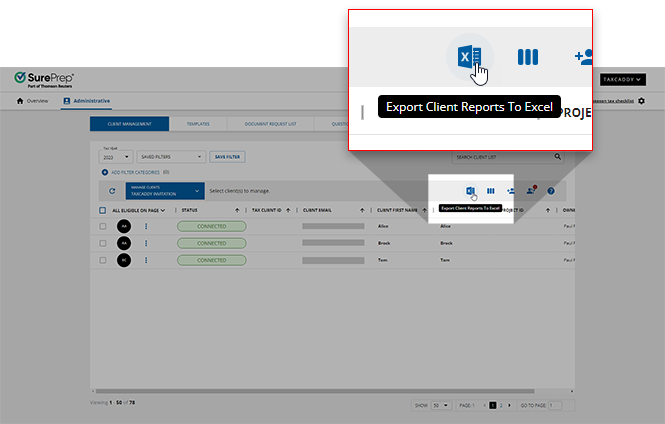
Switching a specific column to ascending/descending order will also export client records to Excel in the same order.
Related Content
-
Guide to client management page
Format: Article
-
Guide to client management page
Format:
Article

