
Troubleshoot: Leading 0 in an XLSX file - importing clients
When importing clients using the Import Client Template, entering a value beginning or ending with a 0 in a field will result in the 0 being removed after you move on to another field in your template.
For example, in the
Tax Client ID
column enter 00123.0
, when you go to the next field Excel will automatically change the value to 123
.Microsoft Excel offers possible solutions you can use to retain the 0 at the beginning of the field:
- Using a single quote
- Formatting the cell
- Saving as an XLSX format
Use a single quote
You can prefix the numeric value with a single quote. (For example,
'
0123.0), save the Excel file when you are ready to import the file.
Format cell
You can also format the row to automatically prefix all values with zeros(0) if they don’t meet the character count. For example, if your
Tax Client ID
is supposed to be a fixed length with 5 digits, and your current Tax Client ID
is fewer than 5 digits, then you can automatically prepend the current value with leading zeros to have a 5 character length.For Example
:Before | After |
|---|---|
1 | 0000 1 |
12 | 000 12 |
123 | 00 123 |
1234 | 0 1234 |
12345 | 12345 |
To format a column, select the column you want to format.
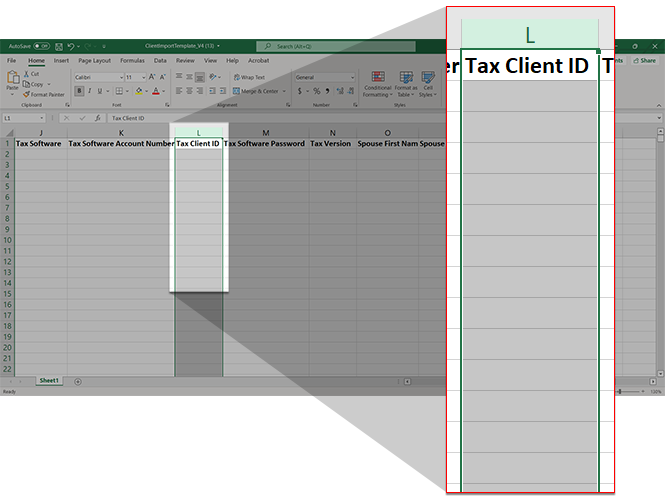
Right-click on any selected cell, then select
Format Cells
on the context menu. 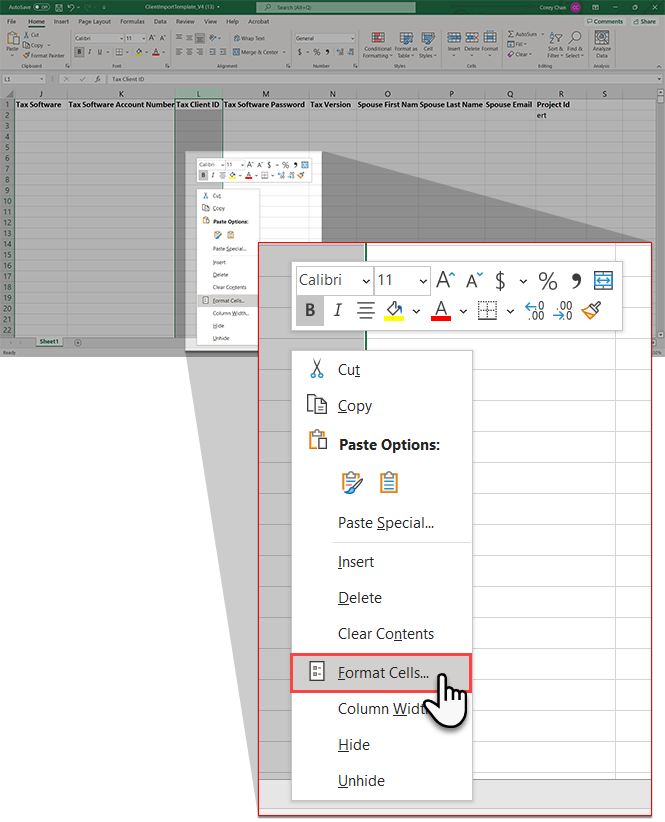
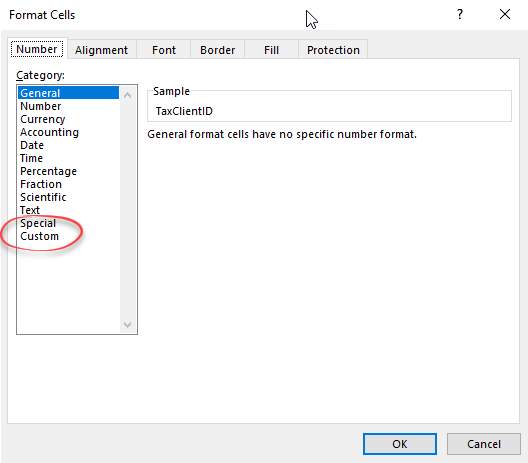
When the
Format Cells
window appears in the Category
panel, select Custom
.
Remove the text in the
Type
field, then enter multiple zeros for each character count.For example, if your column requires 6 characters then enter 000000 (6 zeros). As seen in the
Sample
field, this will prefix leading zeros until the Tax Client ID
count has 6 characters.
note
For columns that require values ending in zeros, you can enter a ".0" at the end of the 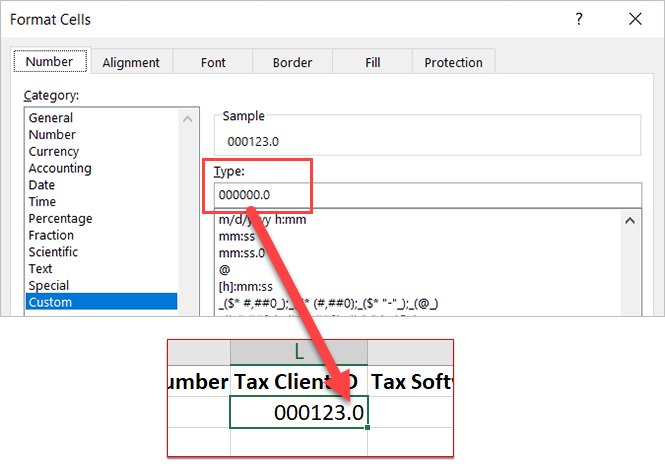
Type
field to ensure it is saved to your document.Select
OK
to confirm, or select Cancel
to close the Format Cells
window without confirming.
You will see leading zeros on the column you formatted. On the
File
menu, select Save
when you are ready to import.
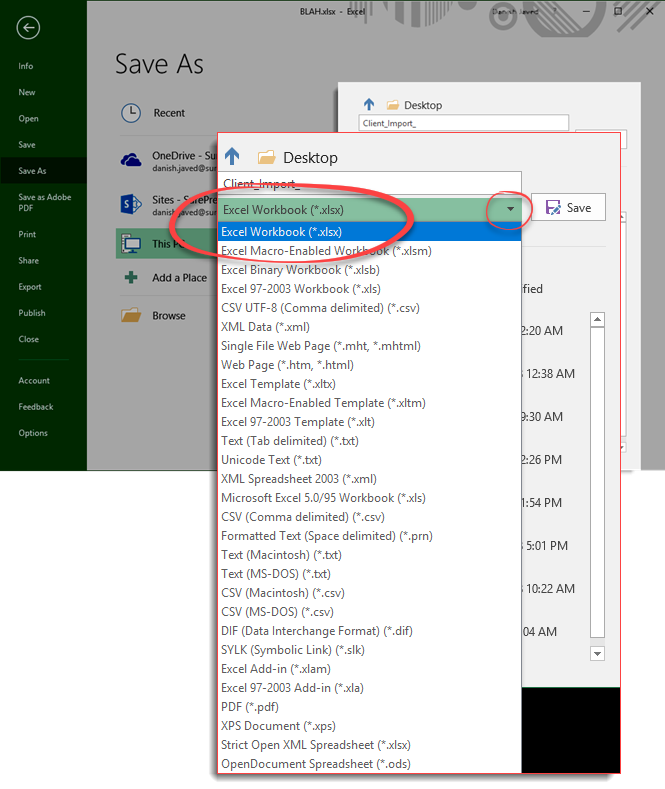
Saving as an XLSX format
Ensuring that you are saving your template as an .xlsx (Excel) file lets you preserve the document with any leading zeros that you added earlier. You can return later and continue working on the document without losing your changes.
To save the document as an Excel file, go to
File
, then select Save As
.
Select a
Excel Workbook (*.xlsx)
file format from the dropdown list, then select Save
.
Related Content
-
Import new clients (standard & offline)
Format: Article
-
Import new clients (standard & offline)
Format:
Article

