
Import new clients (standard & offline)
Import new clients to create multiple clients at once from a single Excel file. This saves you time when you need to upload many clients.
You'll need to include
Tax Software ID
, Tax Software Account number
, Tax Client ID
, Tax Software Password
, and Tax Version
.Import new clients
- In TaxCaddy, selectAdministrative, thenClient Management.

- SelectImport Multiple Clients.
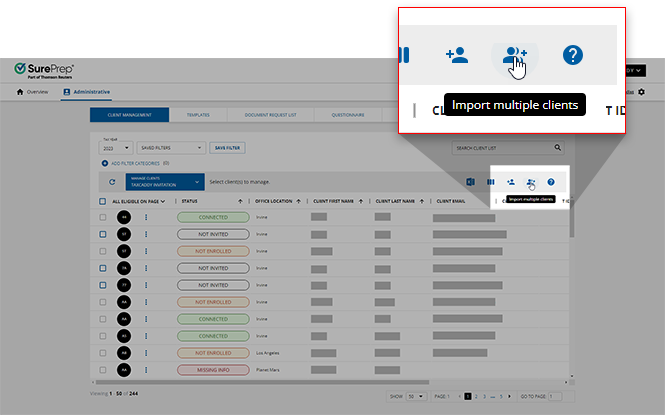 You may also see theImport Multiple Clientsicon appear with the following indicators:
 Indicates the client import is running in the background.
 Indicates there's an exception report available for previously failed imports.
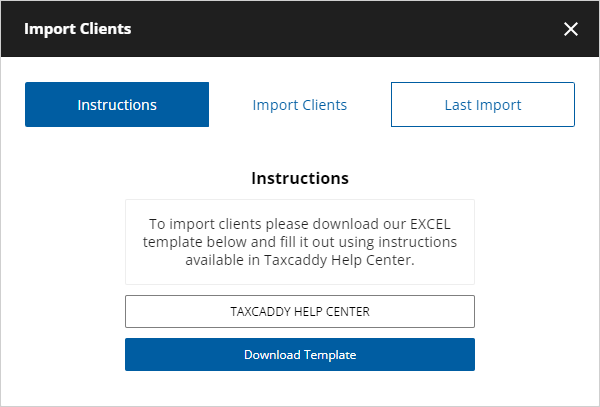
- When the Import Clients window appears, selectDownload Templateto download the Excel template.
- Once the template download completes, go to your downloads folder then open the Excel template file.noteThe Excel template file is not compatible with the online version of Microsoft Excel.If the template opens inProtected View, selectEnable Editingto let edits.
- Select and delete theREAD MEreminder note. The tax software information (Tax software, Tax Client ID, Tax Software Account Number) is required to create custom Document Request Lists (DRL) and binders.
- To view the full column width, select theSelect Allicon to select all fields. Once selected, move the cursor between 2-column headers, double-click when theColumn Widthcursor appears. All columns will be expanded completely.
- To upload a client as an offline client, select theIs Offlinecolumn in a new row, then select your option from the dropdown. The option to selectYesonly appears if your firm has the offline clients feature enabled.noteCertain fields may require you to select an option from a dropdown. SelectMenuto select an option.
- Follow the template guidelines and fill out the template accordingly.Enter the following required fields to successfully import the Excel file:
- Taxpayer's first name
- Taxpayer's last name
- Owner
- Office Location
The following fields are only required if your firm intends to create and send a custom DRL or create or link a binder:- Tax Software ‡
- Tax Software Account number ‡
- Tax Client ID ‡
- Tax Software Password ‡
- Tax Version ‡
If your firm intends to send clients an invite (leave the fields blank if you want to use the client as an offline client) you need the email address also.The following field is only required for your client to verify themselves upon their first login:- Taxpayer Mobile Number
- Taxpayer SSN
If your firm currently has a custom field enabled in FileRoom, download an updated Client Import Template to reflect that. Once downloaded, your firm's custom field will be a mandatory column for each client being imported.note‡Tax Software ID,Tax Software Account number,Tax Client ID,Tax Software Password, andTax Versionare only required if your firm intends to create and send custom DRL or create or link a binder.Rows that are missing required fields/cells or have an error will be highlighted (in peach color). You can go to the last column to see why the row is flagged as an error. Resolving the issue will automatically remove the select and the comment. - When the file is ready for import, select theImport Clientstab, then drag the Excel file and place it in the drop zone (Drag and drop completed import client template here).
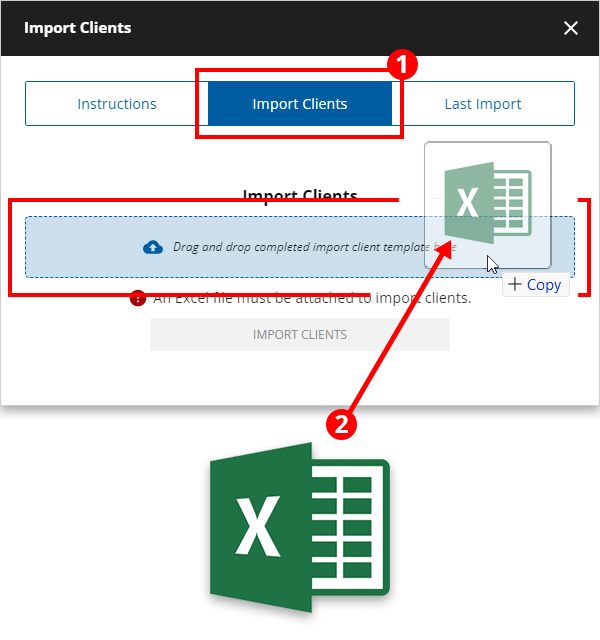 You can select the drop zoneDrag and drop completed import client template here, then select the Excel file.
 - To initiate the import, selectImport Clients.
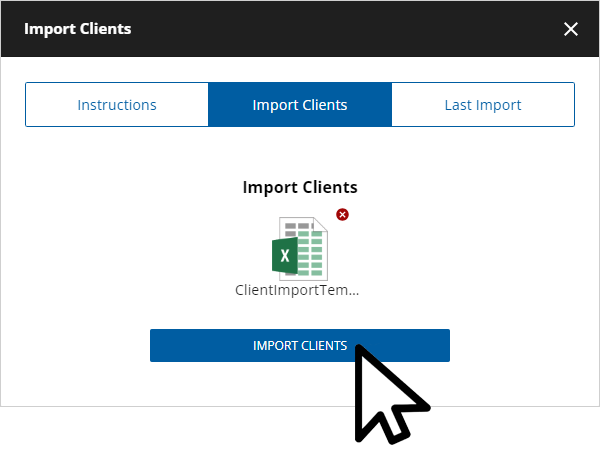
- To remove the file, select theClose
 icon .

- Once you've uploaded the file, you can continue to wait for the import process to complete or selectCheck Back Later.
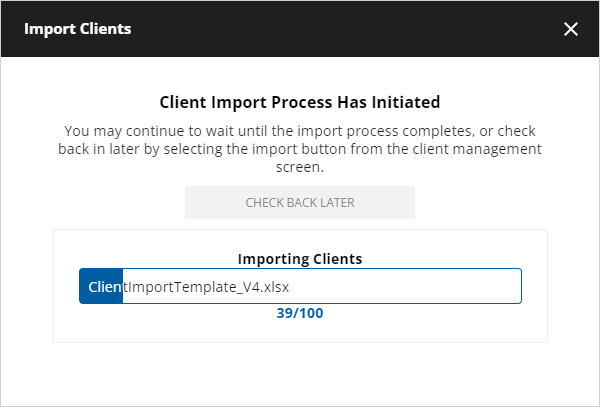 TheImport Clients icon will appear while the import process runs in the background.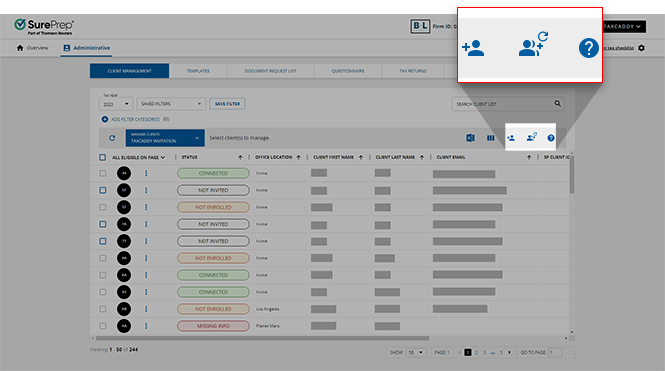
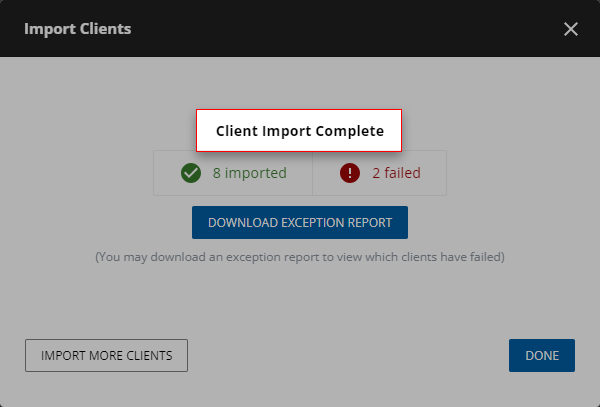
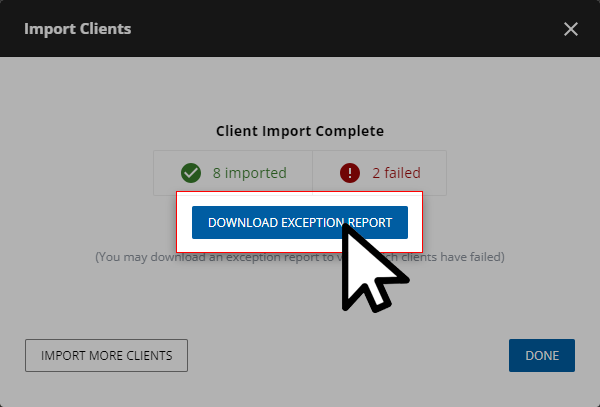
- If you waited for the client import process to complete, then theImport Clientswindow will displayClient Import Complete.
- When the import completes, the window checkbox displays the number of clients that passed and failed the import process.
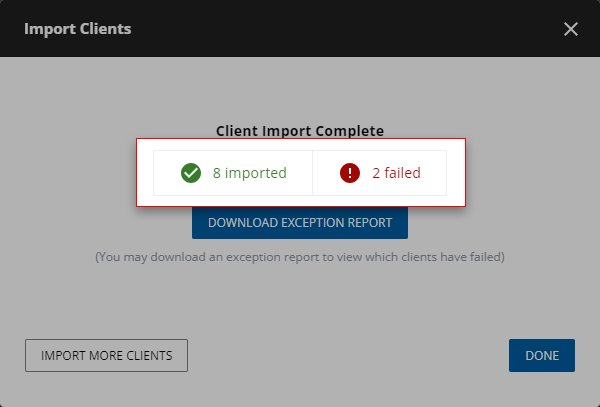
- To view a report of failed imports, selectDOWNLOAD EXCEPTION REPORT.noteThe Exception Report only reflects the most recent upload attempt. Previously uploaded attempts don’t accumulate to the new Exception Report.
Exception report
After importing clients, the Exception Report lets firms see which clients failed the import process. To download the most recent Exception report made on your domain. Select icon.
Client Management
, then the Import Clients
icon.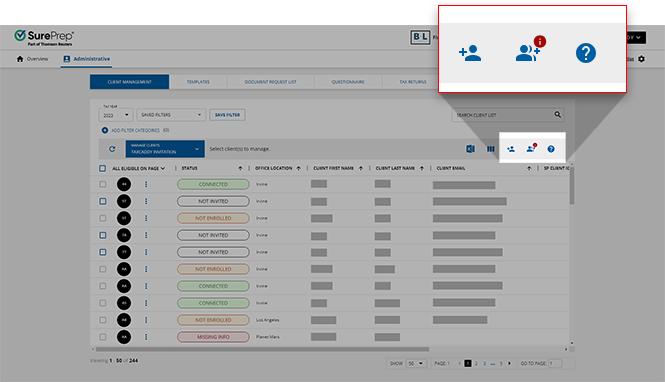
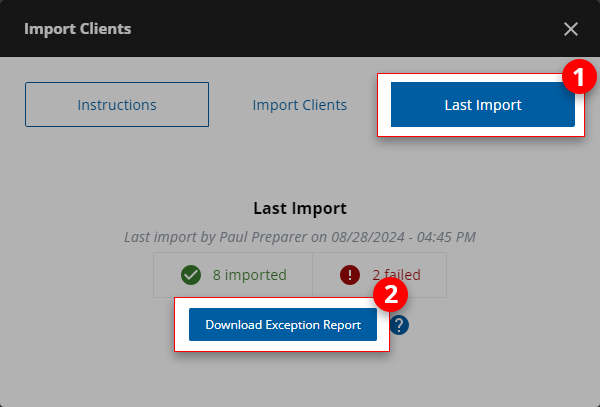
On the
Import Clients
window, select the Last Import
tab then, select Download Exception Report
.
When you open the Exception Report, find the
Comments
column to view which client failed the import process. Rectify the client data according to the suggestion on the Comments
column.Guidelines for completing client import template
Please follow these instructions when entering client data:
note
All required fields are marked with an asterisk (
*
). If required fields are missing, the import won’t be successful. Fields required under certain circumstances are marked with a dagger (†
). Fields required to create and send custom DRLs are marked with a double-dagger (‡‡
). These fields vary based on the tax software. Don’t enter a comma () in any field.- SelectYesfrom the dropdown if this client is Offline orNoif this client is Standard Online. TheIs Offlinecolumn won’t show the option to selectYesif the offline client feature isn't available for your firm.
- Enter*Taxpayer first name and last name.
- There shouldn't be leading or trailing spaces on any fields/data entered.
- Don’t add the client's middle name or initials.
- †Each taxpayer's email address needs to be unique. This field is optional when adding a client, however, the email address is required for sending invites. Don’t enter a duplicate Taxpayer's email address that is already in use by an existing Taxpayer, or an Owner.
- Enter a taxpayer's SSN. Each taxpayer's SSN is unique. This field is optional.
- Select the country's prefix associated with the client's mobile phone number..noteIf you don't intend to include a client's mobile number, leave this field blank. Records including a country code without a mobile number won't be eligible for import.
- Enter the taxpayer mobile number in only numeric digits. Don’t include special characters. You can manually enter this data inSettingsat a later date if you initially decide to exclude this record.
- Select theOwnerfrom the dropdown.noteAn exception file might be created if the Owner doesn’t have proper permissions set. Fix the Owner's permission and re-upload the client import template.
- *Select an office location from the dropdown. If you don't see an office location then check your firm setting to make sure you have the office location added then download a new copy of the template.
- ‡‡Select the tax software client is added to from the dropdown.
- ‡‡First select information in theTax Softwarecolumn then you will see options available in this column. This field only applies to GoSystem Tax RS and CCH Axcess Tax.
- ‡‡Enter the client ID used to identify the client in the tax software. This is required to create or link a binder; or create DRL and send DRL.
- ‡‡If a password exists on a client’s tax file, enter the password. This field is required if you intend to create and send custom DRLs. Include this field when it applies.
- ‡‡This field only applies to CCH Axcess Tax version numbers. Include this field when it applies. Include the version number in the format V#.
- Enter the spouse's first name. There should be no leading or trailing spaces on any fields/data entered.noteDon't list the spouse's information on a separate row. Don’t add the clients' spouse's middle name or initials.
- Enter the spouse's last name.
- Enter the client's spouse's email address.
- ‡‡This field only applies if your firm's custom field is enabled in FileRoom. If your firm currently has a custom field created and enabled in FileRoom, the custom field (for example "Project ID", "Firm ID", etc.) will be a mandatory column when completing your Client Import Template.noteYou can add Standard clients without an email address and use the client's profile as an alternative to the traditional Offline account.
Tax Software specific requirements
To create a custom DRL, you'll need to include all the required fields based on their tax software.
Select the tax software to see additional fields required for each tax software:
CCH Axcess Tax
- Tax Client ID: This field is called Client ID in CCH Axcess
- Tax Software Account #: Required*
- Tax Software Password: This is only required if the Tax Client ID requires a password to access the client's tax return from last year.
- Tax Software Version: Use V1, V2,.noteYou can only enter V1 - V9. - Version 1 will be used by default if no version is provided. - Version number greater than 9 will be considered version 1
GoSystem Tax RS
- Tax Client ID: This is calledLocatorNumberin GoSystem Tax RSTax Software Account #: Required*Tax Software Password: This is only required if the Tax Client ID requires a password to access the client's tax return from last year.Tax Software Version: Leave blank
Lacerte
- Tax Client ID: This field is called Client Number in LacerteTax Software Account #: Leave blankTax Software Password: Leave blankTax Software Version: Leave blank
UltraTax
Tax Client ID
: This field is called Client ID in UltraTaxTax Software Account #
: Leave blankTax Software Password
: Leave blankTax Software Version
: Leave blank.note
You'll need to also include all fields marked with an asterisk (*), and a dagger (
†
). Go up to see the Guideline for completing the Client Import Template.Alternative to offline clients
You can use a
Standard
client profile for clients that are reluctant to register a TaxCaddy account. Rather than using an Offline account for these clients, you can create a Standard account to invite your client. In the meantime, you can organize, track, and complete the information-gathering process beforehand, so when your client eventually does connect to TaxCaddy, they gain access to the existing account, saving you any migration or cleanup time.To use Standard Client profiles as an offline client, select
No
in the Is Offline
column.Leave the
Taxpayer Email Address
or Taxpayer Mobile Phone Number
fields blank when adding or importing a new client. Once the client is imported, you can access the client profiles as if they are offline clients.To convert a (Standard) Offline client profile to an Online client, add the phone number and an email address to the client record in Client Management. You can then send the client an invite.
Recommended Best practices
- Import a small batch of clients at first, this will help you make sure if you have entered the information in the correct format.
- If you have thousands of clients, we recommend bulk importing a maximum of 5,000 clients per batch. However, you can exceed that amount if needed.
Related Content
-
Import clients not enrolled as offline clients
Format: Article
-
Troubleshoot: Importing new clients
Format:
Article
-
Troubleshoot: Leading 0 in an XLSX file - importing clients
Format:
Article
-
Add a new client
Format:
Article
-
Import clients not enrolled as offline clients
Format:
Article
-
Troubleshoot: Importing new clients
Format:
Article
-
Troubleshoot: Leading 0 in an XLSX file - importing clients
Format:
Article

