
Update 7216 consent from TaxCaddy client profile
7216 Consent restriction lets firms restrict their offshore users from viewing TaxCaddy Client Profile and any linked binders if consent is not granted. For security purposes, all TaxCaddy Client Profiles by default are set as
7216 consent Not Received
. Once the client gives the consent, a Firm Administrator or another user with access to the Client Profile can update the Client Profile to give access to offshore users with 7216 access restrictions. Changes made to 7216 Consent on Client Profile will be synced when creating a binder from TaxCaddy.Check 7216 consent status
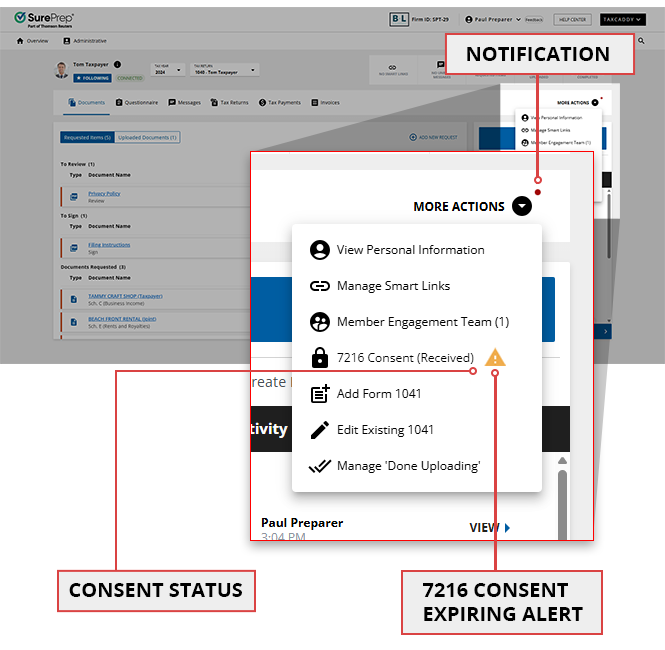
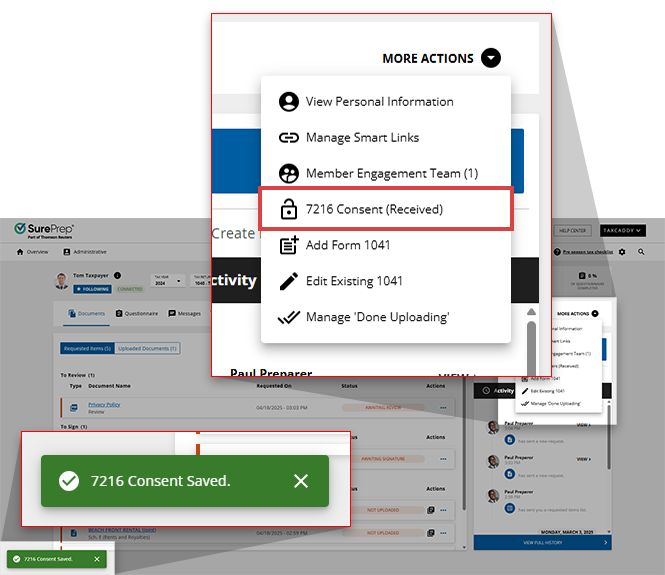
If you want to check the 7216 Consent status for a Client Profile, select
More Actions
on the navigation bar. The 7216 consent status will appear on the 7216 Consent
menu as Received/Not Received
.
You might also get the following notifications:
- Notification alert
 appears when an item in the More Actionsmenu requires your attention.
 - 7216 Consent Expiration Alert
 appears when 7216 Consent is going to expire in 2 months or less. Hover over the icon to view the expiration date, for example:
"7216 Consent will expire on December 31, 2025."noteThe Client Profile Owner will receive a reminder email 2 months prior to the 7216 consent expiration date. Another email will be sent when the consent expires.
appears when 7216 Consent is going to expire in 2 months or less. Hover over the icon to view the expiration date, for example:
"7216 Consent will expire on December 31, 2025."noteThe Client Profile Owner will receive a reminder email 2 months prior to the 7216 consent expiration date. Another email will be sent when the consent expires.
Update 7216 consent
Follow these steps to update 7216 Consent settings from the client profile:
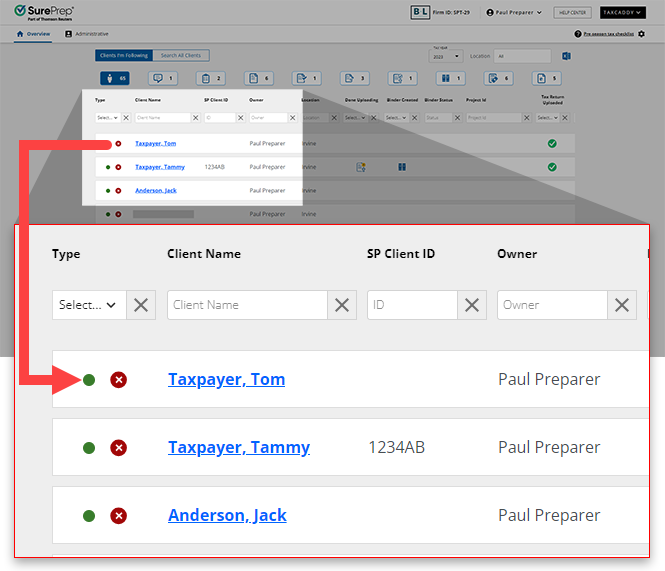
- On theOverviewscreen, select a client tile to view their client profile. You can also search for a client then select the client tile from the search result.
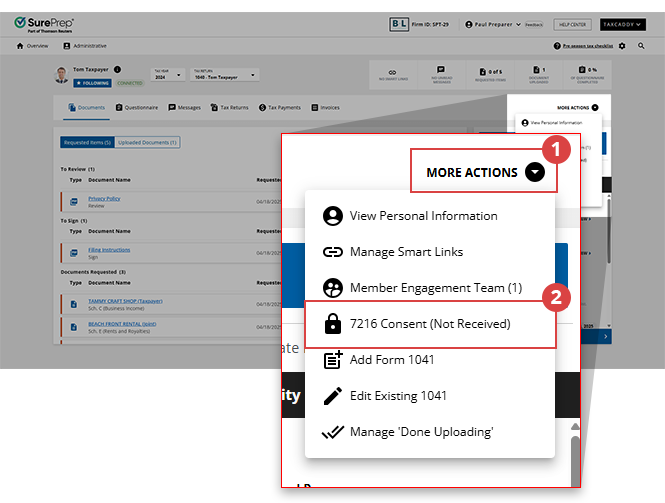
- SelectMore Actionson the navigation bar then7216 Consent. 7216 Consent option will only appear if your firm has enabled 7216 restrictions.
- On the7216 Consentwindow, selectReceivedif the client has given 7216 consent for offshore users. To remove the consent, selectNot Received.noteAfter consent is given, only users withCan undo 7216 Consent Receivedpermissions can change the 7216 Consent asNot Received.
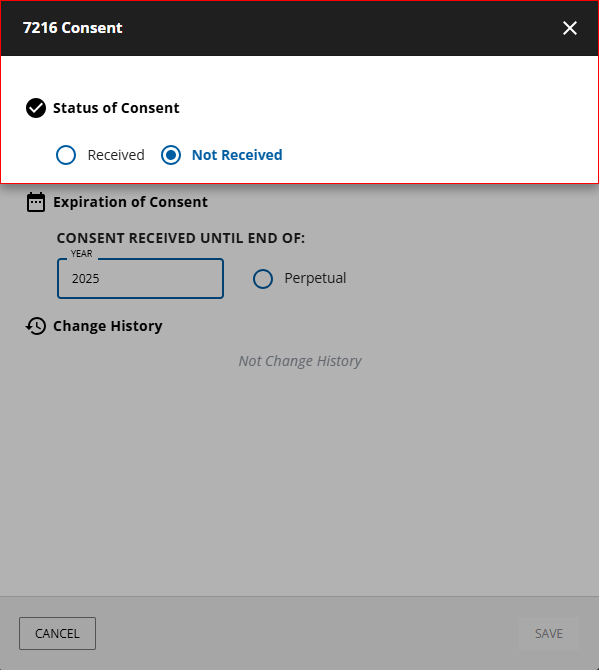
- If you selected the consent as received in the previous step, then select the calendar year when the consent should end. Alternatively, you can selectPerpetualif the consent is continuous and doesn't need to be renewed.noteIf you didn't selectPerpetualas an option then Client Profile Owner will receive a reminder email 2 months prior to the (7216) consent expiration date. Another email will be sent when the consent expires.
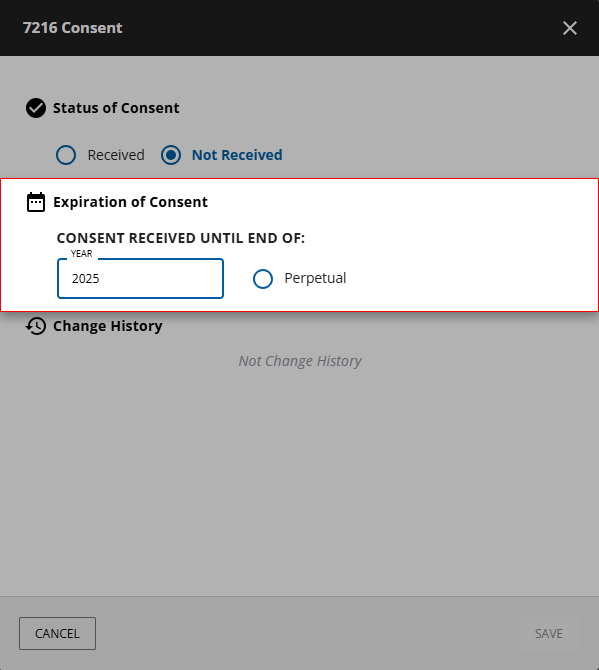
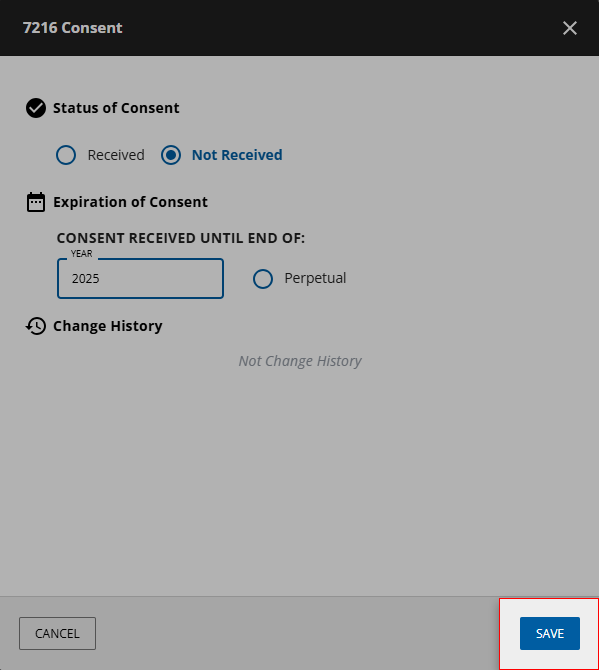
- SelectSAVEto save changes. SelectCANCELto close without saving any changes.
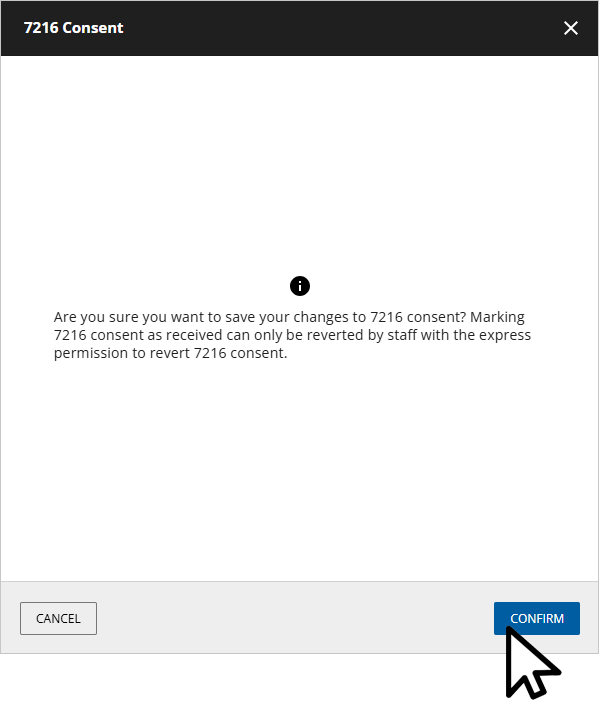
- SelectCONFIRM.
 You will see an error if you don’t have permission to revert 7216 consent fromReceivedtoNot Received. You will need to be grantedCan undo 7216 Consent Receivedpermission fromAccount Admin. Contact your Firm System Administrator if you need access to this permission.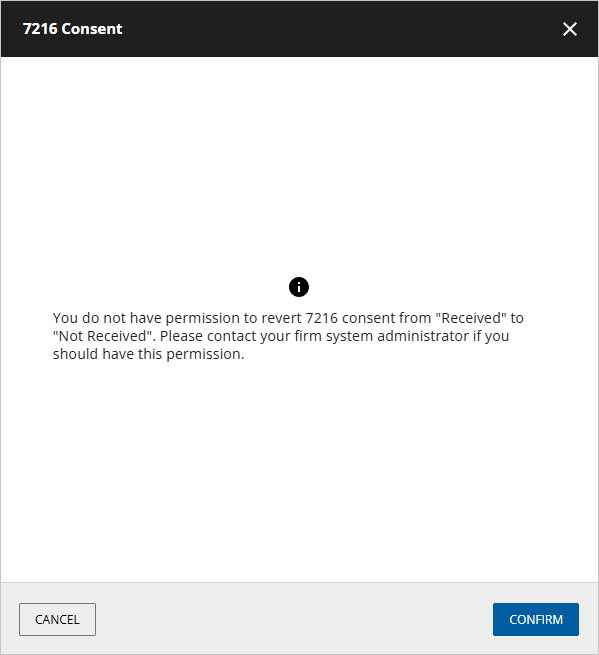
- Your updates to the client's 7216 consent status will now be reflected within their profile.
7216 Consent and Binders
Existing Binders
When 7216 consent is marked as
Received
in Client Profile, all existing binders linked to different tax years will also update to 7216 Consent as received. However, changing the 7216 Consent back to Not Received
won’t update/sync the binder.New Binders
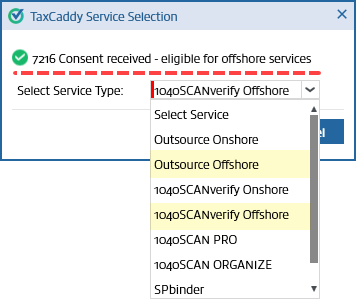
When creating a binder from TaxCaddy, if a client profile has 7216 Consent as received then you will see a reminder that offshore services are available for this binder (Outsource Offshore and 1040SCANverify Offshore).
On the
Create New Binder
window, the 7216 Consent Received?
will be automatically selected based on the consent in TaxCaddy Client Profile for Outsource (Offshore/Onshore) and 1040SCANverify (Offshore/Onshore).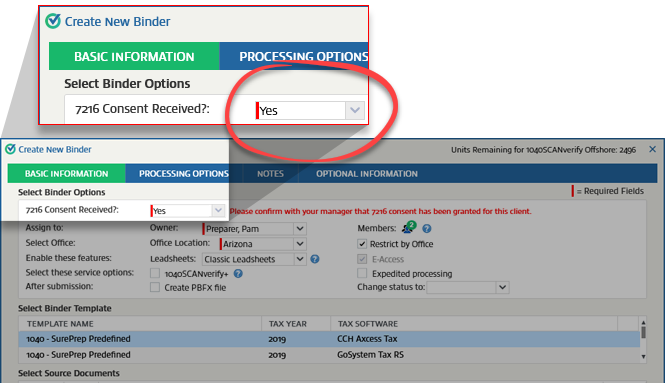
note
If a consent is already given previously on the Client Profile, then you can’t select
No
as an option unless you have the Can undo 7216 Consent Received
permission. Related Content
-
View client profiles
Format: Article

