
View client's personal information
Clients that receive a questionnaire from your firm while the
Request Personal Information
checkbox is selected in your firm's questionnaire settings will also receive a request to provide personal information.The information gathered in this request includes:
- Taxpayer's social security number and Driver's License/State ID
- Spouse's social security number and state ID (if applicable)
- Mailing address
- Dependent information
- Banking Information
The same personal information is also fetched from the tax software and populated into TaxCaddy when your firm uses the
Create Custom DRL
feature in Client Management
. The personal information fetched through DRL helps your clients' experience by pre-populating the information and saving them time from manually entering this information.You can access your client's personal information from the client's profile. Providing information is voluntary, fields that your client has skipped will appear blank when you view their personal information.
Follow these steps to view a client's personal information:
- Sign in to TaxCaddy.
- Select a client tile from theOverviewscreen.
- On the navigation bar, selectMore ActionsthenView Personal Information.

- APersonal Informationwindow belonging to the client will appear. You can go to the bottom of the window for all the client's information.
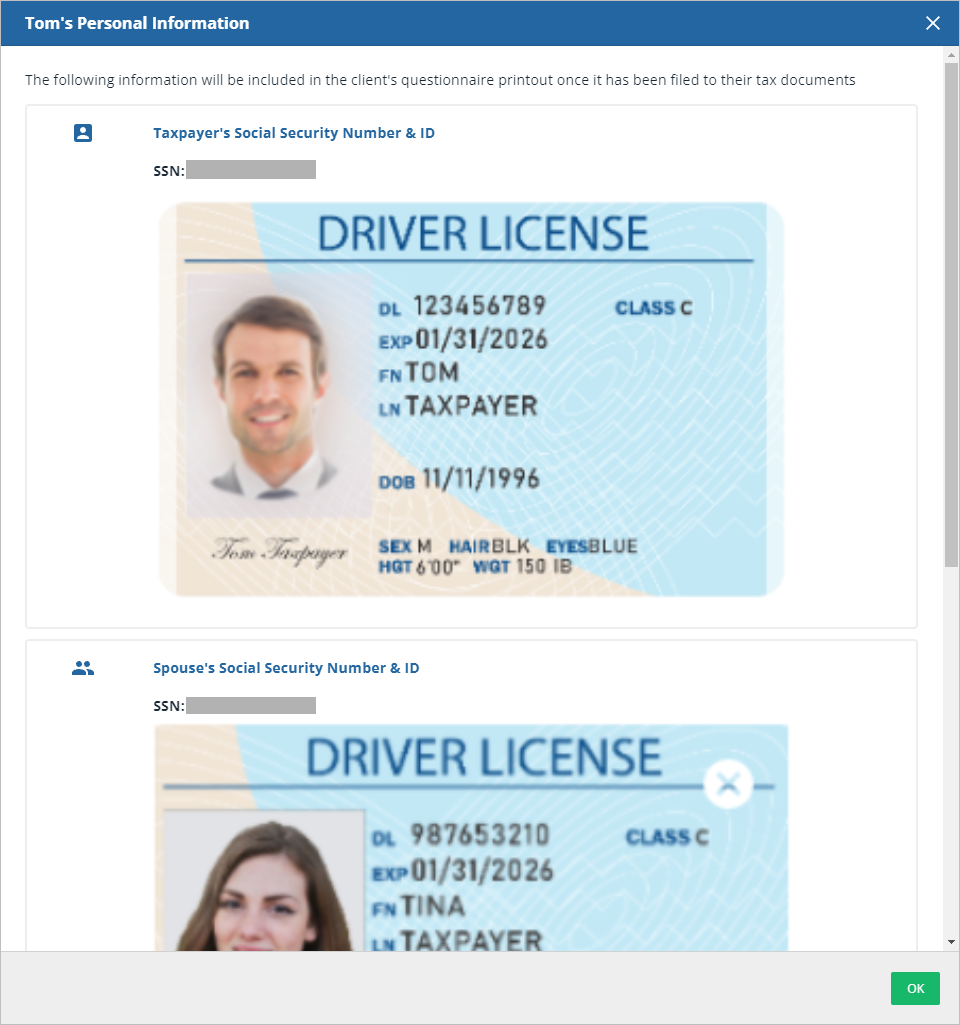 A panel with Not Provided indicates that your client has either not completed theirConfirm Personal Informationtask or opted to not include this specific information.
- Once you've reviewed the included information, selectOKat the bottom right to close thePersonal Informationwindow.

When a questionnaire is printed, you and your client will get copy of the questionnaire along with any personal information provided by the client.
note
If necessary, a client's personal information can be reset using the
Reset DRL
feature. Be sure to select the Reset personal information
checkbox when resetting the client's DRL. Taxpayer experience
While completing their personal information task, your clients may notice that TaxCaddy automatically prepopulates some fields. TaxCaddy gathers this information from either your tax software or from data that you or your client have previously provided.
When applicable, a banner alerting you of the autofill will appear at the bottom of the screen with the following text:
Some fields may be prepopulated with information provided by you or your tax professional.

When your firm uses the
Create Custom DRL
feature in Client Management
, the following personal information is fetched from the tax software and prepopulated into TaxCaddy if it's available:- (Taxpayer & Spouse) mobile phone numbers
- (Taxpayer & Spouse) SSN
- (Taxpayer & Spouse) Personal Identification:
- Taxpayer Identification:
- ID Type (Drivers License/State ID/No ID/not provided or blank)
- ID Number
- Issuing State
- Issuing Date
- Expiration date
- Spouse Identification:
- ID Type (Drivers License or State ID)
- ID Number
- Issuing State
- Issuing Date
- Expiration date
- Dependent Information
- First Name
- Last Name
- Relationship
- DOB
- SSN
- Banking information
- Type (Individual or Business)
- Account Owner Full Name
- Account Number
- Routing Number
Related Content
-
View client profiles
Format: Article

