
Add a question to a client's questionnaire
You can add additional questions to the questionnaire for a specific client. Note that using this method will only add a question to the questionnaire for the client whose profile you are currently on.
note
You can send a question to all clients by adding a question to the questionnaire template on the tab. This doesn’t apply to clients that have already received a questionnaire.
note
You can’t remove questions from a client's questionnaire if the question was part of the questionnaire template. You can only remove questions you've added to the client's questionnaire through their Client Profile.
Follow these steps to add a question to a client's questionnaire.
- On theOverviewscreen, select a client's tile to view the Client Profile. You can also search for a client and select the client tile from the result.

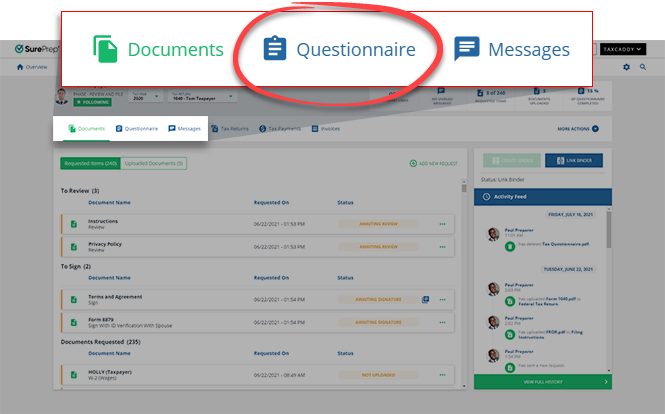
- SelectQuestionnaire.
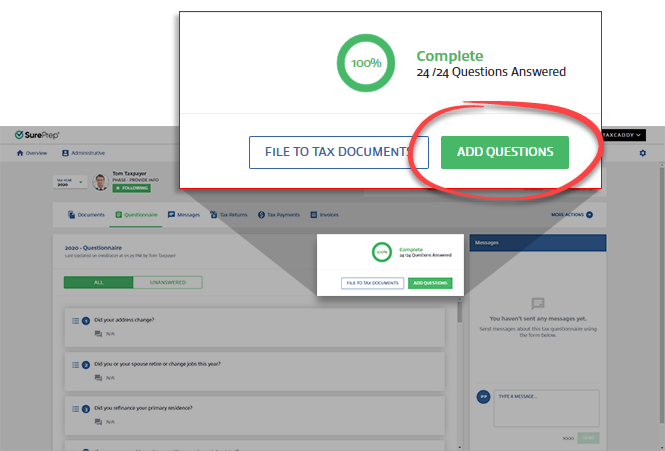
- SelectAdd Questions.
- Enter the question, then select the answer type:MULTIPLE CHOICE(Yes, No, N/A) orFREE TEXT.noteQuestions can't be blank.
 To create a follow-up question based on the client's reply, selectADD FOLLOW-UP QUESTION. The follow-up question is only available if you selected the parent question as a multiple-choice question.
- SelectSAVEto add the question to the questionnaire.

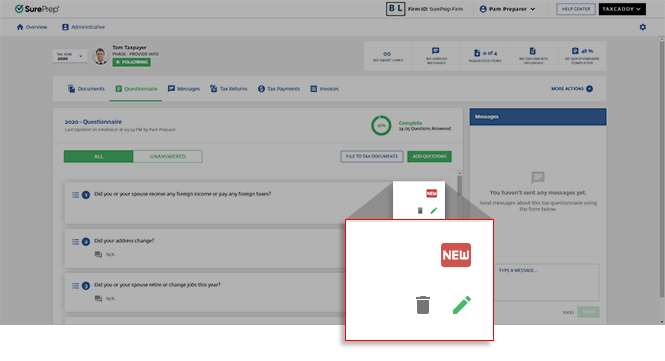
- The new question is added to the end of the questionnaire with a tag indicating the question is new. You can selectEdit
 to edit the question. Select Delete
 to delete the new question.
 noteYou will receive an email notifying you when your client's completion of the Questionnaire reaches 100%. After adding a new question, you will receive another email notification when it gets answered and the Questionnaire reaches 100% completion again.
Follow-ups questions in an existing questionnaire
Your client's response to a multiple-choice question triggers a follow-up question. This lets you get more information from your client about their answer to a previous question.

Taxpayer's experience
Your client's
Activity Feed
will show them when you update their questionnaire.
A
New
tag appears next to the new questions.
Related Content
-
Send questionnaires to clients
Format: Article
-
Send questionnaires to clients
Format:
Article
-
View a client's questionnaire
Format:
Article

