
Mark paid on a tax payment voucher
Follow these steps to mark your client's tax payment voucher as paid.
- On theOverviewscreen, select a client tile to view the client profile. You can also search for a client and select the client tile from the result.

- SelectTax Payments.

- Select theTAX YEARandTAX RETURNwhere the tax payment voucher is located.

- On the document tile, select theMenu
 icon, then select Mark As Paidto mark anUnpaidorPast Duetax payment voucher asPaid.
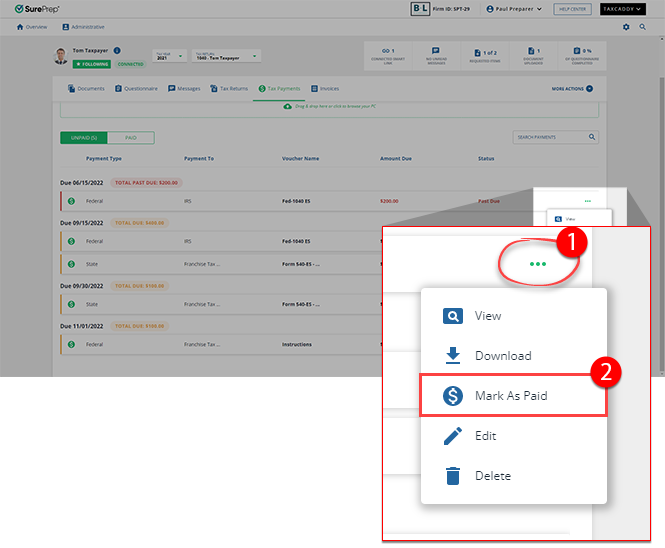 Once a tax payment voucher has been marked as paid, it can no longer be edited, deleted, or marked as unpaid.
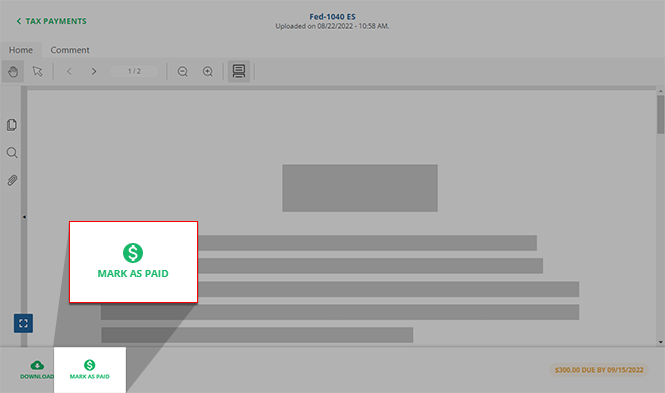
- Alternatively, you can also select the tax payment voucher to open the document viewer. Then selectMARK AS PAID.
- When the window appears, fill out the form, then selectMARK AS PAIDto mark the document as paid.
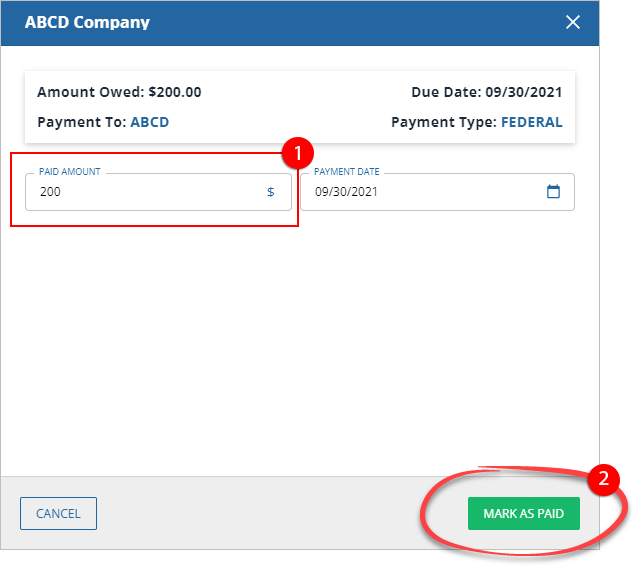 noteA voucher number (Voucher 1) next to theDue Dateindicates the tax payment voucher as an Estimated Tax.
Related Content
-
Upload a tax payment
Format: Article

