
Upload a tax payment
Uploading tax payment vouchers can help you and your clients' keep track of their tax payments by letting you and your clients monitor the due dates and paid or unpaid status.
Your firm can also enable tax payment processing by mail as an additional option for the client to make tax payments.
Tax payment processing by mail lets taxpayers pay their Federal and State tax payments from TaxCaddy. Once a taxpayer makes a tax payment, a paper check will be sent to the proper taxing authority on the taxpayer's behalf. However, if the tax payment was paid already, then you or your clients can mark the tax payment voucher(s) as paid.
Upload a tax payment voucher
Follow these steps to upload a new tax payment voucher:
On the
Overview
screen, select a client tile to view the client profile. You can also search for a client and select the client tile from the result.
Select
Tax Payments
.
If you have enabled 1041 tax return profiles on this account, select the correct tax return profile from the
TAX RETURN
menu.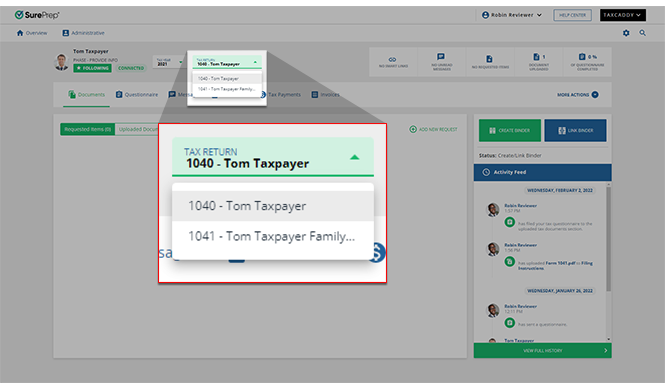
Drag & Drop
lets you drag your files inside that field. You can also upload the document when you select on the Drag & Drop
field.
If you selected the
Drag & Drop
link, select a file to upload from your device.
On the
Add Tax Payment
window, fill out the form: Field | Description |
|---|---|
Voucher Name | Enter an identifiable voucher name. |
Payable To | Enter the name of the taxing authority (that is, IRS, Franchise Tax Board). |
Payment Type | Select between Federal, State, City, or Other. |
Amount Due | Enter the amount due to the taxing authority. The amount due value must be greater than $0. |
Voucher Type | Select if this is a Standard, Estimated, or Extension tax payment voucher.
note
Standard payments are only applicable to State payment types. |
note
If the provided
AMOUNT DUE
, exceeds the maximum limit allowed for the selected state, your client won’t be able to use TaxCaddy's Pay By Check
feature to fulfill this tax payment. In this case, you can recommend that your client make their payment directly to their tax authority.
Field | Description |
|---|---|
State | This field is enabled when the Payment Type field is a State . Select the state where the tax payment is due. |
City | This field is enabled when the Payment Type field is a City . Enter the city name where the tax payment is due. |

If the
Payment Type
is a State
, then the State
input field will be enabled. Similarly, if the Payment Type
is a City
, then the City
input field will be enabled. Field | Description |
|---|---|
Due Date | Select the tax payment due date. |
Voucher type
Once uploaded, tax payment vouchers will be placed in the respective tax year based on the selected
Voucher Type
and Due Date
. Tax Payment Voucher type | Uploaded to |
|---|---|
Standard Payment Vouchers | Due Date Year - 1 year |
Estimated Payment Vouchers, due February 1-December 31 | Same Year as the Due Date |
Estimated Payment Vouchers, due January 1-January 31 | Due Date Year - 1 year |
Extension Payment Vouchers | Due Date Year - 1 year |
note
Due dates associated with tax years that don’t exist can't be selected.

Payment method and resident state
Field | Description |
|---|---|
Payment Method | Select from the following payment methods: Standard Payment : Applicable only to State payments. It indicates to the taxpayer that they can make their payment using their preferred method. This includes the ability to pay by check through TaxCaddy. If the taxpayer made the payment without using TaxCaddy, then you or the taxpayer can mark the tax payment as paid.Online Payment Required : It indicates to the taxpayer that this payment should be paid online, and not be mailed in.Scheduled Automatic Withdrawal : It indicates to the taxpayer that this payment has already been scheduled for automatic withdrawal or payment, and that they should mark it as paid once they’ve verified the payment has been processed. |
Resident State | Select the taxpayer's home state. |

The attached voucher is valid for official processing with the taxing authority
checkbox appears if you selected Standard Payment
as a payment method. Select the checkbox to acknowledge that the uploaded tax payment form is valid for mailing to the taxing authority. If applicable, this option also lets the taxpayer pay by check through TaxCaddy. note
If a
Standard Payment
is sent to your client without selecting this checkbox, they won’t be able to pay this tax payment until the checkbox is selected. 
Select
SAVE TAX PAYMENT
to save the tax payment voucher.
After the tax payment voucher is saved, TaxCaddy will switch the Client Profile to the tax year based on the tax payment voucher's due date. The tax payment voucher will appear in your
Tax Payments
section as well as the client's Tax Payments
section. 
If there exist one or more tax payments for 1 due date, the
TOTAL DUE
label will display the total amount due from your client.
Due date restrictions
When selecting a tax payment due date, you will see the  icon if the date can't be selected due to voucher type and available tax year restrictions. Restricted dates will vary based on the selected
Not Allowed
icon if the date can't be selected due to voucher type and available tax year restrictions. Restricted dates will vary based on the selected Voucher Type
.
Eligible Due Dates
: Payment Voucher
and Extension Payment
. You can select between the following dates if you selected the
Voucher Type
field as Payment Voucher
or Extension Payment
. From | To |
|---|---|
Earliest available tax year + 1 year. | Most recent available tax year + 1 year. |
Example
:If the earliest available tax year is 2020, then 2021(January 1) is the earliest date you can select.
If the most recent available tax year is 2024, then 2025 (December 31) is the last available date.

Eligible Due Dates
: Estimated Payment
You can select between the following dates if you selected the
Voucher Type
field as Estimated Payment
. From | To |
|---|---|
Starting March 1 of the earliest available tax year. | Ending February 29 of the most recent available tax year + 1 year. |
Example
:If the earliest available tax year is 2020, then February 1, 2020 is the earliest date you can select.
If the most recent available tax year is 2024, then January 31, 2025 will be the last available date.

note
The earliest available tax year may vary based on when the client signed up to TaxCaddy. Access to previous tax years may also be limited based on your firm settings.
Pay by check requirements
Option to pay by check is only available to the taxpayer under the following conditions:
Firm settings | Tax payment processing by mail must be enabled. |
|---|---|
Payment Method (field) | Standard |
Payment Type (field) | State |
Resident State (field) | Required |
The attached voucher is valid for official processing with the taxing authority checkbox. | Required. The checkbox appears after you select the Payment Method field as Standard . |

note
The ability to pay by check is not available for 1041-N and 1041-QFT.
Related Content
-
Edit a tax payment voucher
Format: Article
-
Tax payments - process by mail
Format:
Article
-
Message your client about their tax payment voucher
Format:
Article
-
Mark paid on a tax payment voucher
Format:
Article
-
File summary for tax payment vouchers
Format:
Article
-
Download a tax payment voucher
Format:
Article
-
Delete a tax payment voucher
Format:
Article

