
Downloading returns from client profiles
Follow these steps to download a client's tax return.
- Log in to TaxCaddy.
- On theOverviewscreen, select a client tile to view the client profile.

- SelectTax Returns.
 If you've created a 1041 tax return profile, select the correct profile from theTAX RETURNmenu.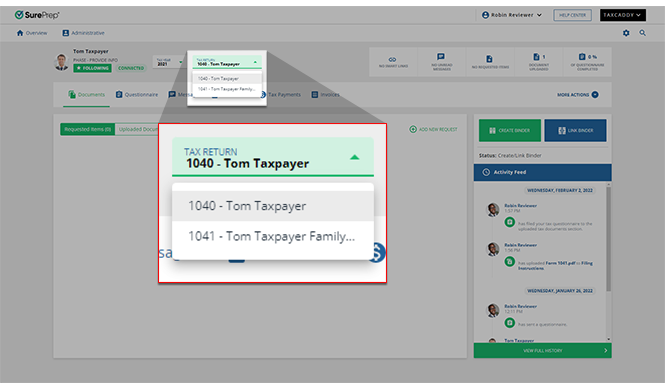
- Select theMenu
 icon on the tax return you want to download.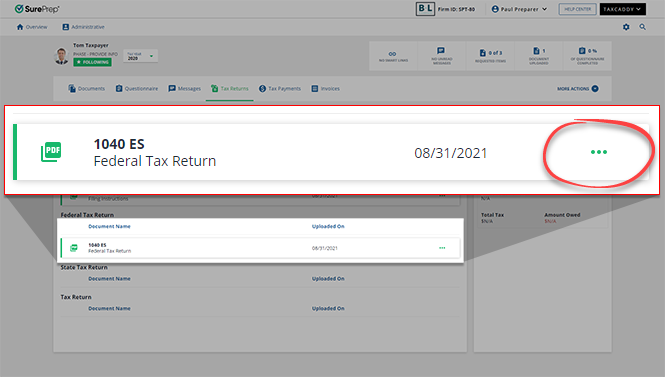
- SelectDownload.
 noteDownloads initiated from the document menu automatically include annotations placed on the document by you and/or your client.
 - Alternatively, select a tax return tile without selecting the menu button to first view the return.
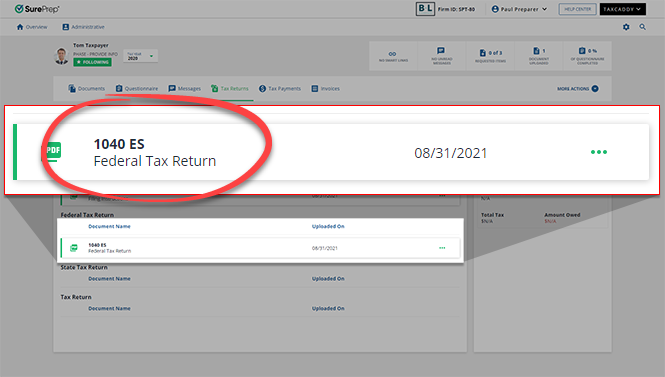
- On the return screen, selectDOWNLOAD.

Related Content
-
Upload a client's tax return
Format: Article

