
Upload a client's tax return
Once you have completed the client's tax return, you can upload the tax return to TaxCaddy. Your client can view and download the tax return directly from TaxCaddy.
note
When uploading a tax return to your client's TaxCaddy account, all unfinished questionnaires from the previous year or current year will automatically be filed to their account's
Uploaded Documents
under the respective tax year.Uploading a client's tax return
Follow these steps to upload your clients' tax return:
note
Bookmarks let you and your clients to easily find long returns in TaxCaddy. To use this feature, you must print the tax return PDF with bookmarks. For your convenience, we’ve created an article about printing a return with bookmarks in CCH Axcess Tax, GoSystem Tax RS, Lacerte, or UltraTax.
- Log in to TaxCaddy.
- On theOverviewscreen, select a client tile to view the client profile.

- SelectTax Returns.
 If you've created a 1041 tax return profile, select the correct profile from theTAX RETURNmenu.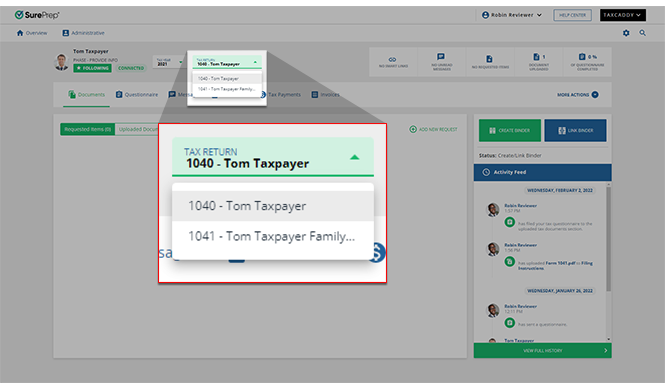
- SelectDrag & drop here or select to search your PC.noteYou can also drag a document on to the drop zone.

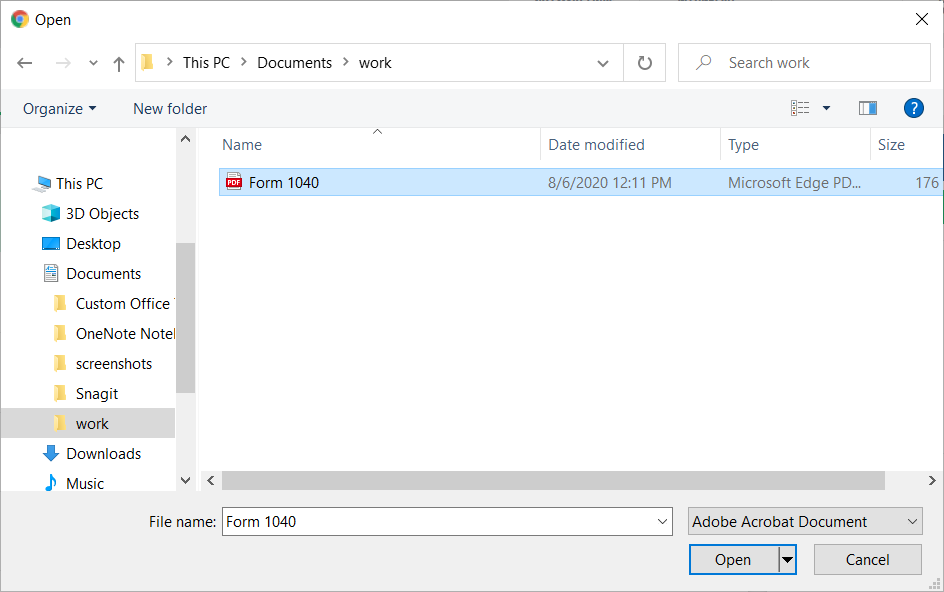
- Select a PDF to upload.
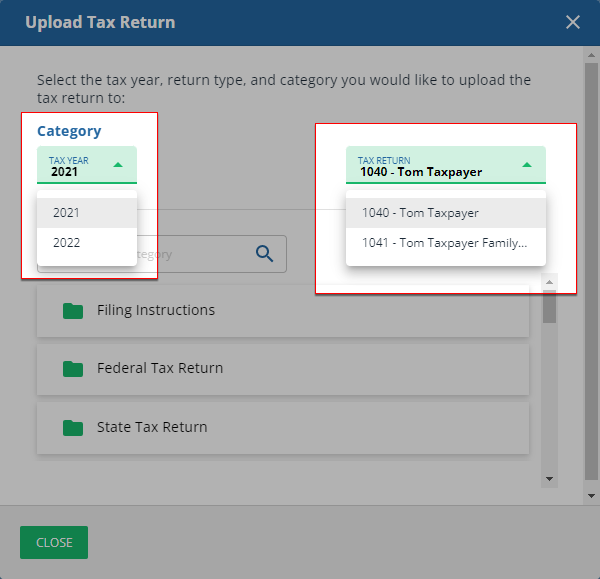
- Select aCategoryand, if you want to upload it to a different tax year, select it from theTAX YEARdropdown menu. If you have enabled 1041 tax return profiles on this account, select the correctTax Returnin addition to theTax Yearbefore selecting theCategory.noteYou can also create additional custom categories to upload tax return.
- After the file uploads, selectCLOSE.
 noteYour client will receive an email notifying them each time you upload to one of their tax return profiles.
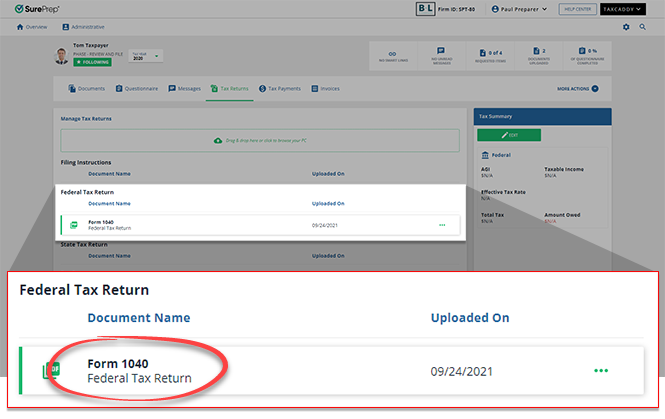
 - The document appears under the appropriate category.
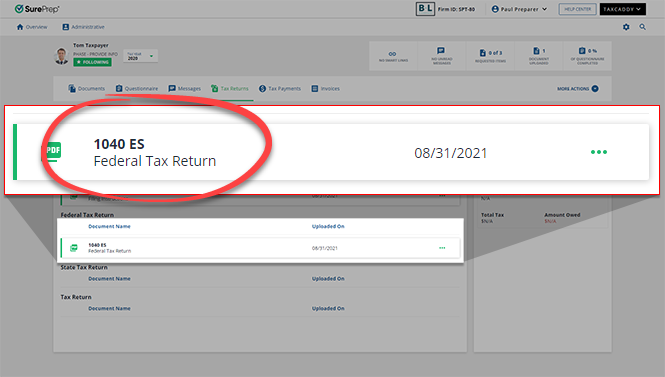
- To view the return, select the return's tile.
- You can message your client using the message panel on the tax return screen.

note
Uploading the tax return will automatically save the questionnaire as a PDF document and file it as an uploaded document.
Related Content
-
Moving a client's tax return
Format: Article
-
Deleting a client's tax return
Format:
Article
-
Downloading returns from client profiles
Format:
Article

