
Add documents to existing binders in TaxCaddy
If a binder is connected to a client profile, then you can add documents to an existing binder using TaxCaddy. You can also link a FileRoom binder to a TaxCaddy client profile then upload clients' documents to the binder using the
Add Documents
feature.You can also add documents to TaxCaddy binders from SPbinder and FileRoom.
note
- Documents within theSchedule K-1category will always be moved to the end of the list.
- You can't add additional documents to a binder while the binder is still in verification (SP Processingstatus). Once the binder is no longer in verification, you will be able to add additional documents from theDocumentstab.You can add documents in any status if you are using GoSystem Tax RS or CCH Axcess Tax.
Follow these steps to add documents to an existing binder using TaxCaddy:
- Sign in to TaxCaddy.
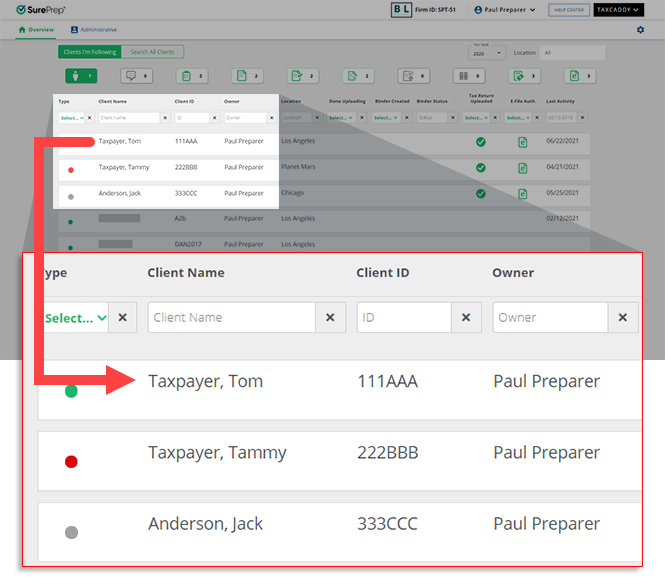
- Select on a client tile to view that client's profile.
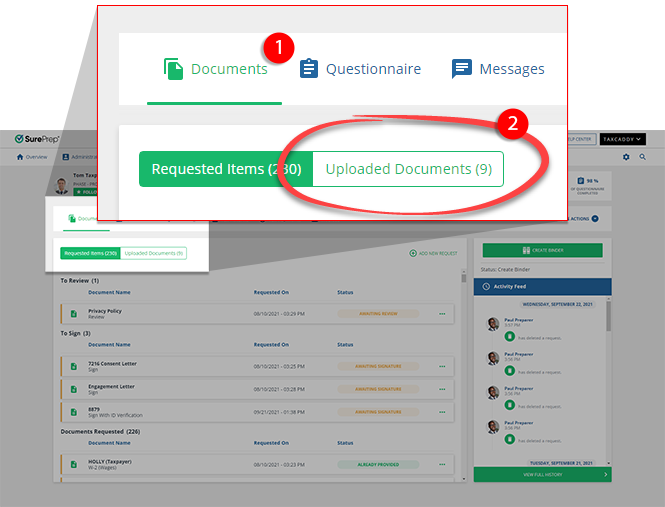
- SelectDocuments, then select theUploaded Documentstab.
- Icons on the document tiles indicate which documents have already been added to the binder and which documents to include or exclude from the binder. You can select theDocument Flag
 icon to track which documents to include or exclude. However, changing a Document Flag to include/exclude in the binder doesn’t automatically upload the document to the binder.
IconsDescriptionAdded to binder
icon to track which documents to include or exclude. However, changing a Document Flag to include/exclude in the binder doesn’t automatically upload the document to the binder.
IconsDescriptionAdded to binder Document has already been added to the binder.Include in binder Document should be included in the SPbinder.Exclude from binder
 Document should be excluded from SPbinder.Cannot include in binder
 Document can't be included in the binder.
- SelectADD DOCUMENTS.
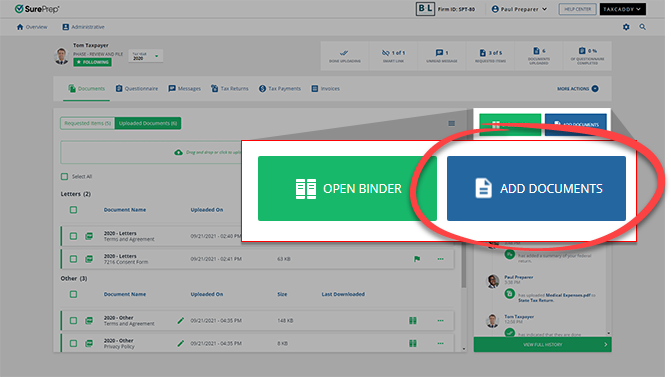 noteTheADD DOCUMENTSbutton only appears if you have already created a binder.
 - Your browser downloads a PBFx file. Select the file to open the SurePrep submission screen.
 Add Documentwindow will open.
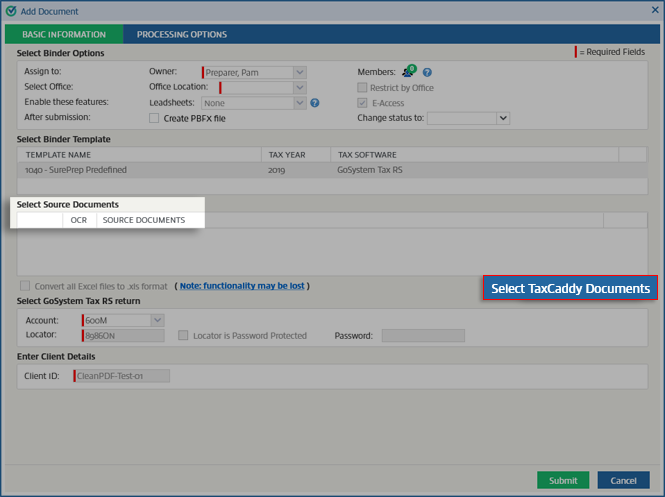
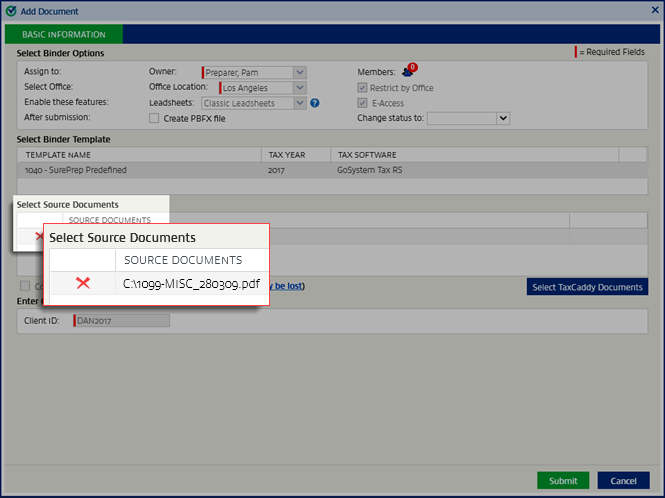
- When theAdd Documentwindow appears, select theSelect TaxCaddy Documentsbutton underSelect Source Documents.
 You may receive a notification on theAdd Documentswindow if your previous documents are still in processing or require attention to continue. You can continue adding new documents, however, if an action is required, your new documents will only begin processing after you complete the requested action (that is, export existing data to tax software).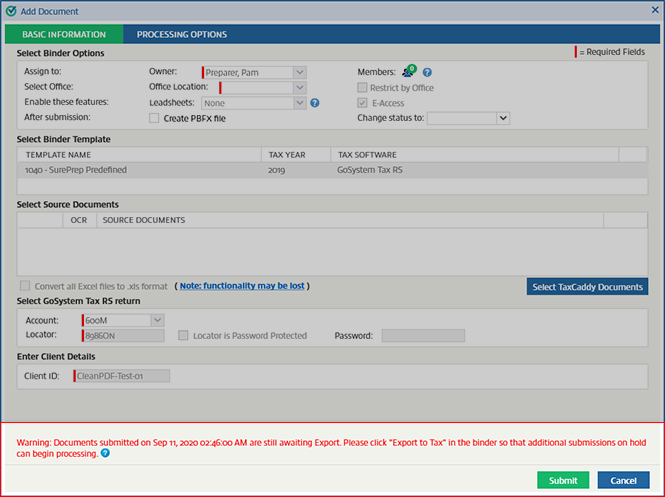
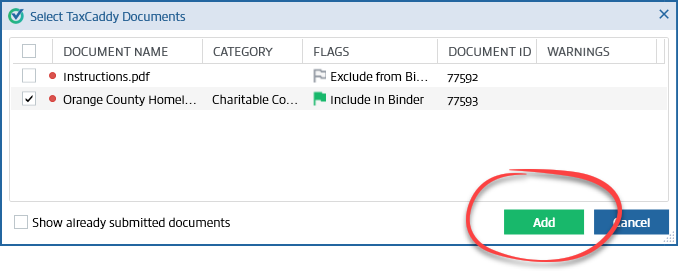
- On theSelect TaxCaddy Documentswindow, select the checkbox to include the document in the binder. You can also clear the checkbox to exclude the document from being submitted to the binder.
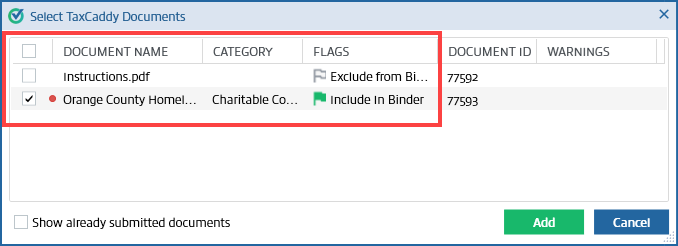 For convenience, documents marked with theDocument Flag icon will be pre-selected by default.note
- You will see a red badge
 next to the document name when a taxpayer uploads a new document that hasn’t been viewed by a tax professional.
 - Document Flags don’t prevent you from including or excluding documents from the binder. However, you will see a warning message as a reminder if you included a document that was meant to be excluded. Conversely, you will see a warning when you clear a checkbox for a document that was meant to be included.
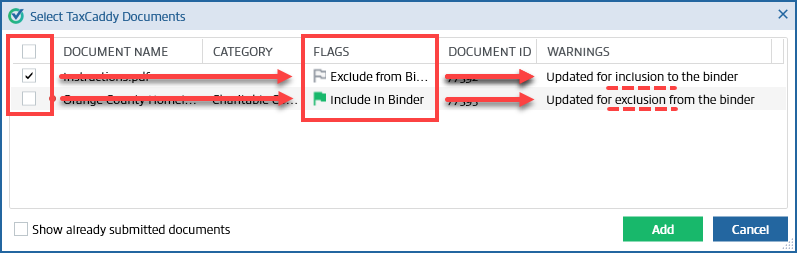 Documents that have already been added to the binder can't be added again. To view already submitted documents, select theShow already submitted documentscheckbox.
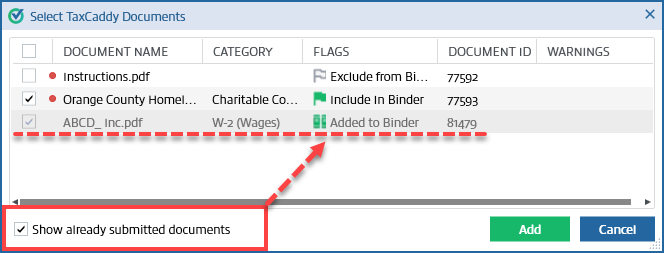 noteExcel files with hidden sheets are not supported. Delete the hidden sheets from the Excel files before uploading the files, make the hidden sheets visible before uploading the files, or don’t upload those files.Documents that can't be added to the binder will have theCANNOT INCLUDE IN BINDERtext in theFLAGScolumn.
- Select theAddbutton to continue.
 noteYou can add documents to the binder by uploading additional documents from TaxCaddy, FileRoom, or SPbinder.
 - The selected client's documents are imported from TaxCaddy.noteDocuments within the categorySchedule K-1swill always be moved to the end of the list of documents.
- (UltraTax CS only)You may skip this step if you are not using UltraTax CS. If you are using UltraTax CS binder without Leadsheets, you must search for theUltraTax CS Tax Filepath to successfully add new documents.
 Under theEnter Client Detailssection, locate theClient IDfield. This Client ID will be used to search forUltraTax CS Tax Filepath. To search for aUltraTax CS Tax Filepath, selectSearch.
 When theSearch UltraTax CS filewindow appears, enter the UltraTax CS Client ID, then selectSearch.
 Once Client ID is located, theUltraTax CS Tax Filepath will auto-populate with the correct path.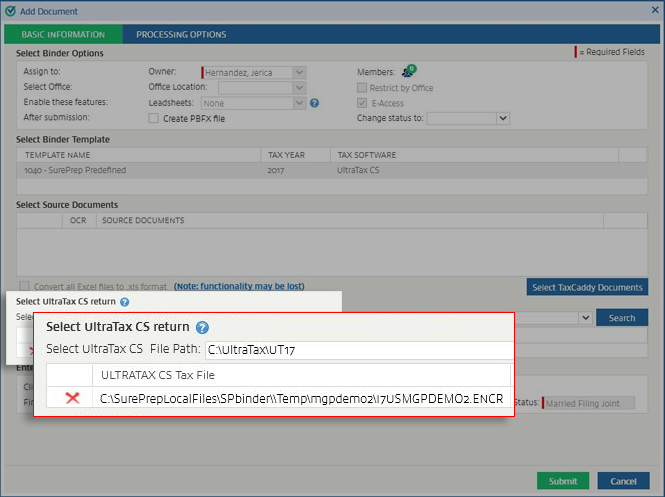
- (Lacerte Only)Skip this step if you are not using Lacerte. If you are using a Lacerte binder without Leadsheets, you must search for theLacerte Tax Filepath to successfully add new documents.
 Under theEnter Client Detailssection, locate theClient IDfield. This Client ID will be used to search forLacerte Tax Filepath. To search for aLacerte Tax Filepath, selectBrowse.
 When theSearch Lacerte tax fileswindow appears, select the Lacerte file with the sameClient ID, then selectOpen.
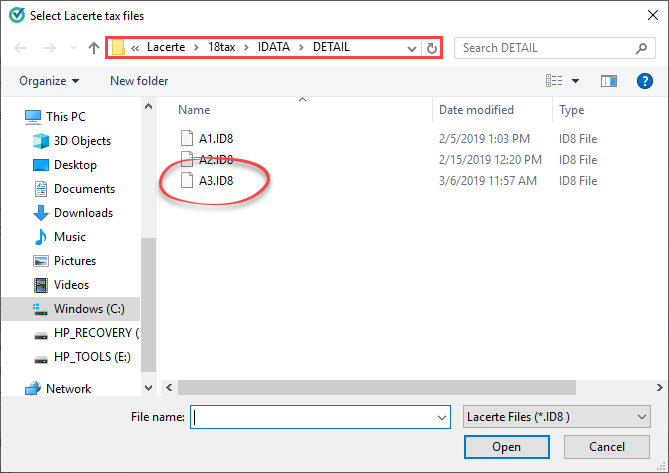 noteTo successfully access the client, you must install the Lacerte Driver.If you have the Lacerte Driver installed, you may see theAccess Confirmationwindow minimized in the background. Maximize theAccess Confirmationwindow then selectGrant.
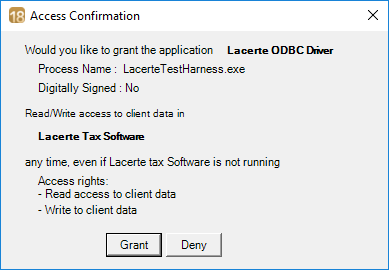 On theSign inwindow, enter your Lacerte sign-in credentials, then selectSign In.noteYou'll need to enter your Lacerte sign-in credentials again when your sign-in session expires in 24 hours.Lacerte Tax Filepath will auto-populate with the correct path.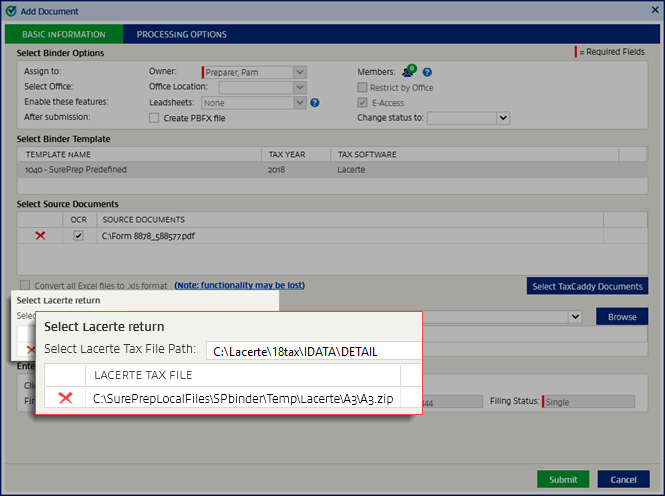
- Ensure that all information is correct, then selectSUBMIT.
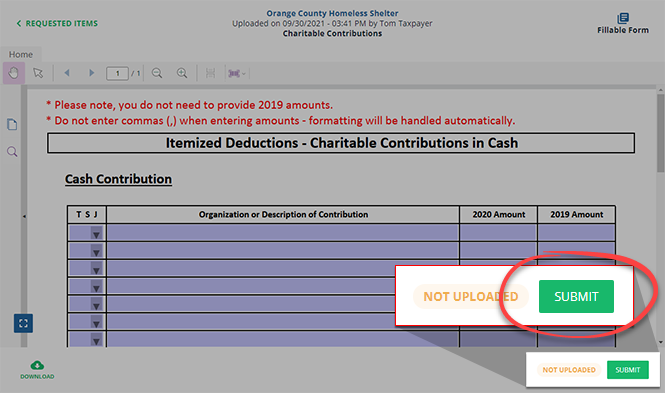
note
The uploaded Tax Questionnaire document checkbox won’t be available and can't be sent to OCR.
Related Content
-
Create a binder using client's TaxCaddy documents
Format: Article

