
Download multiple documents at once
Follow these steps to download multiple documents from a client's account at once.
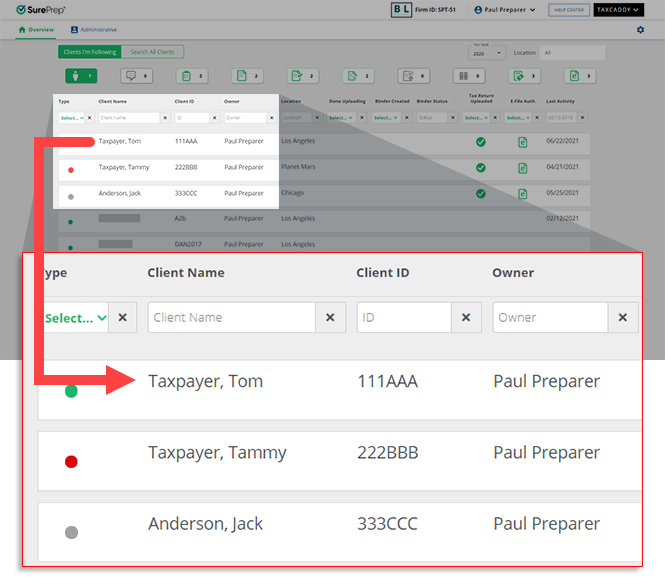
- On theOverviewscreen, select a client's tile to view the client profile. You can also search for a client and select the client tile from the result.
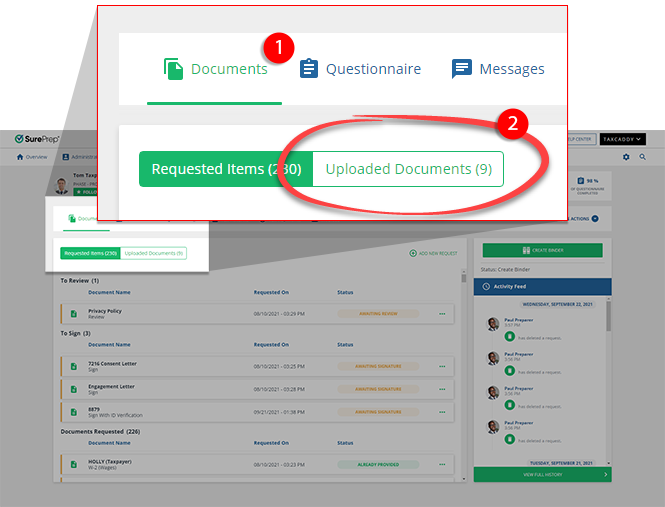
- SelectDocuments, then selectUploaded Documents.
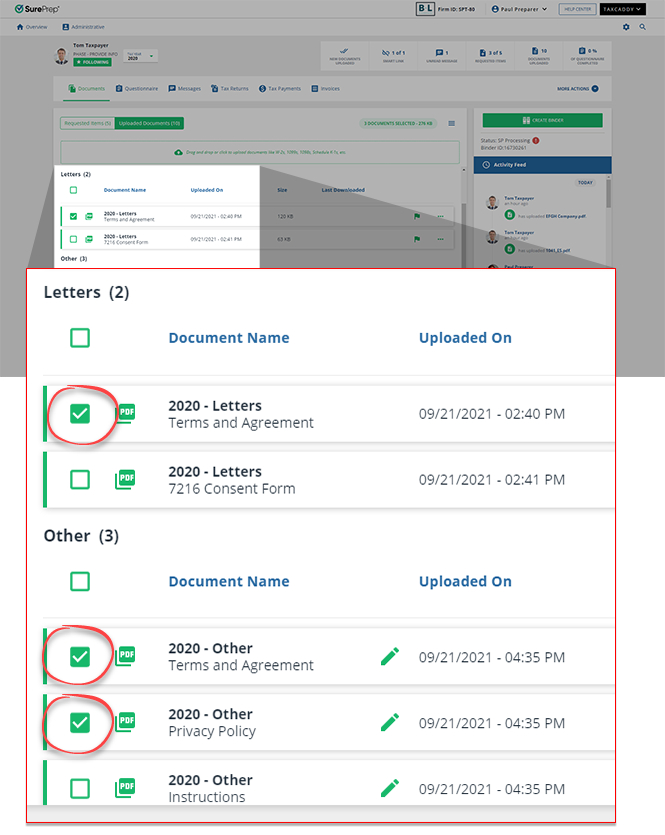
- Select the checkbox next to the documents you want to download; You can select multiple checkboxes.noteUnviewed documents will be marked as viewed once they are downloaded.
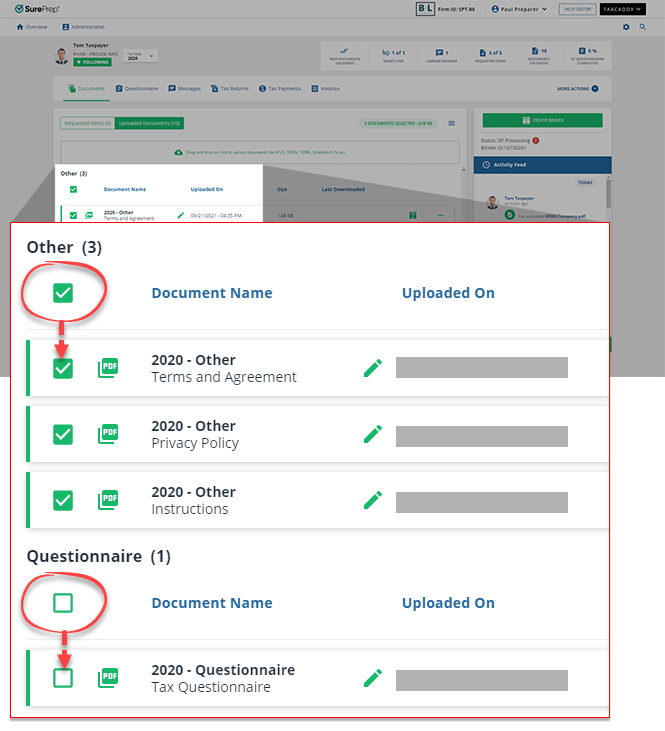
- To select/clear all documents in a category, select the checkbox at the top of that category.
- To select all uploaded documents, select the checkbox next toSelect Allat the top.
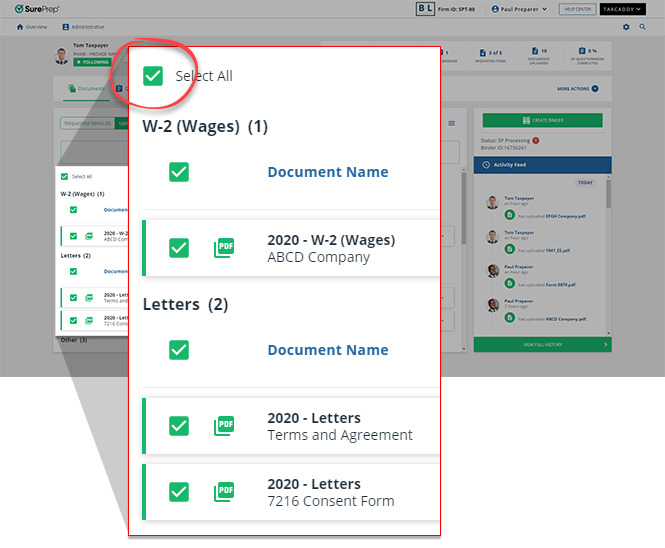
- The total file size will be displayed at the top. You can only download 1 GB of files at a time. If there are more than 1 GB of files in an account, you'll need to download in multiple selections.

- Select theMenu
 icon, then select Downloadto begin your download.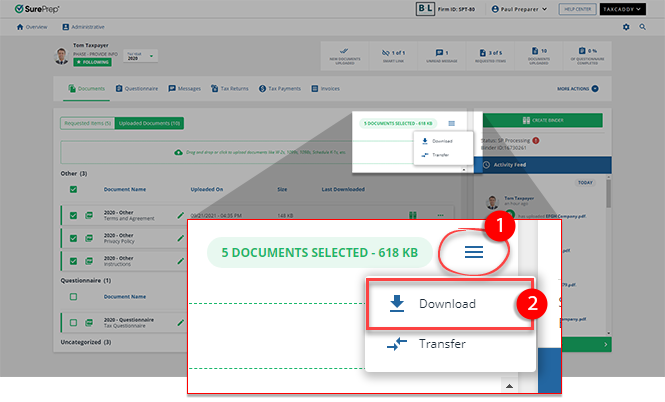
- The files are downloaded in a ZIP file.

note
The IRS requires e-signed records to be tamper-proof once they’ve been signed and reviewed. To ensure a document is legally binding, SurePrep will secure the document in read-only mode. This is a cautionary measure to ensure that digitally signed/reviewed documents can't be tampered with or additional pages are not attached to the signed/reviewed document later. These signed/reviewed documents can still be viewed in read-only mode.
Related Content
-
Download documents from client profiles
Format: Article
-
Download documents from client profiles
Format:
Article
-
Document Viewer (PDF Viewer)
Format:
Article
-
Rename documents
Format:
Article
-
Switch between tax documents
Format:
Article

