
Mark documents as Viewed and Unviewed
You will see the  icon appear when a taxpayer uploads a new document that hasn’t been viewed. You can mark the new documents as
Unviewed
icon appear when a taxpayer uploads a new document that hasn’t been viewed. You can mark the new documents as Viewed
without actually viewing the document in the Document Viewer panel.Conversely, you can mark already viewed documents as
Not Viewed
to go over them again if needed.Follow these steps to mark the document as
Viewed
or Not Viewed
:- Sign in to TaxCaddy.
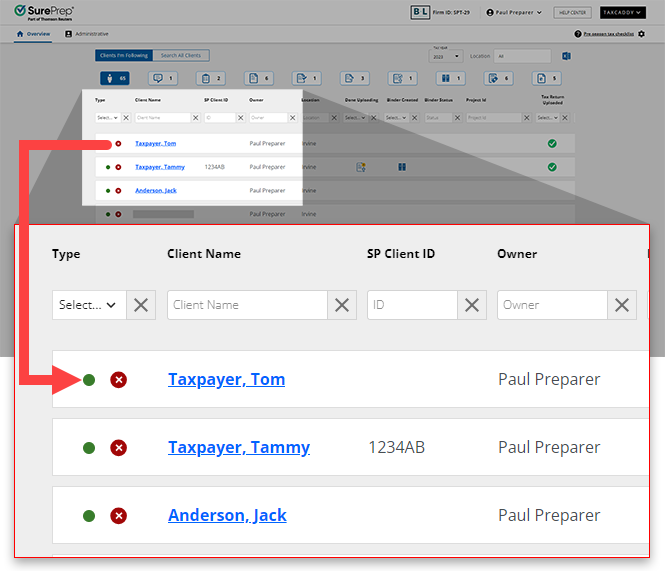
- Select a client tile to view that client’s profile.
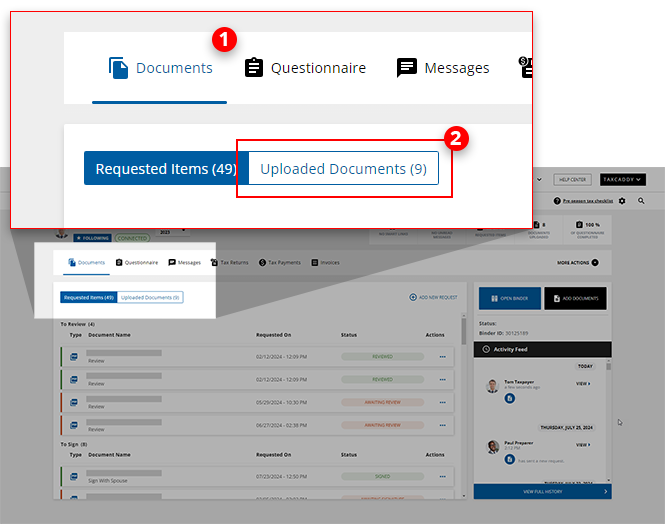
- SelectDocuments, then select theUpload Documentsswitch.
- On the document tile, select theMenu
 icon, then select Mark as Viewed.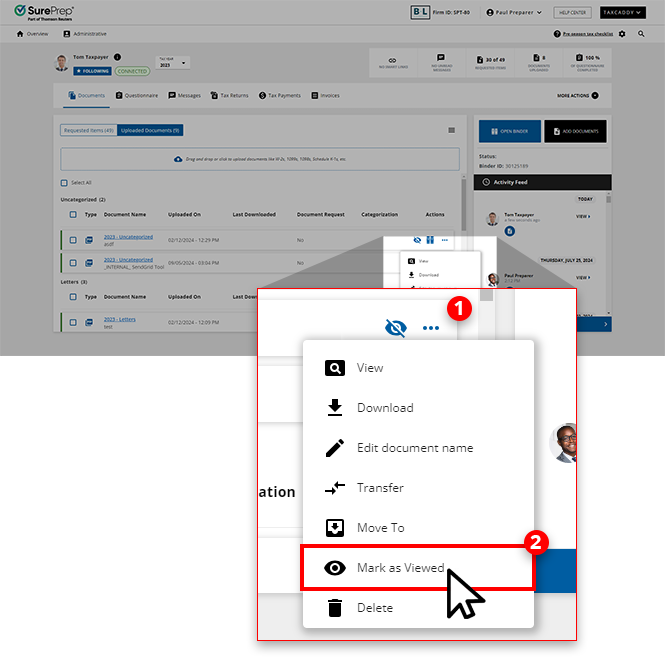
- If you want to mark the document as not viewed, select theMenu icon then select Mark as Not Viewed.
 You will see theUnviewed icon appear on that document tile.
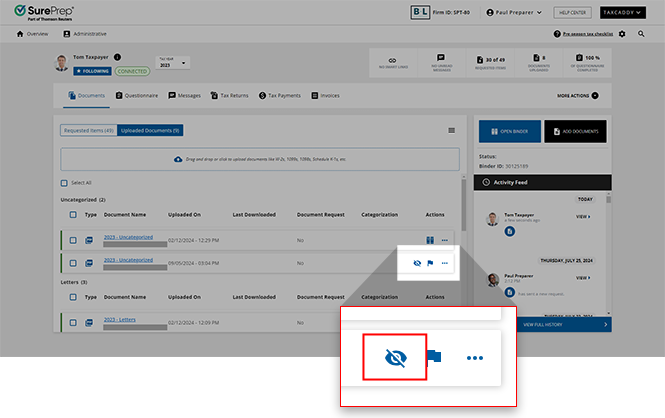 noteUnviewed documents will be marked as viewed once they are downloaded.
Related Content
-
Upload files to client's Uploaded Documents
Format: Article
-
Upload files to client's Uploaded Documents
Format:
Article
-
Document Viewer (PDF Viewer)
Format:
Article
-
Rename documents
Format:
Article
-
Switch between tax documents
Format:
Article

