
Assigning user group permissions for TaxCaddy
Follow these steps to configure TaxCaddy permissions in your firm. By setting permissions, you can decide to give tax professionals at your firm access to TaxCaddy, TaxCaddy's
Administrative
tab, and the SurePrep Mobile App. You can also grant the ability to transfer documents between different TaxCaddy accounts and alter the 7216 Consent status of a client.- Sign in to SurePrep FileRoom.
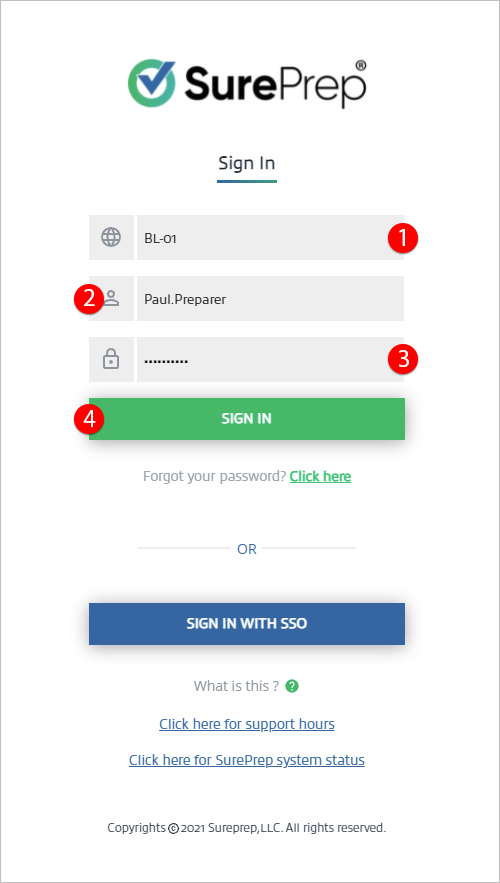
- On the upper right, point to the dropdown menu, then selectAdmin.
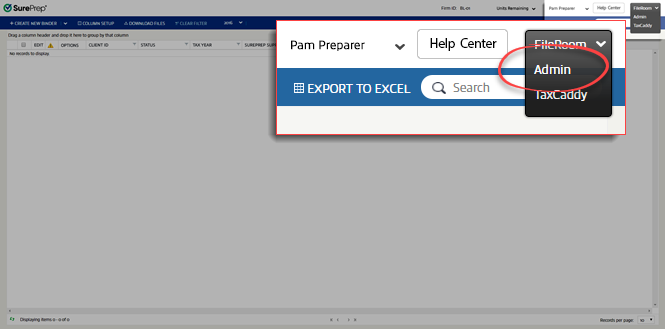
- SelectUser Group Management.
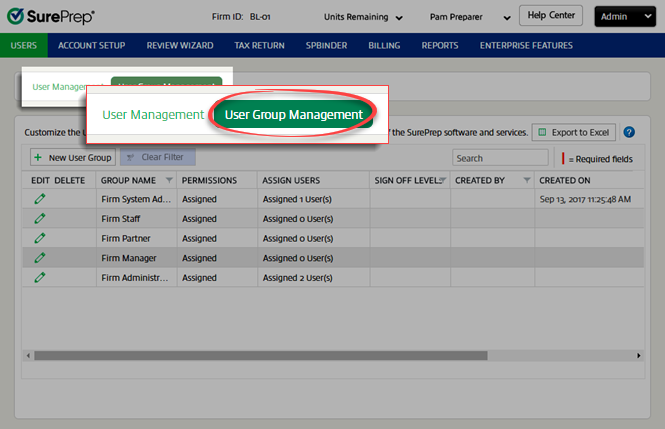
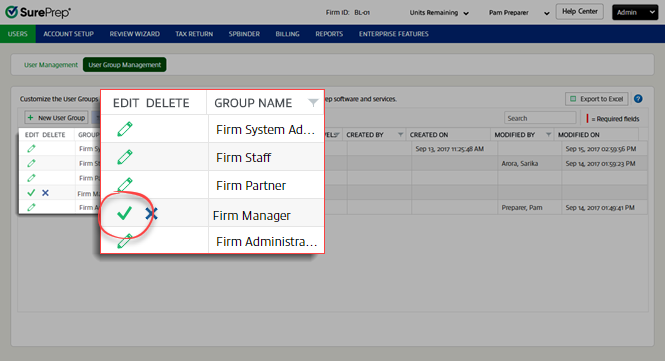
- SelectEditnext to the group you want to assign permissions.
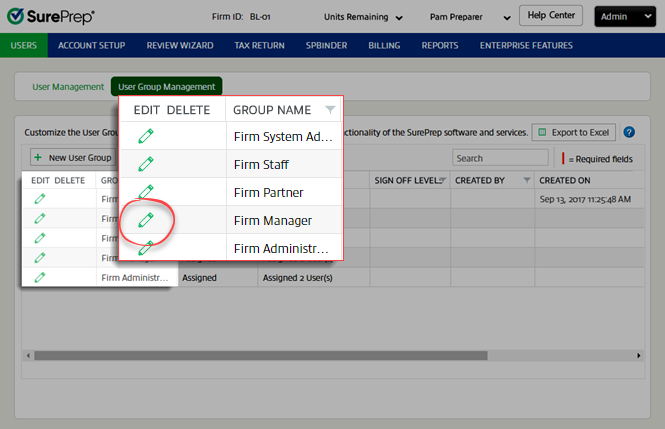
- In the Permissions column, selectSelect. The Permissions dropdown opens.
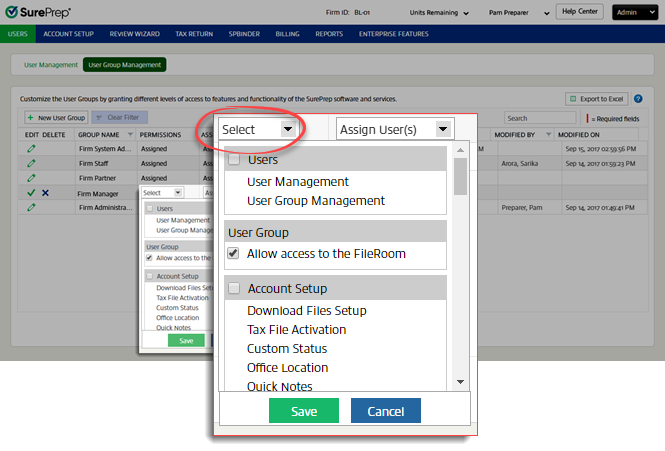
- Scroll down to theTaxCaddysection.
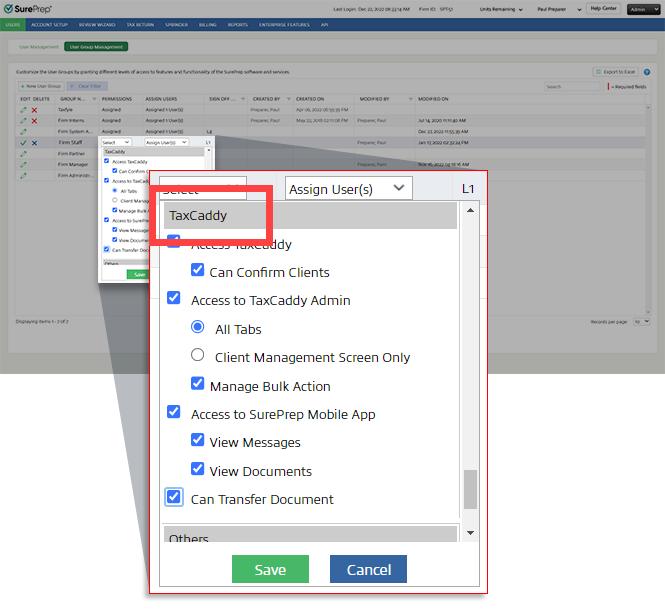
- All Tabs: Allows users access to the TaxCaddyAdministrativetab and modify information in all sections, includingClient Management,Templates,Document Request List,Firm Details, andAdmin Connections.
- Client Management Screen Only: This only allows users to openClient Managementin the TaxCaddyAdministrativetab.
- Manage Bulk Action: Allows users the ability to performMANAGE CLIENTSactions in bulk to all eligible clients in the firm on theClient Management. Users with this permission can send invites, reminders, letters, Questionnaire, Create Custom DRL, Send DRL, and Delete Clients for all eligible clients on the domain when they selectAll Eligible.note: Allows users to make sure the identity of a client before sharing potentially sensitive documents. Verification is only needed for clients that were unable to complete two-factor authentication (for example, Missing phone number in Client Management, landline, incorrect number, etc.).The number of Eligible clients can change based on the current filter or search results. Under TaxCaddy, selectAccess TaxCaddyto allow users in that group access to TaxCaddy. For user groups who should have access to Admin sections, also selectAccess to TaxCaddy Adminand then select eitherAll TabsorClient Management Screen Only.Select the checkboxes applicable to the user group:Access TaxCaddyAllows users to access to TaxCaddyCan Confirm ClientsAccess to TaxCaddy AdminAllows access to the TaxCaddy Admin tab. It requires the additional selectionAll TabsorClient Management Screen Only.
Can Transfer DocumentsAllows users the ability to transfer documents from one TaxCaddy account to another.Can undo 7216 Consent ReceivedUsers with this permission can remove7216 Consentfrom binders and their associated TaxCaddy Client Profiles. If the consent was already granted, then users can remove the consent from FileRoom.noteRemoving 7216 Consent will remove users as Owners and Assigned Members if they are assigned to a group with (7216)Restrict Accesspermission assigned to them. Additionally, the binder and client profile won’t be visible to 7,216 restricted users in FileRoom and TaxCaddy.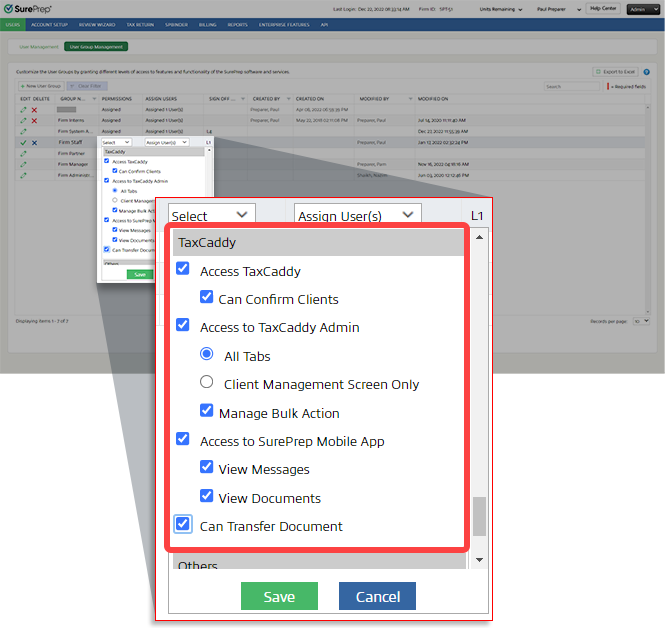
- SelectSaveto save changes to the Permissions settings.
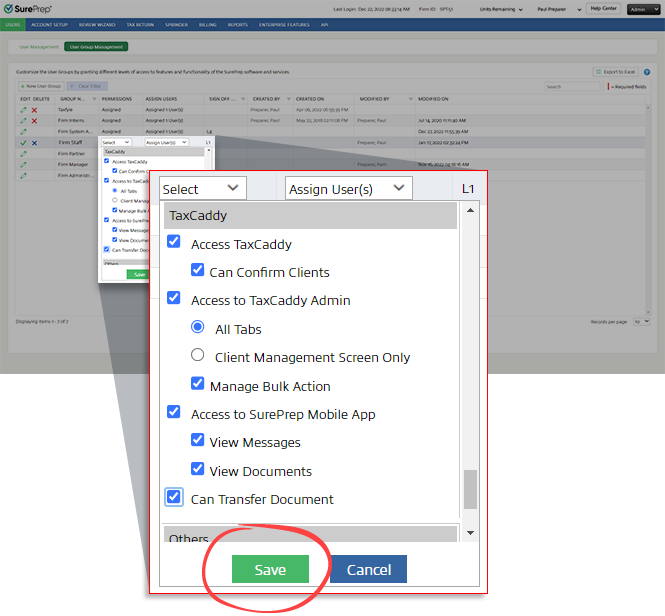
- SelectSave
 to save all changes to the group.
Related Content
-
User Group Management overview
Format: Article

