
Create a group email address
You can create a central email address that everyone in the group can get emails from (for example, SurePrepNotifications@firm.com).
note
Consult with your IT team and your firm's policy before setting up an email distribution group.
Follow these steps to create an email distribution group.
- Open Outlook, go to theGroupsection, then selectNew Group.

- Enter a group name and an email address for your group, then enter a description. You can select the email address asSurePrepNotifications(Recommended).
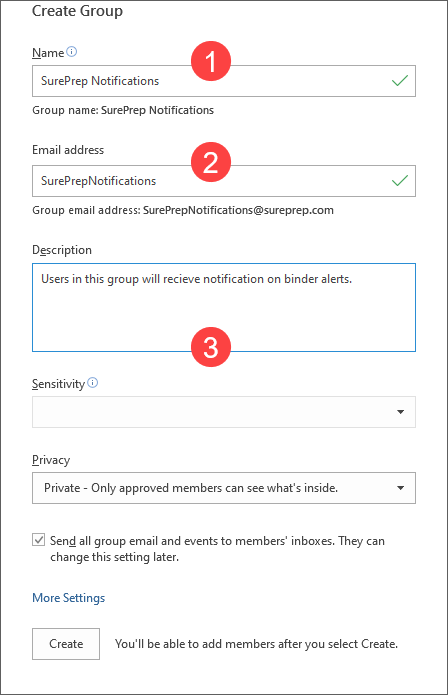
- SelectPrivatefrom thePrivacydropdown, thenCreate.

- Search for and select the people you want to add to the email distribution group.
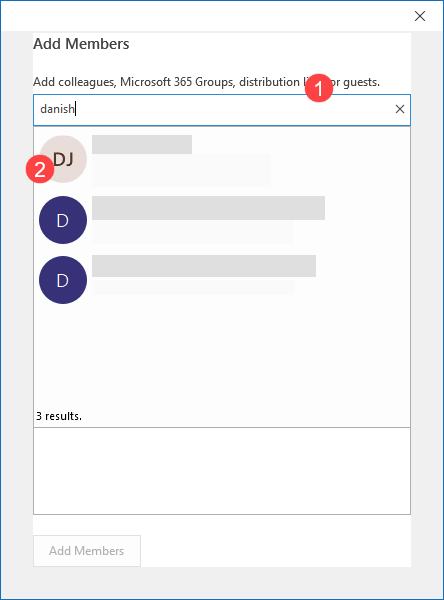
- Close the window once you've added everyone to the group.

- Select the group's name,Group Settings, thenEdit Group.If you can't locate the group, select
 Browse Groupto search for the group by name.
- Mark theLet people outside the organization email the groupcheckbox, then selectOK.

Related Content
-
User Group Management overview
Format: Article

