
Delete user groups
Follow these steps to delete a user group.
- Go toFileRoom,Admin,Users, thenUser Group Management.

- Select theDelete
 icon next to the user group you want to delete.

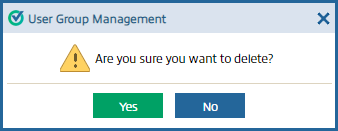
- In the confirmation window, selectYes.
Unable to delete
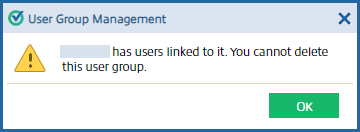
You may see the following message if you attempt to delete a group that currently has firm users assigned to the group:
[Group Name] has users linked to it. You cannot delete this user group.
To delete a group, you'll need to first remove all firm users that are assigned to the group. Select the  icon, select the
  section.
Edit
icon, select the ASSIGN USERS
column dropdown menu, and remove all users from the Selected User(s)
section.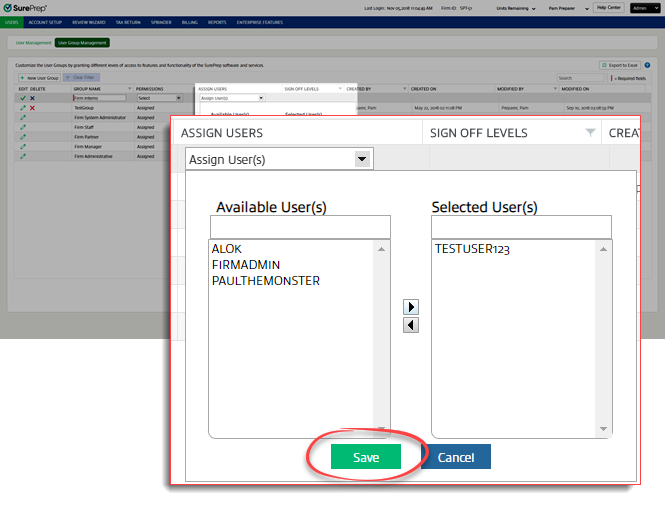
Once all the firm users are removed from the group, try deleting the group again.
Related Content
-
User Group Management overview
Format: Article

