
Fix or Update Smart Links (document retrieval accounts)
Show all hidden content
Smart Links with document retrieval accounts create a link between TaxCaddy and your financial institution, letting TaxCaddy retrieve documents directly from your financial institution the moment they're added (and will periodically check for updates depending on the time of year) to save you from uploading your documents yourself.
If you change the credentials used to log into one of your document retrieval accounts, you will need to update the information in TaxCaddy as well. If TaxCaddy is unable to connect with one of your accounts, the status for the account will change to Action Required.
note
View our Smart Links Security page for information on the privacy and safety of your documents.
TaxCaddy.com on PC, Mac, or tablet
Follow these steps to fix/update a Smart Links connection using TaxCaddy.com on your PC, Mac, or tablet.
- Log in to TaxCaddy.com.
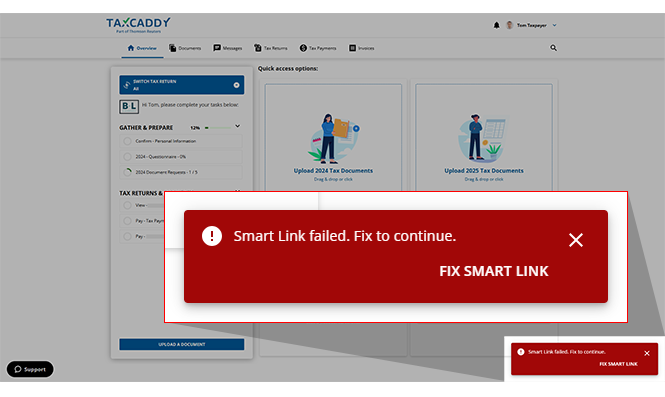
- Smart Links notification will appear if a smart link needs to be fixed or updated. SelectFIX SMART LINKto update the Smart Link connection.
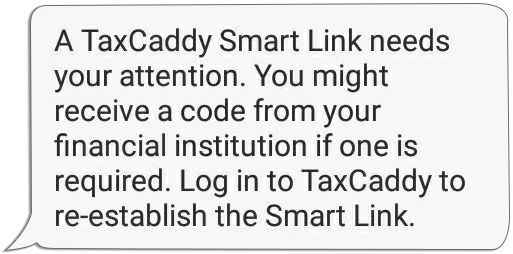
 You will also receive an SMS text notification when your established Smart Links connection is broken.noteThe text notification will only appear for Smart Links that have been successfully established over an hour.
 Contact TaxCaddy Support if you are experiencing difficulty receiving your text notification.Additionally, if you haveSettings,Notifications, thenPush Notificationenabled, you will also receive a push notification message on the browser window and on your device.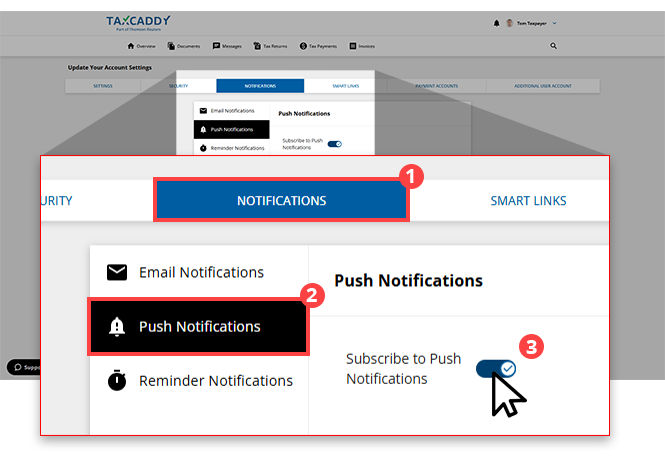
- The broken Smart Link will be denoted by theSmart Link failedtext. To address the issue, click the financial institution's name/icon.
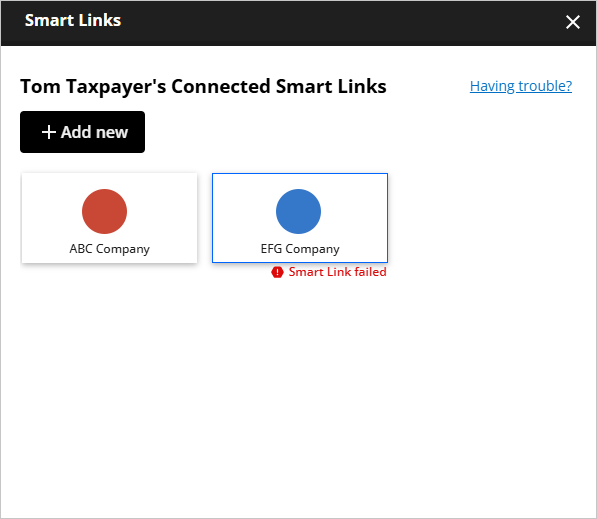
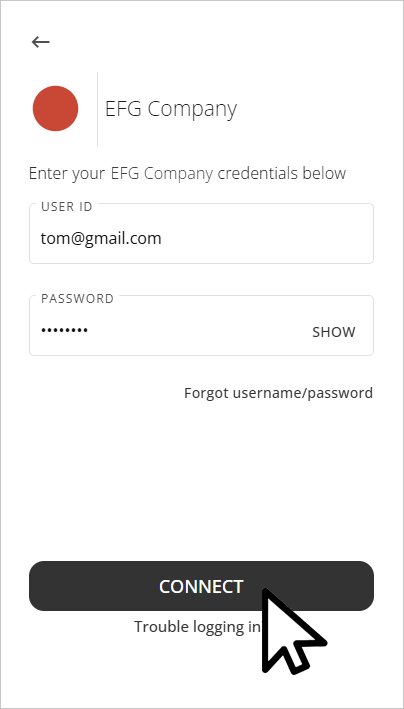
- If your Smart Link is broken or needs attention then you will be prompted to correct the information you provided or provide additional information. For instance, if your financial institution requires two-factor authentication, you may be prompted to provide additional information to validate your identity.Enter the required information, selectCONNECT.
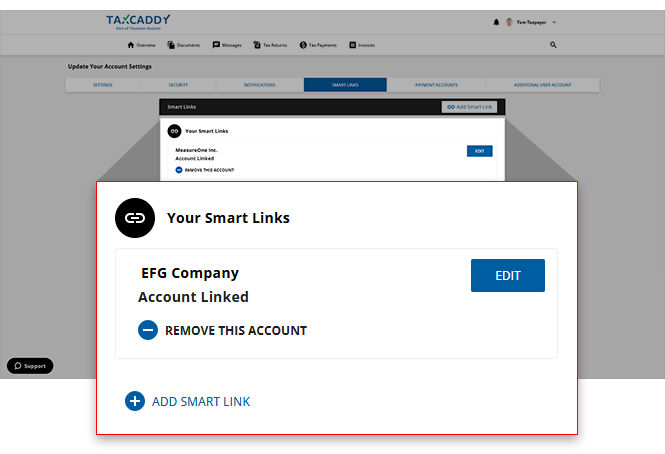
- Once your account credentials and other required information have been validated, the status of the connected account updates toAccount Linked. TaxCaddy will import any tax-related documents from the account once per day and upload it to your Uploaded Documents.noteLinked accounts automatically roll forward to the following year, unless your password to the financial institution has been changed. Once connected, TaxCaddy will automatically import the tax documents in the following year.
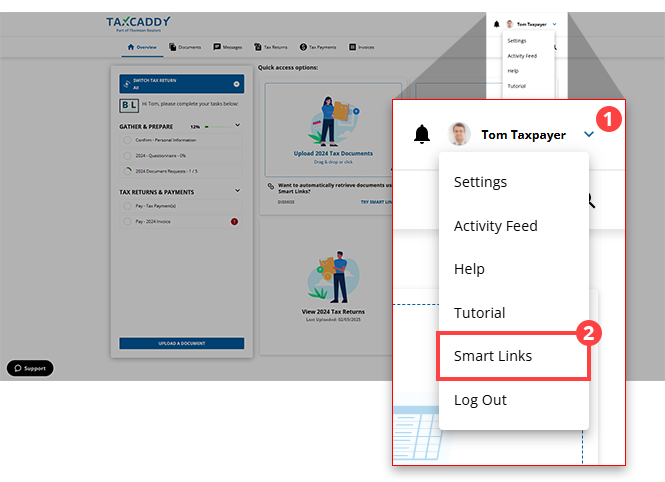
Accessing Smart Links from User Menu
- Select theUser Menu, then selectSmart Links.
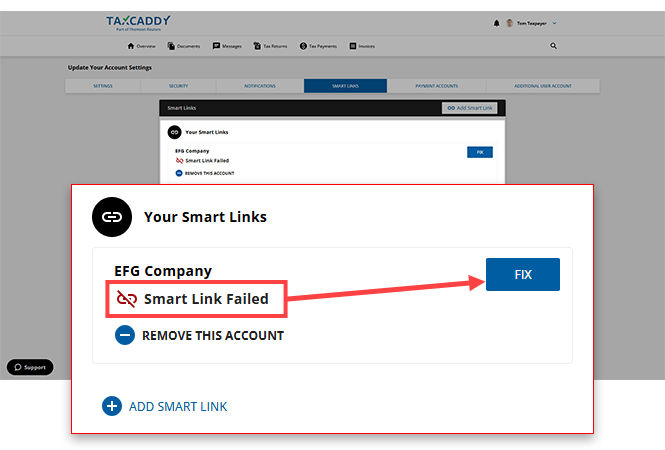
- If TaxCaddy is unable to connect to an account, the status showsSmart Link Failed. SelectFIXto provide the information needed to get the connection working again.
 For accounts TaxCaddy is able to connect to, the status showsAccount Linked. SelectEDITto update the credentials of linked accounts.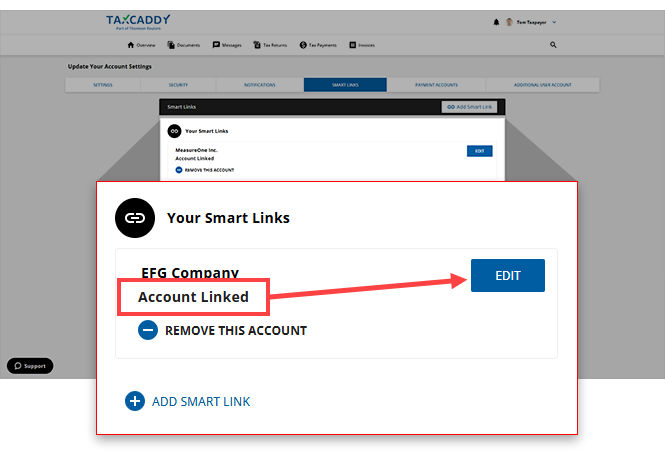
iOS mobile app
Follow these steps to fix/update a Smart Link on your iPhone mobile phone app.
- Log in to the TaxCaddy mobile app.
- On theOverviewscreen, aBroken Smart Linkstext will appear if a Smart Links you added needs your attention. Select the Smart Links panel to update/fix the Smart Links connection.
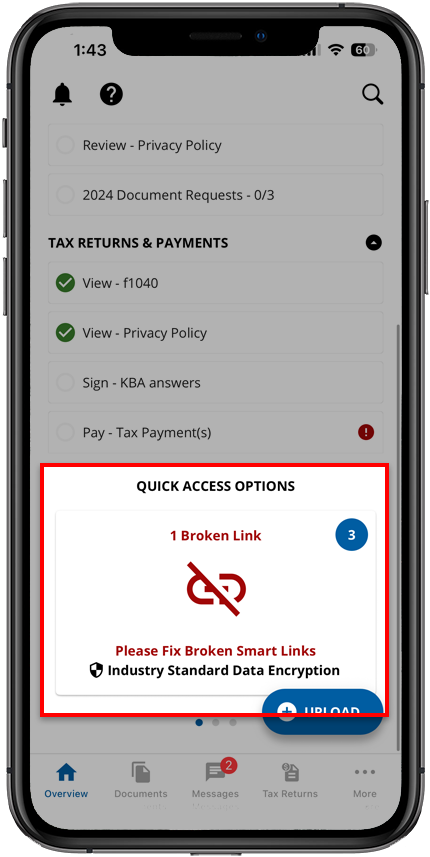 You will also receive an SMS text notification when your established Smart Links connection breaks.noteThe text notification will only appear for Smart Links that have been successfully established over an hour.noteDue to local restrictions, some countries may not receive TaxCaddy verification code SMS on their mobile phone when they need to log in, sign documents. Contact TaxCaddy Support if you are experiencing difficulty receiving your verification code.If enabled, you will also receive a push notification message. You can select the push notification to open the Smart Links screen.
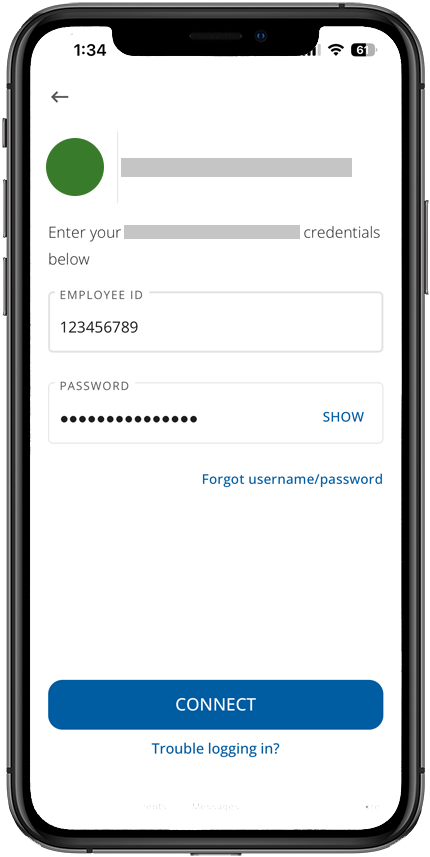
 - You may be prompted to correct the information you provided or to provide additional information. Enter the required information, then selectCONNECT.
- Smart Links processing screen will appear. Establishing a connection may vary in duration.Once your account credentials and other required information have been validated, the Smart Links processing screen will show
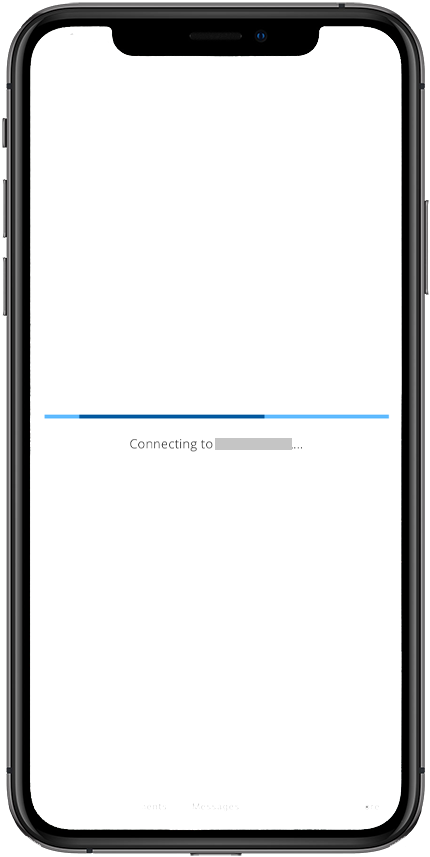 Smart Link account is successfully connected.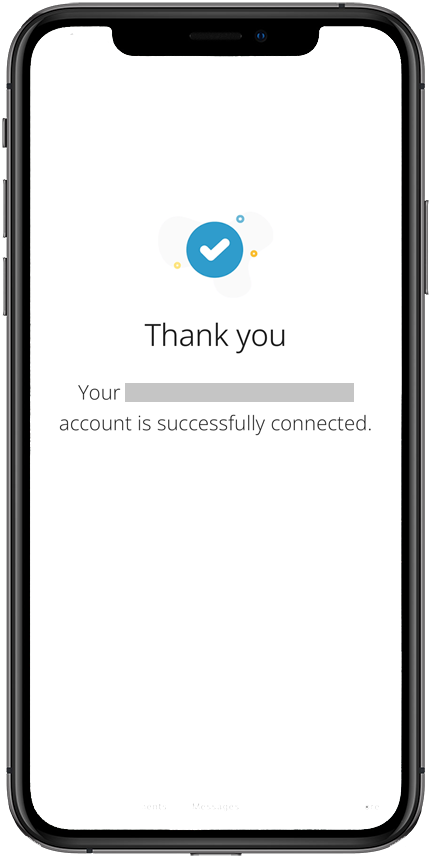
- Connected Smart Links will no longer show status icons.
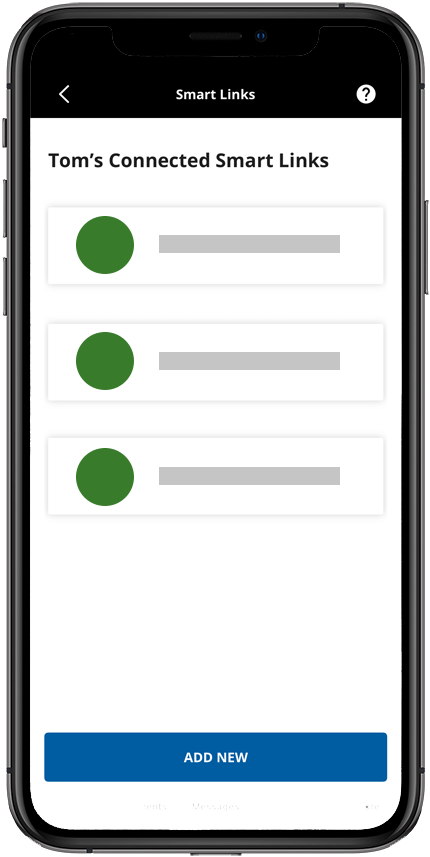
Accessing Smart Links from Settings
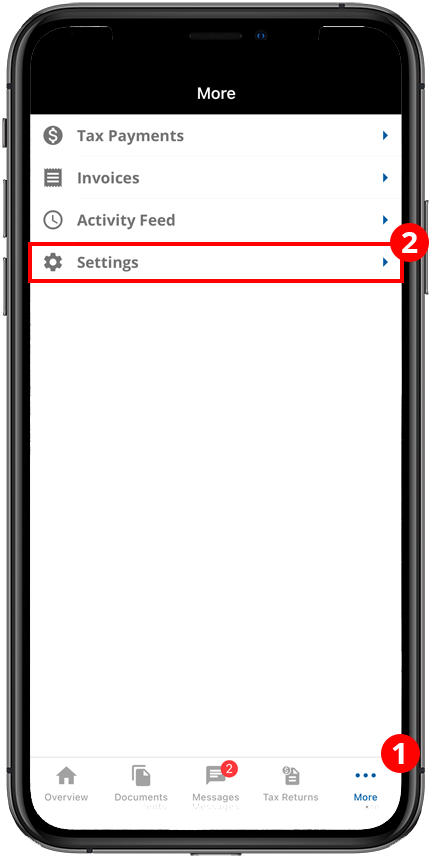
Follow these steps to update Smart Links from the Settings screen.
- SelectMore, thenSettings.
- SelectSmart Links.
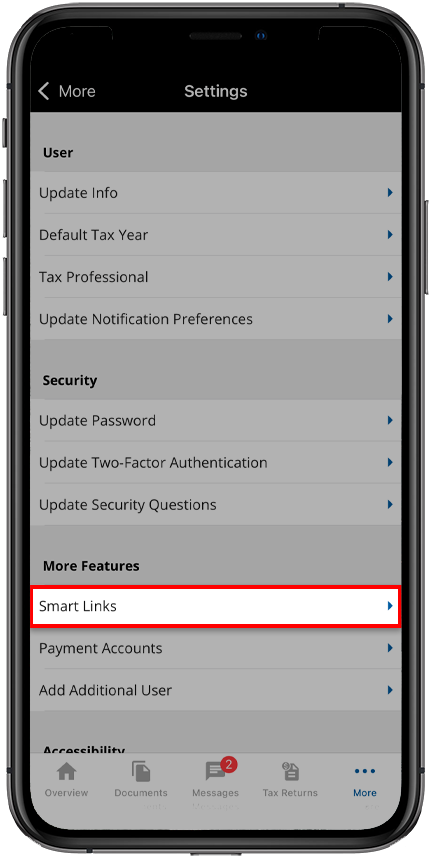
- TheSmart Linksscreen will show a list of all Smart Links.
- Smart Links that require editing will be highlighted in red and display theSmart Link failedtext. Select the broken Smart Link to make updates..
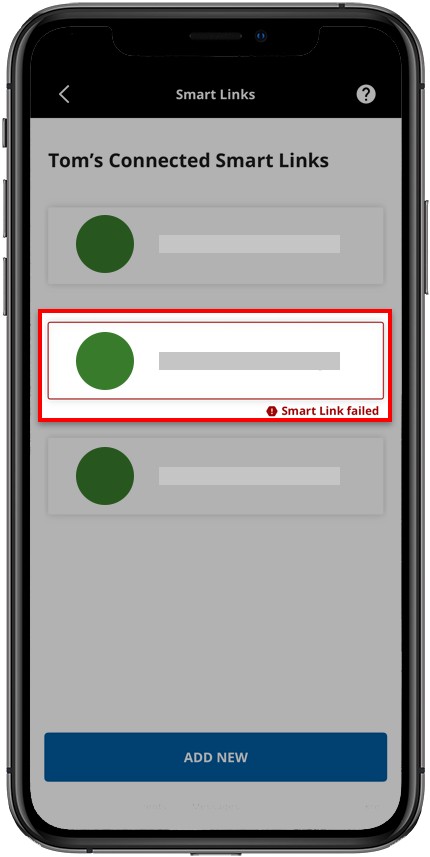
- Provide the requested login information to fix the Smart Link. Once the Smart Link is fixed, TaxCaddy will import any tax-related documents from the connected account.
Android mobile app
Follow these steps to fix/update a Connection on your Android mobile phone app.
- Log in to the TaxCaddy mobile app.
- On theOverviewscreen, you will seeBroken Smart Linkstext if a Smart Links you added needs your attention. Select the Smart Links panel to update/fix the Smart Links connection.
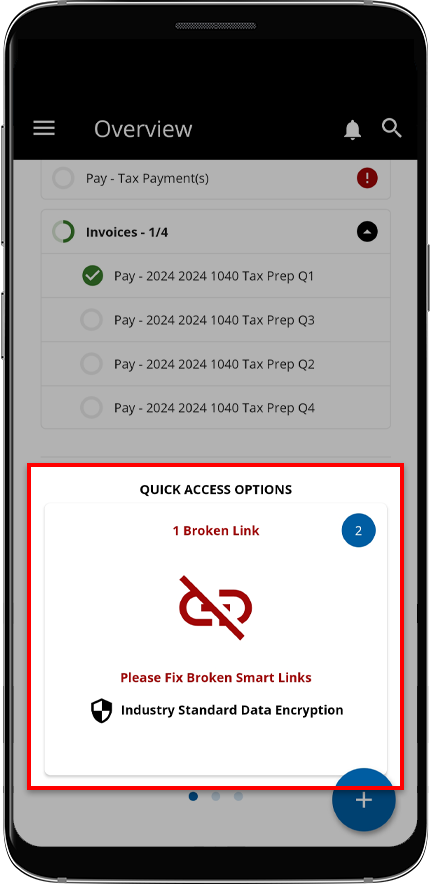 You will also receive an SMS text notification when your established Smart Links connection breaks.noteThe text notification will only appear for Smart Links that have been successfully established for over an hour.noteDue to local restrictions, some countries may not receive TaxCaddy verification code SMS on their mobile phone when they need to log in, sign documents. Contact TaxCaddy Support if you are experiencing difficulty receiving your verification code.If enabled, you will also receive a push notification message. You can select the push notification to open the Smart Links screen.
 - TheSmart Linksscreen will show a list of all Smart Links.
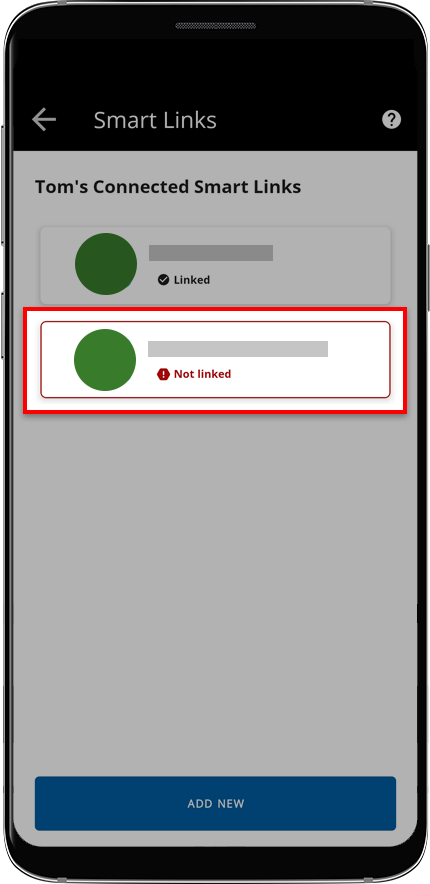
- Select the Smart Link that requires attention.Enter your financial institution's login credentials, then selectCONNECT.
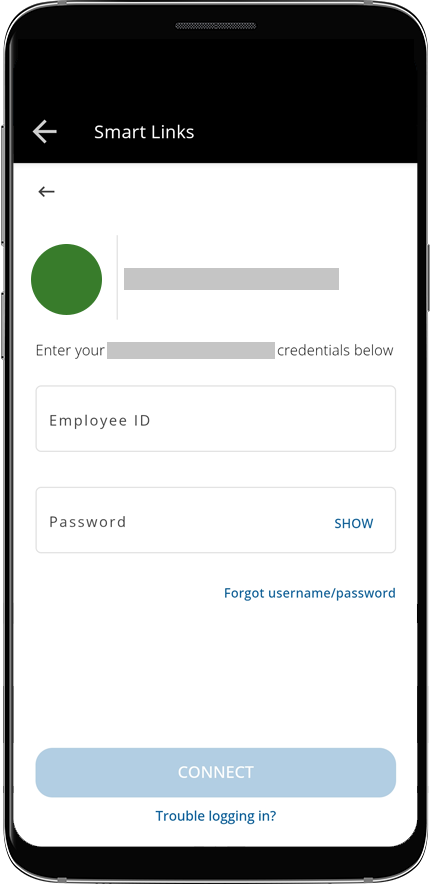
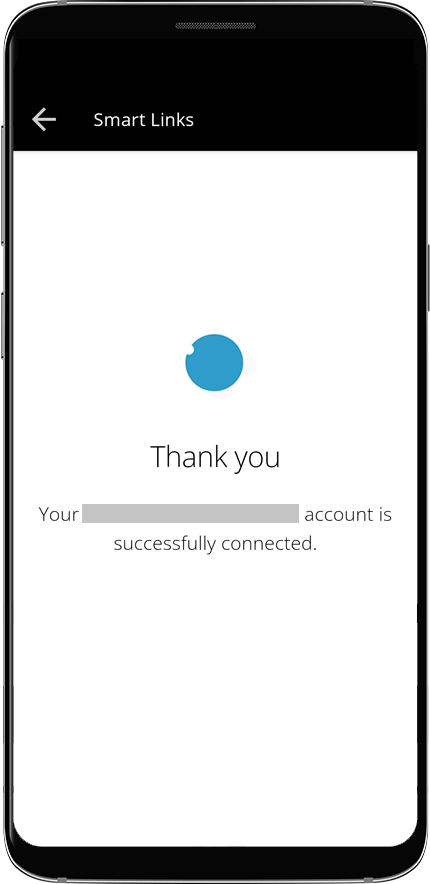
- Once your account credentials and other required information have been validated, the Smart Links processing screen will showSmart Link account is successfully connected!.
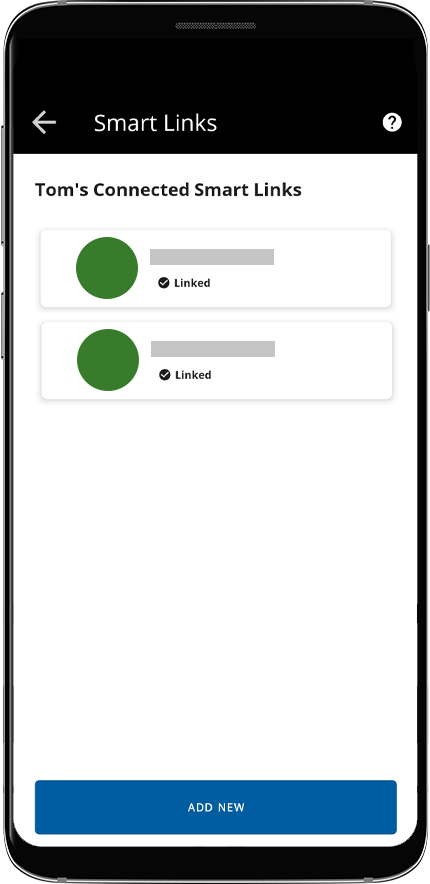
- The status of the connected account updates toLinked. .
Related Content
-
Add Smart Links (document retrieval accounts)
Format: Article
-
Smart Links security
Format:
Article,
1 min read

