
Remove Smart Links (document retrieval accounts)
Show all hidden content
Smart Links with document retrieval accounts create a link between TaxCaddy and your financial institution, allowing TaxCaddy to retrieve documents directly from your financial institution the moment they're added (and will periodically check for updates depending on the time of year) to save you from uploading your documents yourself.
note
See our Smart Links Security page for information on the privacy and safety of your documents.
TaxCaddy.com on PC, Mac, or tablet
Follow these steps to remove a Smart Link to a document retrieval account using TaxCaddy.com on your PC, Mac, or tablet.
- Log in to TaxCaddy.com.
- Select theUser Menu, then selectSmart Links.noteYou can also access Smart Links from Settings.
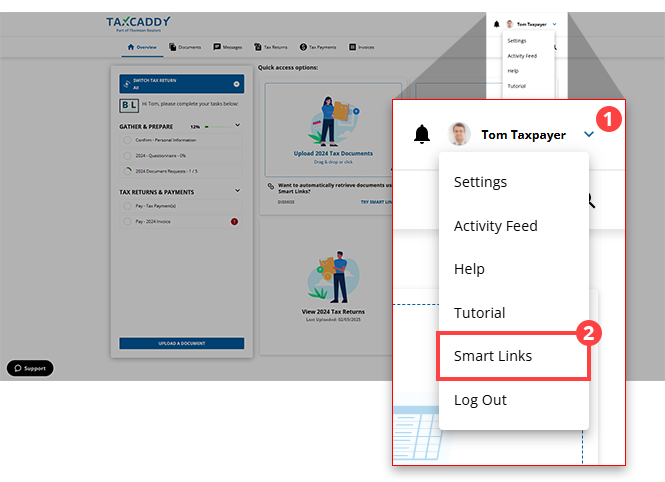
- SelectREMOVE THIS ACCOUNT.

- SelectYESto delete this Smart Link. SelectCANCELto exit without removing the Smart Link.
 noteIf a linked account is removed, you would need to link the account again in order for TaxCaddy to import any new tax documents.
 - You will see a notification appear on your screen notifying you that the Smart Link has been removed.

iOS mobile app
Follow these steps to remove a Smart Link on your iPhone mobile phone app.
- Log in to the TaxCaddy mobile app.
- SelectSmart Linksto open the Smart Links section.noteYou can also access Smart Links from Settings.
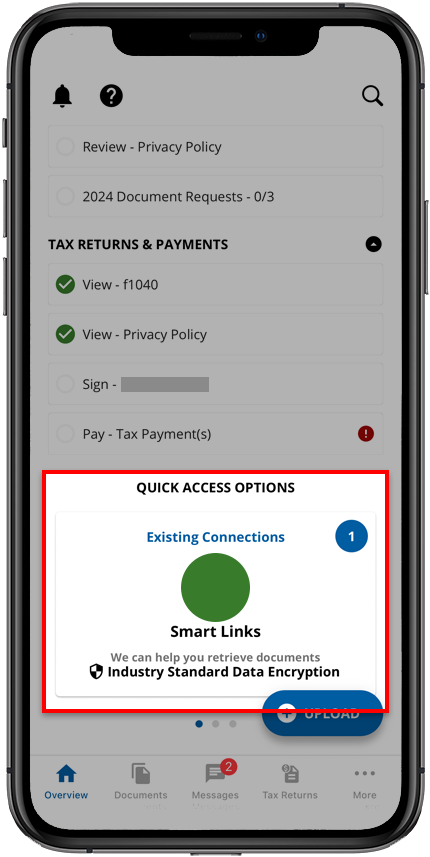
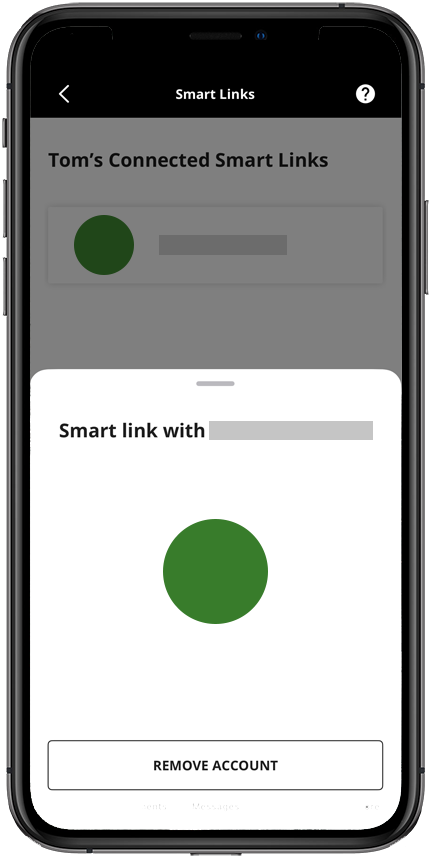
- TheSmart Linksscreen will show a list of all Smart Links. Select the Smart Link you want to remove, then selectREMOVE ACCOUNTto remove the Smart Link.
- TaxCaddy asks if you are sure you want to delete this account. SelectYES.
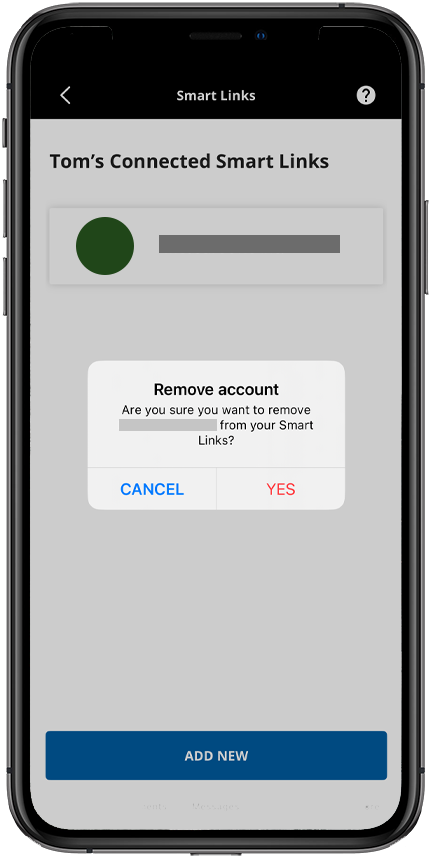 noteIf a linked account is removed, you would need to link the account again in order for TaxCaddy to import any new tax documents.
Android mobile app
Follow these steps to remove a Smart Link on your iPhone mobile phone app.
- Log in to the TaxCaddy mobile app.
- SelectSmart Linksto open the Smart Links section. You can also select the green badge to open the list of added Smart Links.noteYou can also access Smart Links from Settings.
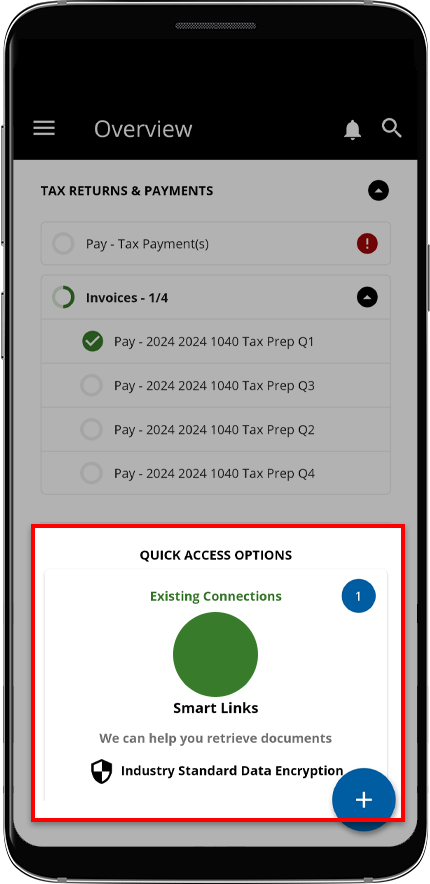
- TheSmart Linksscreen will show a list of all your Smart Links. Select the Smart Link you would like to remove.
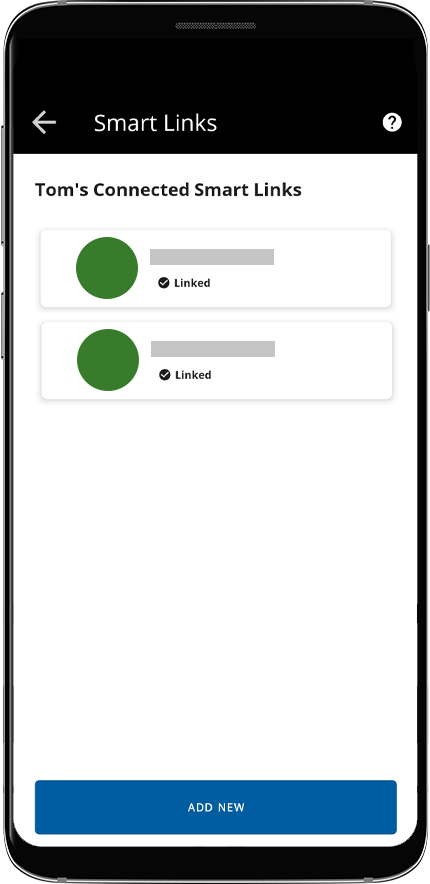
- SelectREMOVE SMART LINKfrom the options provided.

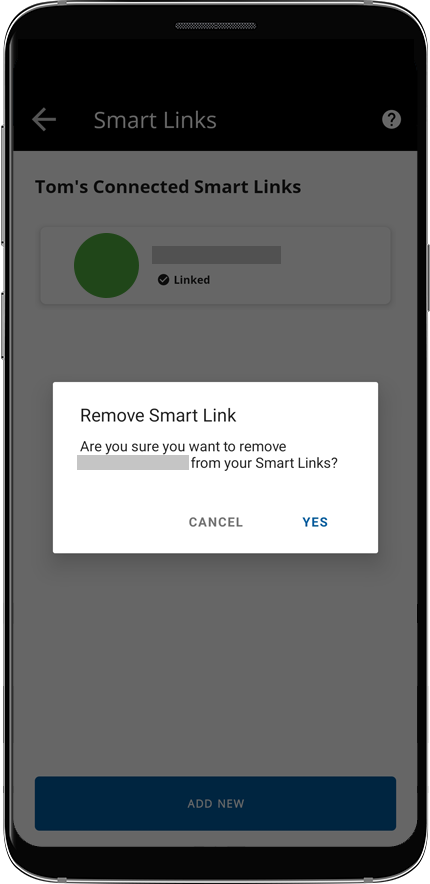
- On theRemove Smart Linkwindow, selectYES.
Related Content
-
Add Smart Links (document retrieval accounts)
Format: Article
-
Smart Links security
Format:
Article,
1 min read

