
Reminder notifications
Show all hidden content
Get reminders when an important item needs your attention. For example, you can avoid late payments by getting a reminder message when your tax payments are approaching their due date. Starting two weeks away from its due date, you will gradually receive reminder alerts via email, SMS messages, and push notifications for an unfulfilled tax payment, ensuring that you don’t miss a deadline.
To receive reminder notifications, review your account's email and push notification settings, as disabled notifications may prevent you from receiving reminders.
note
Enabling reminder notifications will deliver reminders to both you and any spouse user you have added to your account for the selected categories.
TaxCaddy.com on PC, Mac, or tablet
Follow these steps to turn on reminder notifications in TaxCaddy.com on your PC, Mac, or tablet.
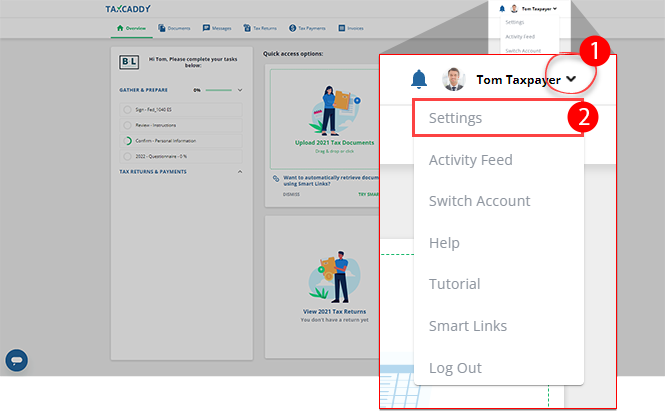
- Sign in to TaxCaddy.com.
- Select theUser Menu, then selectSettings.
- On theNOTIFICATIONStab, selectReminder Notifications.
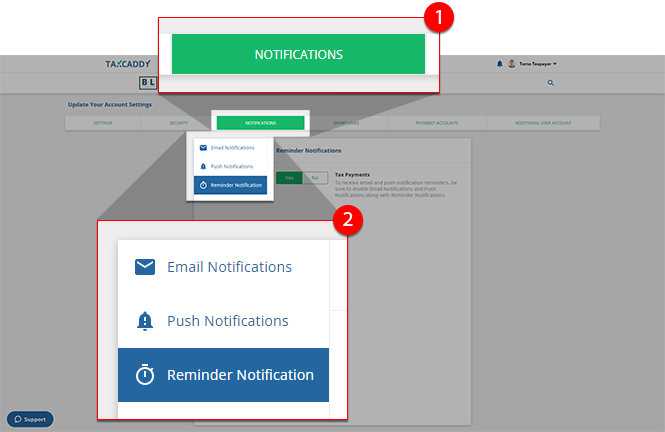 noteIf you haven’t already, turn on your email and push notifications settings to ensure you receiveReminder Notifications.
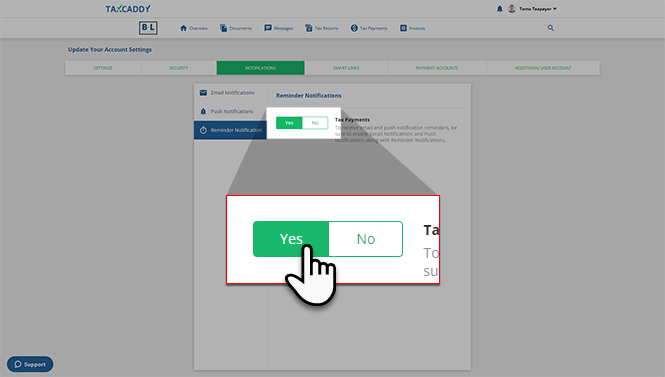
 - Reminder notifications are enabled by default. Select the switch to indicate whether you want to turn on or turn off the reminder notifications for that given category.
iOS mobile app
Follow these steps to turn on the reminder notifications in the iPhone mobile phone app.
- Sign in to the TaxCaddy mobile app.
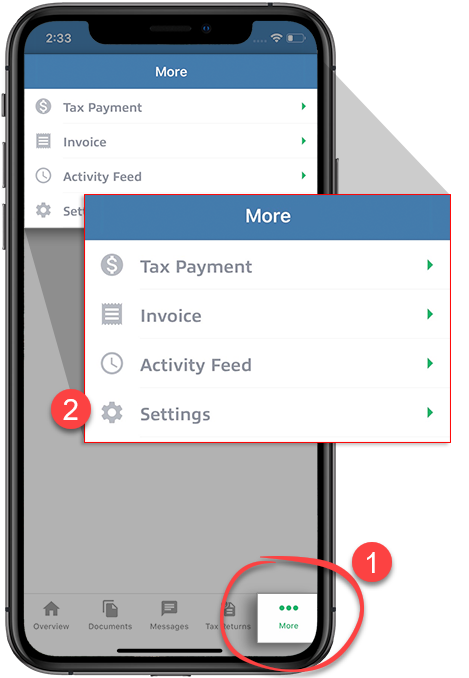
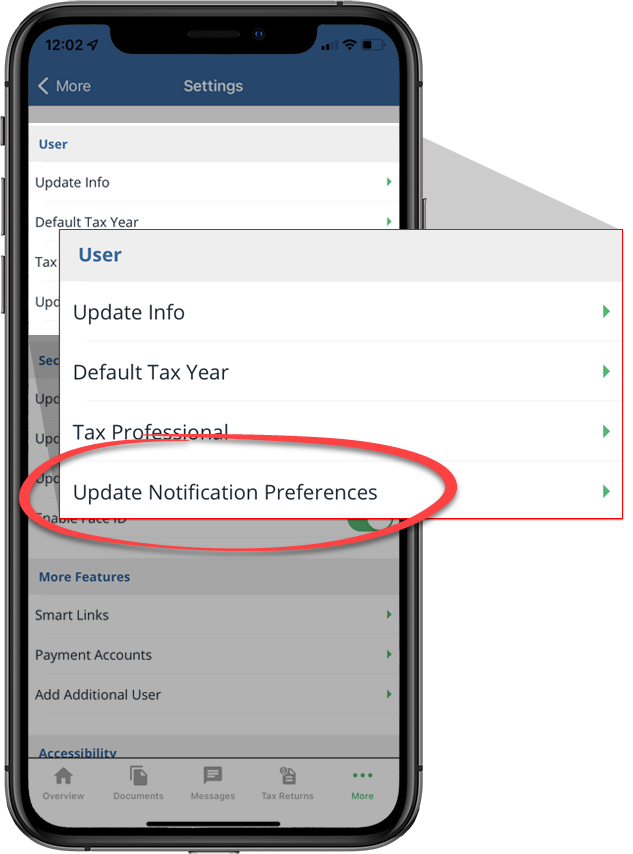
- SelectMoreon the navigation tab, then selectSettings.
- UnderUser, selectUpdate Notification Preferences.
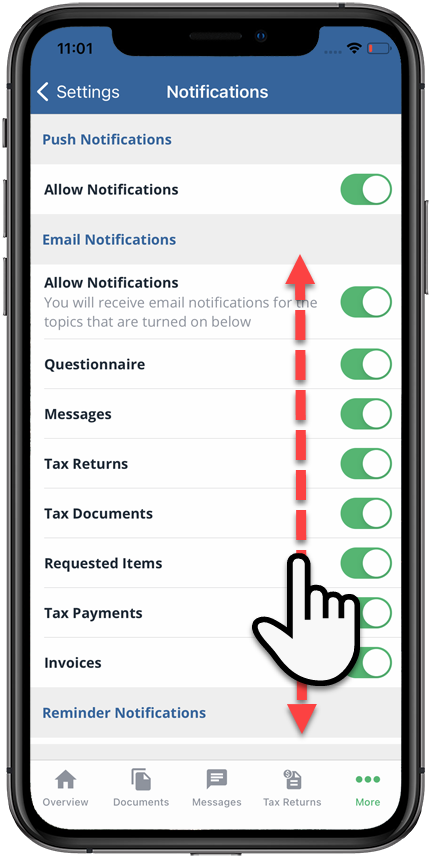
- Scroll to the bottom of theNotificationsscreen to view theReminder Notificationssettings.
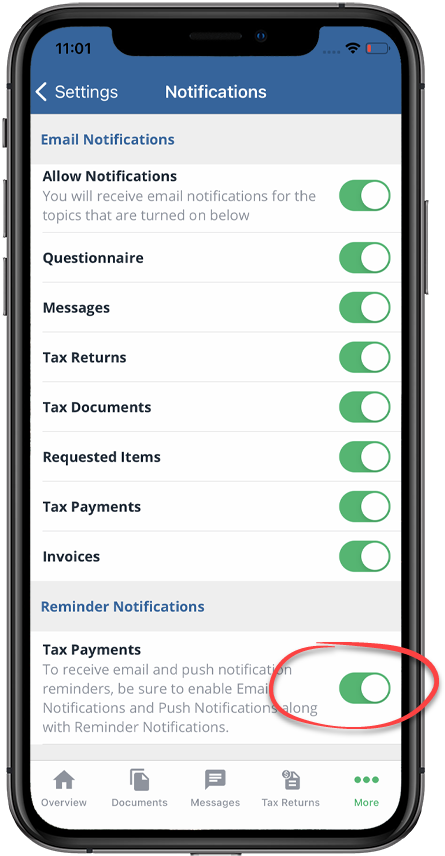
- UnderReminder Notifications, switch to a category to turn on or turn off its reminder notifications.
Android mobile app
Follow these steps to turn on reminder notifications in the Android mobile phone app.
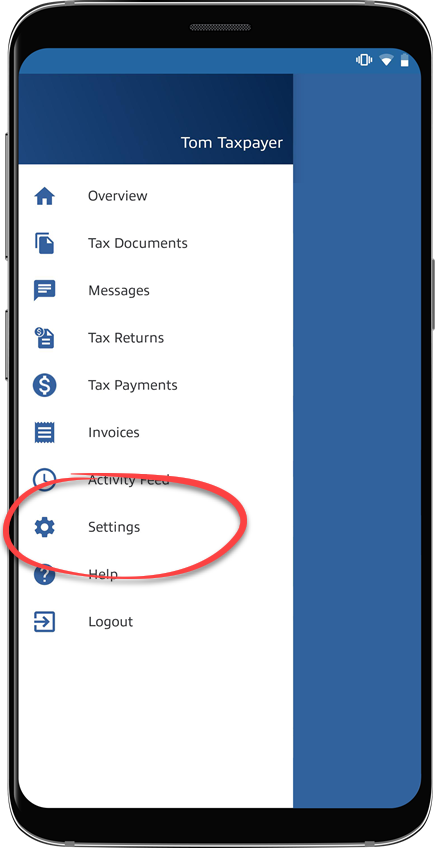
- Sign in to the TaxCaddy mobile app, then select theMenuicon.

- SelectSettings.
- UnderUser, selectUpdate Notification Preferences.
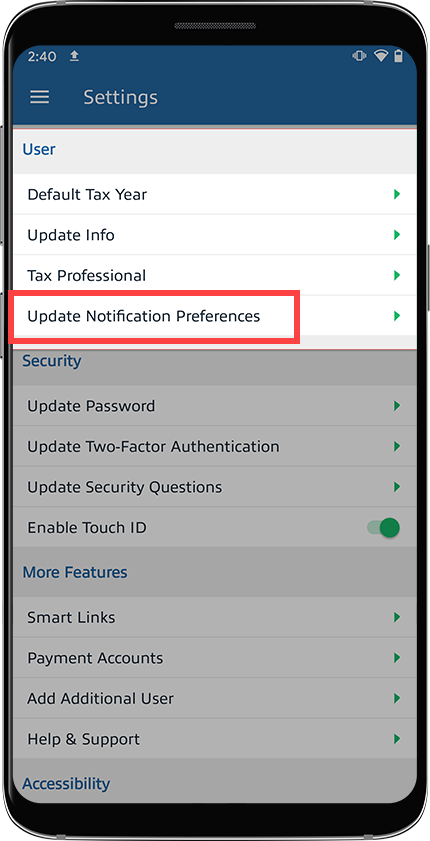
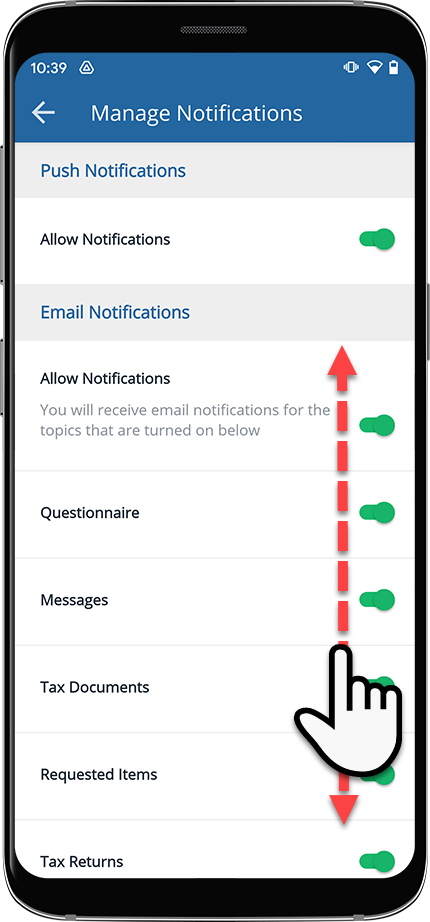
- Scroll to the bottom of theManage Notificationsscreen to view theReminder Notificationssettings.
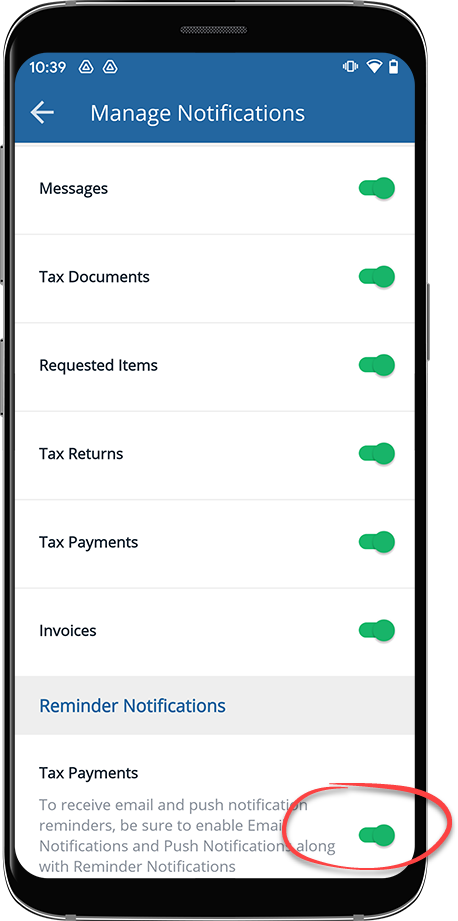
- UnderReminder Notifications, switch to a category to turn on or turn off its reminder notifications.
After enabling reminder notifications, you will receive multiple notifications alerting you of your pending requests. These notifications will include:
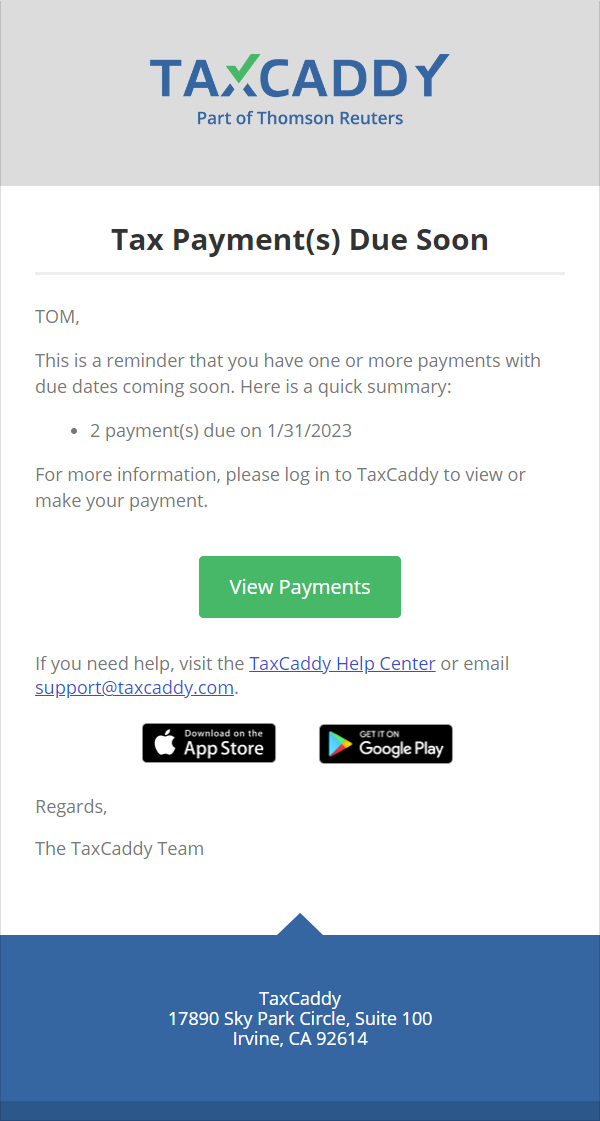
- Email notification: You will receive an email as your first reminder notification 14 days away from the due date. The email notification will list your upcoming tax payments and their due dates.
- Push notification: You will receive a push notification as your 2nd reminder 7 days away from the due date.
- Email and SMS message: You will receive an email and SMS message as your 3rd and 4th reminders 2 days away from the due date.
Related Content
-
Update notification preferences
Format: Article,
9 min read
Article,
9 min read

