
Sign documents as a spouse
Show all hidden content
As a spouse, you can sign documents using your account or you can sign documents from your spouse's TaxCaddy account.
Sign documents from your spouse's TaxCaddy account
TaxCaddy.com on PC, Mac, or tablet
As a spouse, this method lets you sign documents from your spouse's TaxCaddy account without creating your own account.
As a spouse, follow these steps to sign a document from your spouse's TaxCaddy account:
- Sign in to TaxCaddy.com.
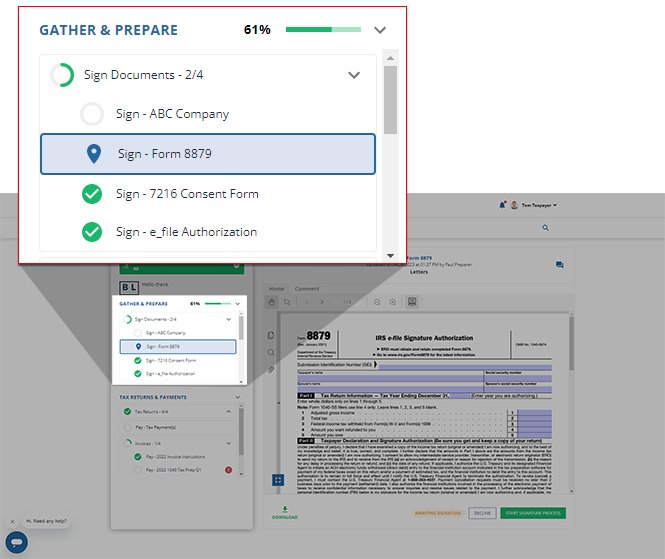
- On theOverviewscreen, you will see aTask Listand yourSignrequests listed underSign Documents.noteYour progress in completing yourSigntasks will be denoted with theProgressicon. Once you've completed all your tasks, you will see theCompletedicon.If your tax professional has enabled 1041 tax return profiles on your account for trust/estate, select
 SWITCH TAX RETURNto select the correct tax return profile.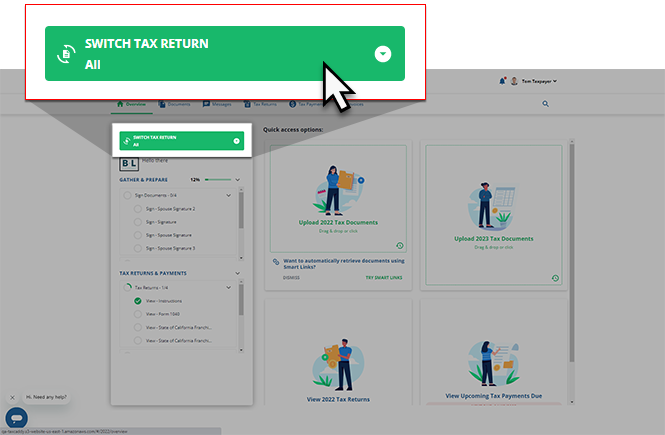
- Select a tile to view theSignrequest.
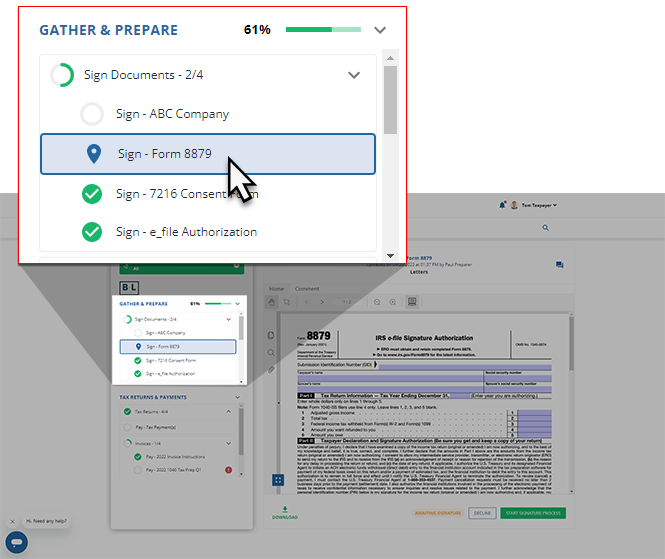
- ASignrequest that requires your signature, or the signature of both you and your spouse, will appear in theOverviewscreen's document viewer.
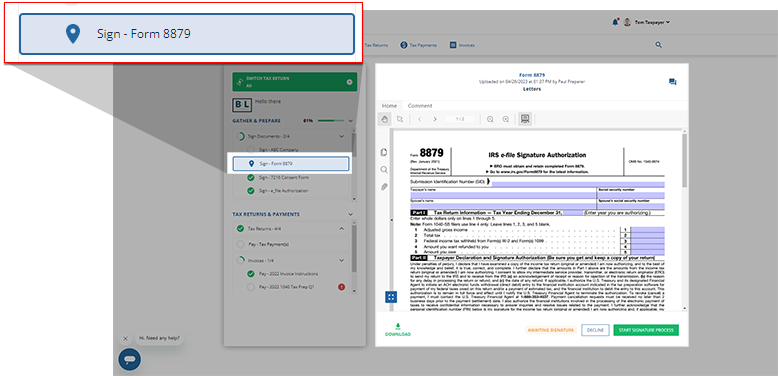 If the document uploaded by your tax professional is password protected then you will be requested to enter the password. Contact your tax professional if you don’t have the password.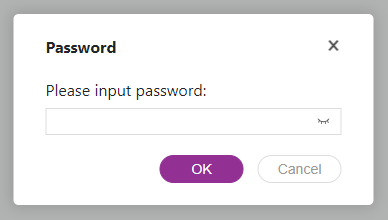
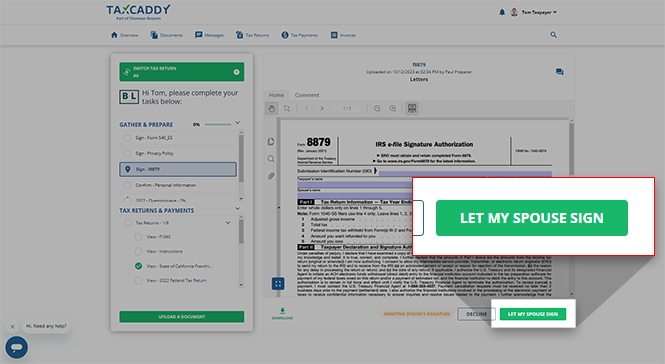
- SelectLET MY SPOUSE SIGNto sign documents from your spouse's user account.
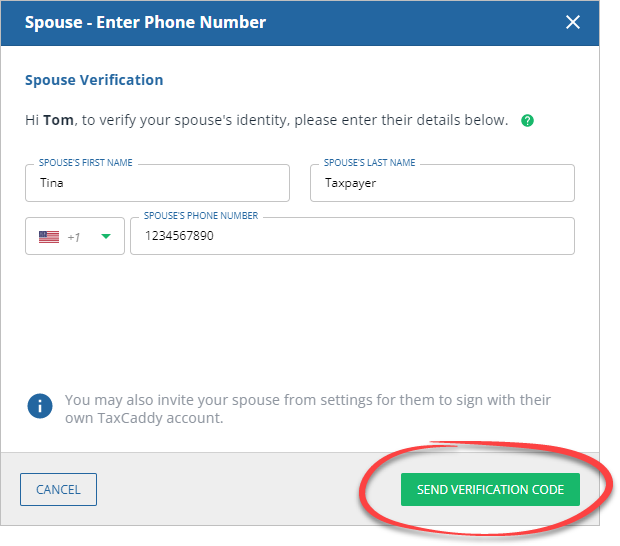
- You may need to enter your phone number if this is your first time signing a document and your spouse hasn’t provided your phone number after signing the document. You must enter a different phone number than your husband/wife.noteTheSpouse - Enter Phone Numberwindow only appears if you don’t have a TaxCaddy account and this is your first time entering your information as a spouse user.If you already have a TaxCaddy account then make sure you are connected to your spouse's account as a spouse user and not as an additional user.
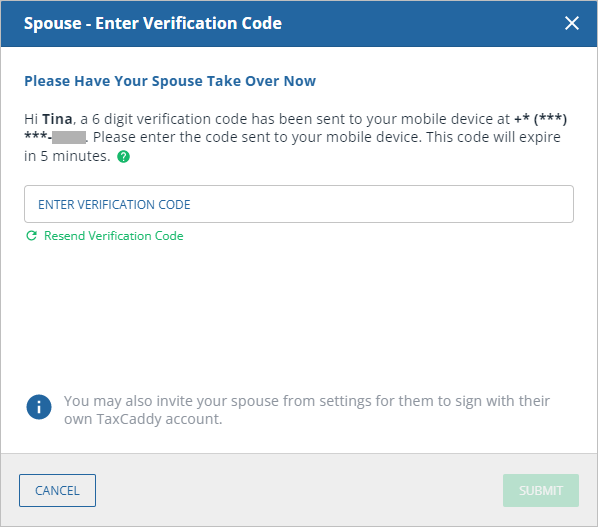
- If you have a verified phone number, then the verification code will be sent to your phone. Enter the verification code then selectSubmit. This will only be required once per session. Once this account is logged out, you will be required to verify your mobile number once again.noteYour spouse can add your phone number once they finish signing the document.
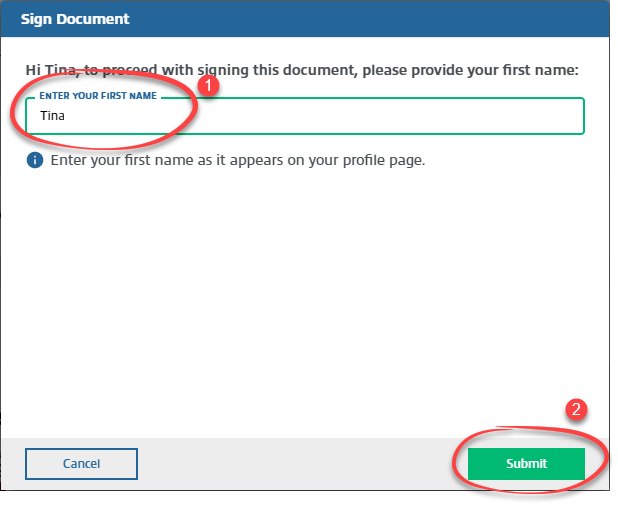
- Enter your first name. If the document has fillable fields, select the checkbox to confirm you have verified those fields and that you will no longer be able to edit them. SelectSubmit.
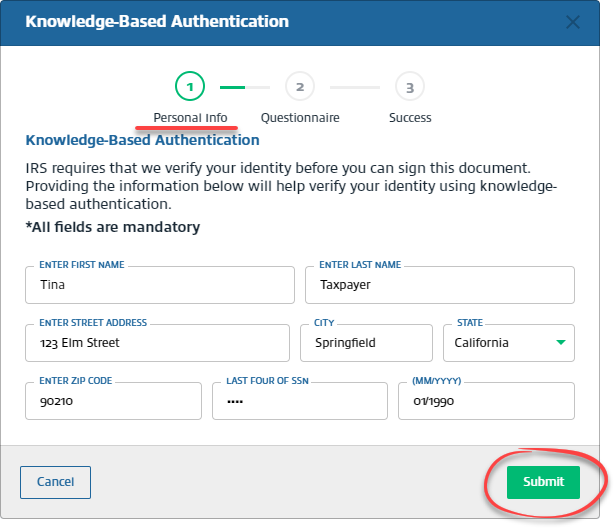
- TheKnowledge-Based Authenticationwindow appears if you are required to verify your identity at the time of signing the document. Enter the required information then selectSubmit.noteIf the document requires a spouse's signature, your spouse will be required to sign the document by verifying their identity using their own TaxCaddy account or verify using the taxpayer's account. If either the taxpayer or spouse fails the identity verification, both will be required to sign the document manually.
 noteIf we can't locate an identity record associated with your information (in this case, you will see the following error message), you should download the document and sign it manually.
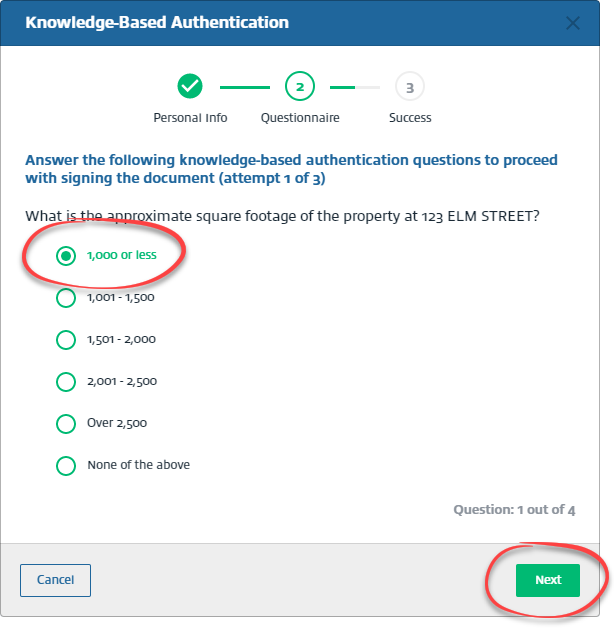
 - A knowledge-based authentication question appears. Select the correct answer then selectNext. Repeat this step until you have answered all 4 knowledge-based authentication questions.
 noteYou have 3 attempts to answer a set of 4 questions correctly, after which the document is moved toUploaded Tax Documents, that status is updated to and you must download the document and sign it manually.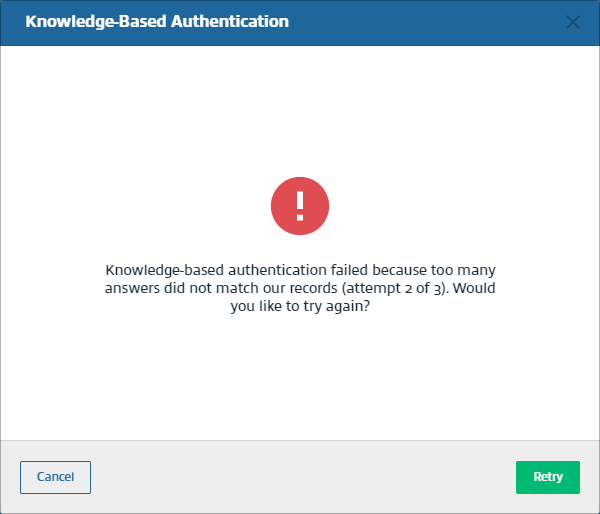
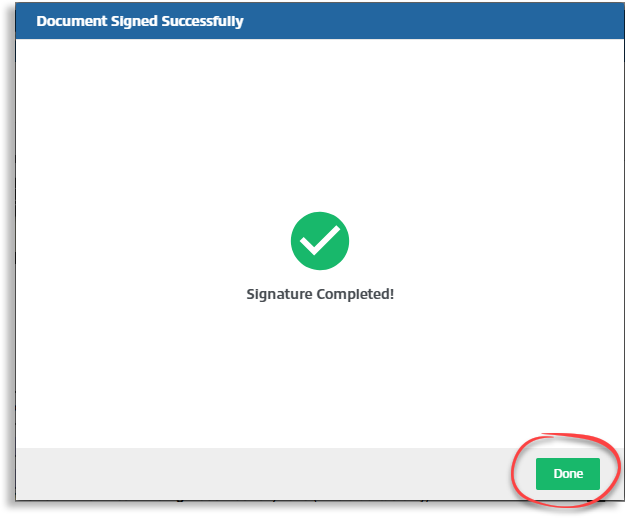
- Once TaxCaddy confirms you signed the document, selectDoneto return to your Task List where you can go to a new request to fulfill.
iOS mobile app
As a spouse, follow these steps to sign a document from your spouse's iOS mobile phone:
- Sign in to the TaxCaddy mobile app.
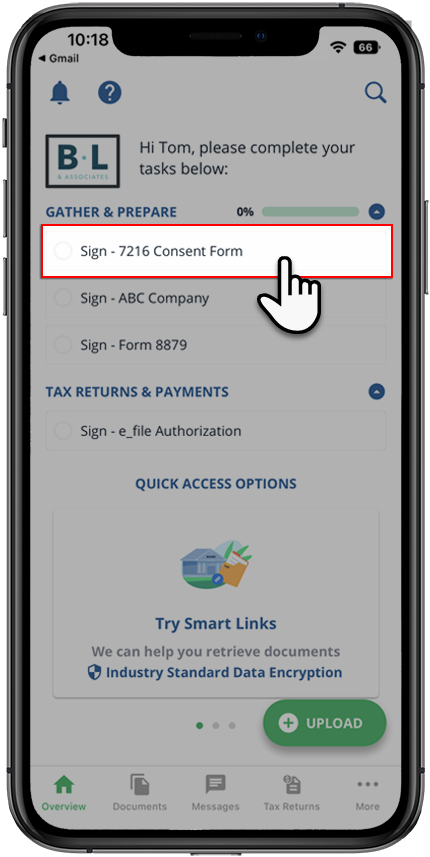
- Signature requests that your tax professional has uploaded to your account will appear on theOverviewscreen. Select theSignrequest you'd like to fulfill to view it.noteYour progress in completing yourSigntasks will be denoted with theProgressicon. Once you've completed all your tasks, you will see theCompletedicon.
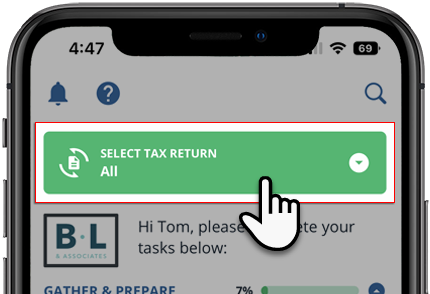
 If your tax professional has enabled 1041 tax return profiles on your account, you can select theSELECT TAX RETURNSdropdown to view your available tax return profiles.
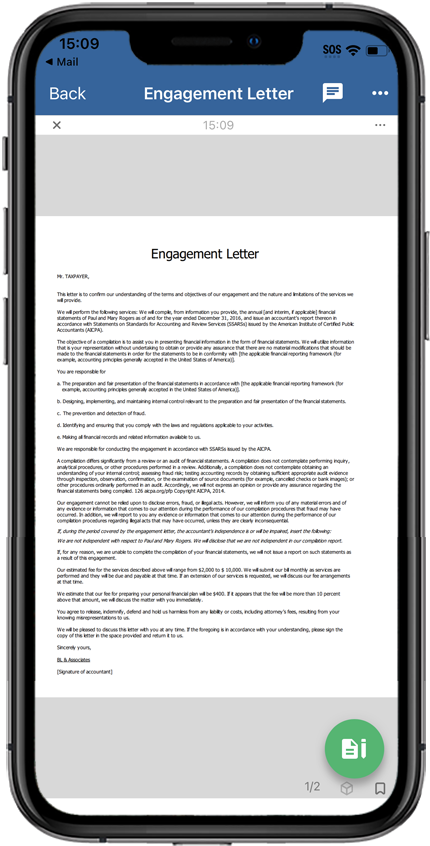
 If the document uploaded by your tax professional is password protected then you will be requested to enter the password. Contact your tax professional if you don’t have the password.
 - The document opens in theDocument Viewer. If the document has fillable forms, select on a field and enter data. As soon as you select out of the field, the document will automatically save your data.noteYou can message your tax professional regarding this document using the message panel.
- Select theSignicon to open the signature menu.
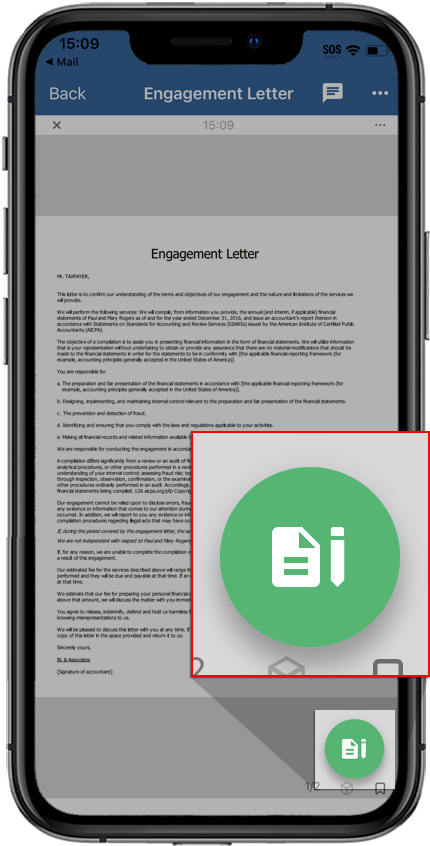
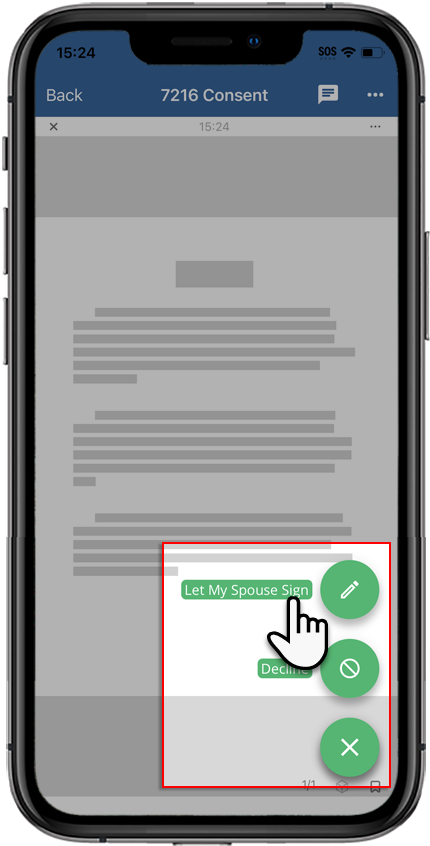
- You can selectLet My Spouse Signto sign documents as a spouse from your husband/wife's user account.
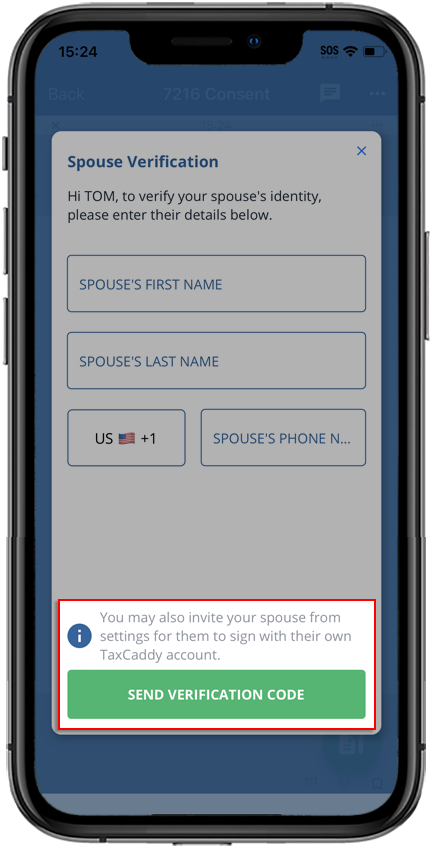
- You may need to enter your phone number if this is your first time signing a document and your husband/wife hasn’t provided your phone number after signing the document.
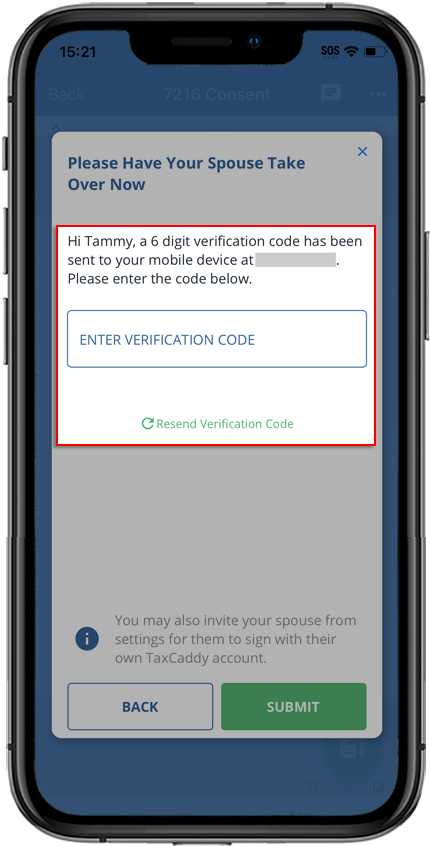
- If you have a verified phone number, the verification code will be sent to your phone. Enter the verification code then selectSubmit.noteThis will only be required once per session. Once this account is logged out, you will be required to verify your mobile number once again.
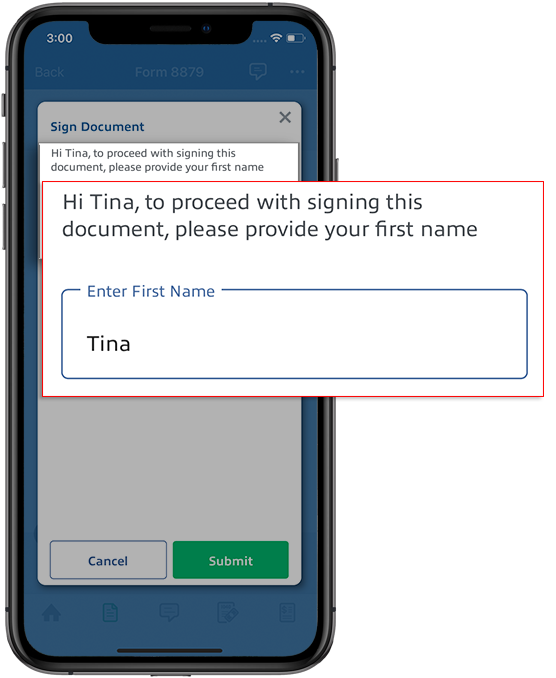
- Enter your first name. If the document has fillable fields, select the checkbox to confirm you have verified those fields and that you will no longer be able to edit them. SelectSubmit.
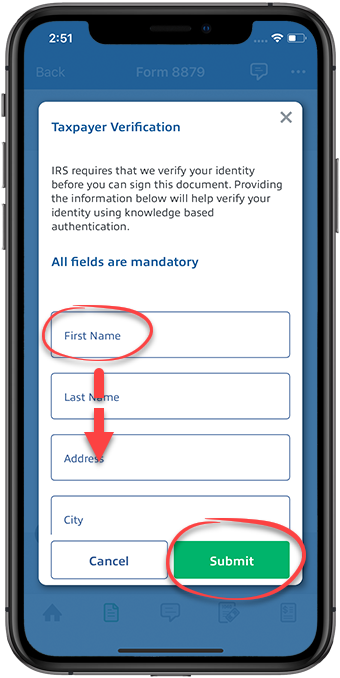
- TheTaxpayer Verificationwindow appears if you are required to verify your identity at the time of signing the document. Enter the required information then selectSubmit.noteIf the document requires your spouse's signature, your spouse will be required to sign the document by verifying their identity using their own TaxCaddy account or verify using the taxpayer's account. If either the taxpayer or spouse fails the identity verification, both will be required to sign the document manually.
 noteIf we can't locate an identity record associated with your information (in this case, you will see the following error message), you should download the document and sign it manually.
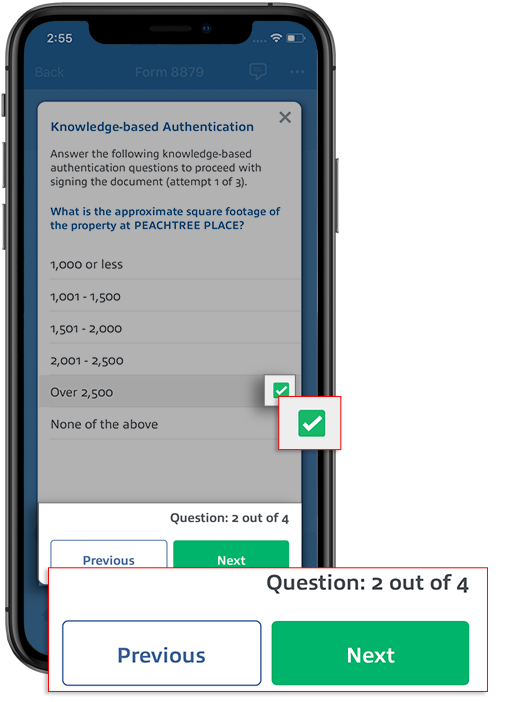
 - A knowledge-based authentication question appears next. Select the correct answer then selectNext. Repeat this step until you have answered all 4 knowledge-based authentication questions.
 noteYou have 3 attempts to answer a set of 4 questions correctly, after which the document is moved to Uploaded Tax Documents, that status is updated to and you must download the document and sign it manually.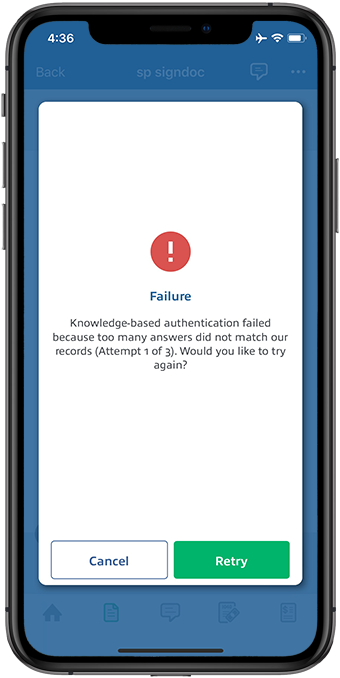
Android mobile app
As a spouse, follow these steps to sign a document from your husband/wife's iOS mobile phone:
- Sign in to the TaxCaddy mobile app.
- Signature requests that your tax professional has uploaded to your account will appear on theOverviewscreen. Select theSignrequest you'd like to fulfill.noteYour progress in completing yourSigntasks will be denoted with theProgressicon. Once yo
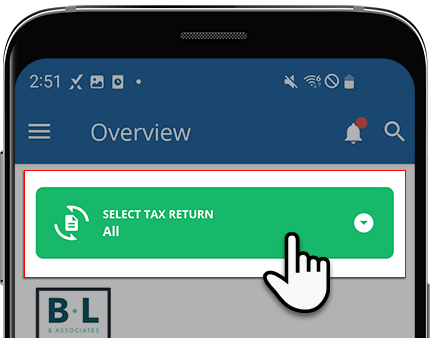
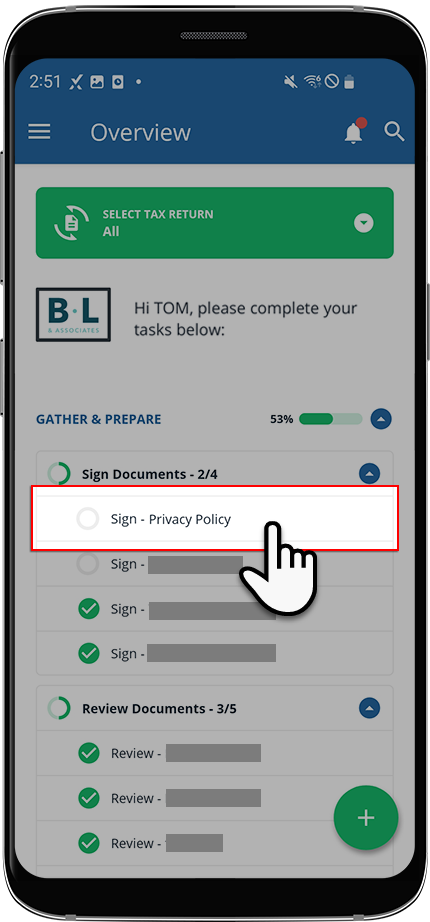 If your tax professional has enabled 1041 tax return profiles on your account, you can select theSELECT TAX RETURNSdropdown to view your available tax return profiles.
 If the document uploaded by your tax professional is password protected then you will be requested to enter the password. Contact your tax professional if you don’t have the password.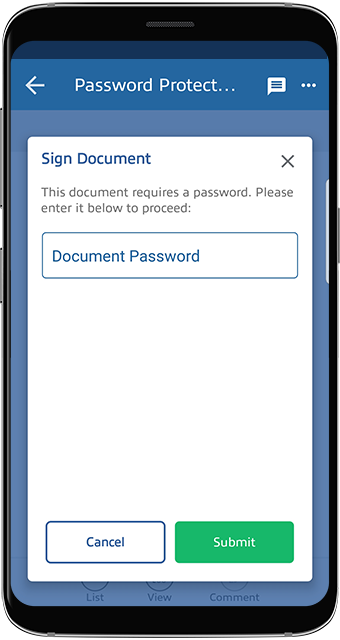
- The document opens in theDocument Viewer. If the document has fillable forms, select on a field and enter data. As soon as you select out of the field, the document will automatically save your data.noteYou can message your tax professional regarding this document using the message panel.
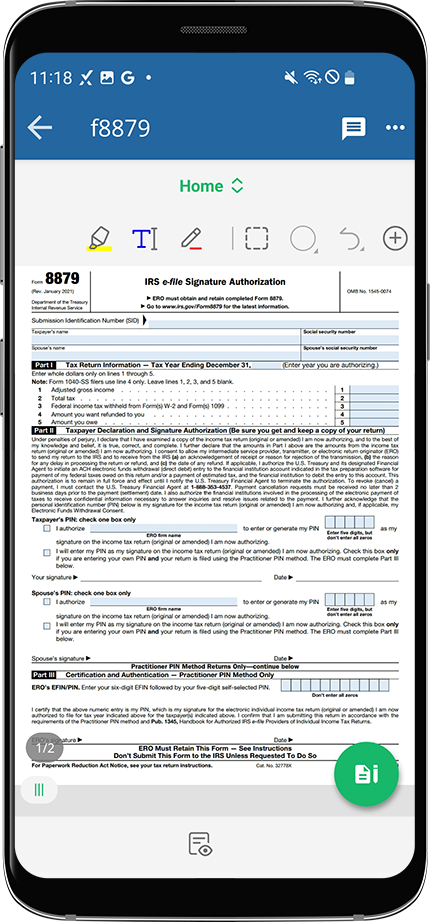
- SelectSignicon to open the signature menu.
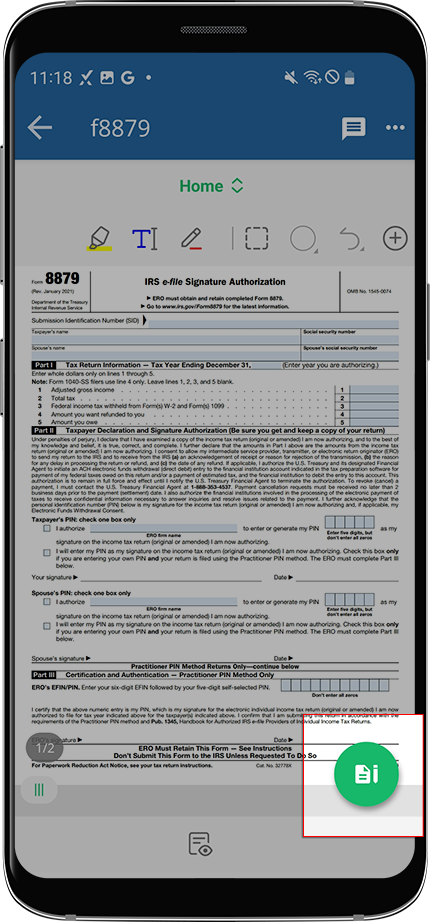
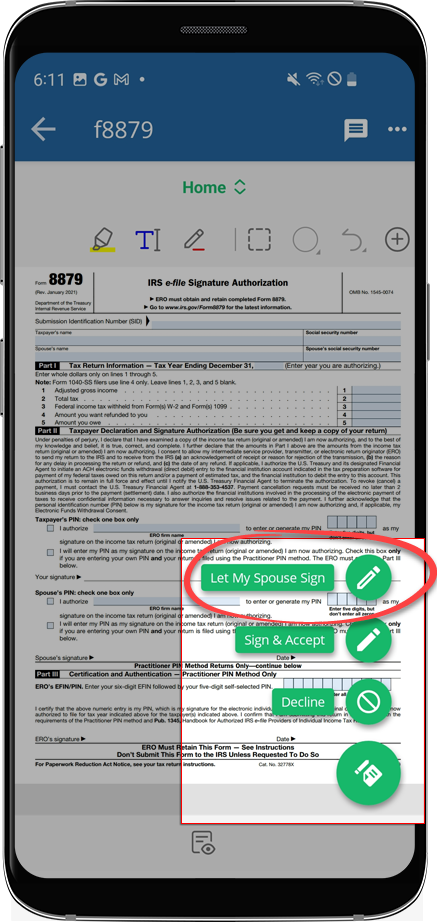
- You can selectLet My Spouse Signto sign documents as a spouse from your husband/wife's user account.
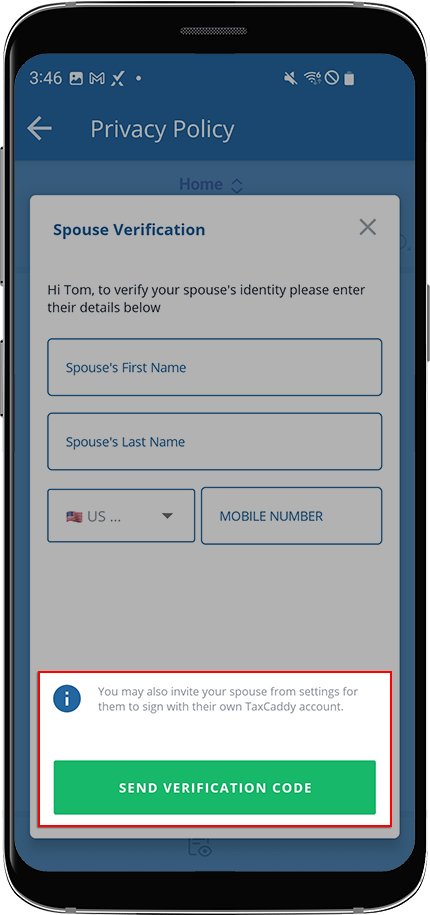
- You may need to enter your phone number if this is your first time signing a document and your husband/wife hasn’t provided your phone number after signing the document.
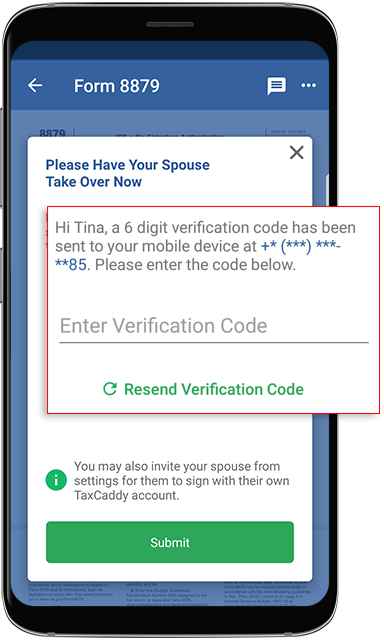
- If you have a verified phone number, the verification code will be sent to your phone. Enter the verification code then selectSubmit.noteThis will only be required once per session. Once this account is logged out, you will be required to verify your mobile number once again.
- Enter your first name. If the document has fillable fields, select the checkbox to confirm you have verified those fields and that you will no longer be able to edit them. SelectSubmit.
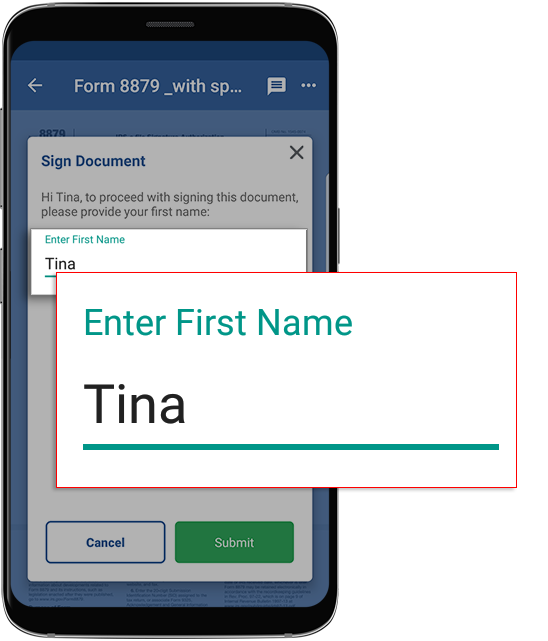
- TheKnowledge-Based Authenticationwindow appears if you are required to verify your identity at the time of signing the document. Enter the required information then selectSubmit.noteIf the document requires your spouse's signature, your spouse will be required to sign the document by verifying their identity using their own TaxCaddy account or verify using the taxpayer's account. If either the taxpayer or spouse fails the identity verification, both will be required to sign the document manually.
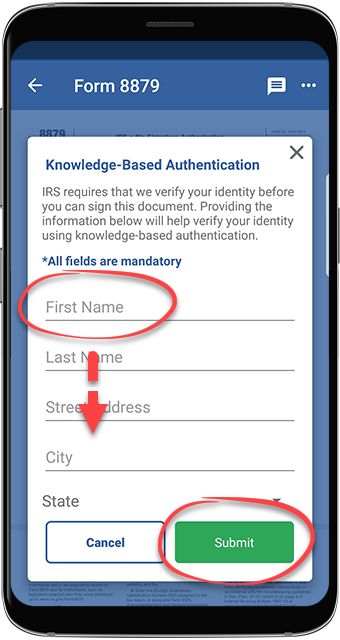 importantIf we can't locate an identity record associated with your information (in this case, you will see the following error message), you should download the document and sign it manually.
 - A knowledge-based authentication question appears next. Select the correct answer then selectNext. Repeat this step until you have answered all 4 knowledge-based authentication questions.
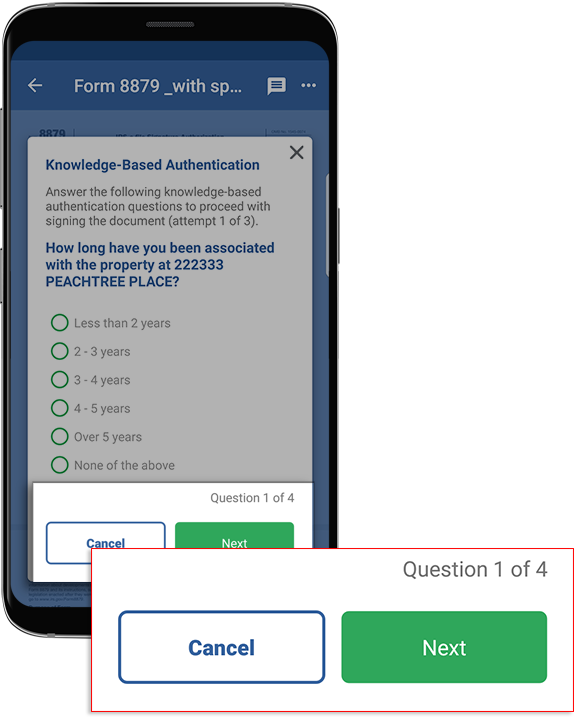 noteYou have 3 attempts to answer a set of 4 questions correctly, after which the document is moved to Uploaded Tax Documents, that status is updated to and you must download the document and sign it manually.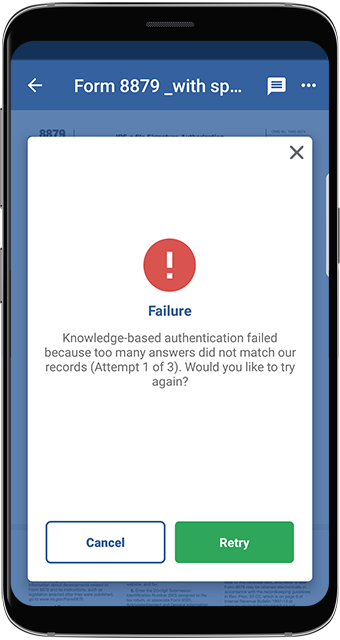
Sign documents using my account
TaxCaddy.com on PC, Mac, or tablet
Before you start
If a spouse's signature is required, the taxpayer can send you an invite directly from their account while they're signing the document. Alternatively, the taxpayer account holder can also send you an invite by adding you as an additional user.
As a spouse, follow these steps to sign a document using your account:
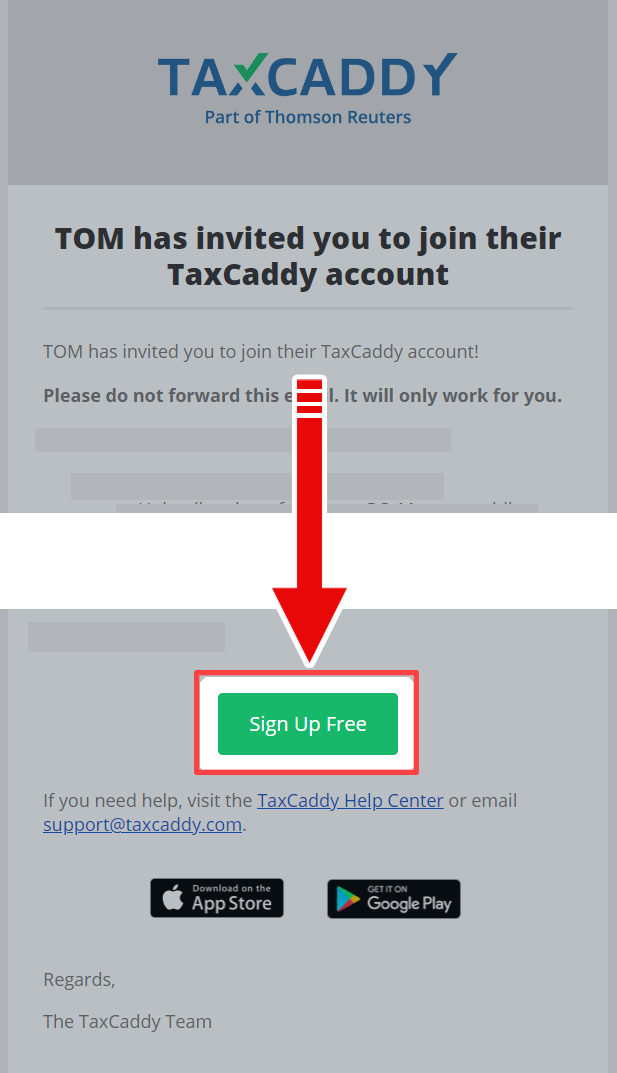
- You will receive an invite to sign in to TaxCaddy. Select theSign Up Free. button. You will be rerouted to the account creation page automatically where you can enter your phone number and password for future logins.
- On theOverviewscreen, you will see aTask Liston the left, with yourSignrequests listed underSign Documents.If your tax professional has enabled 1041 tax return profiles on your account for trust/estate, selectSWITCH TAX RETURNto select the correct tax return profile.
- Select a tile to view theSignrequest.
- YourSignrequest will appear in theOverviewscreen's document viewer.If the document uploaded by your tax professional is password protected then you will be requested to enter the password. Contact your tax professional if you don’t have the password.
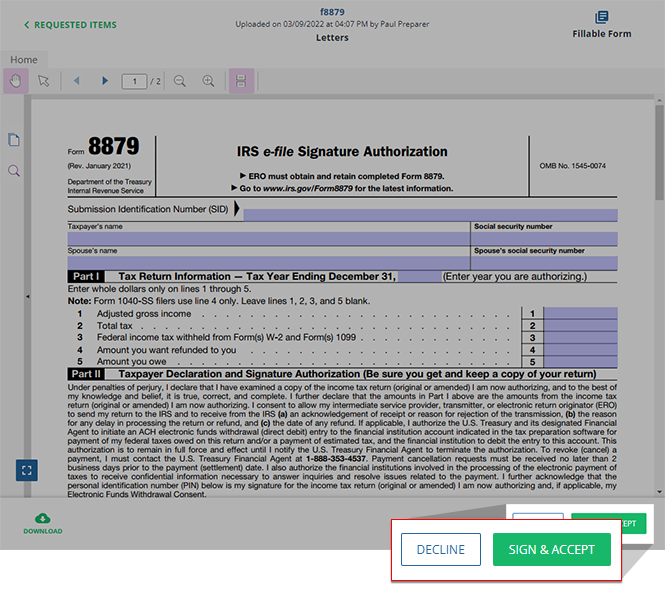
- To sign the document, selectSIGN & ACCEPTon the Document Viewer panel.
- Enter your first name. If the document has fillable fields, select the checkbox to confirm you have verified those fields and that you will no longer be able to edit them. SelectSubmit.
- TheKnowledge-based Authenticationwindow appears if you are required to verify your identity at the time of signing the document. Enter the required information then selectSubmit.noteIf the document requires a spouse's signature, your spouse will be required to sign the document by verifying their identity using their own TaxCaddy account or verify using the taxpayer's account. If either the taxpayer or spouse fails the identity verification, both will be required to sign the document manually.importantIf we can't locate an identity record associated with your information (in this case, you will see the following error message), you should download the document and sign it manually.
- When a knowledge-based authentication question appears, select the correct answer, then selectNext. Repeat this step until you have answered all 4 knowledge-based authentication questions.noteYou have 3 attempts to answer a set of 4 questions correctly, after which the document is moved to Uploaded Tax Documents, that status is updated to and you must download the document and sign it manually.
- Once TaxCaddy confirms you signed the document, selectDone.
iOS mobile app
- Sign in to the TaxCaddy mobile app.
- Signature requests that your tax professional has uploaded to your account will appear on theOverviewscreen. Select theSignrequest you'd like to fulfill to view it.If your tax professional has enabled 1041 tax return profiles on your account, you can select theSELECT TAX RETURNSdropdown to view your available tax return profiles.If the document uploaded by your tax professional is password protected, you'll need to enter the password. Contact your tax professional if you don’t have the password.
- Select theSignicon to open the signature menu.
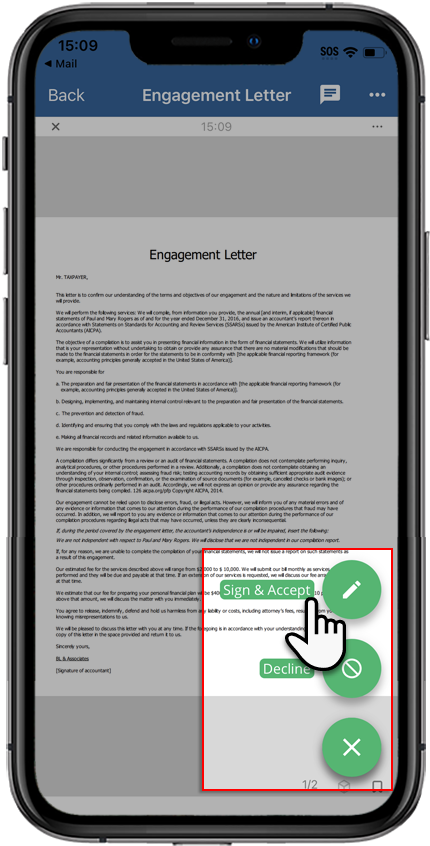
- To sign the document, selectSign & Accept.
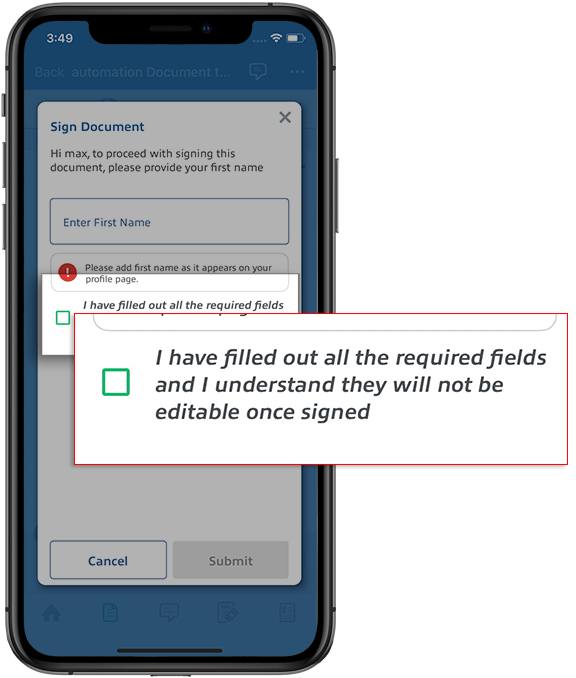
- Enter your first name as it appears on your profile page then selectSubmit.If the document has fillable fields, mark the checkbox to confirm you have verified those fields and that you will no longer be able to edit them.
- TheTaxpayer Verificationwindow appears if you are required to verify your identity at the time of signing the document. Enter the required information then selectSubmit.noteIf the document requires your spouse's signature, your spouse will be required to sign the document by verifying their identity using their own TaxCaddy account or verify using the taxpayer's account. If either the taxpayer or spouse fails the identity verification, both will be required to sign the document manually.importantIf we can't locate an identity record associated with your information (in this case, you will see the following error message), you should download the document and sign it manually.
- A knowledge-based authentication question appears next. Select the correct answer then selectNext. Repeat this step until you have answered all 4 knowledge-based authentication questions.noteYou have 3 attempts to answer a set of 4 questions correctly, after which the document is moved to Uploaded Tax Documents, that status is updated to and you must download the document and sign it manually.
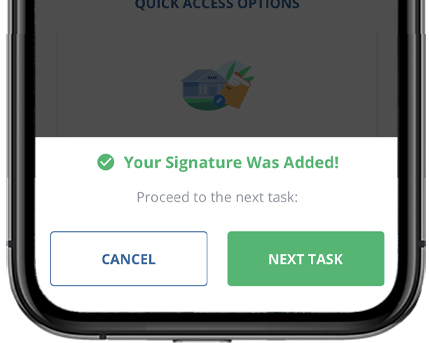
- Once you've completed your signature request, and tappedDoneon theSignature Completedwindow, you may be prompted to go to the next pending signature task if one exists.
- You can selectNEXT TASKto open your next signature task in theDocument Viewerto complete.
- You can selectCANCELto remain on theOverviewscreen.
Android mobile app
- Sign in to the TaxCaddy mobile app.
- Signature requests that your tax professional has uploaded to your account will appear on theOverviewscreen. Select theSignrequest you'd like to fulfill.If your tax professional has enabled 1041 tax return profiles on your account, you can select theSELECT TAX RETURNSdropdown to view your available tax return profiles.If the document uploaded by your tax professional is password-protected, you'll need to enter the password. Contact your tax professional if you don’t have the password.
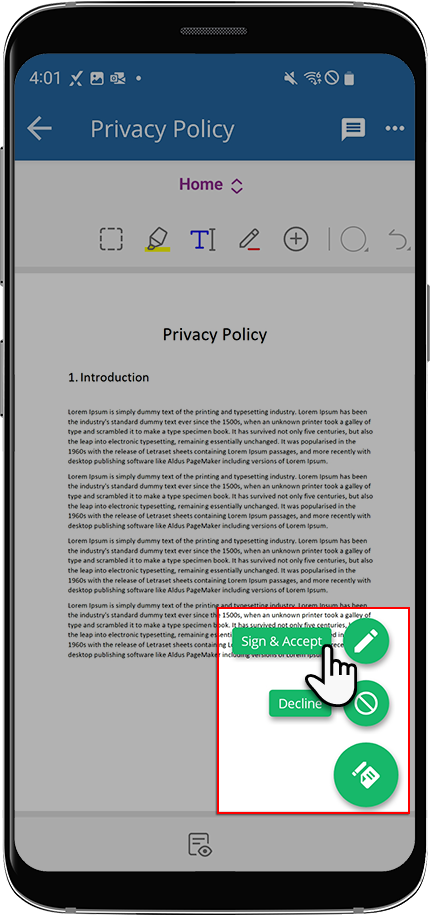
- Select theSignicon to open the signature menu.
- To sign the document, selectSign & Accept.
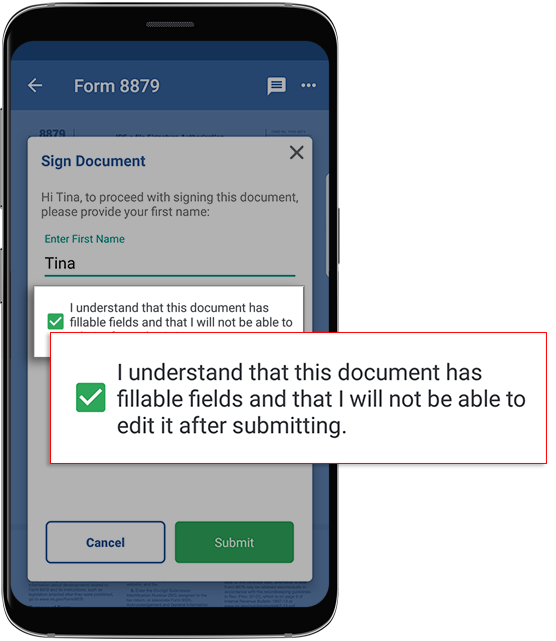
- Enter your first name as it appears on your profile page then selectSubmit.If the document has fillable fields, mark the checkbox to confirm you have verified those fields and that you will no longer be able to edit them.
- TheKnowledge-Based Authenticationwindow appears if you are required to verify your identity at the time of signing the document. Enter the required information then selectSubmit.noteIf the document requires your spouse's signature, your spouse will be required to sign the document by verifying their identity using their own TaxCaddy account or verify using the taxpayer's account. If either the taxpayer or spouse fails the identity verification, both will be required to sign the document manually.importantIf we can't locate an identity record associated with your information (in this case, you will see the following error message), you should download the document and sign it manually.
- A knowledge-based authentication question appears next. Select the correct answer then selectNext. Repeat this step until you have answered all 4 knowledge-based authentication questions.noteYou have 3 attempts to answer a set of 4 questions correctly, after which the document is moved to Uploaded Tax Documents, that status is updated to and you must download the document and sign it manually.
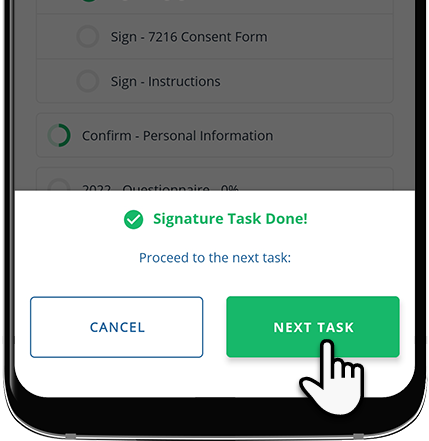
- Once you've completed your signature request, and tappedDoneon theSignature Completedwindow, you may be prompted to go to the next pending signature task if one exists.
- You can selectNEXT TASKto open your next signature task in theDocument Viewerto complete.
- You can selectCANCELto remain on theOverviewscreen.
Related Content
-
Sign documents as a taxpayer user
Format: Article

