
View and download documents
Show all hidden content
The Document Viewer lets you view documents inside TaxCaddy.
TaxCaddy.com on PC, Mac, or tablet
Follow these steps to view a document in the Document Viewer using TaxCaddy.com on your PC, Mac, or tablet.
- Sign in to TaxCaddy.com
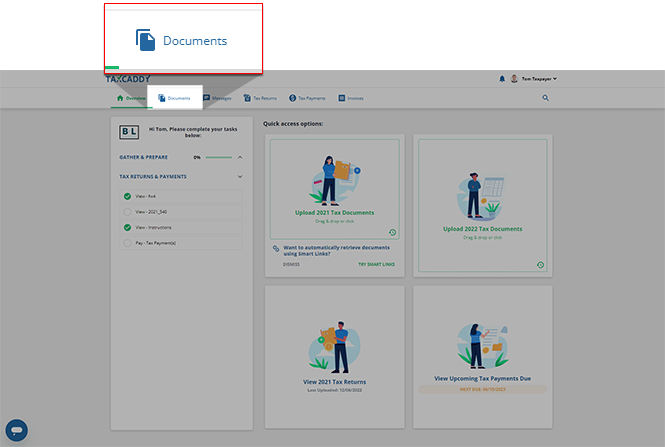
- SelectDocuments.
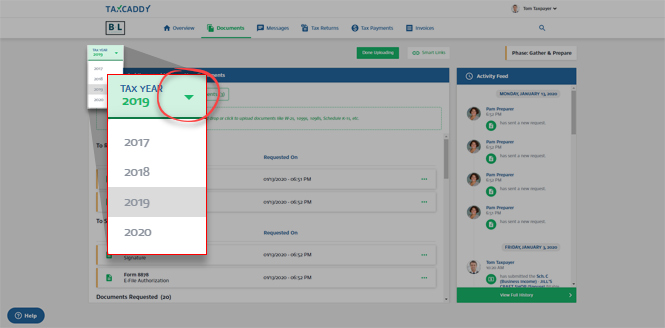
- Select the tax year.
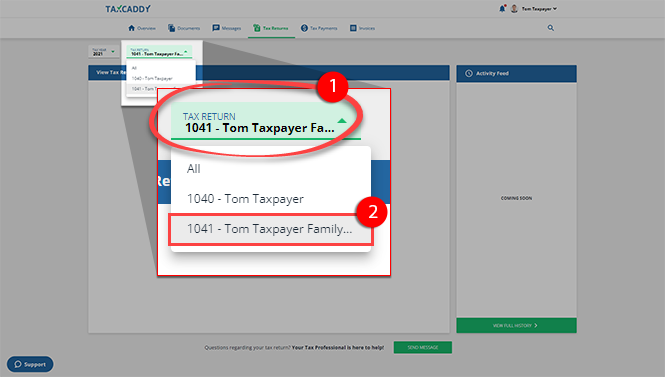
- Skip this step if theTAX RETURNmenu is not available. If you have multiple tax return profiles, select the tax return profile with the documents you want to view and download.
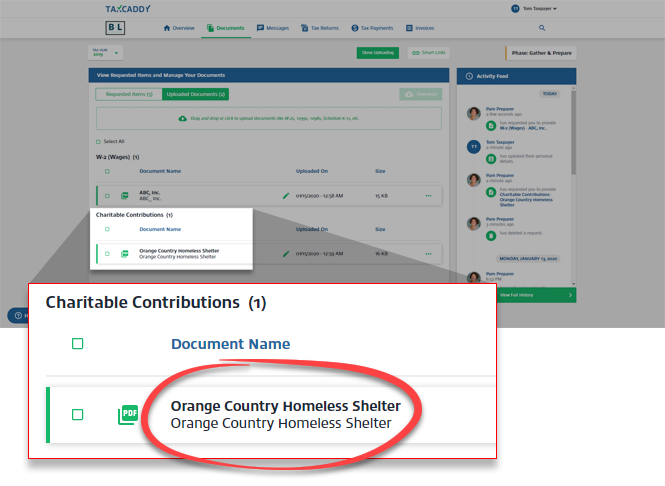
- Select the document you want to view.
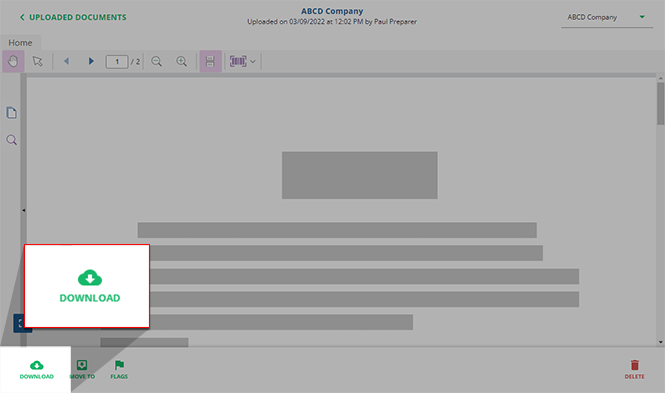
- The document opens in the Document Viewer panel. To download the document, selectDOWNLOAD.
 You can message your tax professional regarding this document using the message panel. Your message is automatically associated with the document and also accessible inMessages.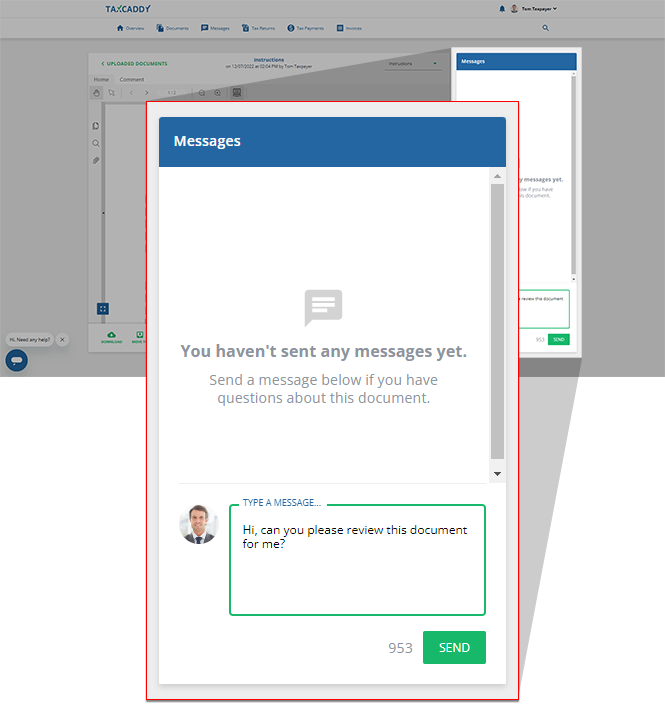
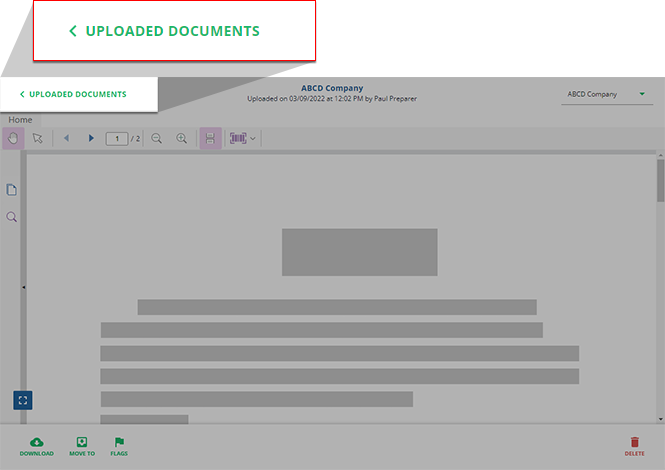
- When you're done viewing the document, selectUPLOADED DOCUMENTSto go back.
- You can also download documents directly from theUploaded Documentstab. Mark the checkbox next to each document you want to download.
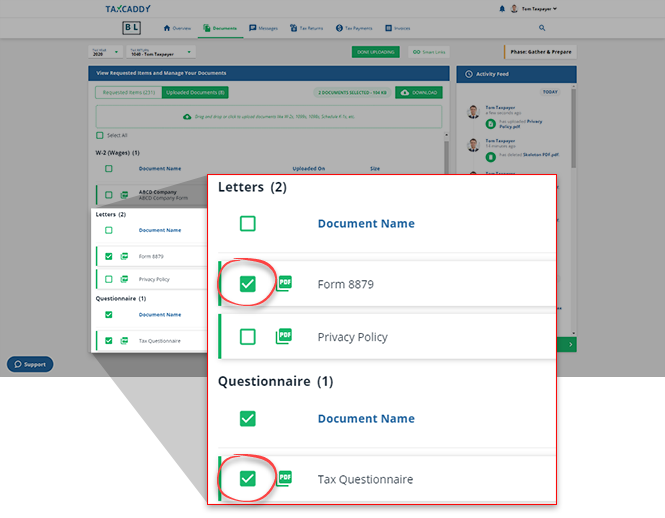 To bulk download all uploaded documents, useSelect Allto select all uploaded documents.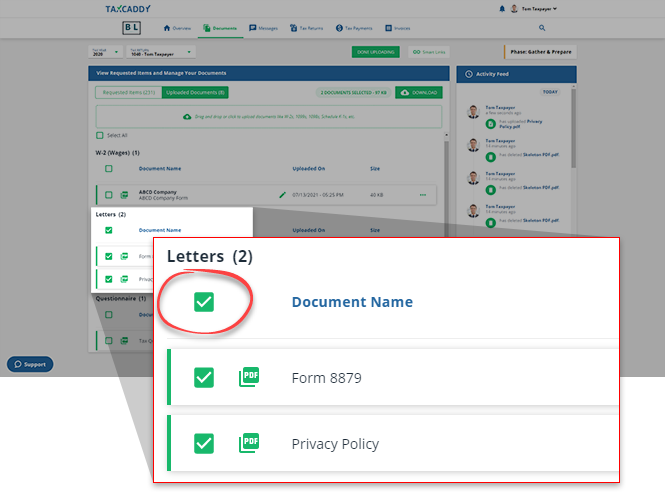
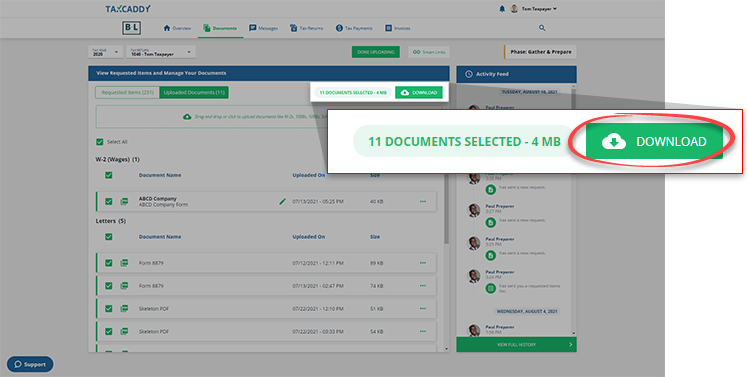
- The total file size will be displayed at the top. You can only download 1 GB of files at a time. If there is more than 1 GB of files in an account, you'll need to download in multiple selections. SelectDOWNLOADto bulk download all selected documents.
Downloading without Annotations
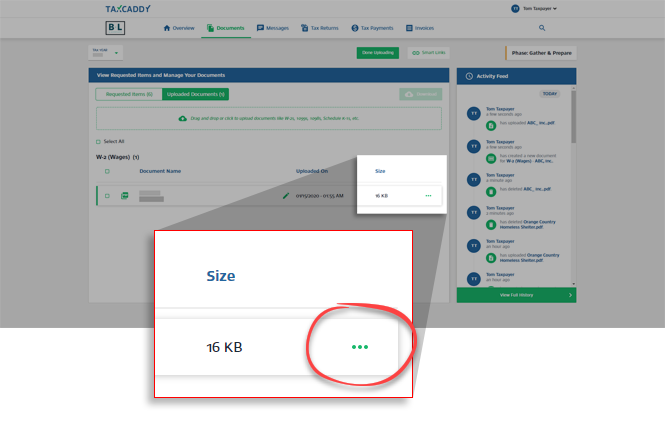
- Select theMenuicon on the document tile.
- SelectDownload.
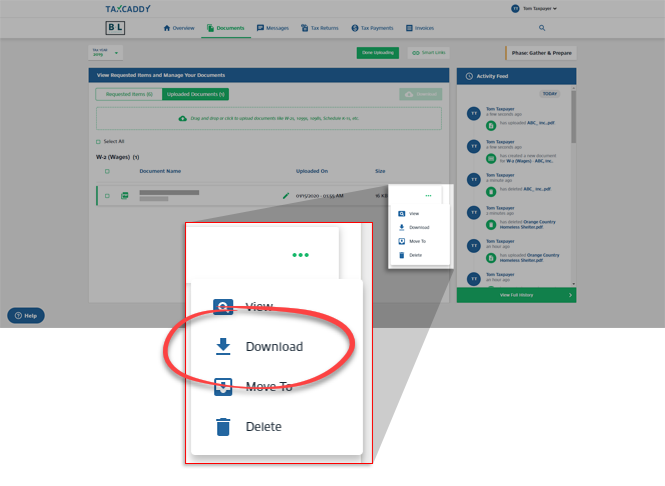
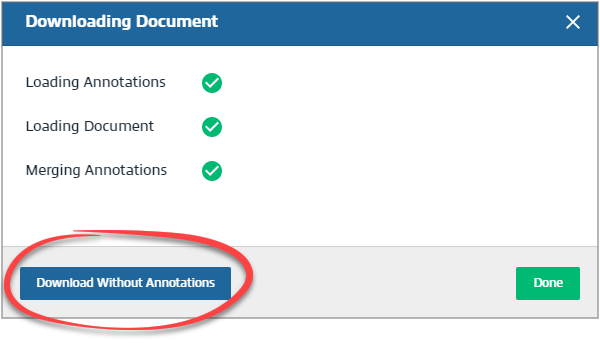
- SelectDownload Without Annotationsin thewindow.Downloading Document
iOS mobile app
Follow these steps to view a document in the document viewer using the iPhone mobile phone app.
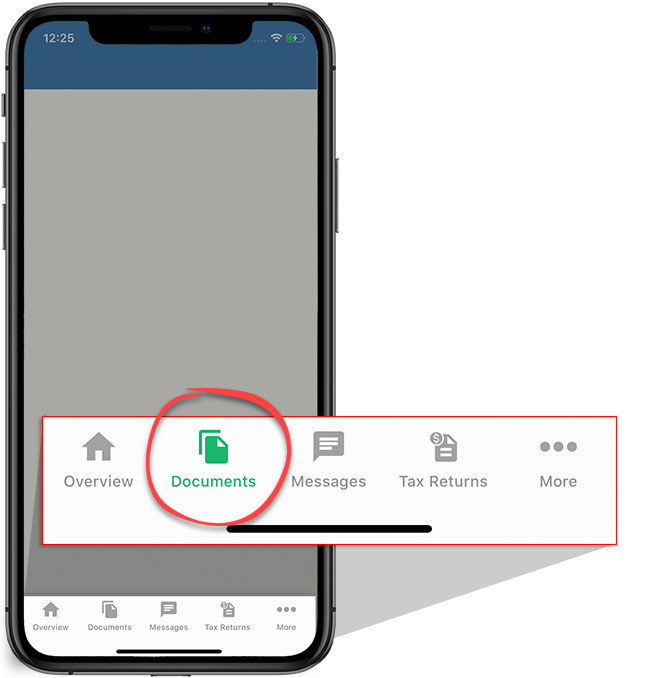
- Sign in to the TaxCaddy mobile app, then select theDocumentsicon at the bottom.
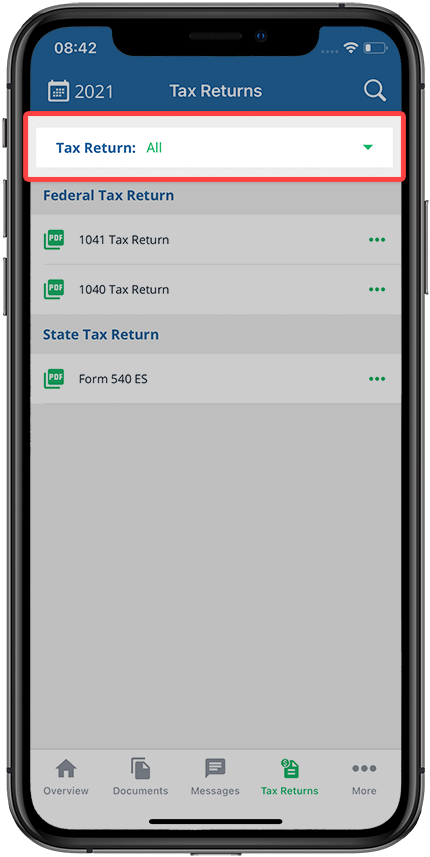
- If your tax professional has enabled 1041 tax return profiles on your account for trust/estate, select theTax Returndropdown to select the tax return profile.
- Select theRequestedorUploadedtab.
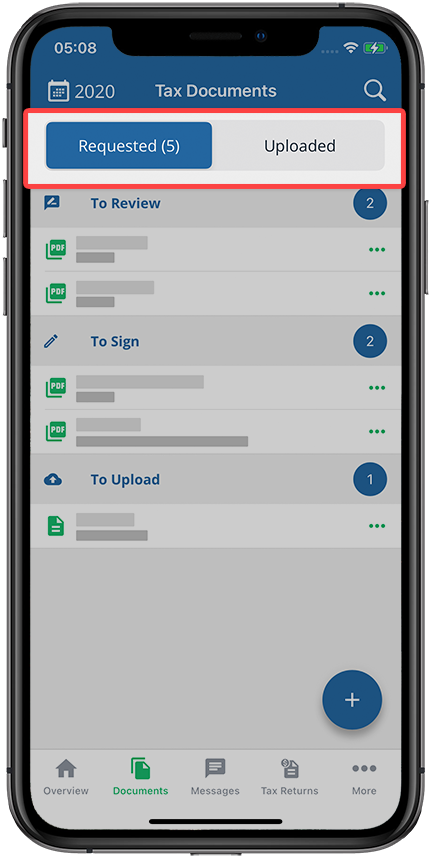
- Select the document you want to view.
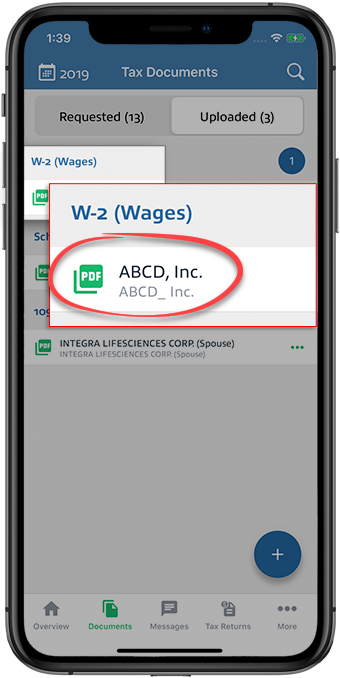
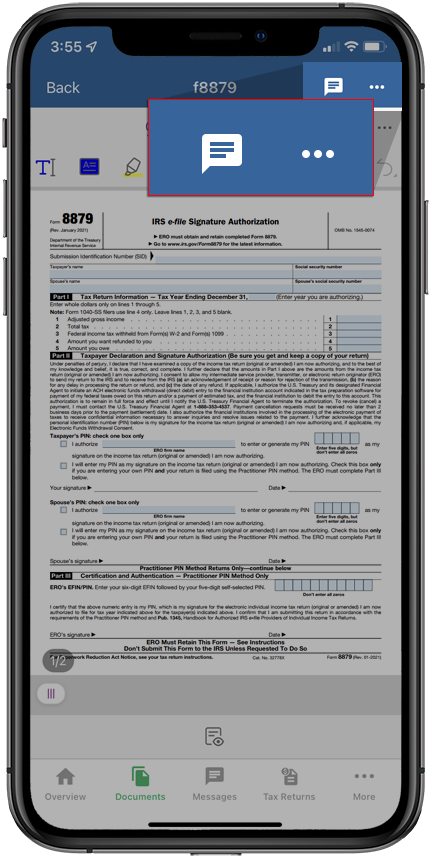
- The document will open in the Document Viewer.noteYou can message your tax professional regarding this document by selecting the message icon on the top bar. Your message is automatically associated with the document and also accessible in Messages.
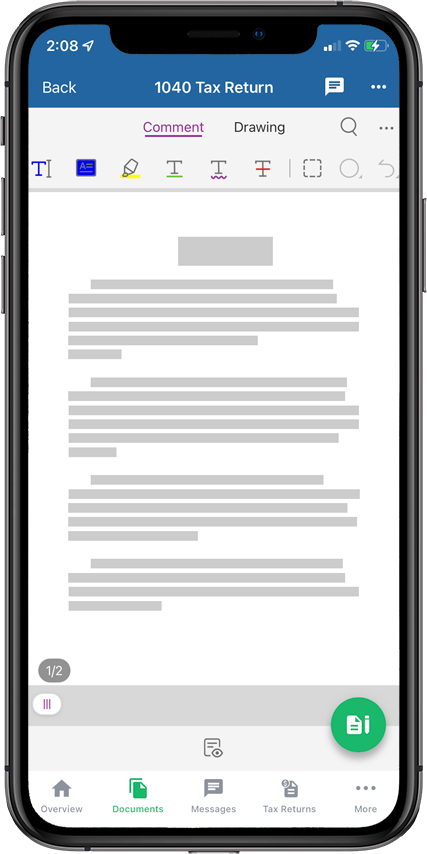
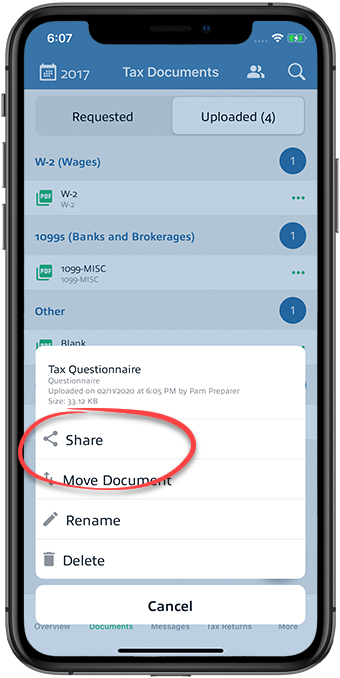
- To download a document, select theMenuicon on an uploaded document.
- SelectShare.
 SelectSave to Filesto save the document on your device.
Android mobile app
Follow these steps to view a document in the document viewer using the Android mobile phone app.
- Sign in to the TaxCaddy mobile app then select theMenuicon.

- SelectTax Documents.
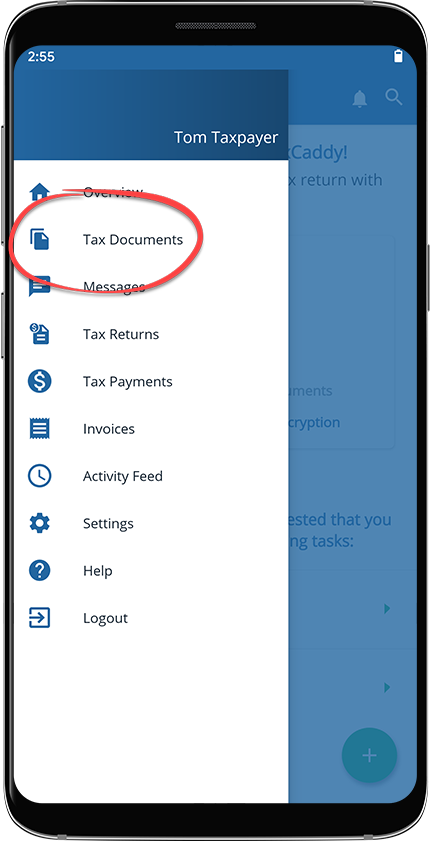
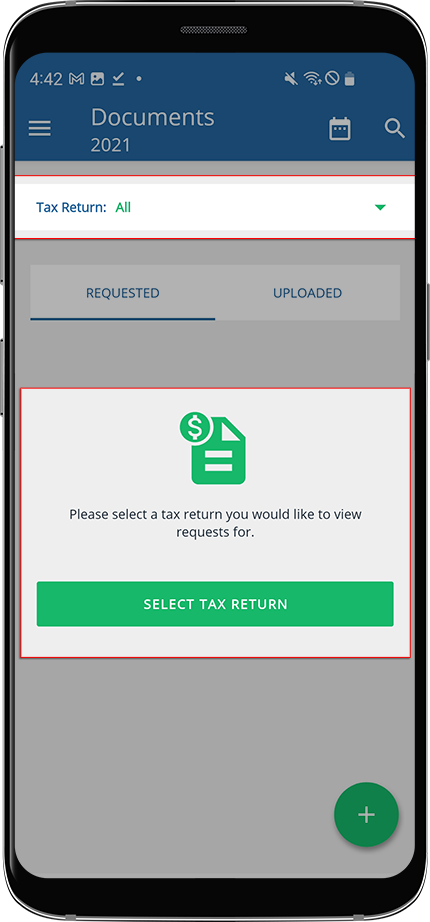
- If your tax professional has enabled 1041 tax return profiles on your account for trust/estate, select the tax return profile from theTax Returndropdown.
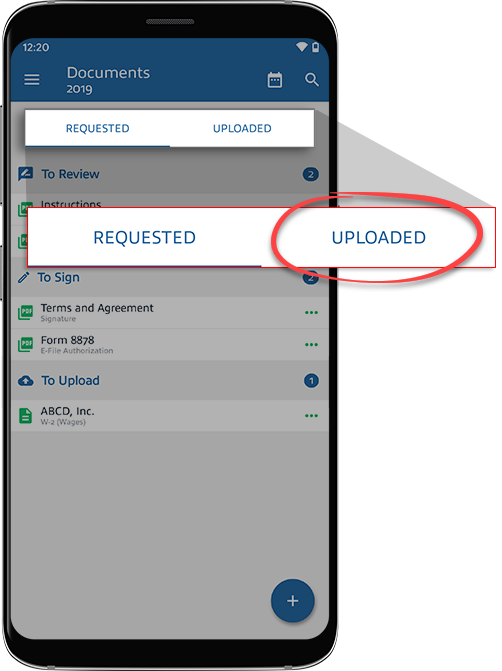
- If you want to view a tax document that you've uploaded, selectUploaded.
- Select the document you want to view. The document opens in the document viewer.noteYou can message your tax professional regarding this document by selecting the message icon on the top bar. Your message is automatically associated with the document and also accessible in Messages.
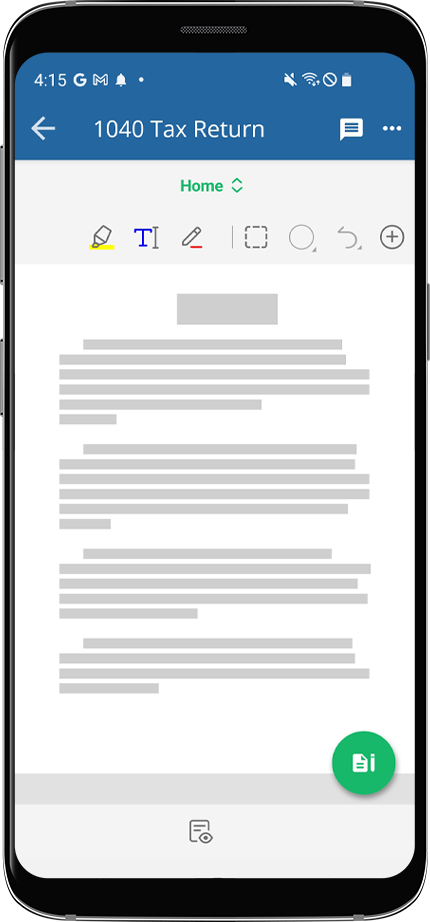
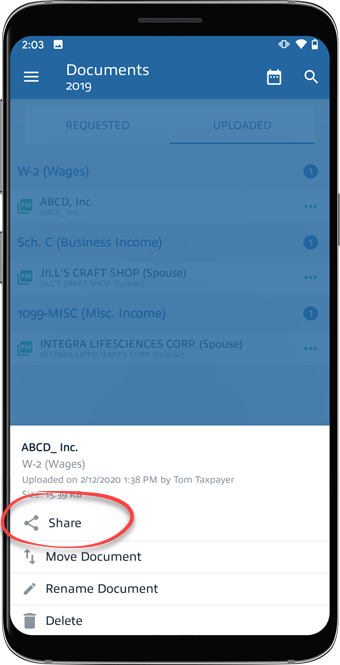
- To download a document, select theMenuicon on an uploaded document.
- SelectShare, then a service to save to (for example, Google Drive or Dropbox).
Related Content
-
Download multiple documents at once
Format: Article

