
Download multiple documents at once
Follow these steps to download multiple documents at once.
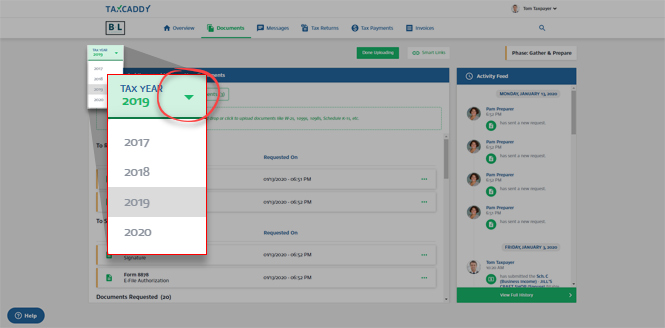
- SelectTAX YEARto select the relevant tax year.
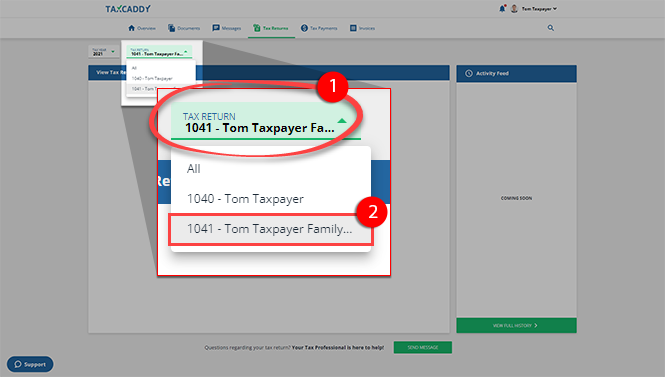
- If your tax professional has enabled 1041 tax return profiles on your account for trust/estate, select the correctTAX RETURNprofile.
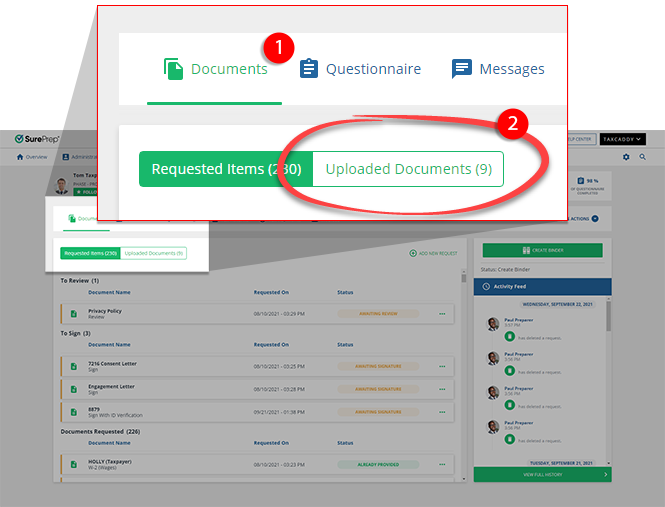
- SelectUploaded Documentsto view documents previously uploaded to your selected tax return.
- Select the checkbox next to the documents you want to download.
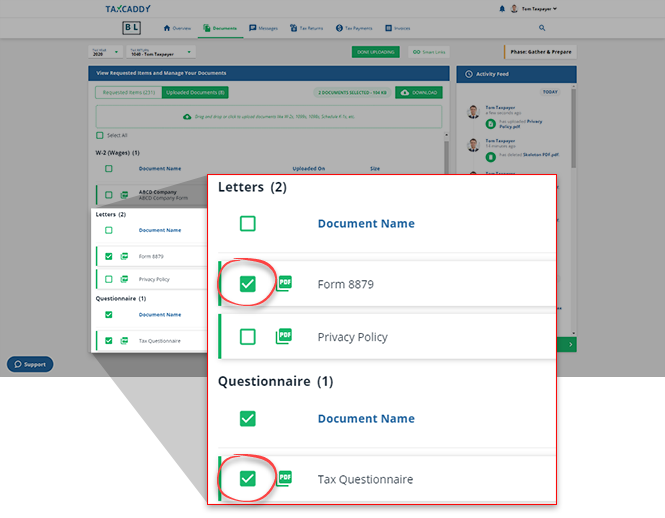
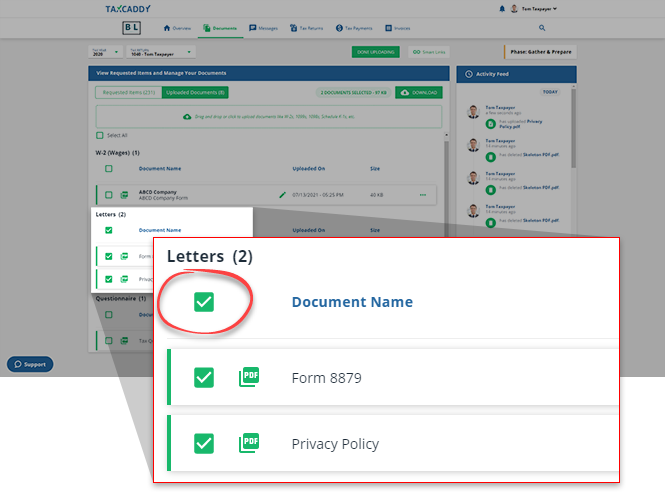
- To select all documents in a category, select the checkbox at the top of that category.
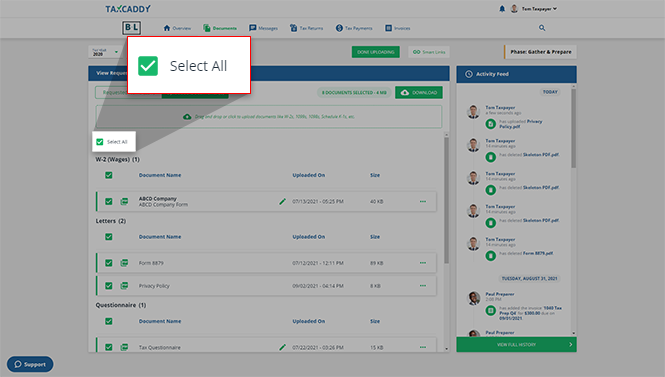
- To select all uploaded documents, mark the checkbox next toSelect All.
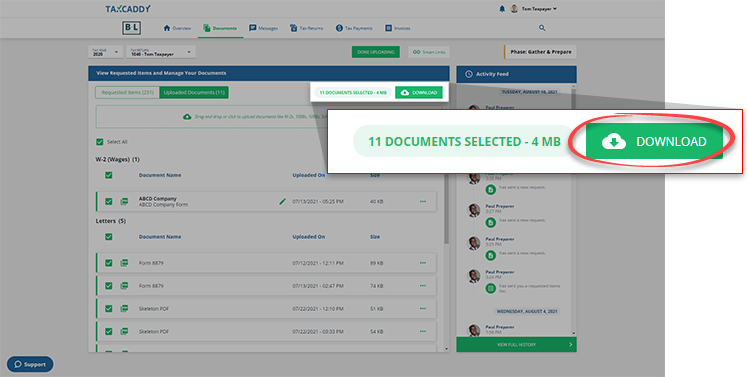
- The total file size will be displayed. You can only download 1 GB of files at a time. If there is more than 1 GB of files in your account, you'll need to download in multiple selections. SelectDOWNLOADto begin your download.
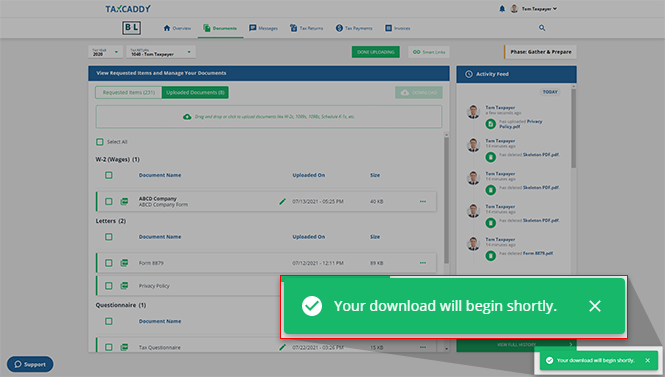
- The files are downloaded as a ZIP file.
Related Content
-
View and download documents
Format: Article

