
Indicate a requested item doesn't apply, was already provided, or was prepared by your firm
Show all hidden content
Document requests sent by your tax professional can be supplied by uploading the requested items. However, if the document is no longer applicable, already provided, or if it will be handled by your tax professional, then you can use one of the following options to fulfill your tax professional's request:
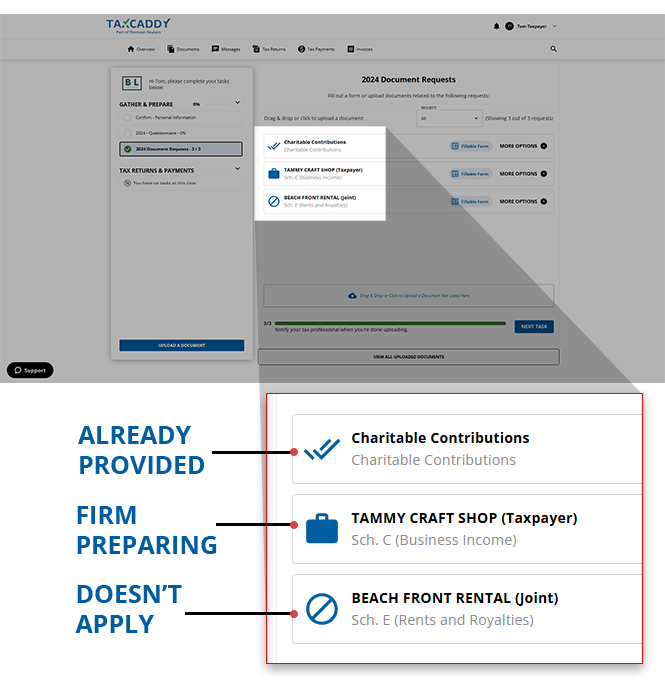
- Doesn't Apply: This requested item doesn’t apply to you
- Already Provided: This requested item was provided to your tax professional elsewhere
- Firm Preparing: Your tax professional will be preparing this request on your behalf
TaxCaddy.com on PC, Mac, or tablet
Follow these steps to indicate a requested document doesn't apply, was already provided, or will be handled by your tax professional using TaxCaddy.com on your PC, Mac, or tablet.
- Sign in to TaxCaddy.com.
- On theOverviewscreen, you will see aTask Liston the left, with yourUploadrequests listed as[Tax Year] Document Requests.
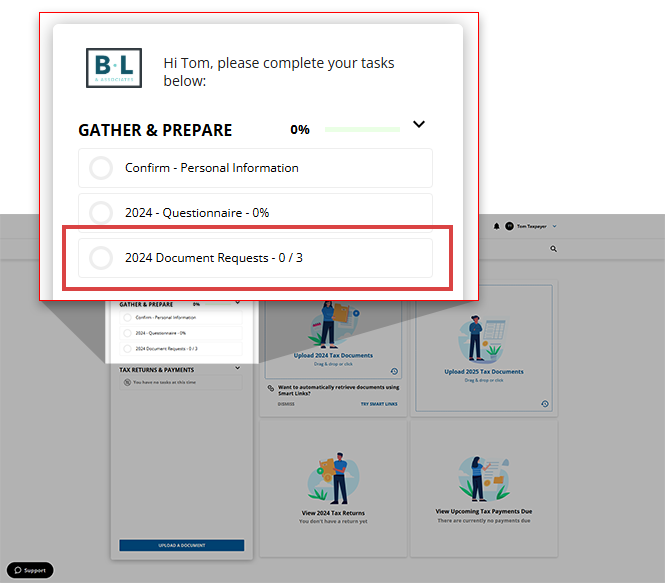
- Select[Tax Year] Document Requeststo open a list of your document requests next to yourTask List.By default, both pending and previously fulfilled requests will be displayed. However, you can select the dropdown to display only
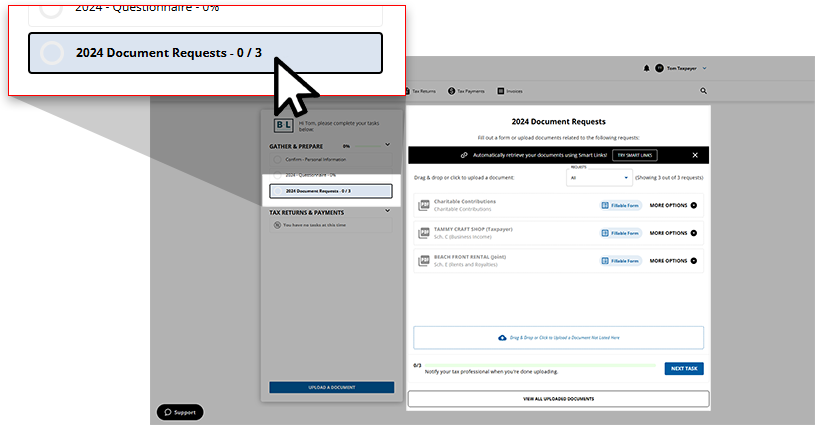 Open Requests.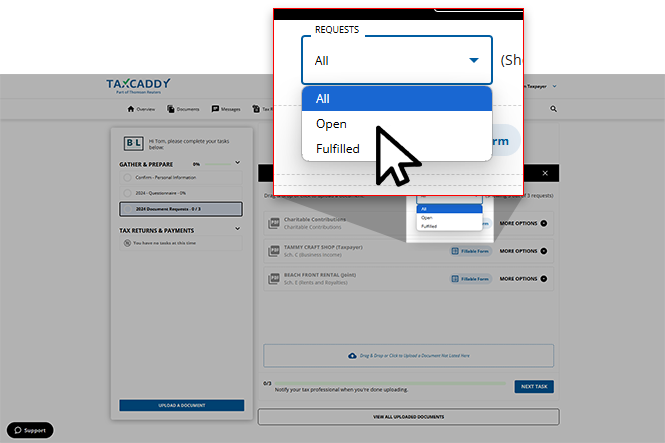
- Select theMORE OPTIONSmenu to view all fulfillment options for this request, then selectDoesn't Apply,Already Provided, orFirm Preparing.
- Doesn't Apply: This requested item doesn’t apply to you
- Already Provided: This requested item was provided to your tax professional elsewhere
- Firm Preparing: Your tax professional will be preparing this request on your behalf
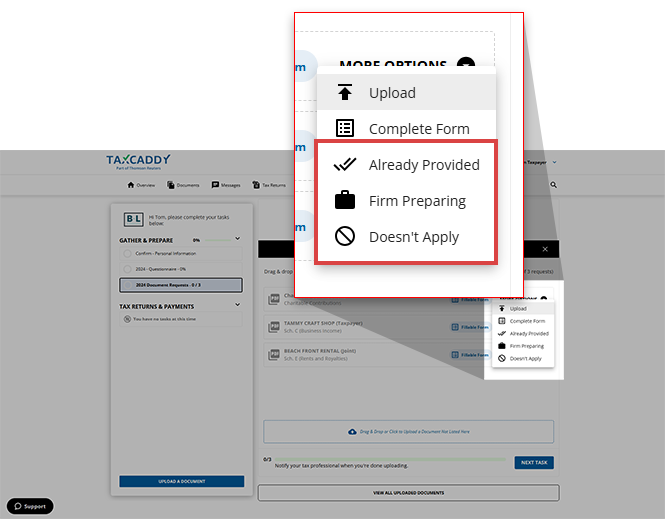
- Depending on your choice, theDoesn't Apply,Already Provided, orFirm Preparingicon will appear next to the associated document request.
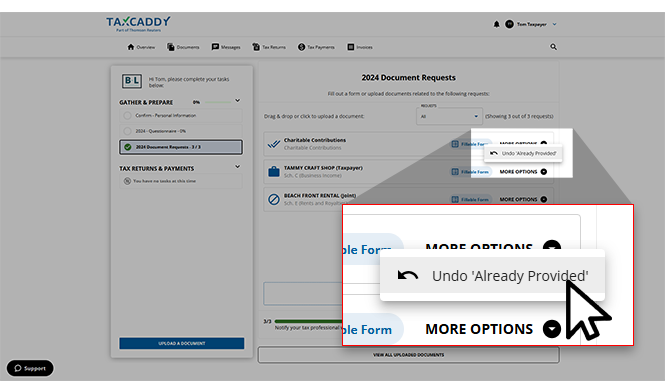
- If you want to restore the document request, reopen theMORE OPTIONSmenu, then selectUndo Doesn't Apply,Already Provided, orFirm Preparing.
iOS mobile app
Follow these steps to indicate a Requested Item doesn't apply or has already been uploaded while using the TaxCaddy iPhone mobile phone app.
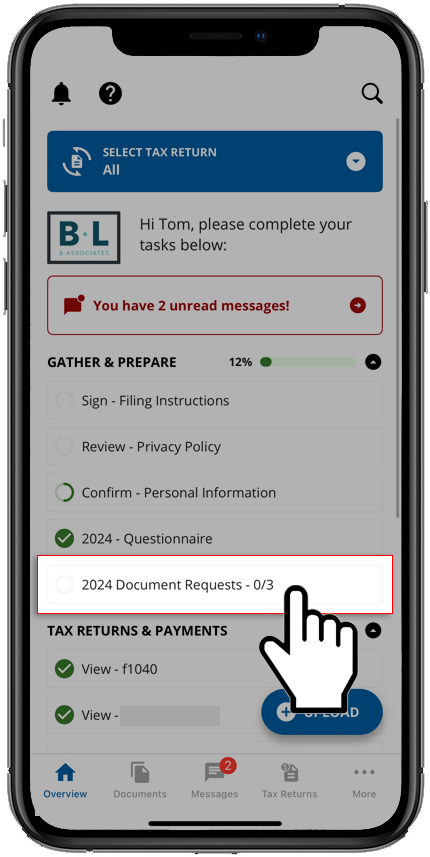
- Sign in to the TaxCaddy mobile app and select[Tax Year] Document Requeststo go to your pending document requests.
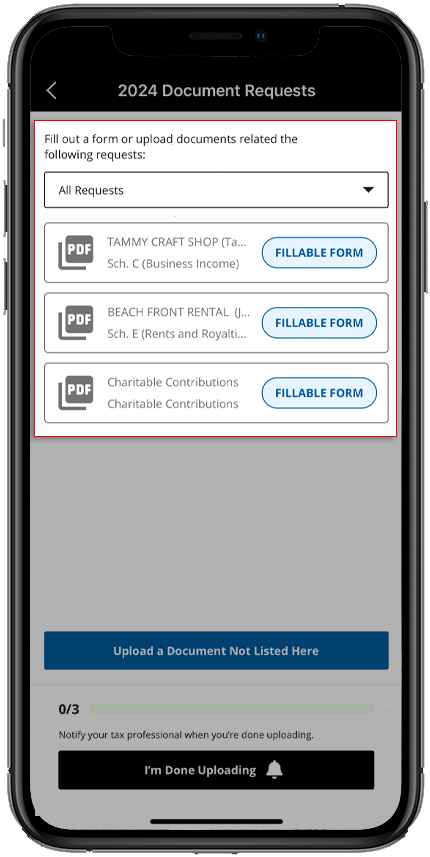
- Your document requests will appear under[Tax Year] Document Requests. Select the request that doesn’t apply or that was already provided.
- Select eitherDoesn't ApplyorAlready Provided. TaxCaddy displays a confirmation. Additionally, your tax professional is notified that the document doesn't apply, was already provided, or will be handled by your tax professional.
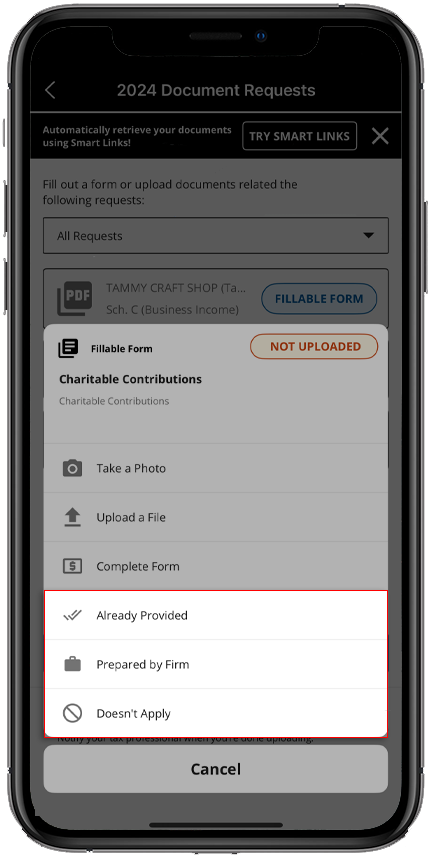
Android mobile app
Follow these steps to indicate a Requested Item doesn't apply, has already been uploaded, or will be handled by your tax professional using the TaxCaddy Android mobile phone app.
- Sign in to the TaxCaddy mobile app and select[Tax Year] Document Requeststo go to your pending document requests.
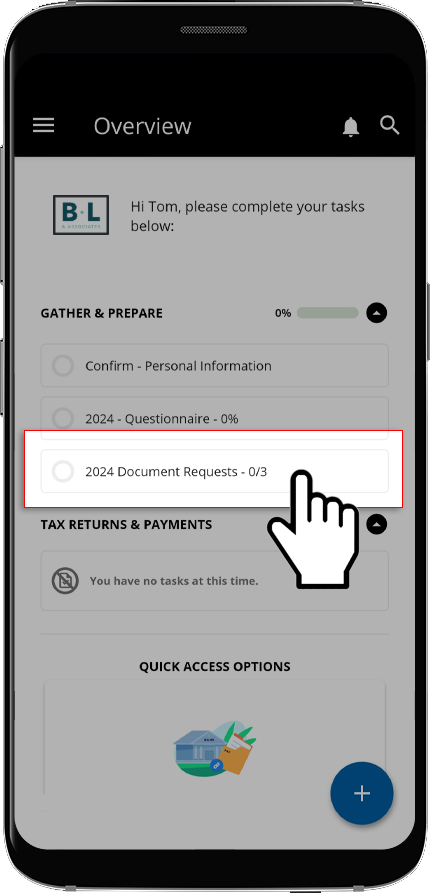
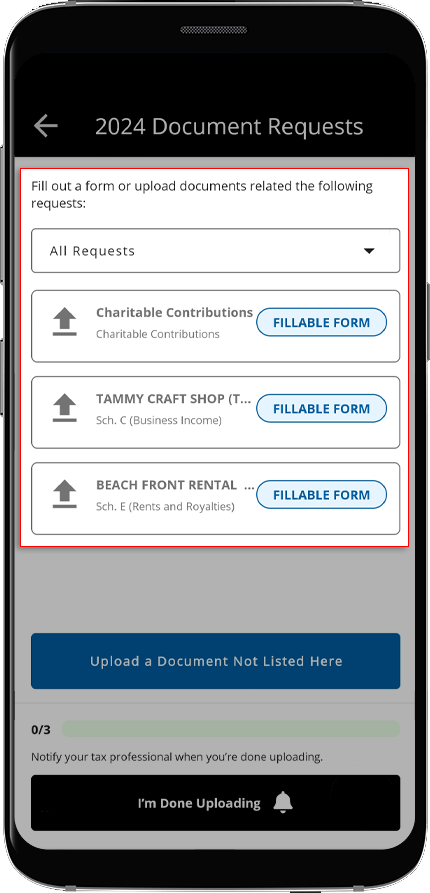
- Your document requests will appear under[Tax Year] Document Requests. Select the request that doesn’t apply, was already provided, or will be handled by your tax professional.
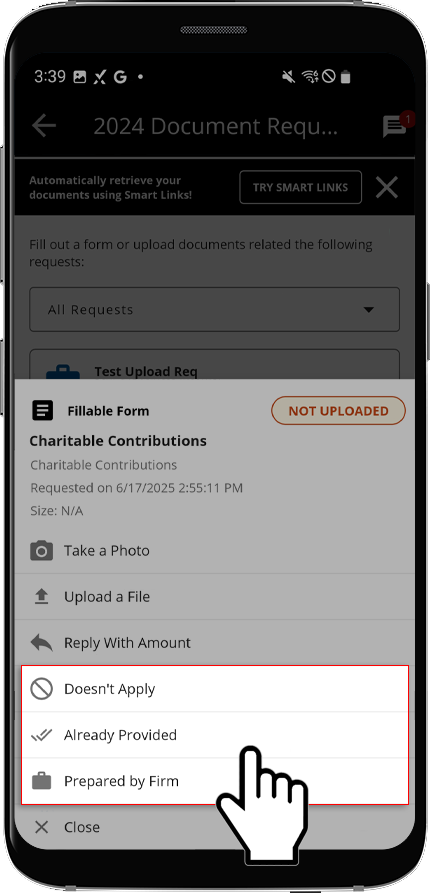
- SelectDoesn't Apply,Already Provided, orPrepared by Firm. TaxCaddy displays a confirmation. Additionally, your tax professional is notified that the document doesn't apply, was already provided, or will be handled by your tax professional.
Related Content
-
View requested items
Format: Article

