
Defining system-wide defaults for the license space
Setting up default theme
Contract Express allows configuring look and feel of the main site and subsites. For more details about configuring themes, see Managing Contract Express look and feel with themes.
To set the theme for the main site:
- Go toAdmin>Features.
- Select required theme from theThemedropdown inConfiguration defaultssection.
- ClickSave.
For more details on configuring themes for subsites see Creating sites.
Setting up default profile
Profile, when applied to a template, manages behaviour of questionnaire and generated documents. For more details about profiles, see Managing profiles.
To configure the default profile for the main site:
- Go toAdmin>Features.
- Select required profile from theProfiledropdown inConfiguration defaultssection.
- ClickSave.
Defining default tab for new document
You can define which tab Contract Express displays to users when they start creating new document.
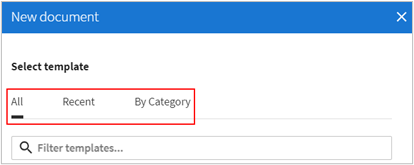
To define this setting:
- Go toAdmin>Features.
- Select required value from theDefault tab for new documentdropdown inDocumentsarea:
- All- displays all available templates.
- Recent- displays recently used templates.
- By category- displays template categories for browsing (if categories are enabled, see Enabling categories for templates).
- ClickSave.
Defining default template access
By default, only owners of templates have full access to their templates while all other Authors have write access and Users have read access. To enable other roles to have full access to templates:
- Go toAdmin>Features.
- Select required value from theTemplate accessdropdown inTemplatessection.
- ClickSave.

This setting will
not
apply to templates that have been uploaded prior to the change. See Sharing a template for more details on these rights.Customising document status names
Contract Express allows to configure status names for documents, approvals (see Enabling approvals and configuring their status names) and negotiation (see Enabling negotiation and configuring its status names).
To customise document status names:
- Go toAdmin>Features.
- ClickManage statuses and actionsbutton in theDocumentsarea.
- Define custom names for statuses.StatusDescriptionIncompleteWhere there are questions in the questionnaire have not been completedRequires approvalWhere an approval does not auto-start and needs to be sent out for approvalAwaiting approvalWhere an approval has been requested and is awaiting an approval actionRejectedWhere the approval has been rejectedNegotiatingWhere the Document has been sent for negotiation and is awaiting completionReadyWhere the approval has been granted, or where the document does not require approval and is completeSent for SignatureWhere eSignature is enabled, and the document has been sent for signatureExecutedWhere eSignature is enabled and the document has been signed in your chosen eSignature platformExportedWhere the Document has been exported to your chosen Document Management System
- ClickSave.