
Templates tab
You can manage Contract Express templates with the
Templates
tab. There are two template types used in Contract Express: - Word-based templatesare used to automate documents. For guidance on authoring Word-based templates, see Creating a new variable and inserting it into a template.
- Flowchart templatesare used to automate expertise and guidance. For more information about Expertise Automation and working with flowchart templates. see Working with flowchart templates.
Uploading templates
Uploading templates in Contract Express
To upload a template:
- Go to theTemplatestab.
- Click theUpload templatesbutton.
- Drag and drop the template file to the opened panel or browse for the file.After the successful upload, Contract Express gives you an option to launch the questionnaire for the uploaded template.

Uploading Word-based templates from Contract Express Author
Contract Express Author add-in allows you to test a template with or without uploading the template to Contract Express:
- ClickTest > Upload and launchto upload the template to Contract Express and test it;
- ClickTest > Launchto test the current version open in Contract Express Author without uploading it to the site.
This will launch the questionnaire for that template - see Completing questionnaire for more details on navigating the questionnaire.
Viewing template details
By selecting a template from the
Templates
tab, you can view its details and configure it.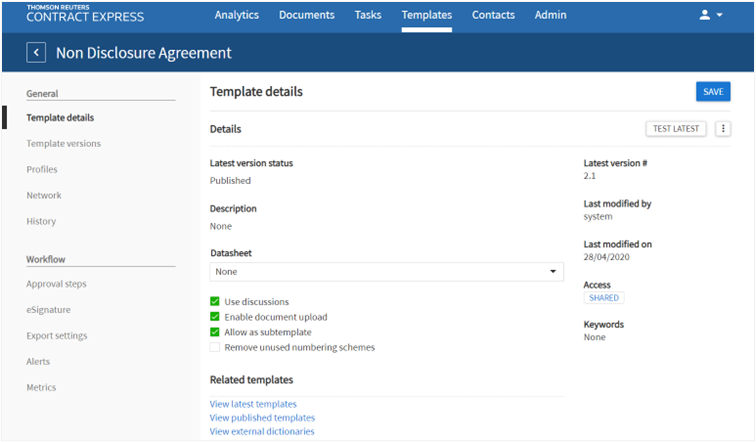
Most of the actions available in this tab will only affect the latest version of the template, rather than all previous ones.
Sharing a template
To share a template:
- Go to theTemplatestab and select the required template.
- On the template details page click the button inAccesssection. Name of the button reflects the current sharing settings for the template.
- In the opened panel set up the sharing settings for the template:
- Select Shared from theAccessdropdown, if you want to share the template
- Check theMake publiccheckbox on thePublicaccesstab, if you want to make the template accessible by Guests. CheckShow on public pageto display the template on the public page.
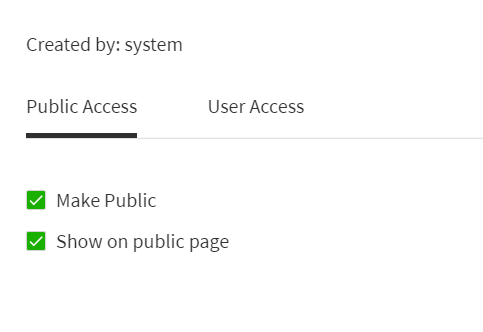
- Define access for Contract Express users with the User access tab. You can set up access for users, groups or roles.Contract Express automatically apply the template access settings according to theTemplate Accesssetting inAdmin > Features(see Defining default template access).noteAdministrators have Full access to all templates and functions, regardless of what access level has been specified. The Author who uploaded the template is considered the owner of the template and is automatically granted Full access on that template.
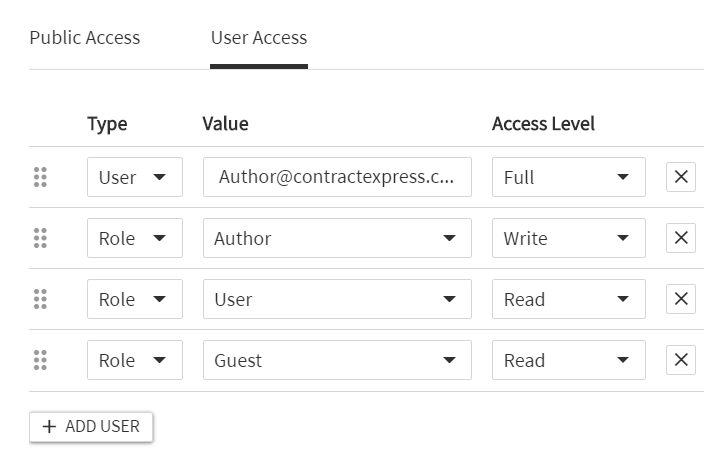 If you want to explicitly remove access from a user or group, set access to None. For example, by placing a user with an Access Level of None, above a group or role that contains that user, any access granted by that group or role will not be applied to that user.
 - ClickSave.
Where multiple entries give a user more than one Access Level, the occurrence highest in the access list will take precedence.
Functionality | Read | Write | Full |
|---|---|---|---|
View properties | Yes | Yes | Yes |
Launch Questionnaire/ Generate Documents (including testing) | Yes | Yes | Yes |
Download Template | No | Yes | Yes |
Archive Template | No | Yes | Yes |
Publish Template | No | Yes | Yes |
Edit Template Properties | No | Yes | Yes |
Upload Template | No | Yes | Yes |
Change Template visibility | No | Yes | Yes |
Delete Template | No | No | Yes |
Share Templates | No | No | Yes |
Viewing related templates and refreshing external dictionaries on the server
The
Related templates
section provides three links:- View latest templates
- View published templates
- View external dictionaries
The first two options can be used to view parent templates and subtemplates for the current template.
The
View external dictionaries
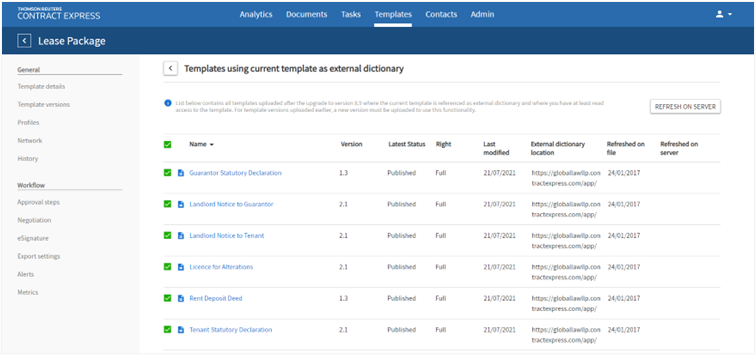
option will show templates that are attached to the current template as external dictionaries and links to check for any templates (latest or published versions) that use the current template as an external dictionary. When the list is run for templates that use the current template as an external dictionary, the table will show the last refresh date for these templates. If an external dictionary refresh is necessary, it can be run from this page:
- Select one or more templates;
- ClickRefresh on server.
note
- Refresh is done on the server only and does not change the word template itself. The template file can be refreshed with the new definitions the next time it is opened in word.
- For external dictionary data to be available for display and refresh via the Contract Express user interface, the templates must be uploaded with Contract Express version 8.9 or higher. This can be done from Author or using the template upload option on the Templates tab.
Viewing template URLs
Contract Express allows launching the questionnaire for a template from a URL.
To get the questionnaire URL, you should:
- Go to theTemplatestab and select the required template.
- Click the
 button in the Links section to copy the URL. Contract Express provides the following URLs:
- Test linklaunches the latest version of the template; this could be Published or Unpublished.
- Live linklaunches the latest published version of the template.
Managing template versions
Contract Express allows storing multiple versions of a single template. A new version is created each time a template with a pre-existing reference is uploaded to the system.
To view the template versions:
- Go to theTemplatestab and select the required template.
- SelectTemplate versionssection.
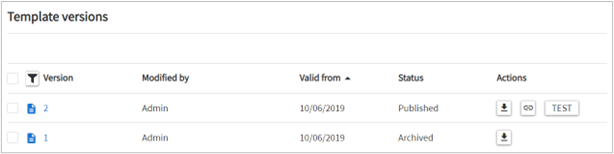
For every version, you can see the date and time of its upload, who it was uploaded by, and the status of each version. You can manually control the version number in Contract Express Author by updating the Reference field found in
Template Properties
.There are three status options for a template version:
- Unpublished- templates can only be launched from theTemplatestab by the author.
- Published- templates can be shared with other users and used to generate documents more generally. Contract Express will look to the most recent Published version of a template when a user with appropriate privileges attempts to launch the questionnaire.
- Archived- versions that have been manually archived by the user. See Archiving templates for details on archiving a template.
With Write access, you can download any version of the template using the buttons in the
Actions
column.You can test any published or unpublished version of a template using
Test Latest
or Test
buttons.To see more details about a template, click on the version number to go to the version details screen.
Viewing related categories
If categories are enabled for the license space (see Enabling categories for templates), and the template is used in them, you can view the list of related categories in the template details.
To view the related categories:
- Go to theTemplatestab and select the required template.
- SelectRelated categoriessection.
- View the related categories:
- Name in category- name of the template in the category. Click on this link to launch the template as it has been added to the category (i.e. with the assigned profile).
- Category Path- location of the category where the template exists. Click on the link to navigate directly to that category.
- Profile- profile that was assigned to the template when it was added to the Category. Click on this link to view the profile properties.

Adding template to a category
In the
Related categories
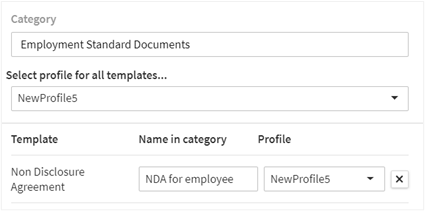
section, you can also add the template to a category:- Click theAdd to categoriesbutton.
- In the opened panel set up the parameters:
- SelectCategory, in which you want to add the template.
- SelectProfilethat will be associated with the template in this category.
- Define theName in categoryfor the template.
- ClickAdd.
Assigning profiles to a template
You can assign multiple profiles to a template to make the questionnaires launched from this template to use a combination of these profiles. See Managing profiles for more details on profiles.
To add profiles to a template:
- Go to theTemplatestab and select the required template.
- Select theProfilessection.
- Select theLivetab, if you want to add profiles to all live documents created from this template. Alternatively, add profiles to theTesttab if you want the profile to be applied to all test documents created from this template.
- Click theAdd profilebutton.
- Select the required profile from a dropdown. You can view the selected profile by clicking theView profilelink.
Defined settings within the first profile in the list of profiles will take precedence. If some of the parameters are not defined in the first profile, Contract Express will look for the parameter definitions in the next profile listed and so on. If Contract Express cannot find a definition for the profile in any of the listed profiles, the setting defined in the Built-in profile will be used.
note
If you are using categories, profiles assigned to templates within a category will override any profiles added to templates in the Profiles section.