

Triva isn't available right now.
Check out the support page for our phone number and hours

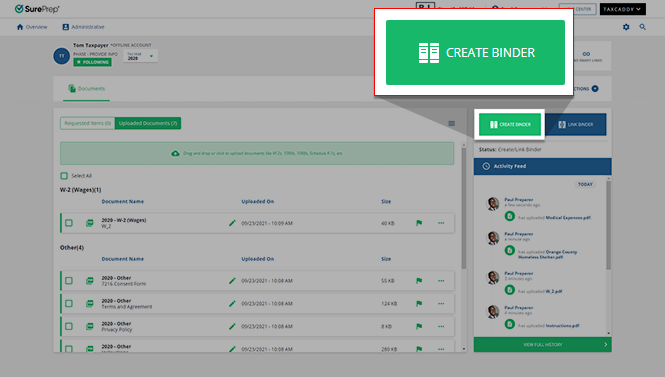
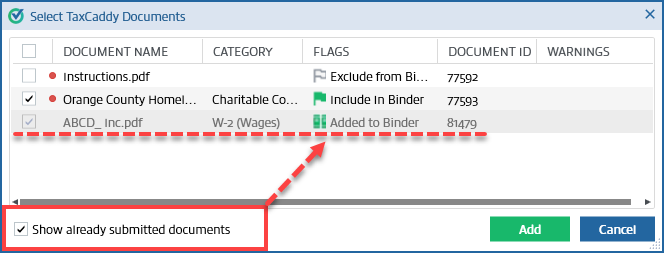
 on the document tile, it can't be included in the binder.
 Unable to create binder due to missing Tax Client Id. Please edit the client record in Client Management.

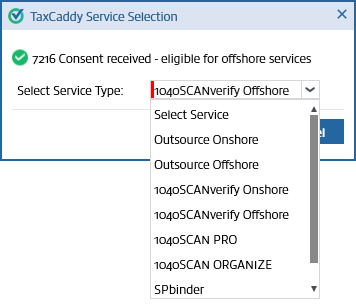
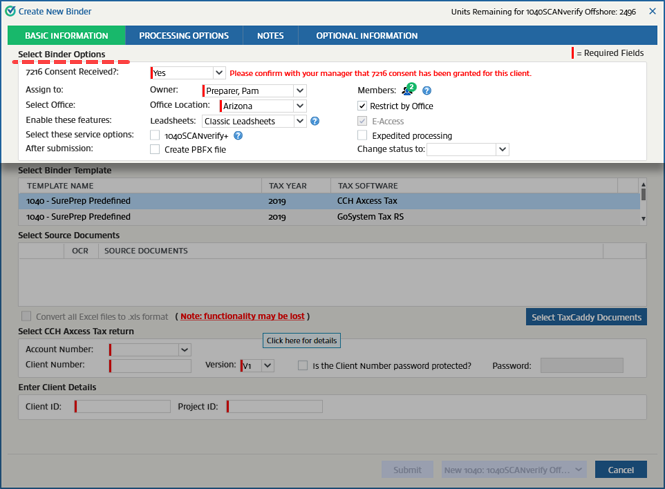

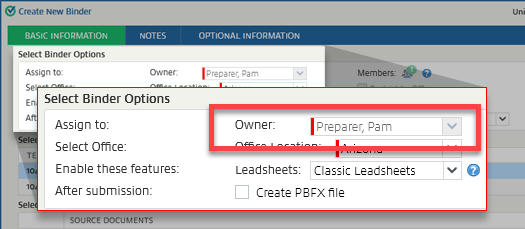


 will be pre-selected by default.
 will show next to the document name when a taxpayer uploads a new document that hasn’t been viewed by a tax professional.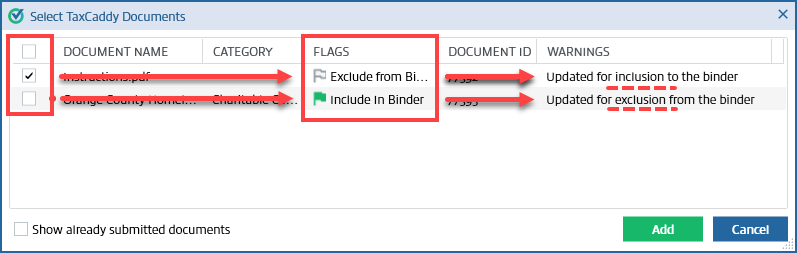


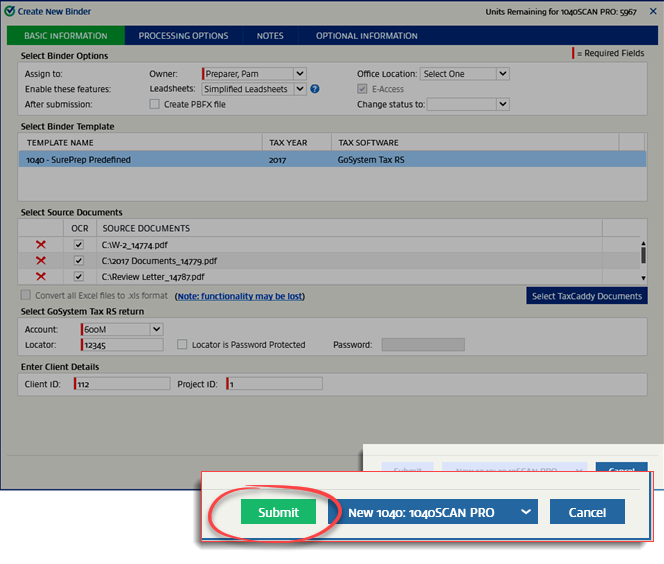
 if there is an error in your submission. Rectify the error in the text then select
  Article
Article
Article